

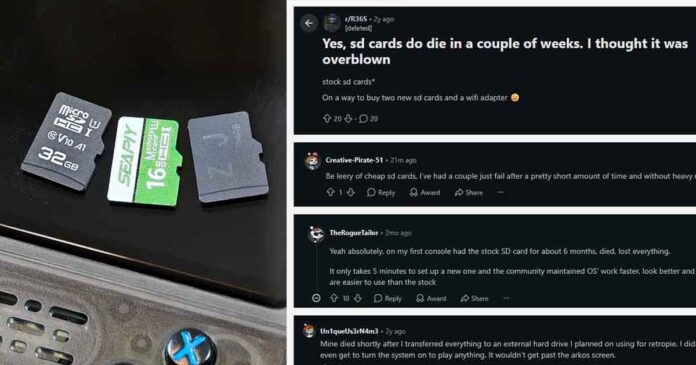
If the microSD card that came with your R36S or other budget retro handheld has no real brand on it, I would certainly back it up and move to a known-good card before you sink hours into saves and setup. While it’s true that plenty of stock cards keep working for months, the problem is that you can’t tell which kind you got, and when one does die, it usually takes the operating system, the games and your saves down with it.
I’ve gone through quite a few of these handhelds by now, and when one of my own stock cards started refusing to load random games out of nowhere I already knew what was up. Below you’ll also find what other owners report, what I found on four stock cards from my own pile, which cards I use instead, and how to move all of your files over to a new card without losing any data.
This web portal is reader-supported, and is a part of the Amazon Services LLC Associates Program. When you buy using links on our site, we may earn an affiliate commission!
You might also like: How To Check if a microSD, USB Drive or SSD Is Fake – Free Tools & Real Tests
Do Stock microSD Cards Really Fail That Often?
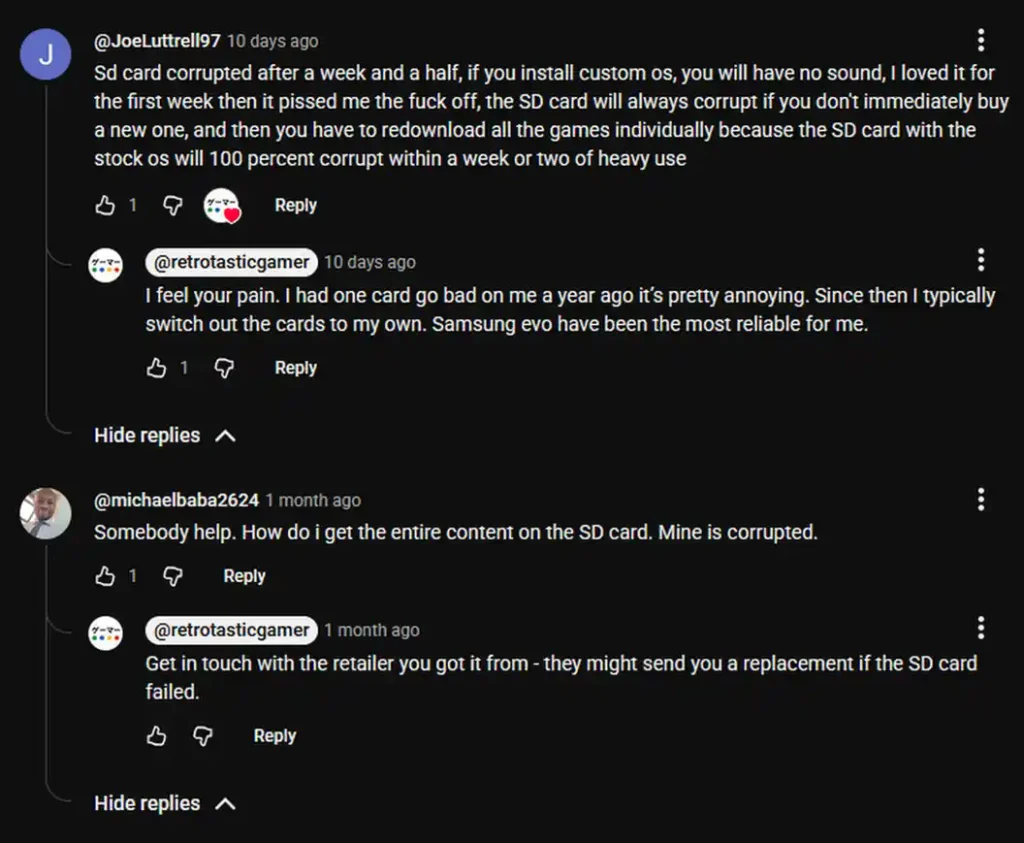
Look up your handheld’s name together with “SD card” in your chosen search engine and you’ll run into stories like these pretty quickly. The comments under this retrotasticgamer video describe two R36 Max (R36S clone) stock cards that got corrupted, and Reddit has plenty more of the same, with cards giving up anywhere from about a week to half a year in.
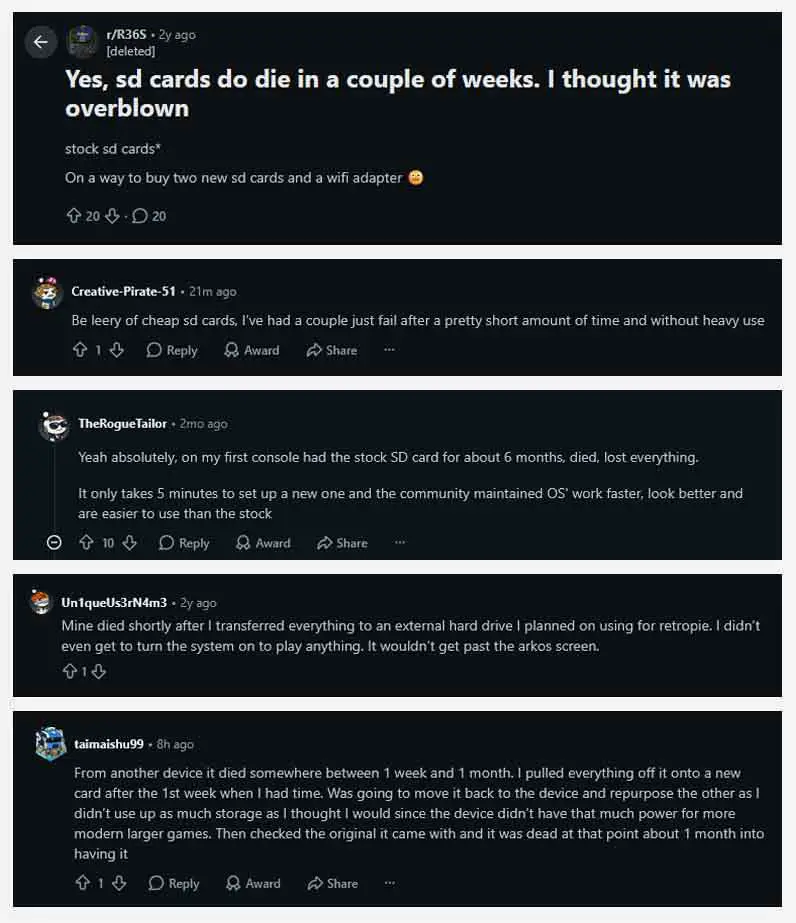
Nobody publishes real failure rates for the cards that ship with these handhelds, so take this as a pattern rather than direct proof of the phenomenon. People with dead cards have far more reason to post than people whose cards keep working, and a handheld that won’t boot isn’t always the card’s fault either. Unsafe shutdowns, a bad firmware image, a flaky card reader or a formatting mistake can all look exactly the same from the user’s perspective, so once again, your mileage may vary.
The closest thing to hard data I know of is Matt Cole’s Great MicroSD Card Survey, where in a large-scale experiment he has been filling hundreds of cards with data, reading it back and repeating that until they fail. While it doesn’t test handheld stock cards specifically, it shows the very same split.
By his two-year update from August 2025, he had also bought 21 knock-off cards, cheap copies sold under big-brand names, and 20 of them turned out to be fake, holding less data than their labels claim. Those fakes and cards from obscure brands fill the bottom of the endurance chart. A fake “Xiaomi” card averaged just 149 full write passes before 0.1% of its sectors went bad, while the genuine Kingston cards averaged close to 30,000.
His list of failure modes is just as telling: single flipped bits, data read back from the wrong spot on the card, and cards that suddenly turn read-only or stop showing up altogether. That goes a long way to explain why owners describe such different symptoms, from corrupted saves to games that randomly refuse to load, like on one of my own cards below.
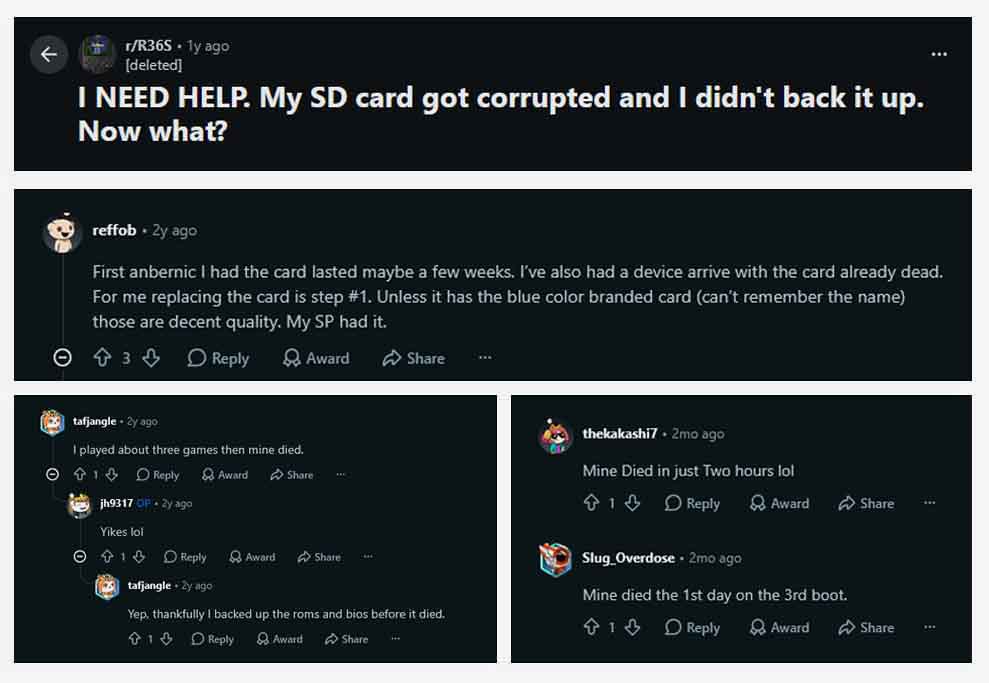
What makes the whole issue worse on handhelds like the R36S is that a single card holds the whole operating system, the games and the saves. When that card goes, the handheld often won’t boot at all until you prepare a new one, and a backup you make only after the trouble starts can carry damaged files right over to the replacement.
What Happened to Mine
I used most of my stock cards in their original handhelds for at least part of my testing. One of them, while it didn’t fully die, suddenly started failing to load random games from its library, with no firmware or settings changes on my side. Sadly, I can’t really remember which one it was, as I have a rather large collection of cheaper handhelds on my hands right now. I didn’t keep the others in use long enough to say anything about how long they last, but that one was enough for me to treat unknown stock cards as temporary storage. A decent branded card costs very little next to rebuilding an OS setup or replaying months of progress.
What I Found on Four Stock Cards
Before swapping them out, I backed up four stock cards from my handheld pile and checked each one in Windows Disk Management and CrystalDiskMark 9.0.3. These are of course just simple size and speed checks, not lifespan tests, so they can’t exactly tell you when a card is going to die. What they do show is how different two “64GB” stock cards that come with your average budget handheld can be.
Swipe the table sideways to see all columns.
| Card | Size in Windows | Seq. readSEQ1M Q8T1 | Seq. writeSEQ1M Q8T1 | 4K readRND4K Q1T1 | 4K writeRND4K Q1T1 |
|---|---|---|---|---|---|
| SEAPIY 16GBPowkiddy V90S | 14.91GB | 97.68MB/s | 30.36MB/s | 4.38MB/s | 0.86MB/s |
| “25IJ” 64GBR36H | 50.00GB | 99.28MB/s | 12.37MB/s | 7.31MB/s | 0.92MB/s |
| Generic V10 A1 64GB | 58.22GB | 97.39MB/s | 84.06MB/s | 9.38MB/s | 3.30MB/s |
| “Z-J” 64GB | 58.60GB | 97.72MB/s | 81.65MB/s | 9.28MB/s | 2.61MB/s |
All four cards read at about 97-99MB/s, which is most likely the limit of my UHS-I card reader rather than the cards themselves.
So no, not every stock card can exactly be considered “slow junk”. The unbranded “Z-J” card that came with one of my cheaper handhelds (I can’t exactly recall which one) looked like the sketchiest card of the lot from the outside, and yet it wrote at over 80MB/s, just like the generic V10 A1 card, leaving the other two far behind. The catch is that you can’t know which one is sitting in your handheld without checking, and even the fast ones have no brand, no traceable maker and no warranty behind it.
By the way, you’ve probably noticed that the sequential reads are nearly identical across the board. That’s most likely my card reader hitting its limit, and reads are rarely the bottleneck anyway when you’re loading small cartridge-era ROMs, as the handheld’s own card slot is usually slower than a PC reader. Writes are what you feel while restoring an image, copying a big library, updating firmware or scraping box art, and weak 4K writes like the 0.86MB/s of the SEAPIY from my Powkiddy V90S slow down the OS and anything else made of lots of small files.
There’s one thing a PC benchmark can’t show you, though. Every time the handheld boots, the card and the console agree on a bus speed, and a poor card may never make it into the fast UHS-I mode. In the Reddit post below, one of the people behind the dArkOSRE firmware for R36S clones compared the boot logs of a genuine SanDisk Ultra card with a user’s cheap one.
The SanDisk switched to the full 150MHz SDR104 mode about 3 seconds into boot, while the cheap card kept falling back to around 20MHz, and the games partition mounted at the 8-second mark on the SanDisk versus 23 seconds on the cheap card. He puts that at roughly 1/8 of the speed, which means slower boots and slower loading of CD-based games, and it might also explain why the same PSP, PS1 or Dreamcast games run so differently for different owners.
Hint: If you’re comfortable with SSH, you can check your own card in the very same way. Run dmesg | grep mmc on the handheld and look for “ultra high speed SDR104” in the line that announces your card. If it only says “high speed”, the card isn’t running in its fastest mode.
A World Full of Wonders – The “64GB” Card That Shows Up as 50GB
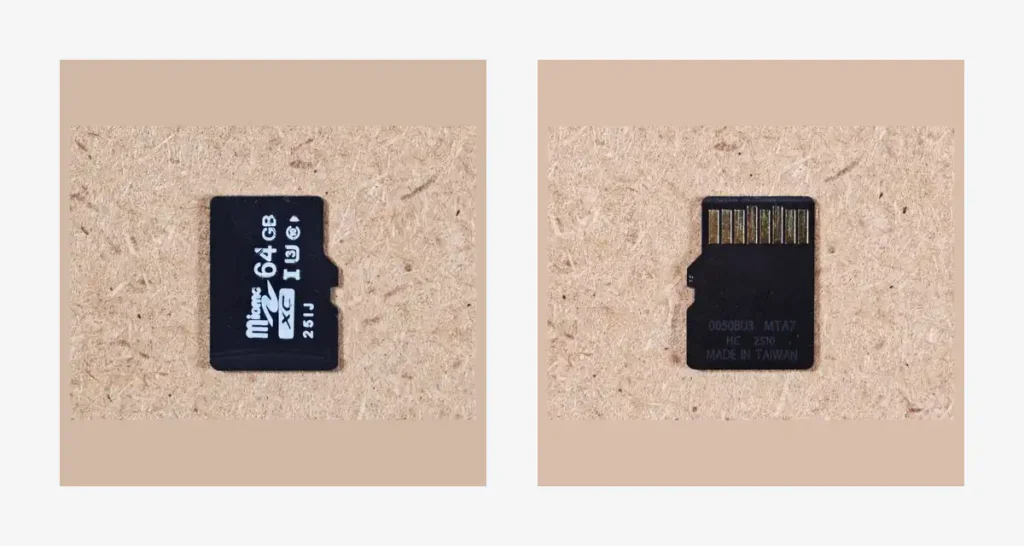
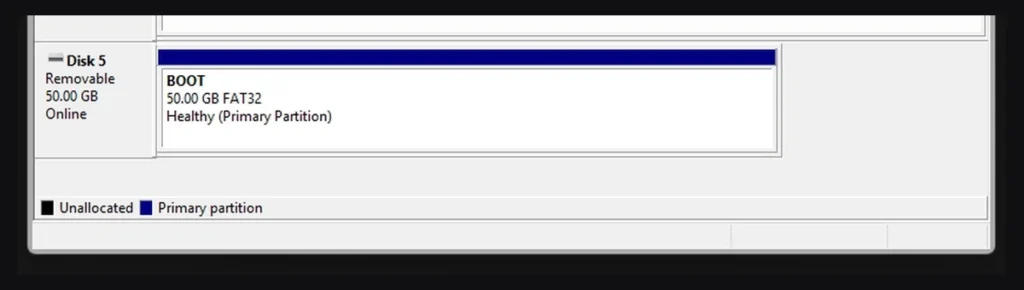
The card that came with my R36H was the one worth a closer look after initial inspection. Disk Management saw the whole card as 50.00GB, so this wasn’t just the case of a smaller partition with free space left over. A genuine 64GB card lands at roughly 58-59GB in Windows, as you can see with the other two 64GB cards in the table, and the usual decimal-versus-binary gigabyte difference doesn’t come close to explaining the missing 8GB or so.
It isn’t the classic fake-capacity trick either, as those cards claim more space than they really have, not less (my fake microSD testing guide covers those). The honest name for this one is probably either undersized or weirdly mislabeled. With the slowest writes of the group on top, it was one of the first cards I replaced.
What to Put in Instead
Being perfectly honest, you don’t need anything fancy here. A genuine U1 or V10 card is enough for pretty much every budget Linux handheld, and an A1 rating is a sensible target for the card that runs the operating system. Faster U3, V30 or A2 cards work fine too, but most of these handhelds just can’t make use of the extra speed. These are some of the ones that I actually use in the handhelds I have in my collection:
It’s also reassuring that in the Great MicroSD Card Survey, none of the Kingston Canvas Select Plus or Amazon Basics cards had reached 0.1% bad sectors by the two-year update, even after thousands of full write passes.
As for size, 64GB is usually plenty for 8-bit and 16-bit systems, while PS1 and PSP games eat up space quickly, so 128GB is a more comfortable pick if that’s what you mostly play. On a two-slot handheld like the R36S or the V90S, you can also keep the OS on one card and the games on the other, which makes it much easier to reflash the system later without touching your library.
Check the new card before anything goes on it. Fakes of well-known brands slip into big marketplaces too, and a new, empty card is by far the easiest moment to catch one. My fake microSD testing guide walks you through it step by step, and the free H2testw tool alone is pretty much all you really need here.
If you’d rather go cheaper, I also ran speed and capacity tests on four microSD cards from AliExpress. Just keep in mind that sellers can swap the card behind a listing at any time, so I’d advise running whatever you get through H2testw as well.
How to Move to a New Card
To move everything over to the new card without losing a thing, do the following:
- Shut the handheld down fully before you pull the card out. Sleep mode leaves the system running and can leave files open.
- Make a full image backup of the old card. A bootable Linux card can have partitions that Windows can’t read, so copying what you see in File Explorer misses part of it. My microSD image backup and restoration guide shows how to do it using the free HDD Raw Copy Tool. On a two-card handheld, back up every card that holds anything you care about.
- Restore the image to the new card, or flash a fresh system. For a raw image restore, the new card has to be at least as big as the old one, and two cards with the same label can differ slightly, so going one size up can easily save you some potential trouble. If you’ve got an R36S on your hands, you should also check my R36S setup guide first, as the right firmware and DTB files depend on the exact board and screen version.
- Check it in the handheld. Boot it, launch a few games, make a new save, restart, and make sure that save still loads.
Note: If your old card is already giving you some read/write errors or is behaving in a way that makes you suspect that it might be dying on you, copy the save files off it on their own first. Once you find them they’re tiny and take seconds to copy over, while a full image means reading the whole card, and a failing card can easily give up halfway through. Once your saves are safe, go for the full backup.
A card swap is also a good excuse to leave the preloaded ROM pack that you might have on your stock microSD behind. Those cards often come with thousands of poorly named, duplicated or broken files of questionable origin, and I’d much rather build a smaller library from my own game backups, with just the games I’ll actually play. Not to mention that it also makes the new card a lot easier to browse and back up, too.
So, Is It Worth Replacing the Stock Card?
For an unbranded card that came in the box, yes, I’d definitely back it up and replace it. It’s cheap to do, and it’s a lot less annoying than losing an OS setup or months of saves. That goes for the R36S and pretty much every other budget handheld from my retro handheld buying guide that ships with a card in the box. If your handheld somehow came with a genuine branded card that you trust, feel free to keep using it. Just make sure your saves live somewhere else too.
And that’s pretty much it! Thanks for reading, and see you next time!