

Here are the fastest and most reliable ways to spot fake microSD cards, USB drives and SSDs. I go through these exact steps every time I get a card or a drive from a lesser-known brand, or whenever I suspect any kind of foul play when it comes to the capacity or the speed of the hardware I got. To show you what it all looks like on a real fake, I got a “30TB” portable SSD from AliExpress for a price so low it was honestly funny, and put it through every test below. Spoiler: it holds about 53GB total, and I certainly wouldn’t trust it with a single kilobyte of my personal data.
If you want the quick method for checking if your drive might be a fake: run ValiDrive for a one-minute first look on Windows, and then a full write-and-verify pass with H2testw (Windows) or F3 (macOS and Linux). If the full test reports lost or corrupted data, the card or drive is fake, and the point where the errors start tells you how much storage is really inside. Seeing the full capacity in File Explorer proves nothing at all, as sadly a fake can easily be set to report whatever value its makers want. All of these steps and methods are described in more detail below.
This web portal is reader-supported, and is a part of the Amazon Services LLC Associates Program, AliExpress Partner Program, and the eBay Partner Network. When you buy using links on our site, we may earn an affiliate commission!
You might also like: 4 Cheap MicroSD Cards from AliExpress – Speed & Capacity Tests
How Can a Fake Card Show the Right Capacity?
A fake card or drive usually does have a small amount of real flash memory inside, alongside a controller that was programmed to report a much bigger number to the user. Windows, macOS, your phone and your camera will simply take the controller at its word, which is one of the main reasons the market of off-brand fake storage devices is as big of a problem as it is today. The largest risk factor here is that the full advertised capacity of the card will show up pretty much everywhere, and you can even “copy” files well past the real limit without seeing a single error message.
What happens to the data written past that limit depends on the fake. Some simply throw it away, so the files may look fine until you try to open them, but everything written before the limit stays intact (my 30TB drive was this kind). Others loop back to the start once the real flash is full, and start writing over your older files, which is the much nastier variant, as it can silently destroy important photos or saves you copied there weeks ago, if you don’t realize that you’ve got a fake on your hands.
Either way, you usually find out only when something refuses to open, and the tests below let you find out way before that happens. And the best thing is that you can do all of them in a matter of a few clicks, using software that’s available for free.
Can You Tell a Fake Before Testing It?
Sometimes, yes. The easiest giveaway is a capacity that simply doesn’t exist on the broad consumer market. Real microSD cards top out at 2TB in stores (SanDisk has only announced one 4TB model so far, at the time of writing this article), and Samsung’s biggest portable SSD, the T5 EVO, tops out at 8TB. As things are now, a 16TB or 30TB “SSD” the size of a pack of gum is a fake, no matter how many five-star reviews it has. This is the first “dead giveaway” that can save you some money and stress even before you decide to take a gamble on a storage device from an unknown source.
The price is also important here. At any given time, real flash memory costs roughly the same per gigabyte across the known brands, even when memory prices as a whole go up or down. If a listing costs a fraction of what the same capacity costs from a known brand, it’s almost never going to be a lucky deal. Generic brand names that exist only on one marketplace are often a red flag too. Still, none of these prove anything on their own, and some fakes come in packaging that looks perfect, so only a test can tell you for sure.
In my own tests of four “no-name” microSD cards from AliExpress, I didn’t come across any fakes, and all of them were priced sensibly, just a little below the trusted mainline brands. Keep in mind, though, that sellers on these marketplaces can swap the product behind a listing at any time, so my results only apply to the cards I actually got.
What I Found Inside a Fake “30TB” SSD
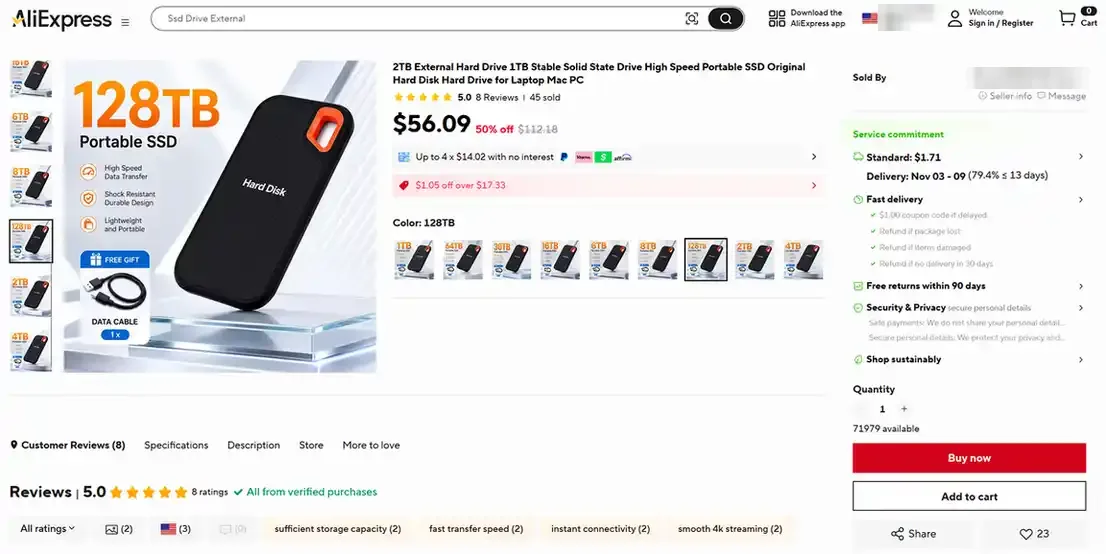
My drive came from a listing very much like this one, and it looked exactly the same: a generic copy of a well-known portable SSD design, with “Hard Disk” printed on the front. Look closely and the listing gives itself away. Its title says 2TB, while the size picker goes from 1TB all the way up to 128TB, with the “128TB” version priced at about $56. Mine was the 30TB option. I’m not linking listings like these anywhere on this site, and I’d steer clear of them too, unless you want to make the same experiment I did.
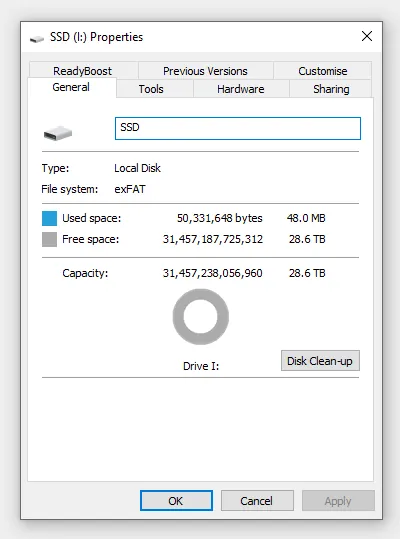
Plugged in, the drive showed up in Windows as a 28.6TB exFAT volume, which is exactly what a real 30TB drive would look like (Windows counts in binary units, but still labels the result “TB”). So far everything seemed fine, but that’s pretty much where the illusion ends.
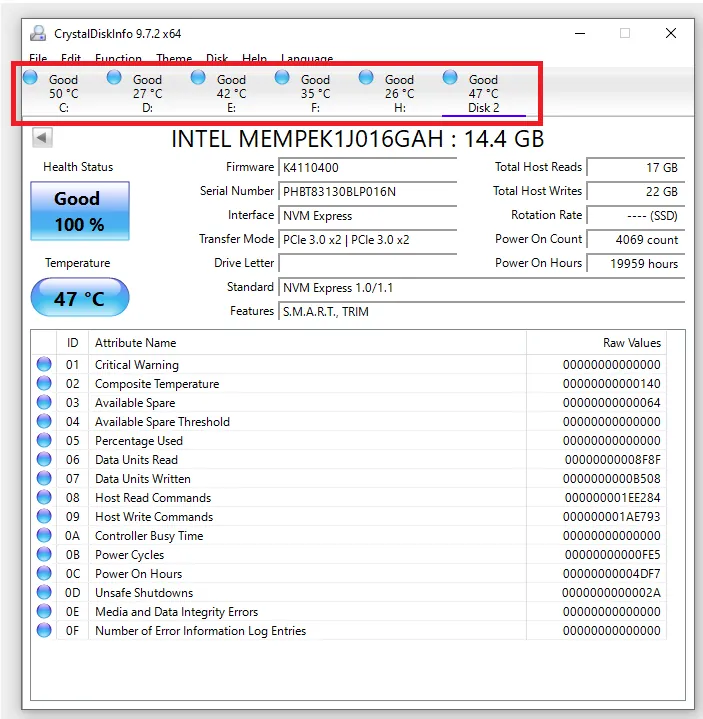
The first small hint came up in CrystalDiskInfo. Every other drive in my PC showed up with its model, firmware and S.M.A.R.T. health data, and these are all the drives marked in red above. The off-brand “SSD” we’ve got here didn’t appear at all. A genuine external SSD normally does, as you can see, for one, in my Kingston XS1000 hands-on review.
As many ordinary USB sticks and some cheap enclosures don’t pass S.M.A.R.T. data either, this alone wasn’t enough to prove the device was fake. It only showed that it was missing one of the arguably most important features of a quality SSD, which is health data reporting. The actual proof came from the two tools below, and I’ll use my results to show you what to look for in each of them.
The One-Minute Check – ValiDrive
ValiDrive is a free Windows tool from Gibson Research, and it’s widely used as a first check for fake storage devices. Instead of filling the whole drive with data, it writes and reads back small test samples at 576 spots spread evenly across the entire claimed capacity, and puts back the data it touches along the way. It works with USB sticks, external drives and memory cards in a USB card reader, so it’s perfect for a quick first look at a device you suspect isn’t quite what it was advertised as.
To use it, do the following:
- Download validrive.exe from the official GRC page and run it. There’s nothing to install.
- Click “Check USB Drive” and plug in the card or drive when ValiDrive asks you to.
- Wait for the map to fill in, and read the report.
Note: Make very sure that you’re getting ValiDrive from its official website. As with many other popular free tools, there are a lot of copycat sites offering supposed ValiDrive downloads that are very risky to interact with. Always double-check your sources.
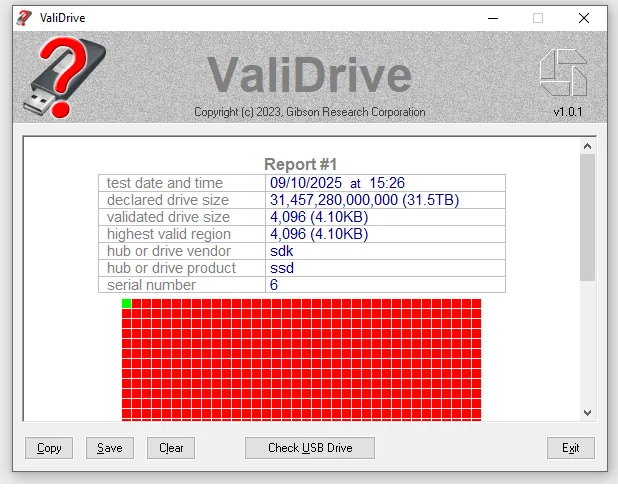
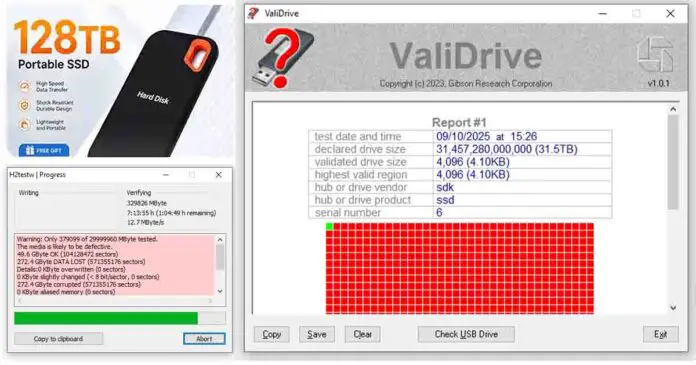
Once the software has analyzed your storage device, reading the results is simple. Green squares are spots where the data came back correctly, red ones have no storage behind them at all, and blue or yellow ones are read and write errors. A genuine drive should give you a fully green map, and a “validated drive size” that matches the “declared drive size”. Our result, as you can see above, is nearly all red, except for the very first spot.
My drive declared 31.5TB and validated only 4.10KB, which looks even worse than reality. There’s a simple reason for that. Its real 53GB covers only about 0.17% of the claimed 30TB, so only the very first of the 576 test spots naturally landed inside it. The vendor “sdk”, product “ssd” and serial number “6” in the report are yet another giveaway of an off-brand device, as no real manufacturer ships drives with boilerplate identifiers like these.
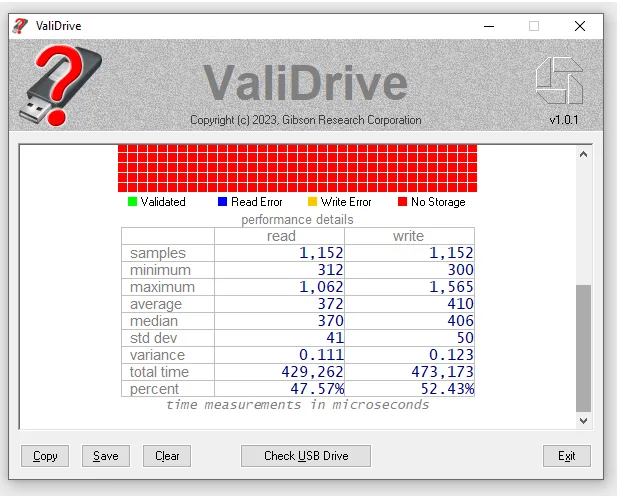
Still, ValiDrive is a simple spot check, so a passing “all green” result doesn’t prove that a drive is genuine and safe to use. Users on GRC’s own forums have reported fakes that came out all green in ValiDrive and still failed H2testw. Use it to catch the obvious fakes in a minute, and then always confirm with a full test. And the full test goes as follows.
The Full Test on Windows – H2testw
H2testw is the tool I trust the most, and the one I use on almost every new card and drive I get. It fills the card or drive with 1GB test files, then reads every single one of them back and compares it with what it wrote. The mechanism is simple, but virtually impossible for fake storage makers to beat, as it directly checks whether the device can store the advertised amount of data and read it back without any corruption. It’s free, portable, and works with microSD and SD cards, USB sticks, SSDs and hard drives alike.
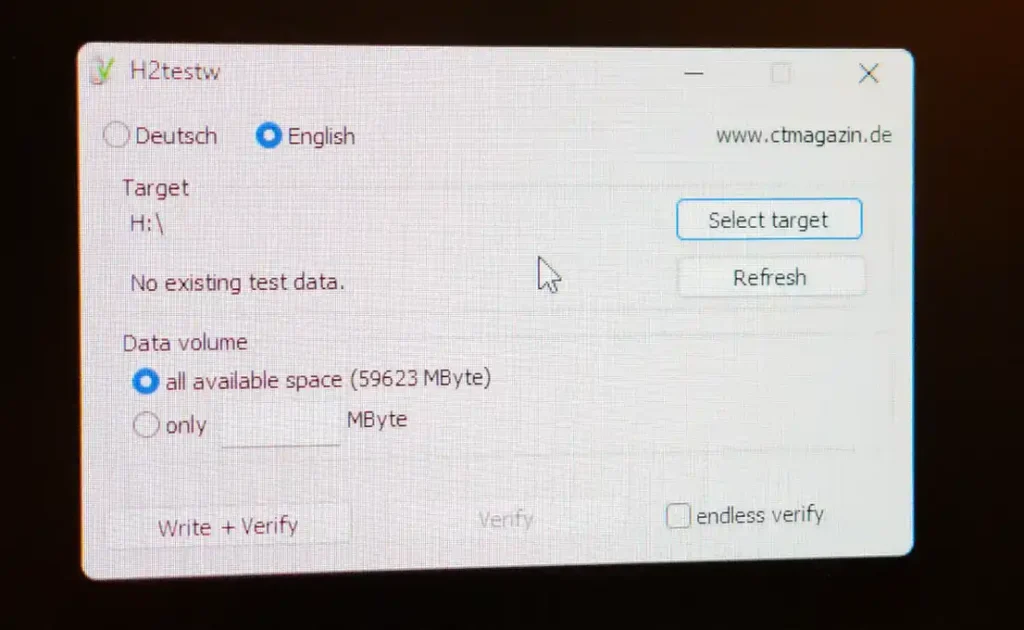
To test your storage device with H2testw, do the following:
- Back up and empty the card or drive. H2testw only tests free space, so only a freshly formatted drive will give you the full picture.
- Run h2testw.exe and switch the user interface language to English.
- Click “Select target” and choose the drive letter of your card. Check it twice, so you don’t fill up the wrong drive by accident.
- Leave “all available space” selected and click “Write + Verify”.
- Wait for both passes to finish (it can take anywhere from a few minutes to a few hours, depending on the size of your drive).
Note for the impatient: If the tool’s log area turns red with a “The media is likely to be defective” message, you can stop the test and look at the error details, which should already tell you the actual capacity of your hardware. In most cases, finishing the test or going for a second pass isn’t needed at this point, unless you really want full proof of the fake capacity of your storage device.
Once the process is done, you can safely delete the .h2w test files it leaves behind on the tested device.
What a Genuine Card Looks Like in H2testw
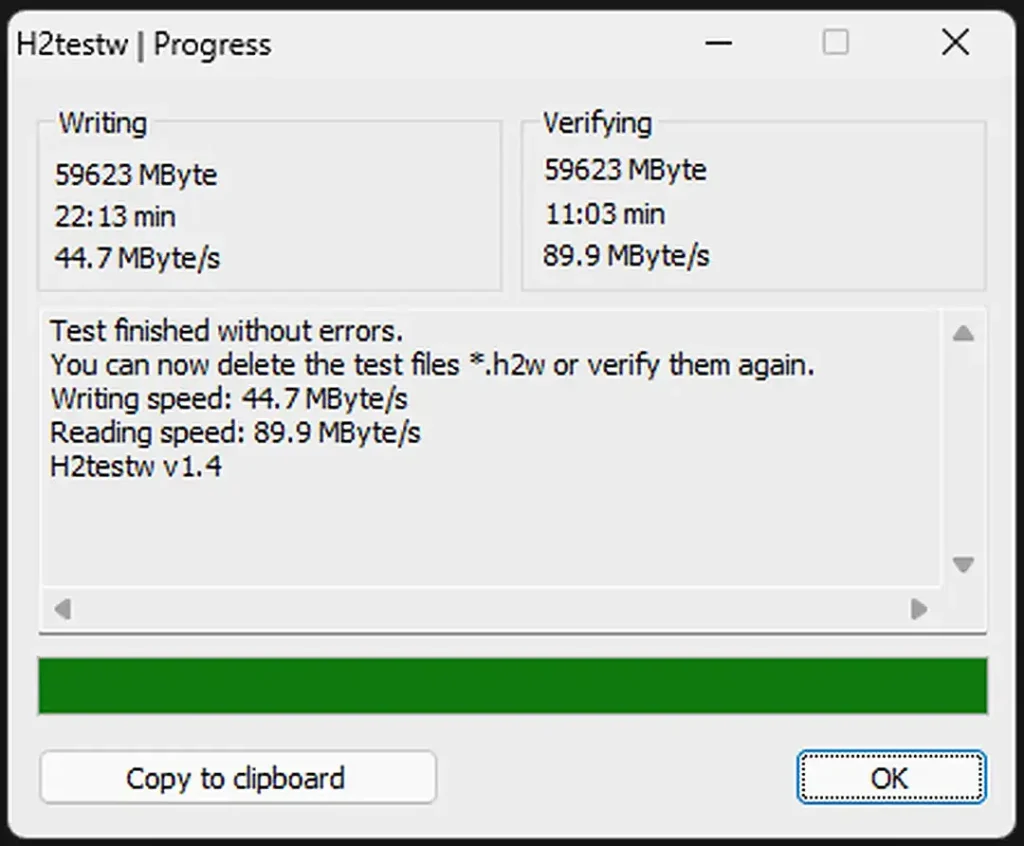
A genuine card ends with the “Test finished without errors” message, with the amount of data written close to the full capacity of the card. You also get the average write and read speeds, which is a nice extra bit of info to have.
What a Fake Card Looks Like in H2testw
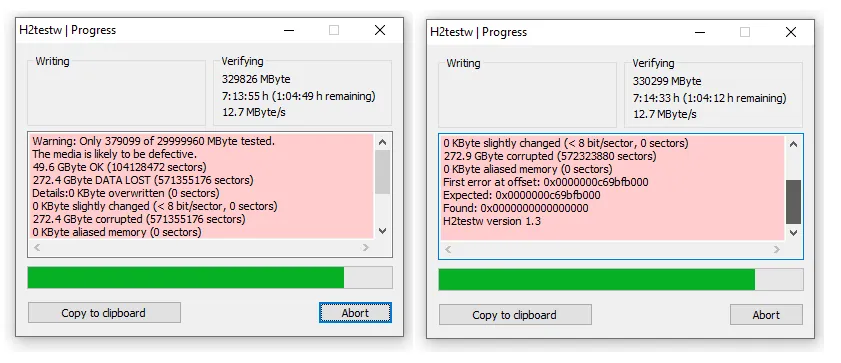
A fake ends with the “The media is likely to be defective” message, as you can see in the image above, and a list of numbers that can look a bit cryptic at first. Here’s what each of them means, with my fake drive’s results next to it.
| Line | What it means | Our fake drive |
|---|---|---|
| OK | Data that came back exactly as written. On a fake, this is roughly the real capacity. | 49.6GB |
| DATA LOST | Everything that didn’t come back right: the overwritten, slightly changed and corrupted sectors added up. | 272.4GB |
| Overwritten | Sectors holding data that belongs somewhere else. A sign of a fake that loops back over old data. | 0 |
| Slightly changed | A few flipped bits per sector. Points to failing flash rather than a fake. | 0 |
| Corrupted | Sectors with the wrong data, or no data at all. | 272.4GB |
| Aliased memory | The same memory showing up at two different addresses. Another sign of a looping fake. | 0 |
| First error at offset | Where the first bad sector sits, in bytes (hexadecimal). On a fake, this is where the real storage ends. | 0xc69bfb000 |
In my case, there were 0 overwritten and 0 aliased sectors, with “Found: 0x0000000000000000” next to the first bad one, meaning that the data written past the limit simply vanished instead of looping back. The first error offset, 0xc69bfb000, works out to about 53.3GB the way storage is sold, or the 49.6GB H2testw shows (it counts in binary units, just like Windows). That’s the real capacity of our “30TB” drive, and it’s fair to guess that there’s just a cheap 64GB flash chip or card fitted inside a bigger shell. It wouldn’t be the first one either, as this is a fairly common practice among fake drive makers.
So, How Long Does a Full Test Take?
It depends on the size and the write speed of the card. My genuine 64GB Taimi card took roughly half an hour (about 22 minutes to write at 44.7MB/s and 11 minutes to read at 89.9MB/s), while a slow 256GB card can easily take three or four hours. On a huge fake, a full test would take weeks, but as you saw above, you hardly ever need to finish it on a device like this. My drive read back at just 12.7MB/s, and after about 12 hours H2testw had gone through 379,099MB of the claimed 29,999,960MB. That was more than enough, since the clear errors had already started at 53GB.
Hint: for a drive that’s obviously too big to fill, set H2testw’s data volume to a fixed number of MB instead of “all available space”. Pick something comfortably larger than what you suspect the real capacity to be (for example 200GB on a “30TB” drive), and if the errors show up, you’ll have your answer in a few hours.
On macOS and Linux – F3
F3 (Fight Flash Fraud) is a great macOS and Linux equivalent of H2testw. It’s free and open-source, and it works the very same way, split into two core commands: f3write fills the card with test files, and f3read checks them.
To use it on your system, do the following:
- Install it. On macOS with Homebrew, run
brew install f3. On Debian, Ubuntu and their relatives, runsudo apt install f3. - Find where the card is mounted. On a Mac that’s usually
/Volumes/NAME, and on Linux/media/yourname/NAME. - Run
f3write /Volumes/NAME, and when it’s done,f3read /Volumes/NAME. - Read the summary. On a genuine card only “Data OK” has a value. Anything under “Data LOST”, “Corrupted” or “Overwritten” means the exact same thing as in H2testw.
On Linux, there’s also another, much faster way. f3probe finds the real capacity in minutes instead of hours, by writing only where it needs to, but it works on the whole device, so it will wipe everything on it. Find the device name with lsblk (for example /dev/sdb, not a partition like /dev/sdb1), unmount it, and run sudo f3probe --destructive --time-ops /dev/sdb. On macOS, f3probe can only run through Docker. If you’d rather click than type, the F3 page also lists a few graphical front ends, like F3XSwift for macOS and F3 QT for Linux.
What About Phones and Handhelds?
If you can, test on a computer. A cheap USB card reader and H2testw or F3 beat any phone app, and the storage readout on your phone, camera or handheld is just as easy to fool as Windows.
Retro handheld owners should be extra careful here. The card often holds the whole operating system, the games and the saves, and many handheld firmwares, like ArkOS, resize their partitions to fill the card on the first boot. On a fake card, that stretches your game partition into storage that doesn’t exist, and new ROMs or saves can easily land there and vanish. Test every new card before you flash anything onto it, and keep a backup of the cards you already use. My handheld microSD backup guide shows how to make a full image of your card, which should be one of the very first skills you pick up as a retro handheld enthusiast.
I Have a Fake – What Now?
First of all, stop writing to it, as every new file can land in storage that doesn’t exist, or overwrite something else. Then copy off anything you need. Files written early on, within the real capacity, are usually fine, but files written later are often gone for good, and if the fake never stored them in the first place, not even a data recovery lab can bring them back.
Next, save your proof. Screenshots of the H2testw or F3 result and of the capacity Windows reports make any seller dispute much easier. On AliExpress, open a dispute for an item not as described, and on Amazon or eBay, start a return for the same reason, as soon as you can, while the buyer protection still applies. Leaving a review with the screenshot attached is also worth the minute it takes, as it’s the one thing that can warn the next buyer.
Can You Still Use a Fake Card or Drive?
Technically, yes, if you shrink it down to its real size. When the partition ends before the real storage does, nothing gets written into the fake part, and this works for both kinds of fakes, as long as the drive keeps behaving the same way. Here’s how to do it, with a few important disclaimers.
- Find the real capacity with H2testw (the first error offset) or f3probe (“usable size”), as shown above.
- On Windows, open Disk Management (right-click the Start button), delete the drive’s volume, and create a new simple volume that’s a bit smaller than the real capacity. On my drive, with the errors starting at about 50,840MB (as Windows counts it), I’d go for around 48,000MB.
- On Linux, run f3probe, then
sudo f3fix --last-sec=NUMBER /dev/sdbwith the last good sector it reports, and format the new partition. - Run H2testw or F3 again on the new, smaller partition. It has to pass with no errors at all.
Personally, I still wouldn’t trust a fake drive with any important files, even after reformatting it like this. Fakes are usually built from the cheapest flash memory out there, so they’re much more likely to fail, and the fix only lasts until something formats the card back to its full fake size. That can be a camera, a phone, a handheld that resizes its partitions on the first boot, or simply someone who doesn’t know they’re dealing with a fake, so you’ll have to keep that in mind at all times. At best, you end up with a slow, small stick for files you really don’t mind losing, so if that’s enough for you, you can use the method above.
I’ve also seen a few examples of people going one step further and re-flashing a fake USB stick’s controller to its real size, using factory tools made for that specific controller. These tools are hard to find from trustworthy sources, and a wrong one can easily brick the stick, so in my eyes it’s not worth the risk for a drive you’d never fully trust anyway.
The Cards That I Actually Use
If you’d rather skip the lottery altogether, these are the cards I regularly get for both my cameras and retro handhelds. If you’re still unsure, remember that you can run the tests laid out above even on cards from trusted sellers, just for that extra bit of assurance.
And that’s pretty much it! Test every new card and drive once, right after it arrives, and you won’t have to lose a holiday’s worth of photos or a year of game saves to a fake. Thanks for reading, and see you next time!