

The HiBy R1 took quite a while to reach me, but the wait was well worth it. This tiny, affordable music player comes with a 3-inch touchscreen, LDAC Bluetooth, Wi-Fi with Tidal and Qobuz, and runs HiBy’s own Linux-based OS. I might be a little late to the whole R1 trend, but with the big firmware 2.0 update and a growing list of community firmware options, I really do think that right now this little device is more relevant than ever. Down below you can see how I’ve unboxed it, updated the firmware, gone through pretty much every menu, and compared it with the Oilsky M308 that I’ve also recently tested.
Short answer: For around $70, I think the R1 gives you more than you’d expect at this price. It’s very small and light, the screen looks great for the price, the system is polished and responsive, and firmware 2.0 finally gave it a proper equalizer, including a parametric one. The trade-offs? It doesn’t run Android, so there is no Spotify and no third-party (Android) apps, and it has no usable internal storage (you need a microSD card). If you’re comparing it with other options, my digital audio player buyer’s guide covers the alternatives in every price range.
Why you can trust us: We test all of our products according to the techtactician consumer usability benchmark methodology which evaluates all of the product characteristics that matter to the user in day to day use. Enjoy the review!
This web portal is reader-supported, and is a part of the Amazon Services LLC Associates Program, AliExpress Partner Program, and the eBay Partner Network. When you buy using links on our site, we may earn an affiliate commission!
You might also like: Best Digital Audio Players (DAPs) This Year – Full Buyer’s Guide
First, The Specs
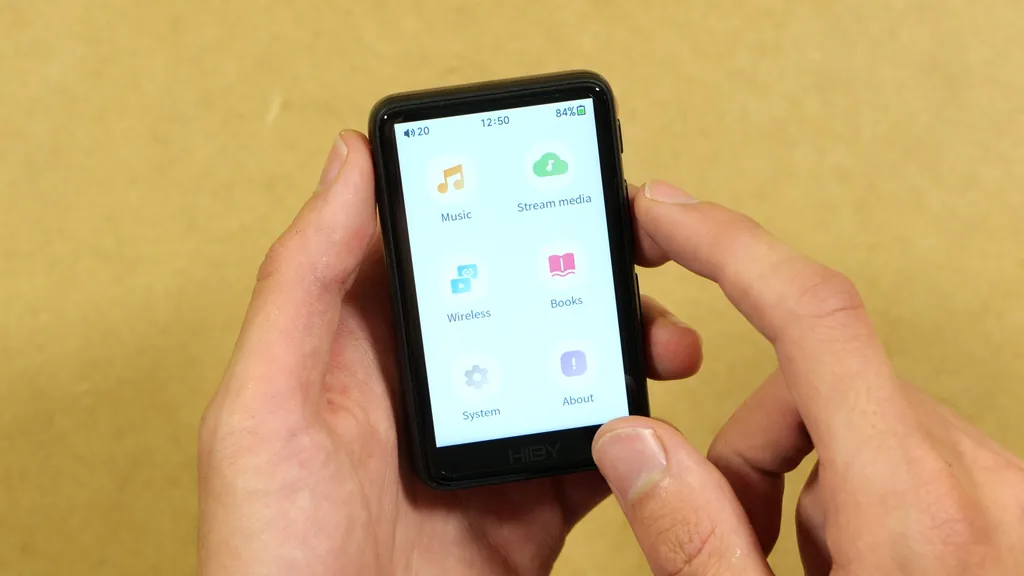
A tiny, affordable Linux-based music player with a 3″ touchscreen, the CS43131 DAC, LDAC Bluetooth, Wi-Fi streaming and a microSD slot for up to 2 TB of music.
| System | HiBy OS (Linux-based) |
| Screen | 3″ touchscreen, 480 x 800 |
| DAC | Cirrus Logic CS43131 |
| Formats | Up to PCM 384 kHz / 32-bit and DSD256; FLAC, WAV, AIFF, ALAC, APE, MP3, AAC, OGG and more |
| Output | 3.5 mm headphone jack; USB audio out to an external DAC |
| Bluetooth | Bluetooth 5.0; LDAC, aptX, AAC, SBC, UAT |
| Wi-Fi | 2.4 GHz; Tidal, Qobuz, internet radio, AirPlay, DLNA, Wi-Fi music import, HiBy Link |
| Storage | microSD card slot, up to 2 TB; no usable internal storage for music |
| Battery | 1150 mAh; up to about 15 hours of playback (official) |
| Charging | USB-C, 5 V / 1 A; under 2 hours (official) |
| Size / Weight | 83.5 x 51.1 x 12.35 mm; 70 g |
| In The Box | Player (with factory screen protectors), spare screen protector, USB-C cable, mesh pouch, lanyard, pin tool, quick guide, warranty card |
Unboxing The HiBy R1
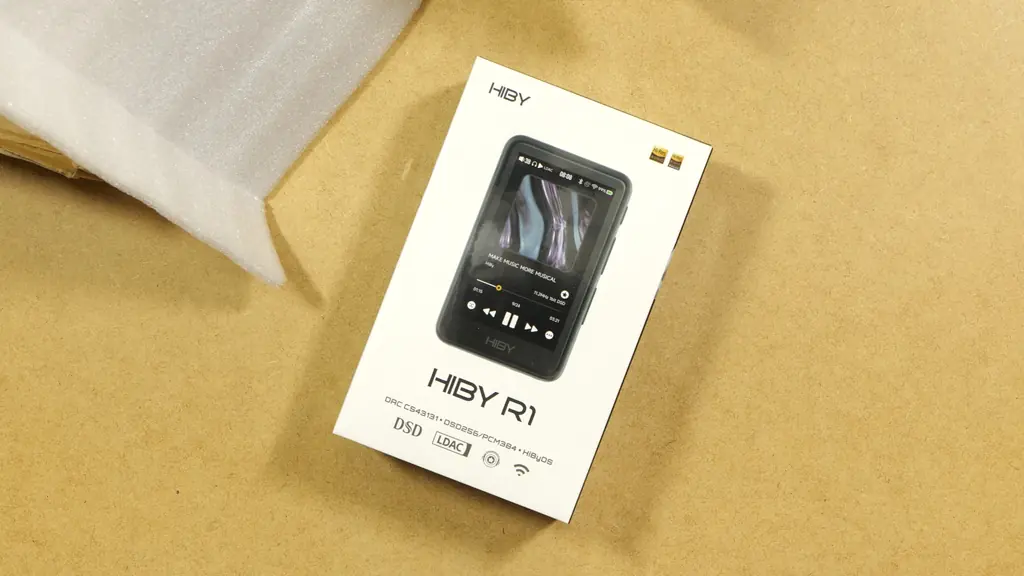
HiBy kept the packaging rather simple and tidy, listing the main features right on top. The CS43131 DAC, DSD256 and PCM 384 support, LDAC, Wi-Fi and HiBy OS are what’s promised here. Inside, the player sits in a soft, cushioned insert, so it’s well protected during shipping.
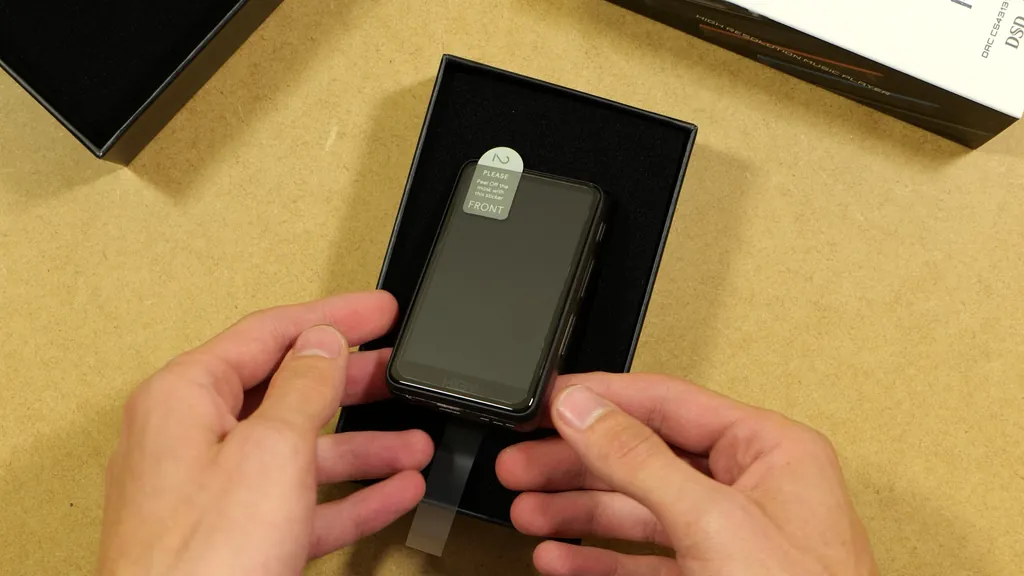
The very first thing I noticed is how small it really is. While I knew the exact dimensions of the R1 when I was ordering it, in the product photos it looks a bit bigger without anything to compare it to. Still, I’m very happy with the size, but more on that in a moment.
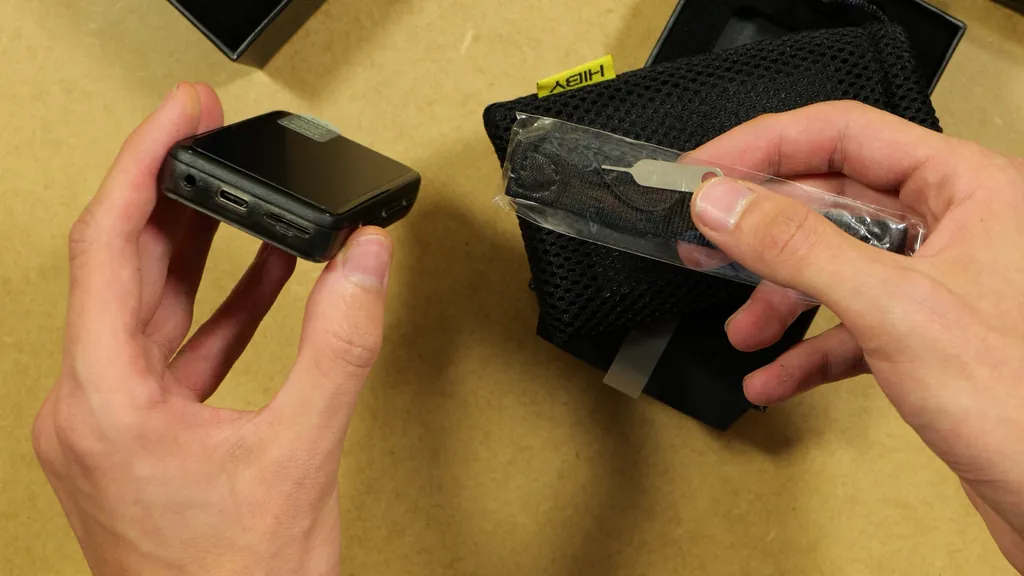
Under the cover, you’ll find a lanyard, a small pin tool (it’s listed as a microSD card pin tool, which doesn’t make much sense, considering the card slot is a simple push-in one, and the R1 doesn’t have a reset hole either), a quick start guide, a warranty card, a very soft mesh pouch with the HiBy logo, and inside that pouch, a USB-C cable, also with the brand logo printed on. The quick guide is very short, and basically lists the buttons and ports, plus a few safety notes. I really like that all of these accessories are included here, even though this player isn’t one of the more expensive devices you can get in the world of modern DAPs.
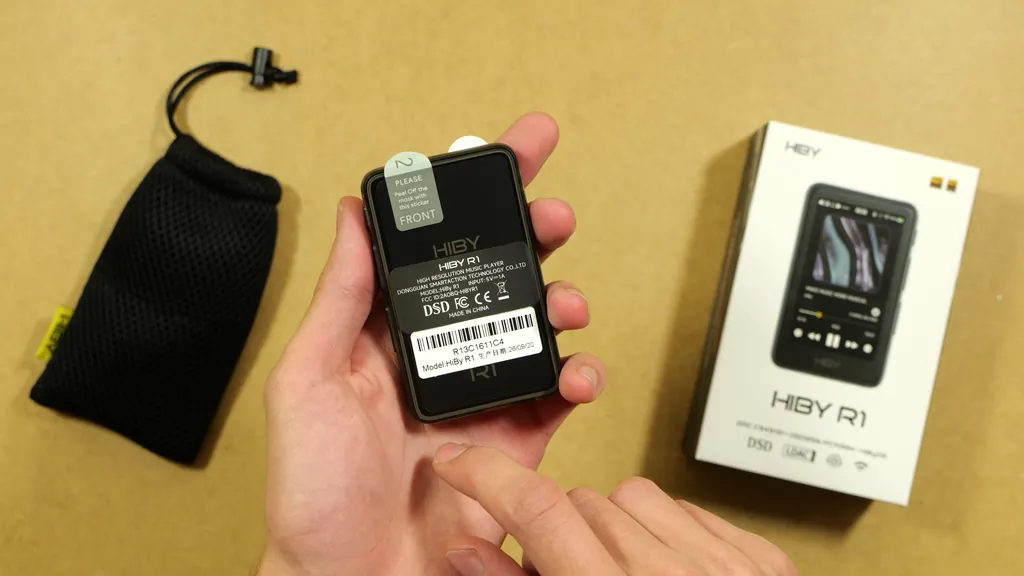
The Screen Protectors
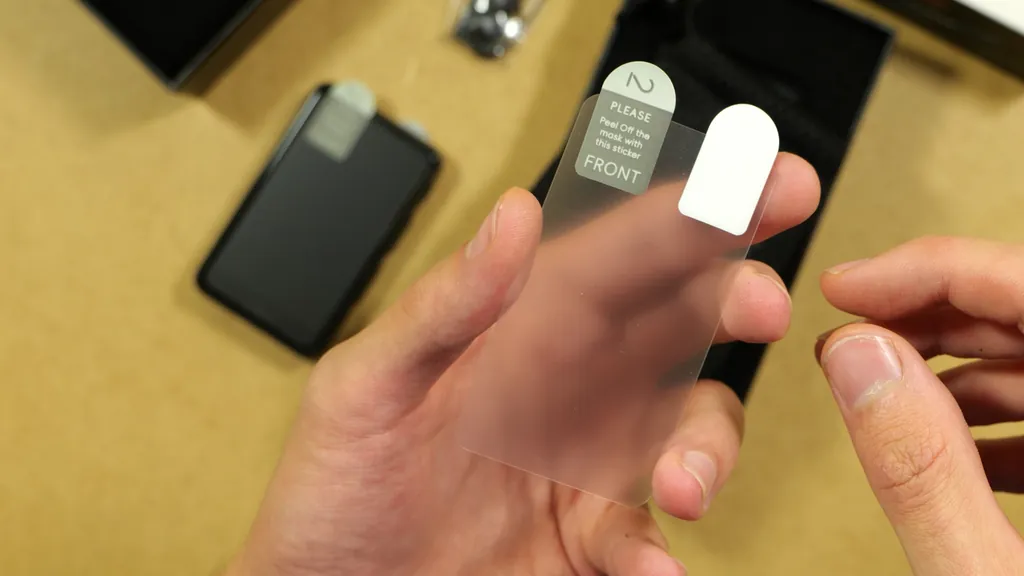
The HiBy R1 comes with a screen protector already applied, as well as a separate protector applied to the glossy back of the device. There is also one spare protector inside the box that you can see in the photo above, which is certainly nice to have when the default one gets too worn out.
Size, Design and Build
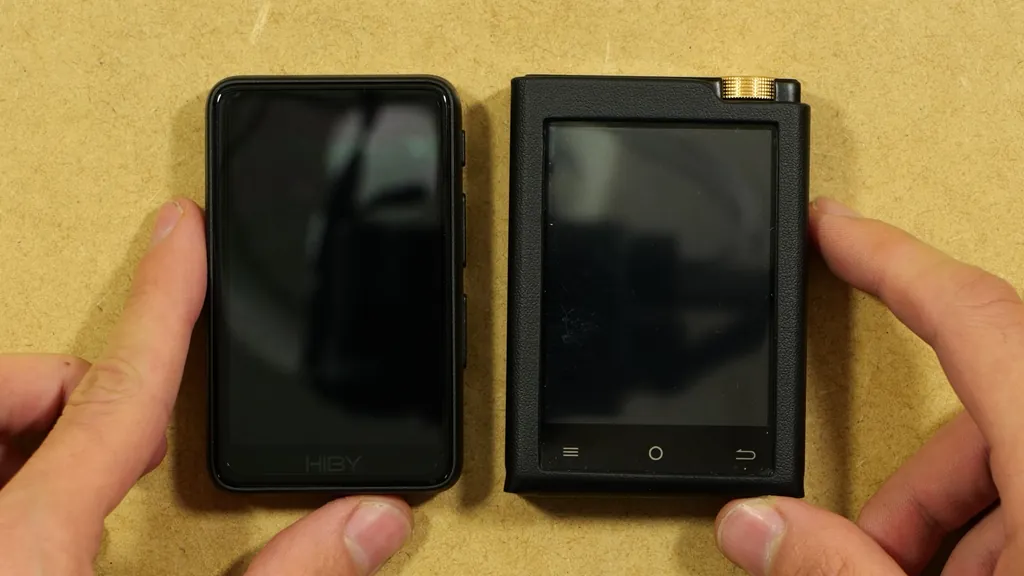
The R1 is a bit smaller than the palm of my (rather small) hand. Next to the Oilsky M308, it’s well within the usual portable DAP size, but it’s much thinner, even without factoring in the Oilsky’s leather-like case. Officially, it measures 83.5 x 51.1 x 12.35 mm and weighs just 70 g, and in my hand, it also felt a lot lighter than the M308.
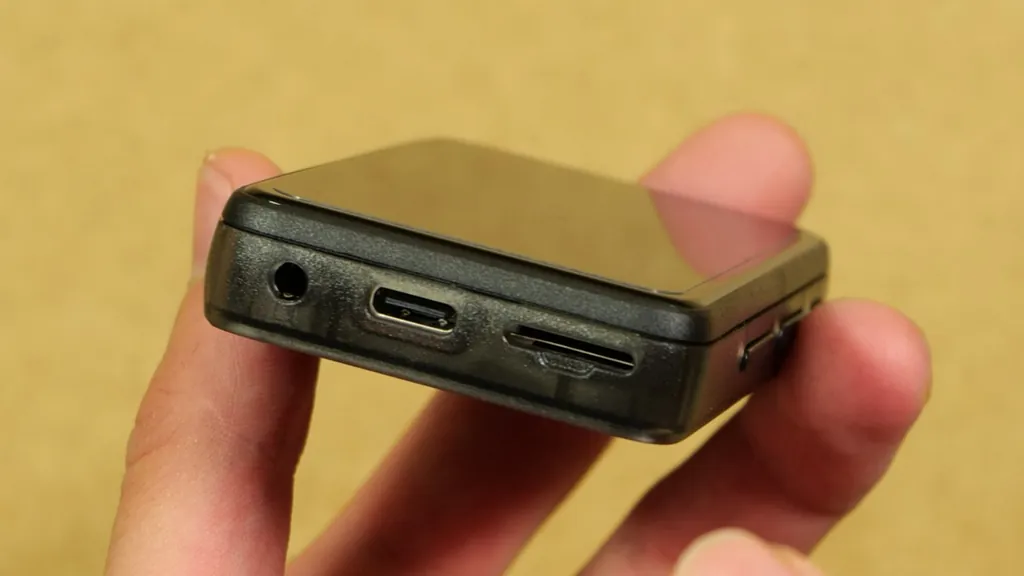
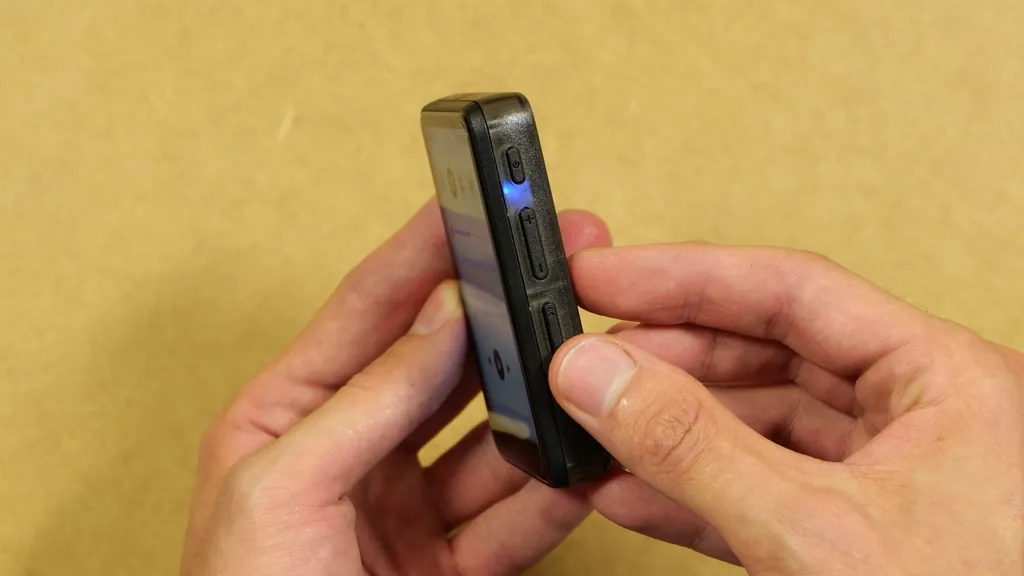
The layout of the buttons and ports is rather simple. The top of the device is empty. On the left side, there is a lanyard slot in the top corner. On the bottom, you’ll find the 3.5 mm headphone jack, the USB-C port and the microSD card slot.
You might also like: What Are The Best Old Phones for J2ME Java Games? – Used & Refurbished
The right side has the power button, the volume rocker, and a second rocker for play/pause and next track. The buttons are very quiet and only have an ever so slight click to them. There is no dedicated “previous track” button, but as you’ll see in the player settings section, you can configure that in the software settings.
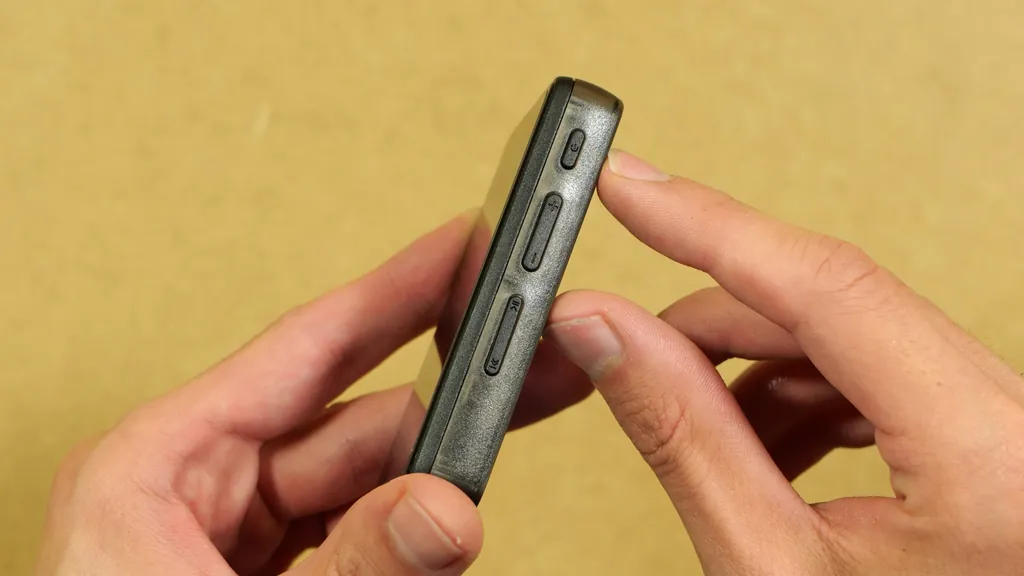
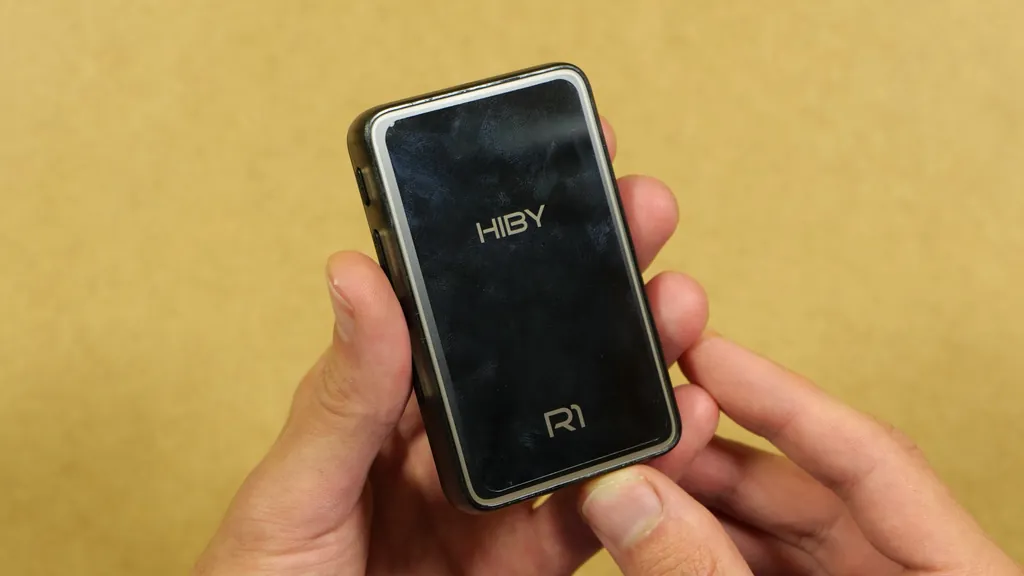
The display is not an OLED, so with the screen on, you can see the display border even if just a little. Still, to be honest, for what it is, it looks really good. The back is nice too, with the HiBy and R1 logos printed on, but it’s also a huge fingerprint magnet, so be prepared to wipe it quite often.
HiBy OS – It’s Not Android (And That’s Fine For Me)
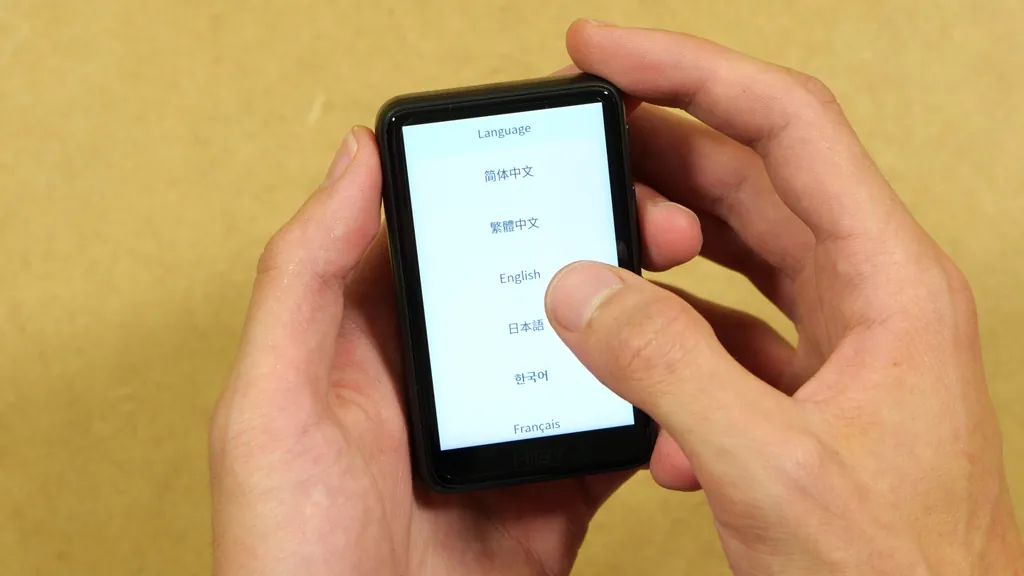
The first boot was really fast and it only took a few seconds to get to the setup screen. You pick your language from the list, set your location and time zone, and you’re in the main menu, just like that.
The most important thing to know here is that the R1 is not an Android device. It runs HiBy OS, a custom Linux-based system. The Oilsky M308 runs Android (a very old version of it, but still), so you can install extra Android apps on it. The R1 quite understandably has no Google Play Store, and you can’t install any Android apps on it at all.
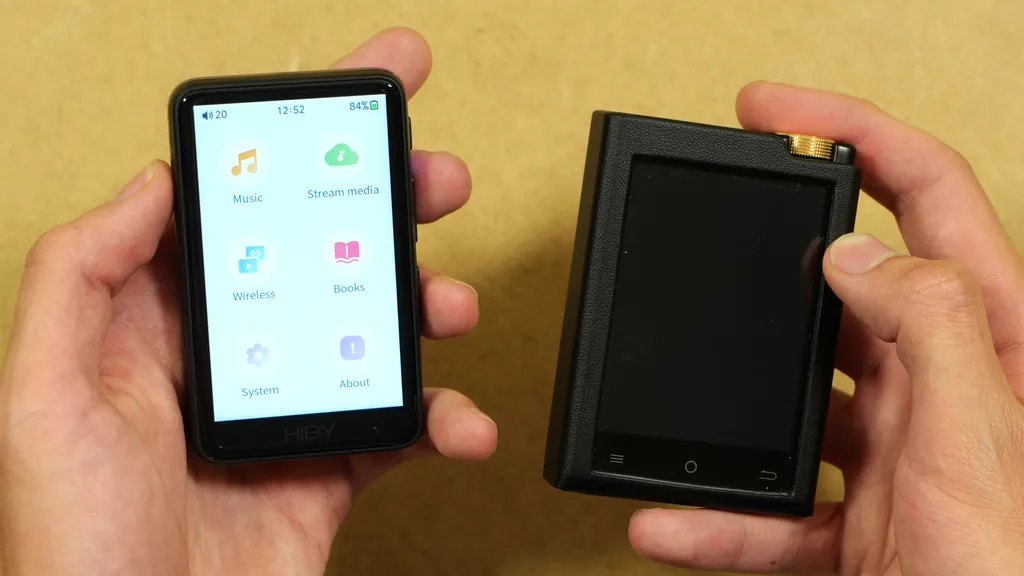
HiBy OS still has quite a few customization options, which we’ll go through below, but it can’t really be compared to Android, which is much more open-ended. If you need specific apps on your player, this is the most important thing to consider before you get the R1. If all you want is a simple, focused music player, it’s actually a big plus, and you’ll see why in my verdict.
Updating The R1 To Firmware 2.0
The first thing I did was connect to Wi-Fi and check for a firmware update, to make sure I was on the latest version of HiBy OS. Connecting to my network went very smoothly. While I was at it, I also noticed that the screen can get really bright, even at 50% brightness, and it can also get reasonably dim with the lowest setting. The viewing angles are fine, but as always, I wouldn’t expect miracles at this price.
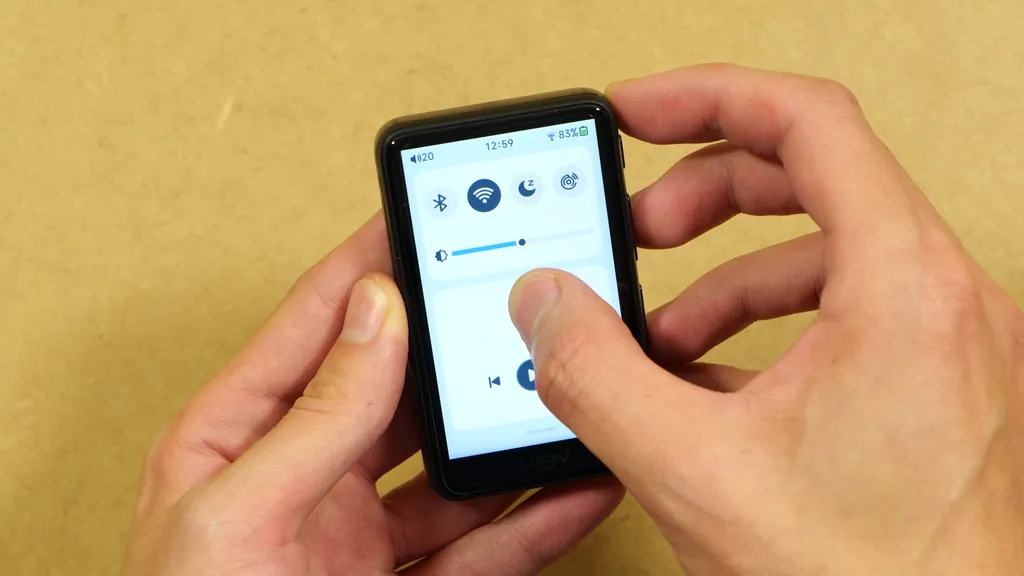
An OTA update to firmware 2.0 was available for my unit right away. It adds a parametric equalizer, a games section, a scheduled pause and some playlist improvements to the feature set of the R1. An important thing to mention here is that the R1 doesn’t have usable internal storage for your music, and that also goes for update files. So even to download an update, you’ll need to insert a microSD card first, which isn’t included in the box.
You might also like: 4 Cheap MicroSD Cards from AliExpress – Speed & Capacity Tests
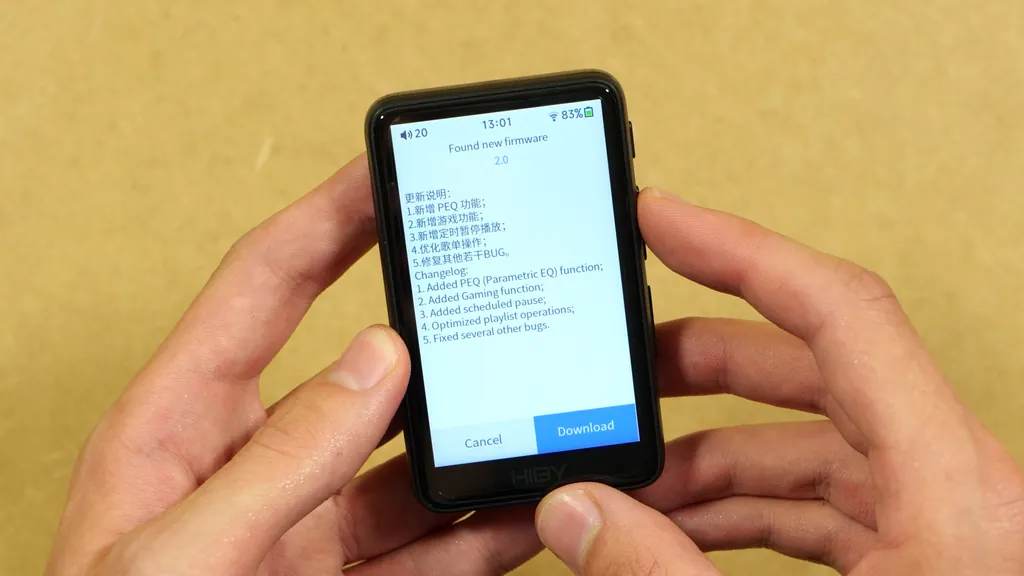
To do an OTA firmware update on your R1, do the following:
- Insert a microSD card into the slot on the bottom of the player.
- Connect the R1 to your Wi-Fi network.
- Go to “System -> Firmware Update” and select the OTA update option.
- When the new firmware shows up, tap Download.
- Once the download is done, start the update and wait for the player to reboot.
For me, the whole thing took just a few minutes, including the download time. It did hang for a few minutes before the download started, but once it picked up, the download and the installation took about 5 minutes. After the reboot, the About screen confirmed that I was now on firmware 2.0.
Note: If you don’t have an easy way of accessing Wi-Fi, HiBy also lets you update the R1 from a microSD card. To do this, copy the firmware’s .upt file to the root of the card and choose the card update option in the same menu. You can find the firmware files on HiBy’s official R1 firmware page. Make sure you’re choosing the right ones for your device.
The System Settings Worth Knowing About – HiBy OS 2.0 Firmware Tour
HiBy OS has more settings than I expected, and a few of them are really worth checking out right after you set up your player. Most of them are in the System menu, so let’s go through the ones I’d check first.
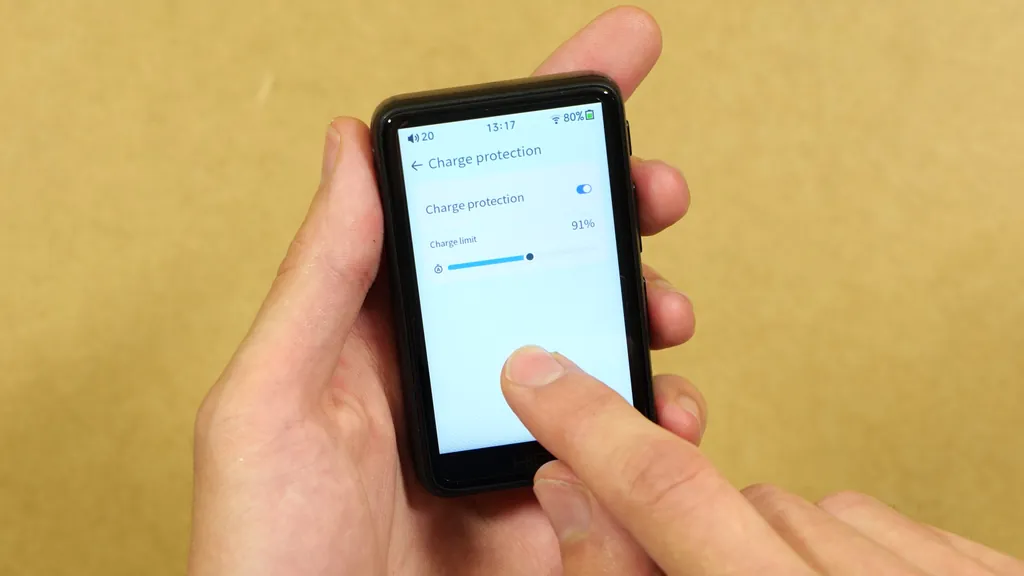
Charge protection is the one I’d turn on first. I believe it came with the latest firmware, and it lets you set a charge limit anywhere from 80% to 100%. Stopping the charge at around 80% puts less strain on the battery, which generally means it will keep more of its capacity for longer.
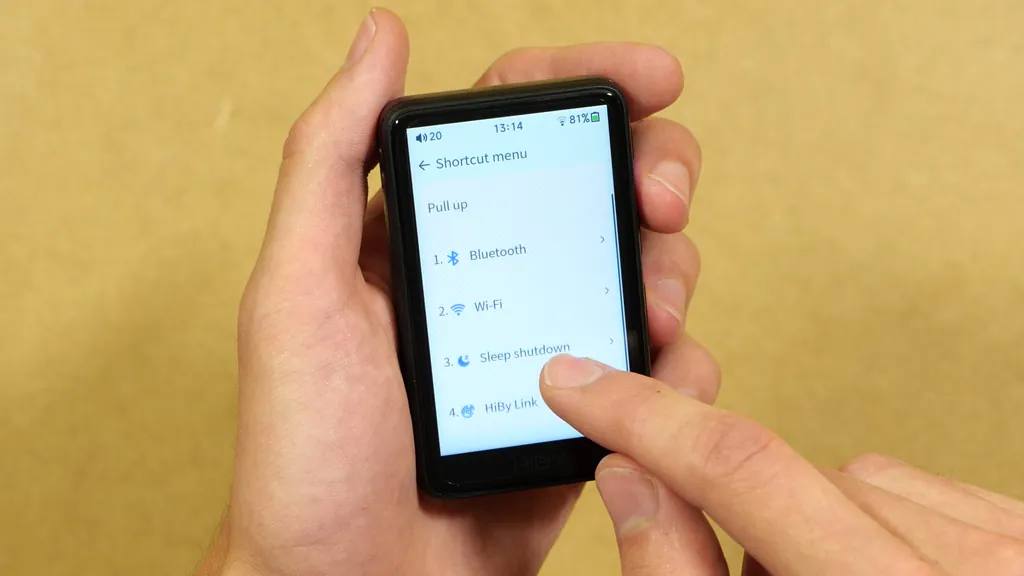
The shortcut menu lets you switch the pull-down quick menu to a pull-up one, and choose which four functions you want in it, from Bluetooth and Wi-Fi to the sleep timer and HiBy Link. You can also rearrange their order to your liking.
In the same System menu, you can disable the hardware buttons when the screen is off, hide the battery percentage, set the sleep shutdown timer (from 5 minutes to 2 hours), switch the USB working mode, and turn off the LED on the side of the player, which is one of the first things I did.
There is also a dark theme available here, and it looks really good. With this not being an OLED display, I was worried that darker tones wouldn’t look right, but I was extremely surprised here. The contrast is quite great, and the colors look really good on this little screen. The backlight was also very even on my unit. The camera doesn’t really do it justice, even on the later photos with album cover screensavers shown. Overall, the display gets a huge plus from me.
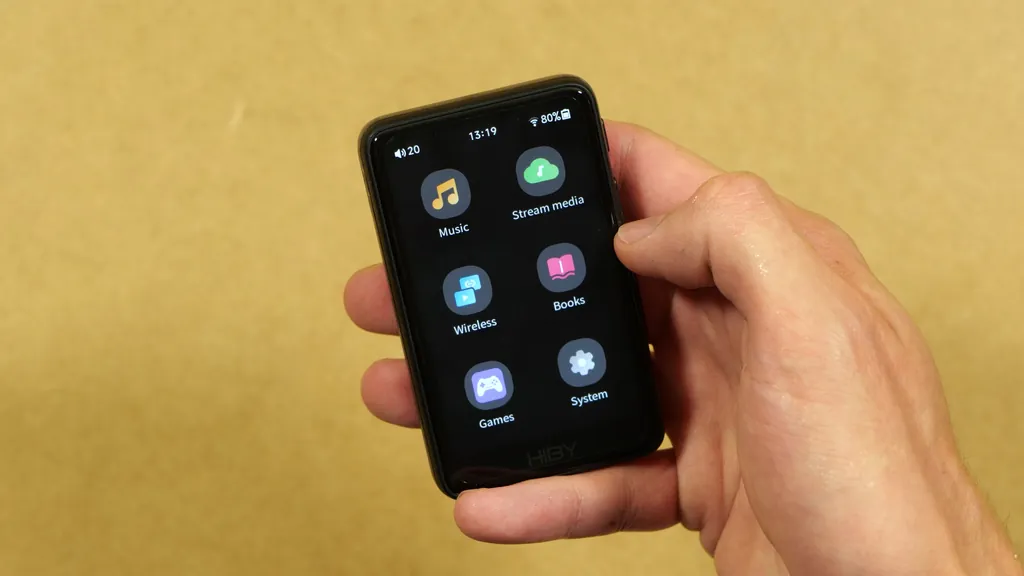
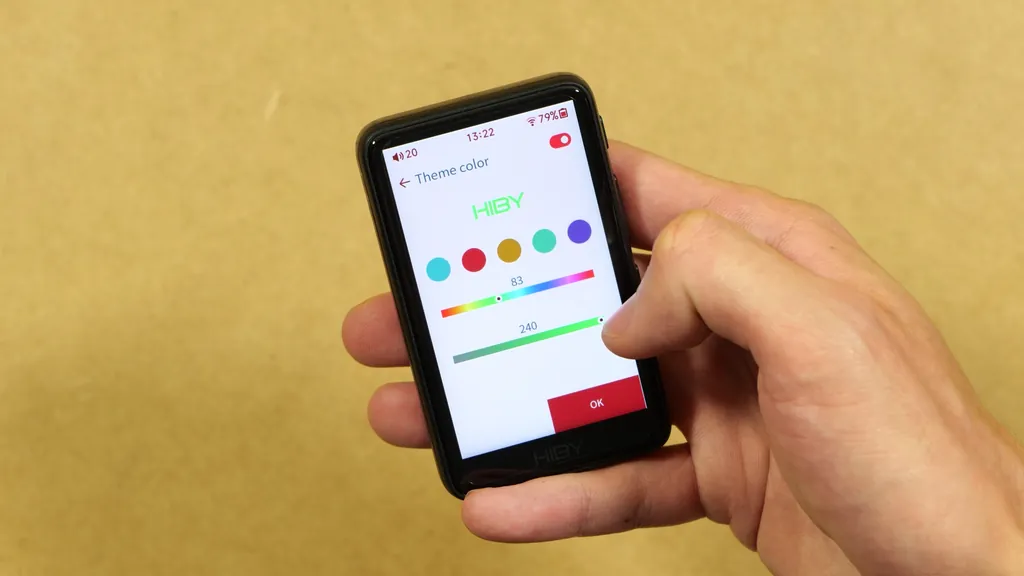
You can also change the theme accent color of the main menu and the settings, either to one of the presets or to a custom color you set with the sliders. Besides that, there is a font size setting (just Default and Big, nothing in between), the clock format and time zone, and the backlight timer, which can be anything from 10 seconds to 2 minutes, or always on.
Games and E-Books – Firmware 2.0’s Bonus Features
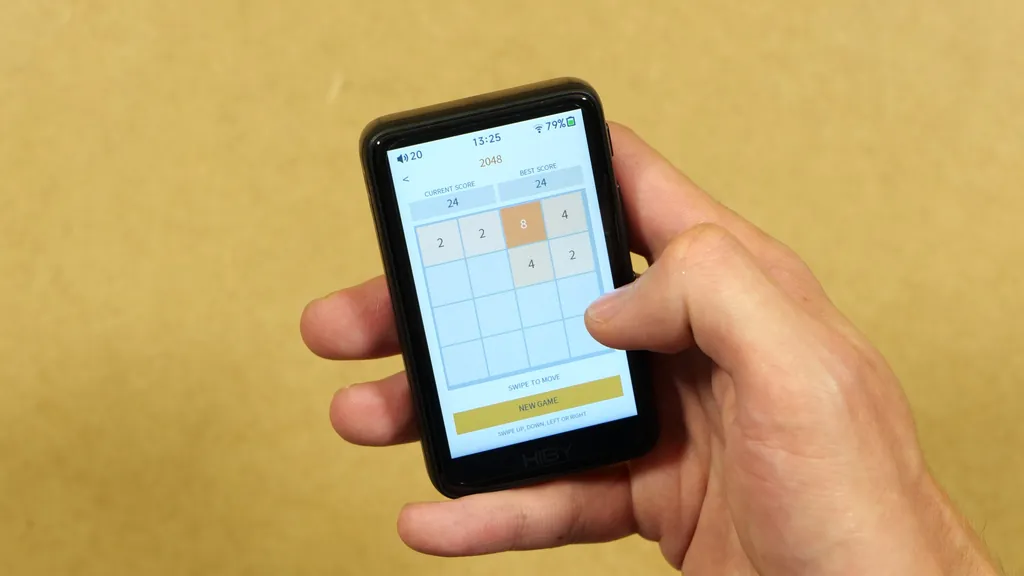
The new “Games” menu came with firmware 2.0, and HiBy’s changelog messages were quite vague about what it would actually be. It turns out you get three simple puzzle games: Sudoku, 2048 and 24 Points.
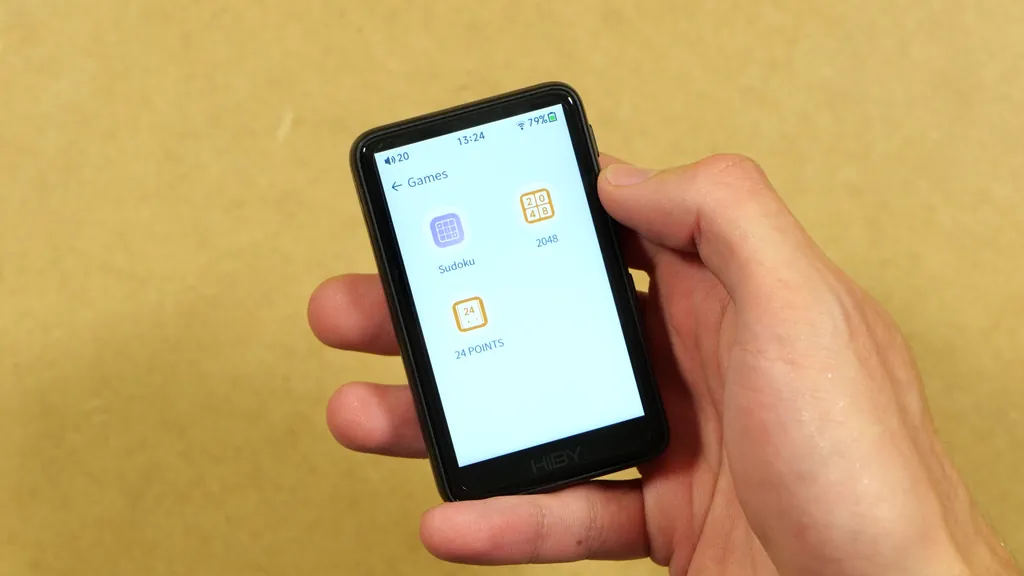
Sudoku comes with different difficulty levels, hints, and options to clear the cells or start a new game. 2048 is the game many of you probably know, as it was hugely popular a few years back, and 24 Points is a simple math puzzle game.
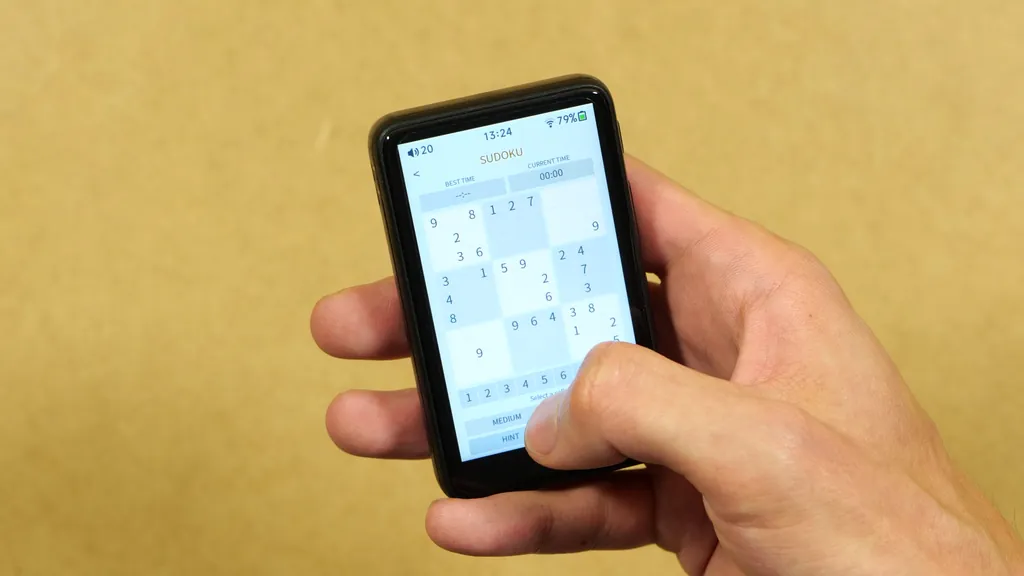
While I probably wouldn’t use my dedicated music player for gaming on the go, I have to admit that having a few simple puzzle games on hand like this is a fun addition to the feature set here.
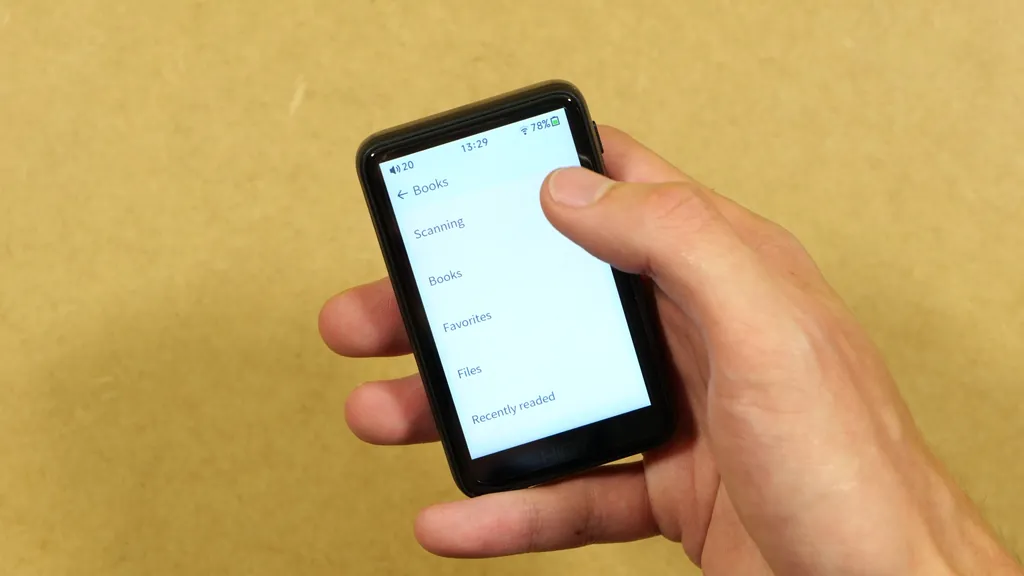
Then there is the Books menu, where you can read text files you put on your microSD card. According to HiBy, the e-book reader only supports TXT files. Honestly, I’m not sure the screen is big enough for anything more than short texts or notes, but if you want it, it’s there.
Streaming – Tidal, Qobuz and No Spotify
In the Stream Media menu, you’ll find Tidal, Qobuz and a custom radio option for online radio stations. Of course, you need an account with Tidal or Qobuz to use them. Qobuz asks you to log in right on the player, and that’s where the small on-screen keyboard comes in. Tidal is more convenient, as it shows a QR code with a link you can open on your phone to log in.
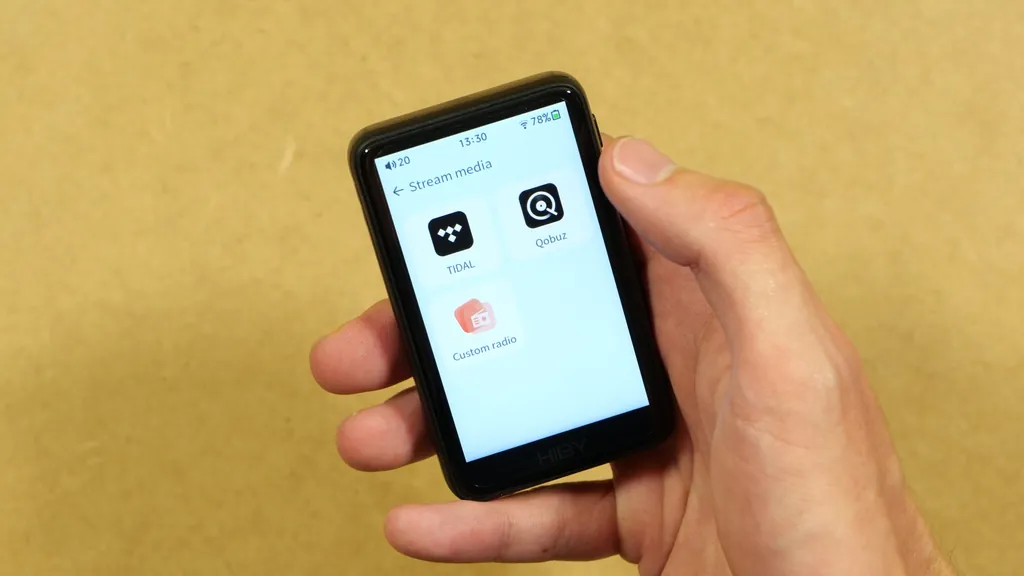
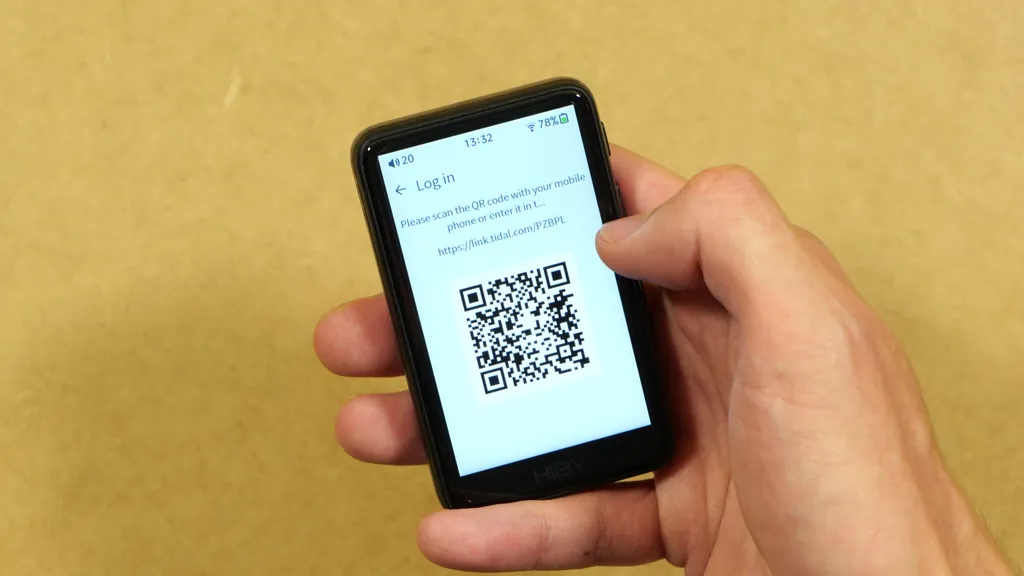
The R1 doesn’t support Spotify. As far as I know, there are some workarounds being worked on in the custom firmware scene, but none of them are official features. That said, if you have an iPhone, AirPlay can be a way around it (more on that below). If you use Spotify a lot, the R1 probably isn’t the best option for you.
Also, remember that when using music streaming features and having the Wi-Fi module on, your battery life will get noticeably shorter than if you were just relying on local playback. Just a thing to keep in mind.
Bluetooth, Wi-Fi and All The Ways To Get Your Music On The R1
Bluetooth Headphones and Codecs
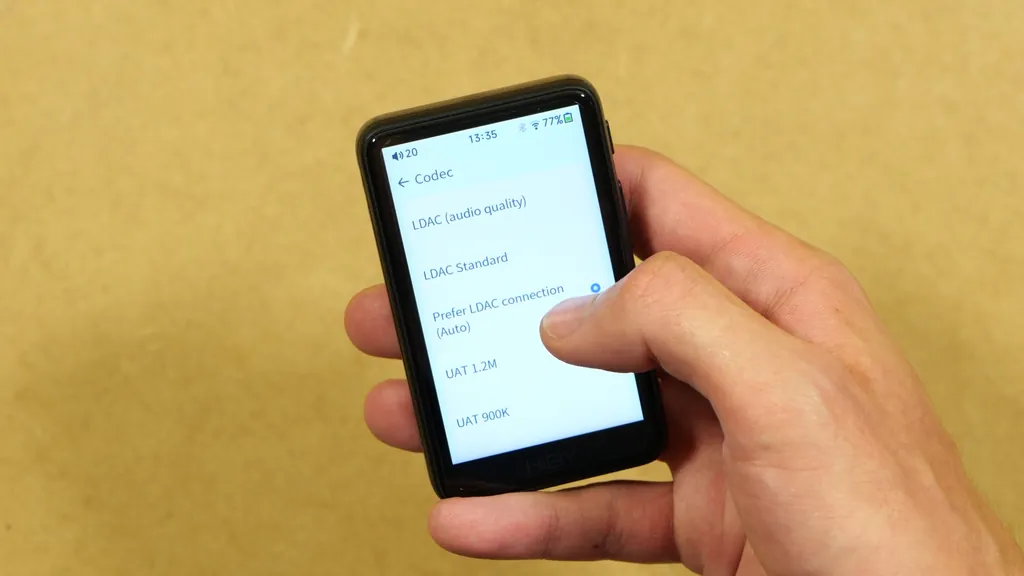
The R1 works with Bluetooth headphones, and you can choose the codec it uses. LDAC is selected by default, and you’ll also find aptX, AAC and SBC on the list, plus HiBy’s own UAT codec (supporting up to 1200 kbps, more than the 990 kbps of Sony’s LDAC). Keep in mind that UAT only works with HiBy’s own audio devices, such as their Bluetooth DACs, so with most regular headphones you’ll be using LDAC or one of the other codecs. There is also a Bluetooth volume sync setting, as well as the usual search and paired devices lists looking very similar to the Bluetooth option menus you can find on Android-based devices.
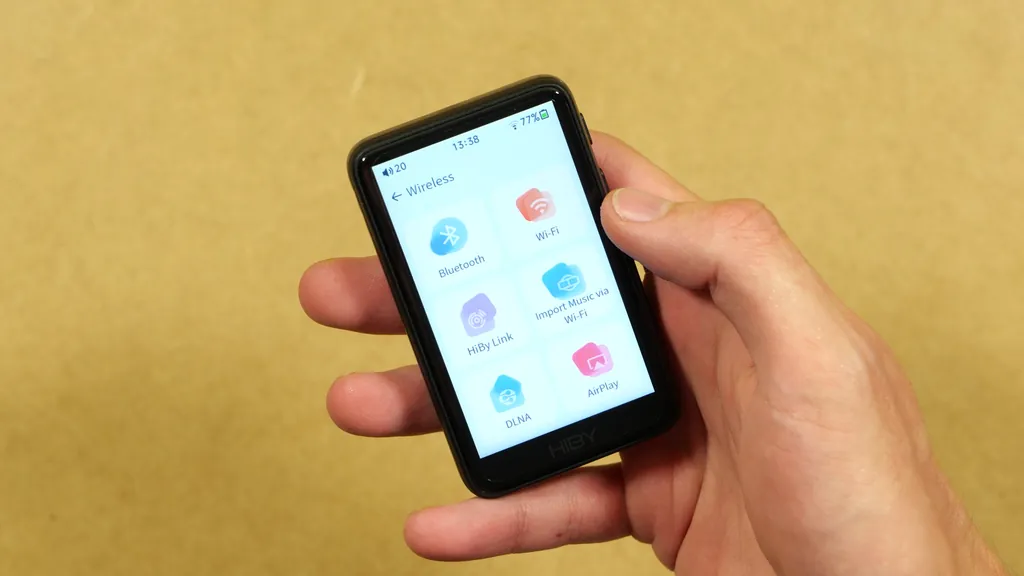
When it comes to getting your music onto the HiBy R1, besides the simple microSD card file transfer, you can also send songs over Wi-Fi, stream music to the player with AirPlay or DLNA, and control it from your phone with HiBy Link. All of these are explained below.
microSD Card and USB Cable
The simplest way to get your music onto the R1 is still the microSD card. Put your files on the card in your computer, insert it into the player, and use the Update music database option in the music player. Alternatively, you can connect the R1 to your computer with a USB cable, and with the USB working mode set to Auto or Device, it should show up as a regular storage drive. HiBy officially states that the R1 is able to read FAT32, exFAT and NTFS formatted cards up to 2 TB in size.
Import Music via Wi-Fi
This lets you send songs to the R1 without any cables, from a phone or a computer on the same Wi-Fi network. Go to “Wireless -> Import Music via Wi-Fi” on the player, and it will give you the instructions for connecting to a simple web page, which you open in the browser on your phone or computer. From there, you just pick the songs you want to upload, and they get copied straight to the player. Since the files end up on your microSD card, you’ll of course need one inserted for this to work. Once the transfer is done, it’s a good idea to use the Update music database option, so that the new songs show up in your library. For whole albums, a card reader is going to be much faster, but it’s quite handy for adding a few songs on the go, without having to take the card out of the player.
AirPlay
With AirPlay turned on, the R1 becomes an AirPlay receiver. On an iPhone, iPad or Mac on the same network, you can pick the R1 as the audio output in the AirPlay menu, and the music from your Apple device will play through the player and your headphones. This is streaming, not a file transfer, so nothing gets saved on your microSD card, and the music only plays as long as your Apple device is sending it. The upside is that it works with pretty much any app on your iPhone, including Spotify and Apple Music, which the R1 can’t run on its own. The downside is that AirPlay audio is limited to CD quality (16-bit/44.1 kHz), so it’s not the way to listen to your hi-res files.
DLNA
DLNA does the same thing for Android phones and media servers. Once it’s enabled, the R1 shows up as a playback device in DLNA apps (HiBy mentions BubbleUPnP as an example), so you can send music from your phone or from a home media server to the player over Wi-Fi. Just like with AirPlay, the music is streamed, not copied. The app on your phone does the browsing, and the R1 simply plays what it receives. This is mostly useful if you keep your music library on a computer or a NAS at home, as you can listen to it on the R1 without moving any files onto the card first. It does take a bit more setup than AirPlay, though, as you’ll need a DLNA app on your phone, and the R1 and your other devices have to be on the same network.
HiBy Link
HiBy Link lets you control the R1 from your phone using the HiBy Music app. Once you turn it on in the player and connect from the app (over Bluetooth by default), you can browse the songs on the R1 and control the playback from your phone, while the R1 does the actual playing. It can be pretty useful if your player is plugged into an amplifier farther away from you, or tucked away in a bag.
Note: Both AirPlay and DLNA can be toggled from the quick menu, and HiBy Link can be one of your four shortcuts there too. Once again, keep in mind that using Wi-Fi will drain the battery faster than local playback.
The Equalizer, MSEB and PEQ
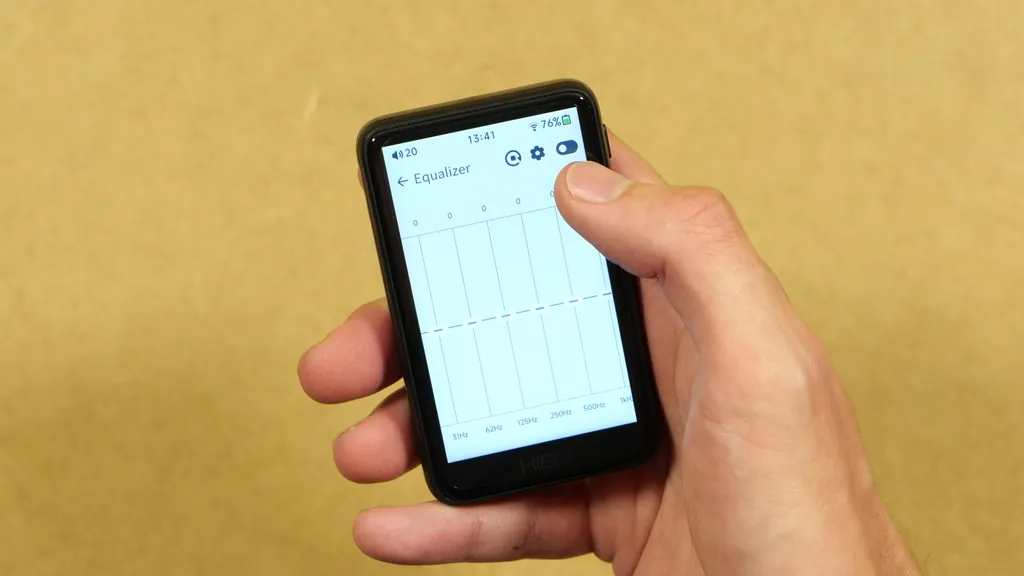
Of course, at its core, the R1 is a music player, and at this point a thing very much worth mentioning is that HiBy has finally added a proper “traditional” graphic equalizer to their OS. You can move the bands, pick one of the presets, go back to your own custom setting, or disable it completely. The interface is rather simple, but the feature is there.
The older MSEB option is still there too. It lets you tweak the sound based on descriptions like “warm” or “bright”, rather than raw frequency values. In my eyes, that’s also an interesting solution if you’re not exactly an expert when it comes to audio tweaks. In the MSEB menu you can also choose different adjustment ranges and save your own presets.
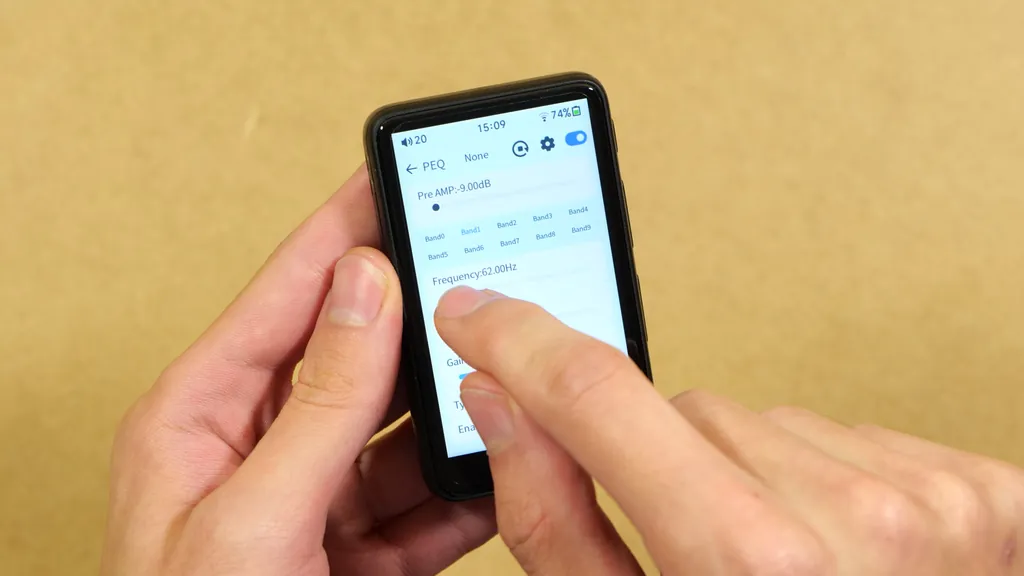
Then there is PEQ, the parametric equalizer that also came with firmware 2.0. Here you can pick and fine-tune the bands as well as change their frequency, gain and other values, so you have access to pretty much every parameter you might need. The main downside is that there is no visual graph in this menu, so you can’t exactly see what the curve looks like. If you’re fine with working with numbers and sliders only, it’s certainly a nice “advanced” option to have.
Note: According to HiBy’s guide, the R1’s EQ only works with files up to 48 kHz, and MSEB up to 96 kHz. Neither of them works with DSD files, so if your sound adjustments don’t seem to do anything with some of your files, this is most likely why.
The Player Settings
The player settings have pretty much everything you’d expect. There is a crossfade option for smooth track transitions, low and high gain modes, balance, gapless playback, a sound field option, max volume settings, as well as lyrics settings, where you can change the color and size of the lyrics.
You can also remap the bottom right rocker, to a certain extent. As I’ve mentioned, by default there is no “previous track” button on the side of the R1. With this setting, you can make the play/pause button (the top one on the bottom rocker) work as “previous song”, so that the rocker turns into a normal previous/next switch as its physical markings suggest. Or you can choose the option where a single click plays and pauses, and a double click goes back to the previous song.
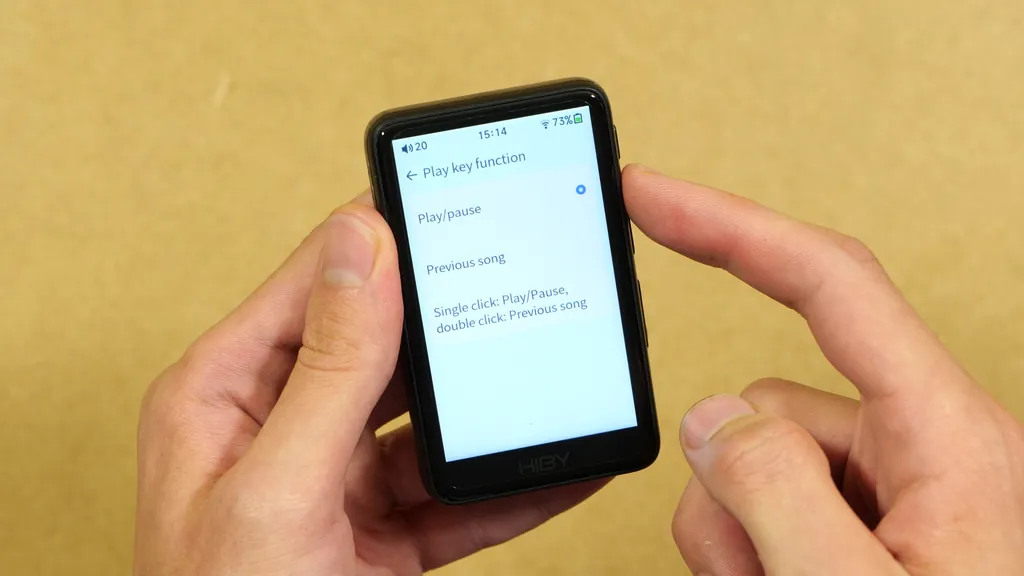
In general, the menus feel polished and work reasonably fast. When it comes to touch screen responsiveness, I had maybe one or two missed inputs along the way, but overall, navigating the system is perfectly fine.
The Music Library and Playback
I have to say that browsing your music on the R1 is really pleasant, and there is little to no lag when going through all the music library menus. You can use the file browser to go through your folders, or browse by albums, artists or album artists, with the album covers loading in as you scroll. Format support is also great. According to HiBy, the R1 plays everything from MP3, AAC and OGG to FLAC, WAV, ALAC, APE and DSD files. The scrolling is reasonably fluid, but this isn’t a 120 Hz display, so if you’re used to a high refresh rate phone, it can feel a little less smooth.
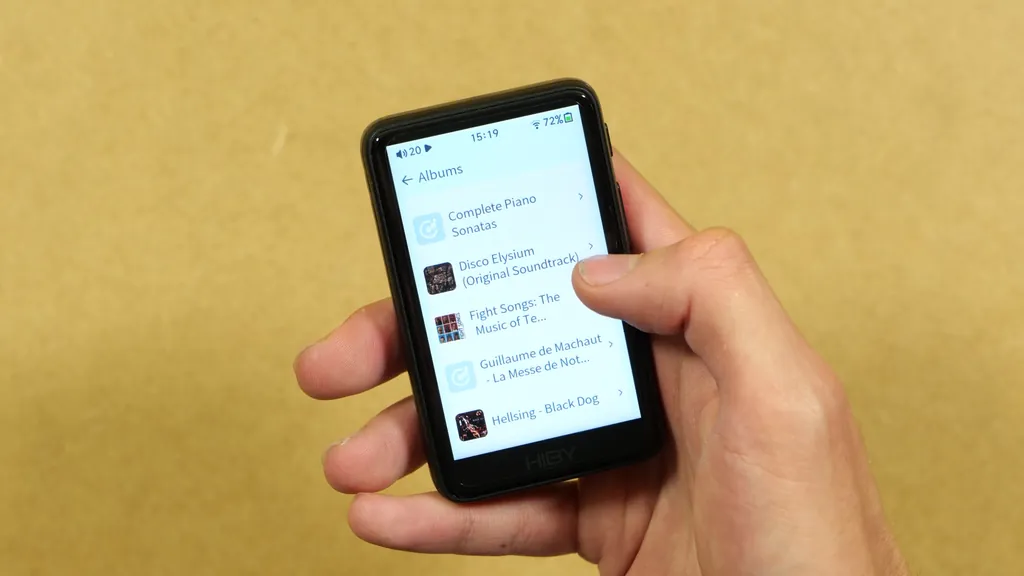
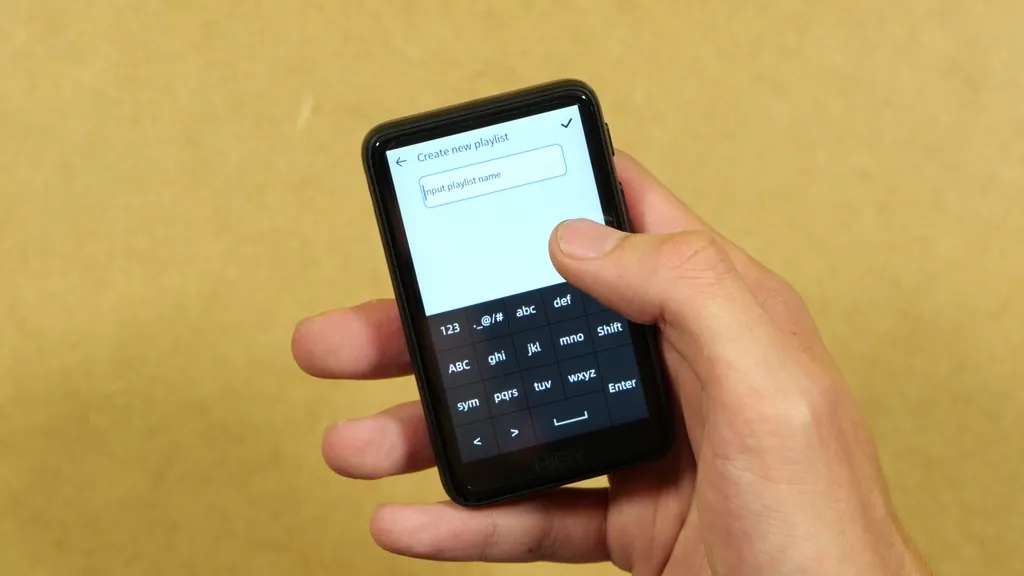
Tapping the heart icon in the top corner of the music player gets you to your favorites, recently played and recently added songs, and your playlists, which you can also create right on the player. The typing method here will feel very familiar to anyone who has owned a phone with a keypad, as the on-screen keyboard uses the classic T9-style layout. I think it’s a perfect fit for a device this small, and it’s very intuitive as well.
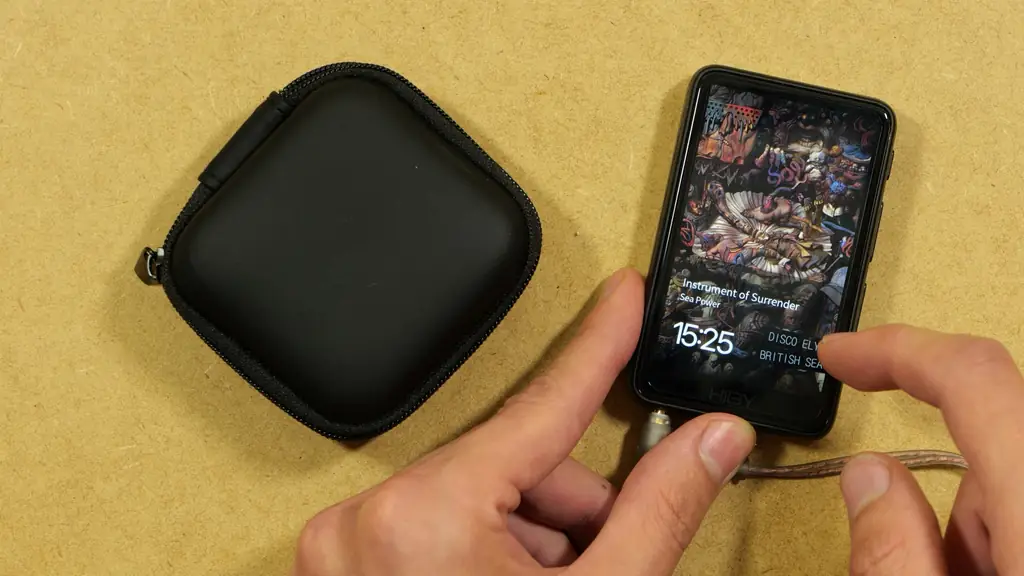
By default, the lock screen doesn’t show the album cover of the song you’re listening to. To change that, go to “System -> Screensaver setting” and select “Album cover”. There is also a dynamic cover option, which should let you use your own screensaver images.
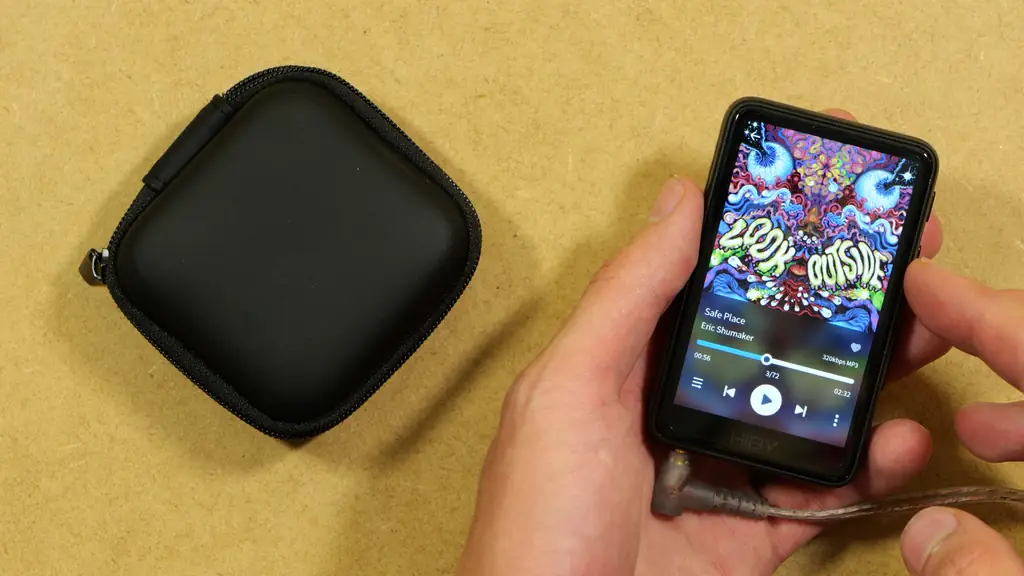
The main player view is pretty standard. To get to it from the library, just swipe right. You get the progress bar, the favorites button, the file format and quality, playback modes and track controls. Tapping the artist’s name doesn’t take you to the artist’s page, but I suppose that’s on purpose, as on this small 3-inch screen it would be rather easy to do a misinput here and hit the progress bar instead.
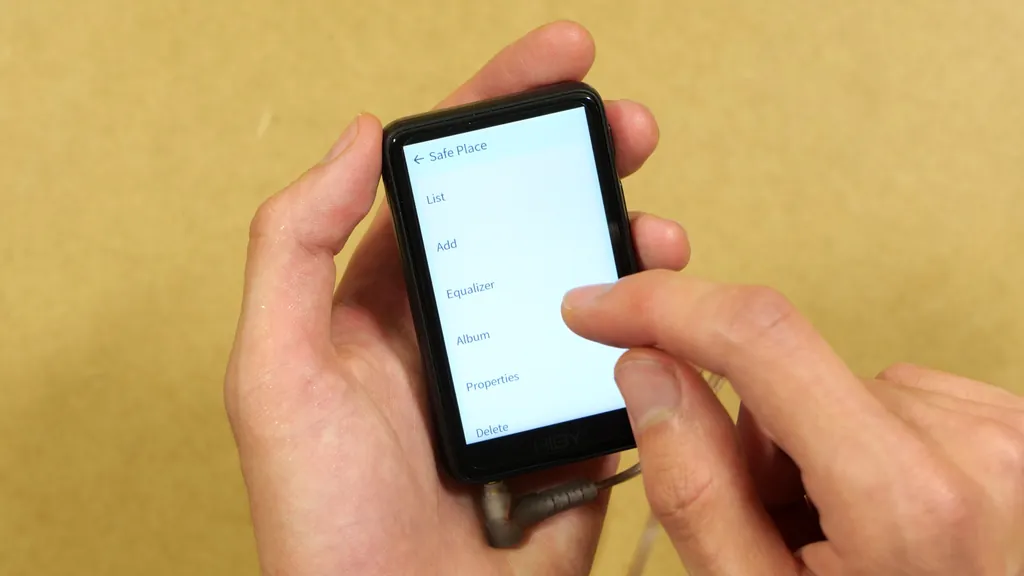
The extra menu on the player screen gives you the track list, playlists and favorites, a shortcut to the equalizer (only the graphic one, as far as I can see), the album, and all the information about the track you’re listening to. The last option is “Delete”, which deletes the song you’re currently playing after a quick confirmation dialog box, so be careful with that one.
Here are a few more small things worth knowing. I didn’t see any volume warning when going higher with the values, and with my IEMs, the R1 gets pretty loud. The shortcut to the sleep timer in the quick menu is really convenient, as you can quickly reset it if you’d like to. The only thing I didn’t like is that even on firmware 2.0, the album covers reload every time you change tracks, even if you’re moving within the very same album. It’s just a cosmetic issue, and it’s probably easy to fix in a software update, but I still thought it was worth mentioning.
What About Sound Quality and Custom Firmware?
As always, I’m not going to review the sound quality here, as I don’t feel qualified to do it properly, nor do I have appropriate equipment for that on hand (nor the field-tested ears of a digital playback connoisseur). What I can tell you is that in my personal opinion the FLAC file playback is clear, high quality, and it somehow really does feel like a step up from my phone, even when my phone has a proper DAC attached and I use the same reasonably good IEMs. The display and the stock firmware are also great, especially for the price, and the whole experience feels much more polished than I expected.
The R1 now has a whole community of people making custom firmware for it. The most prominent one I found is SonixOS, a free, open-source firmware for the R1 and the R3 Pro II that promises a faster music player with lyrics, podcasts, streaming and a parametric EQ. I will definitely try it out, and I’ll surely get back to the R1 once I do to let you know about my experience there.
My Verdict – Should You Get The HiBy R1?
All in all, my first impressions of the HiBy R1 are very positive. It’s very small, very light, and it works much better than I anticipated. Once again, for around $70, you get a polished, responsive music player with a great screen, LDAC Bluetooth, Tidal and Qobuz, AirPlay and DLNA, and now a parametric equalizer too.
There are a few catches, of course. There is no Android, so you can’t use your favorite apps on it (such as Spotify, which is not natively supported by HiBy OS at the time of writing this article). You’ll need a microSD card for your music, and the glossy back picks up fingerprints easily, so if that bothers you, you might want to get a snug case for it.
Even so, I find the R1 more pleasant to use than the Oilsky M308. If I had to choose one of them, I’d go with the HiBy, even without any custom firmware involved. The Oilsky has its charm, and being an Android device is always a plus for me. But it has a short battery life, I’ve had some rather concerning battery issues with it (namely it refusing to turn on when the battery levels are low, more than a few times), and in theory, a perfect DAP should have a simple, highly functional set of features focused solely on music playback. That’s why my final vote goes to the HiBy R1, which is an entry-level DAP I can truly stand behind. If you’d like to see what else is out there, take a look at my full DAP buyer’s guide, where you can find many more devices like this one.
Thanks for reading, and see you next time!
You might also like: Oilsky M308 – A Tiny Android DAP – Unboxing & First Impressions