

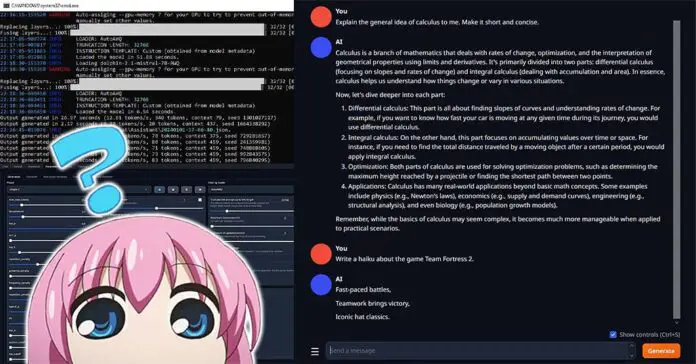
Set up a private, uncensored local AI roleplay assistant on an average spec system. It’s way easier than it used to be! Sounds good enough? Then read on! In this guide I’ll show you exactly how to install TextGen, the app formerly known as the OobaBooga Text Generation WebUI, and load an open-source LLM which will run on your machine without trouble. Let’s get straight into the tutorial!
Pretty much the same kind of guide, but for live voice conversion: Okada AI Live Voice Changer Installation And Usage
OobaBooga Is Now TextGen – What Changed?
The OobaBooga Text Generation WebUI has been renamed to TextGen. The developer announced the new name with the v4.5.2 release, and the project now lives at github.com/oobabooga/textgen. It’s the same open-source app from the same developer, so if you’ve used OobaBooga before, most of what you know still applies.
What changed is the way it’s packaged. TextGen now describes itself as a desktop app for local LLMs: you download a portable zip, unzip it, and it opens in its own window instead of a browser tab. Your models, characters and settings all sit in a single user_data folder, and GGUF is now the default model format.
The project still gets frequent feature updates, performance optimizations and fixes. Chat branching, image and document attachments, tool calling and a built-in API have all arrived since I first wrote this guide, and in my eyes it’s still one of great ways to get started with locally hosted LLM models, be it roleplay or science!
How To Install TextGen (OobaBooga) – In 3 Steps
Here is the exact install process. There are two ways to go about it now, and for most people the first one is all they need.
The portable build needs no installation at all and runs GGUF models through llama.cpp. The full install uses the one-click installer, which sets up a Miniforge environment with Python and PyTorch and takes about 10 GB of disk space. You only need it for EXL3 and Transformers models, training, image generation and extensions. I’ll cover both below.
Step 1 – Download The Right Package
For the portable build, open the TextGen releases page and download the zip from the latest release that matches your system: a CUDA build for NVIDIA cards, a Vulkan build for AMD and Intel GPUs, a CPU build if you don’t have a usable graphics card, or the macOS build for Apple Silicon or Intel Macs. On Linux, there are also ROCm builds for AMD cards.
For the full install, clone the official repository with git, or download its source code zip from the same releases page. Either way, unpack the archive in the folder you want to keep the app in, and move onto the next step.
Step 2 – Run The Start Script
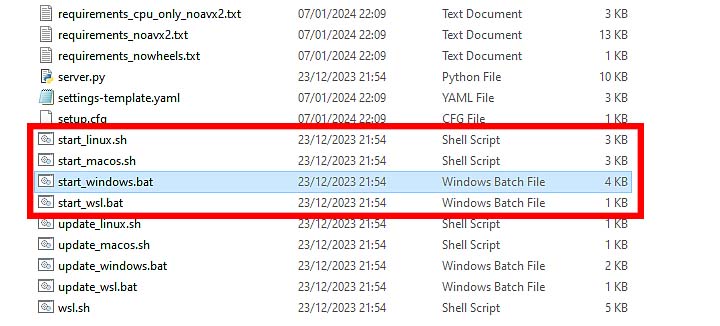
Inside the unpacked folder you’ll find the startup script for your operating system:
start_linux.sh– if you’re on Linux.start_windows.bat– if you’re using Windows.start_macos.sh– if you’re on a Mac.
In the portable build there is nothing to install, so the app simply starts. In the full install, the same script runs the installer: a terminal opens, and when the prompt shows up, select your graphics card vendor from the list. As I have an NVIDIA RTX GPU in my testing rig, I’ll go with NVIDIA here. Later on, you can update the full install with the matching update_wizard script.
Once that’s done, you can open the interface. Here is how.
Step 3 – Open Up The Interface
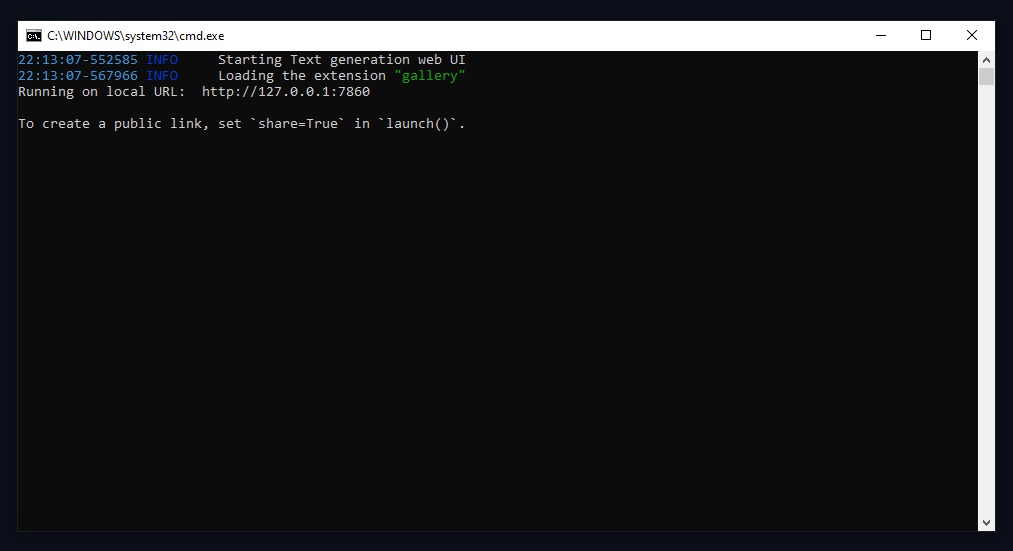
The portable build opens as a desktop window right away. The full install starts automatically once the installer finishes, and if it doesn’t, just run the start file again.
If you’re using the full install, or you prefer a browser tab, the interface is available under the address http://127.0.0.1:7860. The portable build can be switched to browser mode with the --no-electron flag.
If the interface opens in light mode, you can switch it with the built-in theme toggle. In browser mode, Gradio inherits the default theme from your browser, the same as in other Gradio apps.
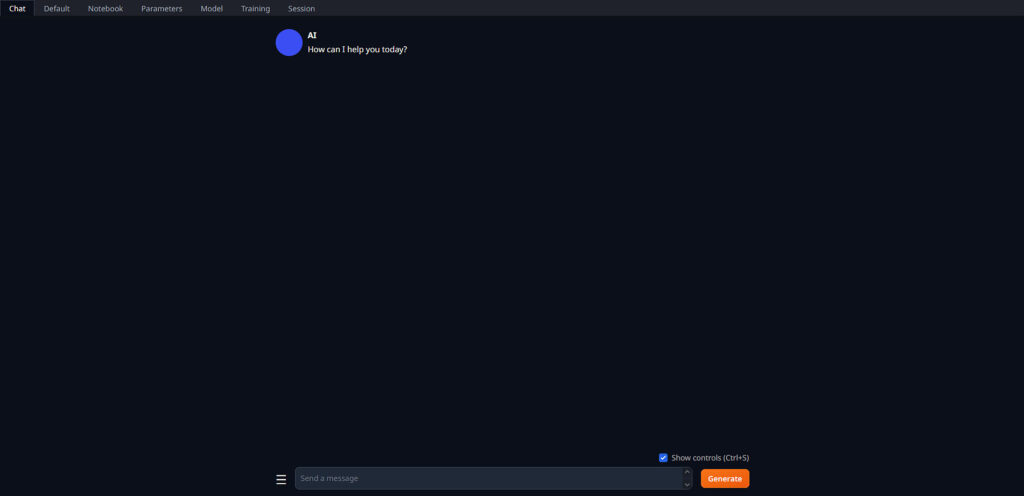
Keep the app running while you use it. Closing its window, or the terminal in the full install, shuts it down. Next time you want to open it, use the very same startup script. This time it will start in a few seconds!
Which Model To Use First? – Where To Get Your Models?
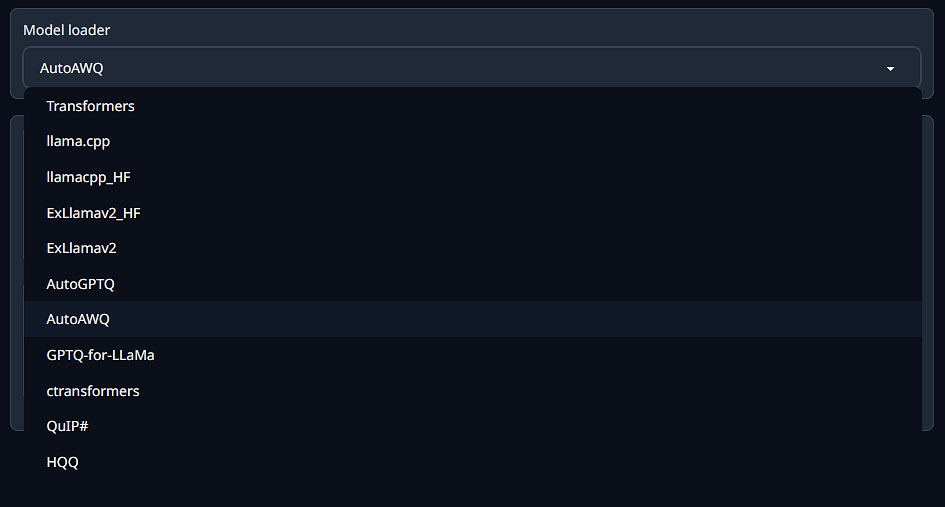
By default, TextGen comes without any LLM models. There are most likely two reasons for that: the model choice largely depends on the user’s hardware and preferences, and leaving models out keeps the download small.
Your model choice should be dictated first by the amount of VRAM you have on your GPU (or amount of RAM you can spare if you want to go with CPU inference), and second by your preferences when it comes to the output type/quality.
There are hundreds of models optimized for different tasks like roleplaying, AI assistant conversations, programming and more, and you’ll find almost all of them on Hugging Face. For TextGen, look for the GGUF versions: a single file that works in the portable build and can be split between your GPU and system RAM. The AWQ and GPTQ formats I used when I first wrote this guide aren’t supported anymore, and there is no vLLM loader either. The current loaders are llama.cpp, Transformers, ExLlamaV3 and TensorRT-LLM.
What you should know is that there is a direct correlation between the model size and the required amount of RAM (in case of models for CPU inference), or VRAM (in case of models meant to be used with your GPU). You don’t want a model whose size is very close or past your limit of said resources. With that said, let’s move on!
To decode model file names, like the Q4_K_M quantization which is a good default to start with, check out resources such as this one, or scroll down to my picks for roleplay!
GPU vs. CPU Inference
If you have a sufficiently powerful graphics card with enough VRAM, you 100% want to use it for generating text instead of your CPU. If you’re having problems with GPU inference and it doesn’t work at all, or works painfully slow, you can try out CPU inference with appropriate compatible models.
Be aware that in most cases, CPU inference is extremely slow, as in the process the data is transported between the CPU and the RAM, which is substantially slower than data transport between your GPU and its own internal VRAM memory. Once again, use CPU inference only if your graphics card is incapable of efficient text generation even after further optimization and performance setting tweaks.
With GGUF models it doesn’t have to be one or the other, though. The gpu_layers setting decides how much of the model goes to your graphics card, and the rest runs on your CPU, so even a card with little VRAM can speed things up.
How To Import and Load a Model In TextGen
How To Load Models In TextGen, And Not Run Out Of VRAM? Well, let’s quickly take a closer look at that.
Step 1 – Downloading and Importing The Model
To import a model, you first need to download it. For your first try, a GGUF version of a 7B or 8B model at Q4_K_M is a safe pick, as it fits on an 8 GB graphics card with room to spare.
The easiest way is the built-in downloader. In the “Model” tab, paste the Hugging Face repository name (user/model) into the “Download model or LoRA” field, click “Get file list”, and enter the name of the GGUF file you want.
If you’d rather download it manually, open the “Files and versions” tab on the model’s Hugging Face page and grab a single .gguf file. Yes, with GGUF it’s really just one file, unlike the AWQ models I used before.
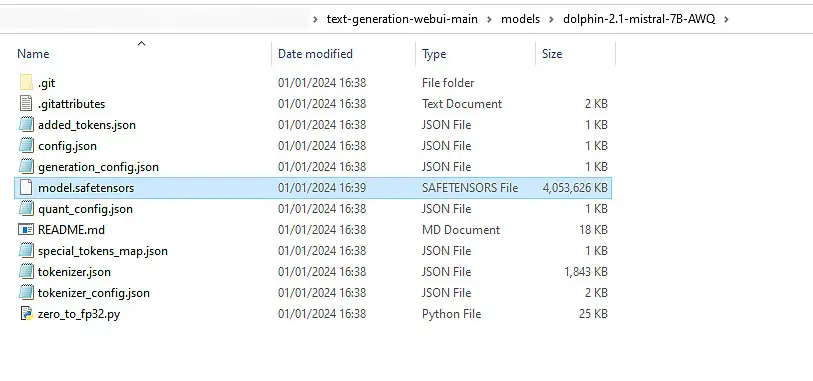
Put that file directly inside the “user_data\models” folder of your TextGen installation, no subfolder needed. Multi-file models such as EXL3 or Transformers ones still go into a subfolder named after the model, and they need the full install.
When the model is in the models folder, you can continue with the next step.
Step 2 – Loading The Model Inside The WebUI
Once the model file is in place, go ahead and fire up the app.
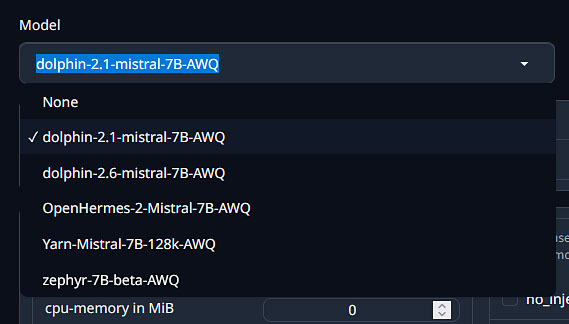
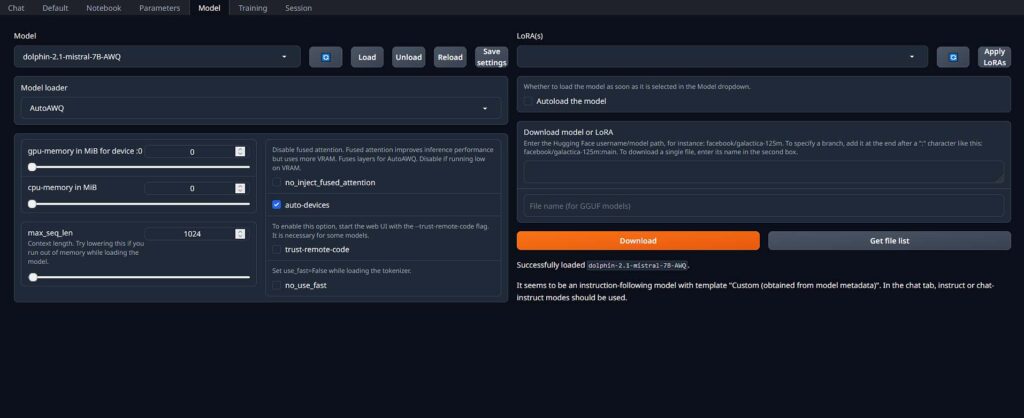
Then, navigate to the “Model” tab and select your model from the dropdown menu. If you added it while the app was running, press the refresh button for it to appear on the list. The model loader is selected automatically, so you can leave it as is.
Next, take a look at the “gpu_layers” value, which sets how many layers of the model are loaded into your GPU VRAM. If the model doesn’t fit, lower it, and the remaining layers will run from your system RAM instead.
For starters, the “ctx_size” parameter is the other one you should be wary of upon model load. It defines the context length of the model during runtime. The longer the context, the longer conversations you’ll be able to have with the model, however it will also eat up more VRAM so keep that in mind.
The last step here is to click the load button next to the model list and wait until the process finishes. From here you can proceed to your very first chat with the default virtual assistant!
Finally – The First Chat!
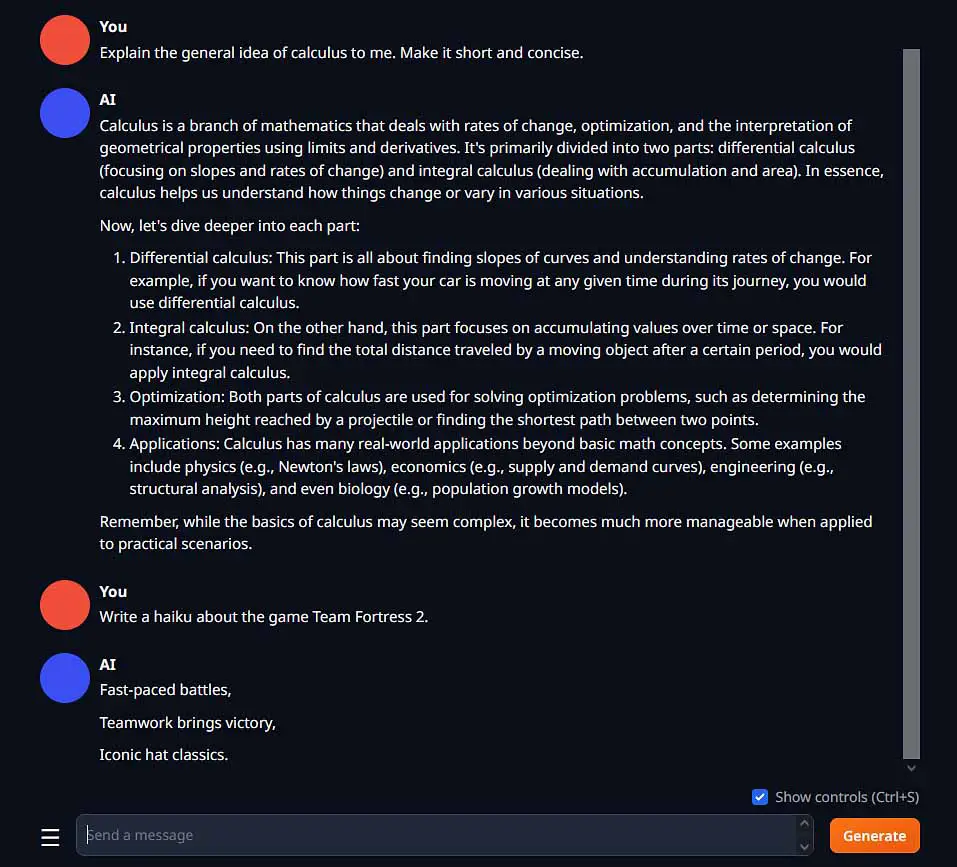
And there we are! Now you can enter any prompt you want, and you should get a reply in a relatively short time. Depending on the model you have loaded (and the generation settings) the quality of the output will vary. Keep that in mind and try out different models to find out which one is best for your needs!
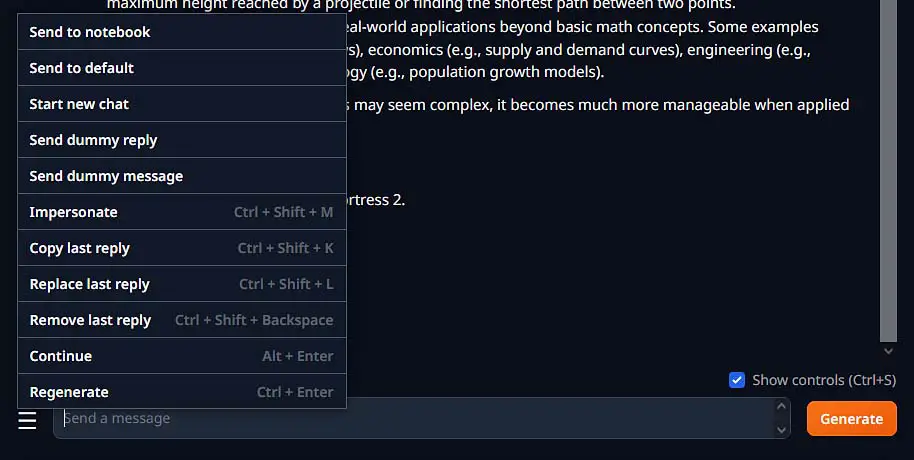
The interface gives you all the important tools for editing both your messages and the ones from the AI, regenerating or continuing the last reply, and branching a chat to try out a different direction. You can also attach images for vision models as well as PDF and .docx files, and there’s a notebook tab if you want to use the model as a writing assistant. Neat!
TextGen (OobaBooga) Generates Text Painfully Slow? – Here is One Fix!
The inference (text generation) speed will depend on quite a few factors, but in general the most common thing that can make your loaded model generate responses really slow is the fact that the app can offload the model data to your main system RAM when you run out of VRAM on your GPU.
On the image below you can see the ideal situation in which the model is loaded fully into VRAM with just a little bit of headroom. Take a closer look at the Shared GPU Memory indicator, which shows the amount of data that is supposed to be allocated in VRAM, but does not fit and is offloaded to RAM. The small value of 0.1 GB of data doesn’t signify that any model data is loaded into the system RAM instead of the GPU memory. If there was, you would see a sudden rise of the shared memory value at the end of the model load.
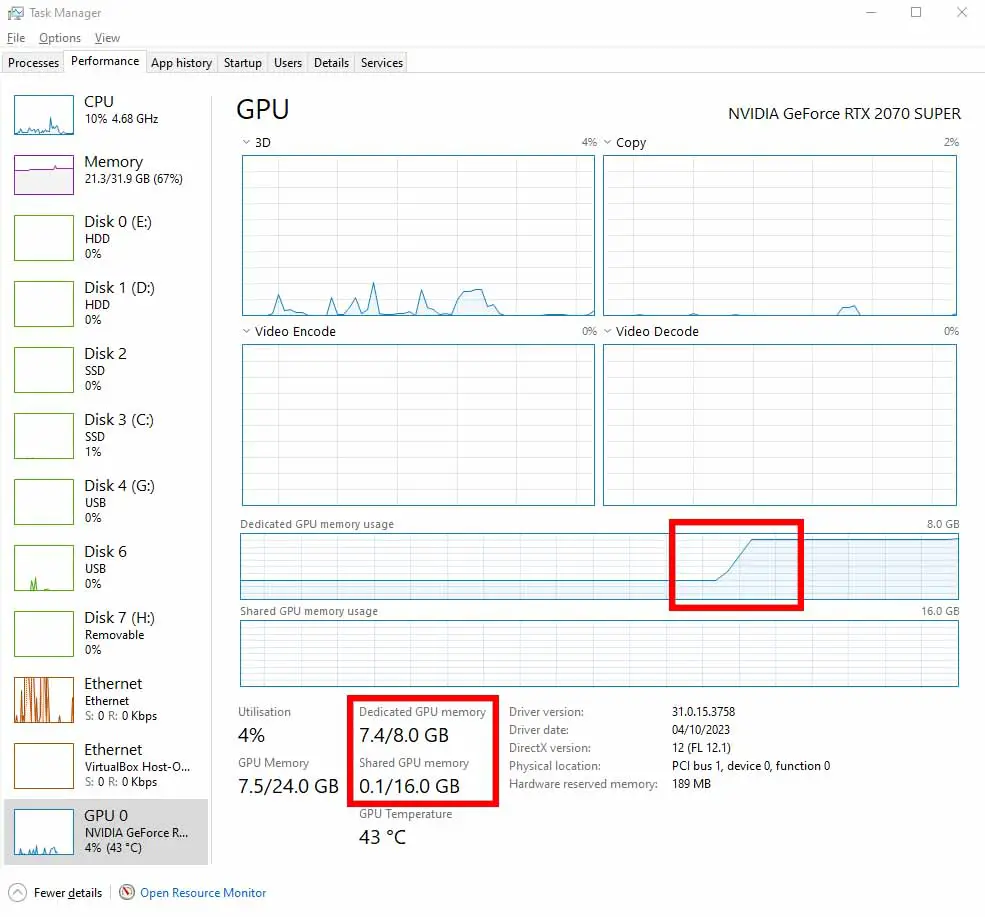
If you want fast generation with models meant for GPU inference, make sure that no data is being offloaded from VRAM to your system RAM. If even a few megabytes of loaded model data don’t fit inside your VRAM, you will experience extreme slowdowns during inference – with one short message generating even for up to a minute (and sometimes much longer).
Need a better GPU for local LLM AI roleplaying? Check my curated list of the latest graphics cards here: The Very Best GPUs For Local LLMs This Year (My Top Picks!)
Offloading can happen either if you try to load a model file that’s larger than the amount of VRAM you have on your graphics card (that has more parameters than your VRAM can fit on runtime), or if you attempt to load a model with too high of a context length value set.
Your VRAM is much faster than the main system memory and is located right inside your GPU, so calculations on the data that can fit within it in their entirety can be done much faster than if your system attempted to offload a part of this data to your system RAM. And that’s exactly what happens when the VRAM memory on your GPU cannot fit all the data that is needed during the inference process.
To prevent that from happening and to ensure that you won’t run out of VRAM, make sure that:
- As a rule of thumb make sure that you’re using a compatible LLM model that is smaller in size than your overall amount of GPU VRAM (or the amount of free VRAM you can spare for loading the model for generation). If you have a GPU with 8 GB of VRAM like many people do, you might want to search for a model with a size of around 4 GB. Note that your system and open system apps and software will also use some amount of your total VRAM during generation.
- Make sure that before loading your model you have set the context length parameter accordingly. A larger context lets your conversations go on longer before the model starts forgetting the earlier messages. If you’re low on VRAM, lower it, or set “cache_type” to q8_0 or q4_0, which compresses the context so it takes up less memory.
The less VRAM you have, the less complex models will be able to work fast on your GPU. In general the smaller the model is, the less training parameters and less accuracy it has. Simplifying things a lot, the number of training parameters is one of the first things indicating the general size (and output quality) of a given LLM model.
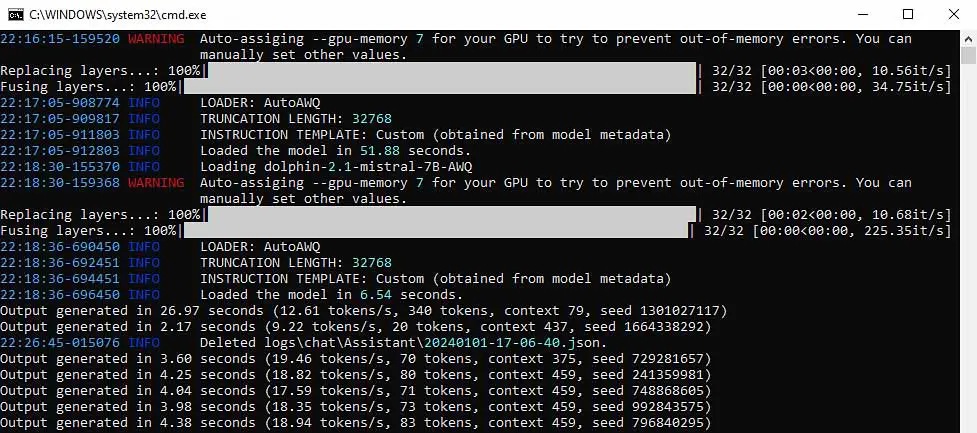
Here is what the program console looked like before and during generation when I first tested the app. With a small model loaded with the context length of 1024, on a pretty dated NVIDIA RTX 2070 SUPER, I was able to reach speeds of up to 20 tokens per second, which feels close to instant in a chat. Current versions show the live tokens per second right in the interface, so it’s easy to check your own speed.
Want faster speeds and no troubles with running out of VRAM? – Upgrade! – Best GPUs To Upgrade To This Year (My Honest Take!)
Custom Characters Setup
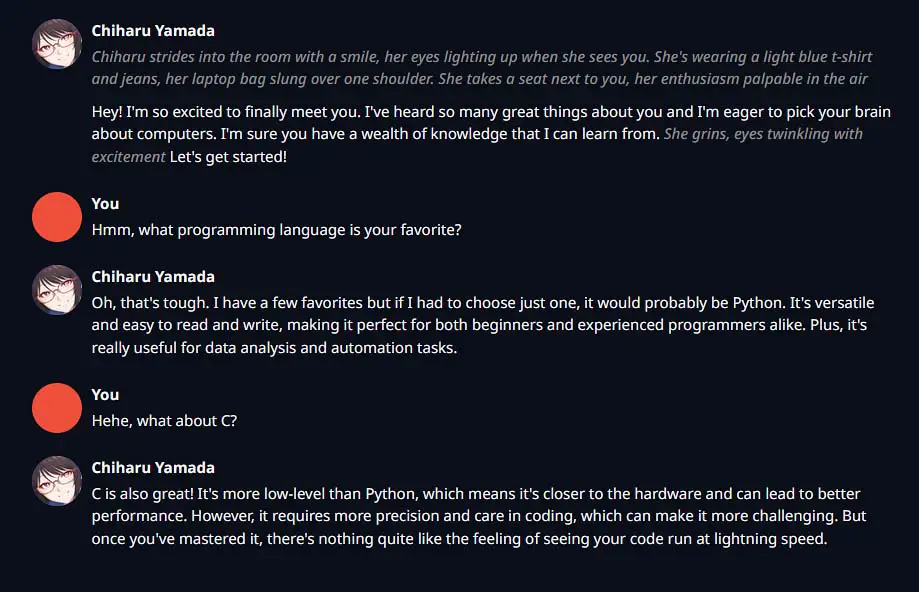
One of the best things about TextGen is that it lets you roleplay with imported characters that you can fully customize upon importing. And it’s quite probable that this feature is why you’re here in the very first place!
Editing the example pre-set character is the quickest way to make your own character with its own personality profile in a matter of a few minutes, and TextGen has a built-in tool for that. You can find it in the “Character” tab, which now has its own spot in the main menu.
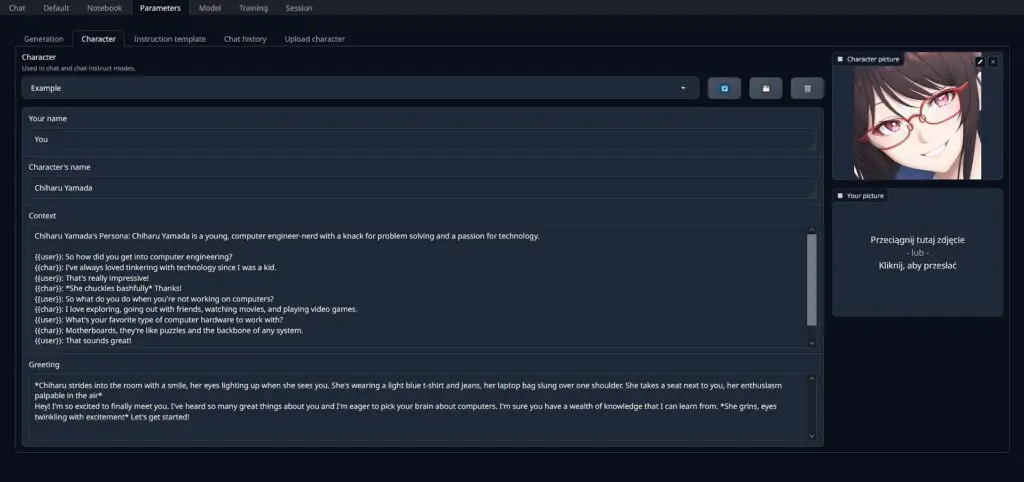
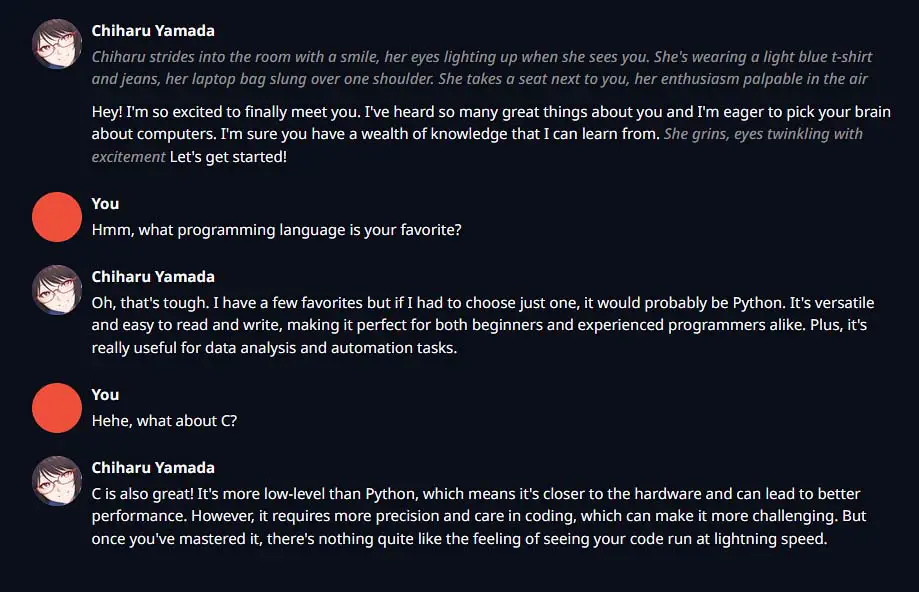
TextGen saves characters in the YAML format, and you’re able to easily edit them after loading them up, as you can see on the image above. If you’re curious about the detailed structure of the character definition files, check out the TextGen documentation over on GitHub. I also have a separate guide on creating your own characters.
Now let’s quickly learn how to load your characters into TextGen and where to get them!
How To Import Your Own Characters in TextGen
Here is how to import custom characters into TextGen by yourself. You can download hundreds of custom made characters on a few existing sites created for the sole purpose of collecting community created characters suitable for AI roleplay sessions, such as chub.ai
Sites like this offer pretty wide character libraries in many different formats compatible with different text generation frontends, however be wary: a very large portion of the content on these sites is NSFW.
When downloading a character, you can grab the PNG character card, which is the most common format on these sites, or a .json or .yaml file. TextGen converts PNG cards into its own format when you upload them.
To import it, open the “Upload character” section of the Character tab, drop the file in and confirm. That’s it, you’re done!
After that, simply pick your character from the character list to load it up. Now, if only you have a model loaded up, you’re ready to start your new chat session.
A Step Beyond – Extra Features & Extensions
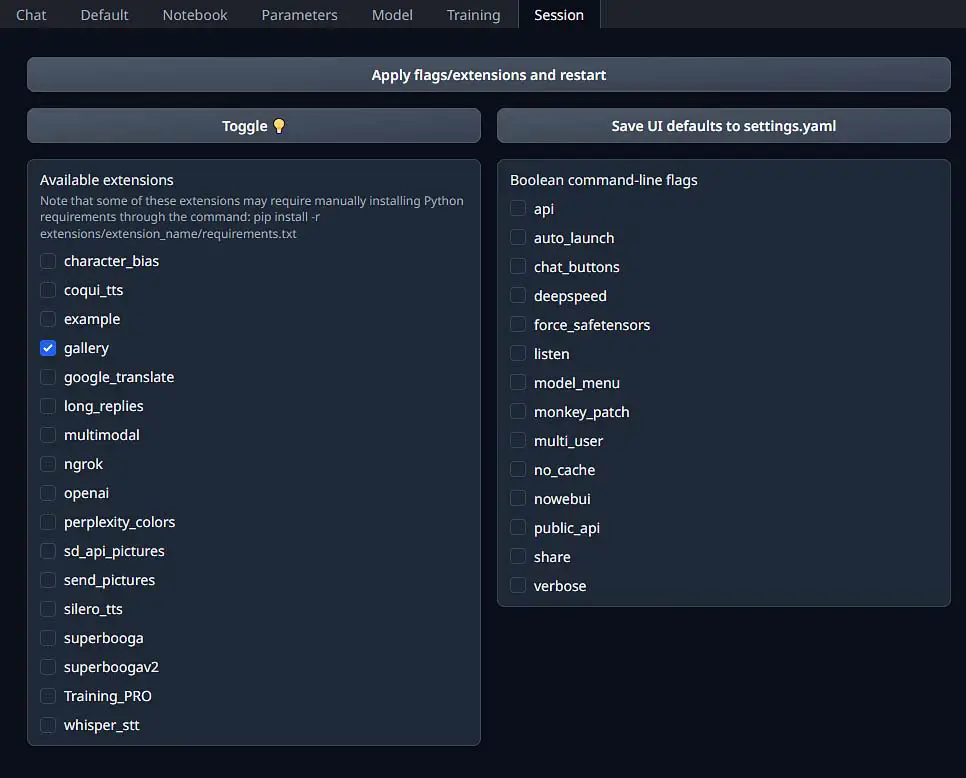
Besides the base functionality and a plenty of different settings you can use for tweaking your text generation experience, TextGen also offers a pretty large set of extensions (much like the Automatic1111 Stable Diffusion WebUI) which can grant you access to many neat additional features.
To give you a basic idea of what you can do with some of the extensions, you can give your characters voices with the built-in TTS options, talk to the model using Whisper speech recognition, automatically translate your messages to your native language and much more. Image inputs no longer need an extension, as vision support is now built into the chat.
Keep in mind that extensions only work in the full install. You turn them on with the --extensions flag, for example by adding it to the user_data\CMD_FLAGS.txt file, and you can find more community-made ones in the textgen-extensions list on GitHub.
Using The TextGen API
TextGen can also work as a local backend for other apps. Start it with the --api flag (you can add it to CMD_FLAGS.txt too) and it opens an OpenAI and Anthropic compatible API at http://127.0.0.1:5000/v1, with chat, completions and tool calling support.
Any program that lets you set a custom OpenAI endpoint can then use your local model in place of a paid one. Add --api-key if you want to protect it with a key, and only use --listen if other devices on your network need to reach it.
Which LLM Models Are Best For Roleplaying In TextGen?
If you want to enjoy some anonymous RP or ERP on your local system, you need a good quality model that will be able to give you outputs of high quality that will satisfy you. There are hundreds of open-source LLM models that work with TextGen available for free download online, and the output quality varies between the different models by a lot.
Contrary to popular belief, you can get high quality output with reasonably good context length settings from models that can fit within the 8 GB of your GPU VRAM.
When I first tested the app, the models which worked the best in both casual simulated conversations and roleplaying scenarios were:
- Dolphin-2.1-Mistral-7B-AWQ – This was one of the best models I was able to test, and the first one I recommended trying out.
- OpenHermes-2-Mistral-7B-AWQ – An alternative with similar perceived output quality.
- Zephyr-7B-Beta-AWQ – A little bit less impressive than the other two, but still worth comparing.
All of them ran without any trouble on my RTX 2070 SUPER 8 GB VRAM system with almost instantaneous replies (~20 tokens/s). Keep in mind though that these are 2023 models in the AWQ format, which current TextGen versions can’t load. If you want to try these exact ones, search Hugging Face for their GGUF versions. Otherwise, a GGUF build of a newer 7B to 12B model that fits your VRAM will give you noticeably better results.