

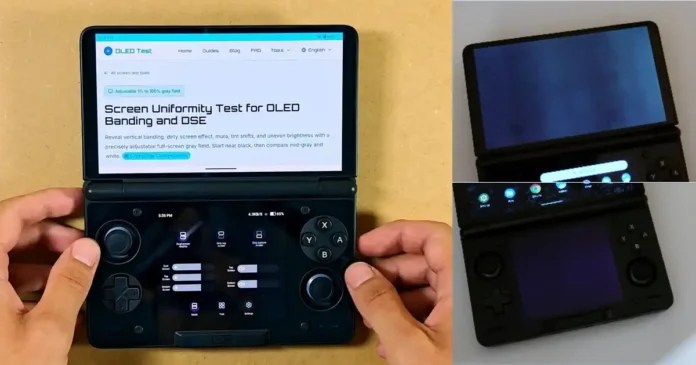
Here is what the mura on my new AYN Thor looks like (including a comparison with the Ultra Black mode), as well as a few other examples of mura on this handheld taken from the AYN community Discord. If you’re anxious about mura on the Thor or on another OLED handheld you’re planning to get, let me dispel a few myths here.
This article is only about mura, screen uniformity, and the settings meant to help you combat the effect. My separate AYN Thor hands-on impressions and tests cover the controls, hinge, charging, setup, and the rest of my first-contact experience with the unit if you’re interested in that. For model differences and purchase-stage concerns, see the AYN Thor buyer’s guide.
Why you can trust us: We test all of our products according to the Tech Tactician consumer usability benchmark methodology which evaluates the product characteristics that matter to the user in day-to-day use.
What Mura Looks Like on an OLED Handheld
One of the meanings of the Japanese word Mura (斑 / むら) is unevenness. This is one of the reasons this name came to denote a wide range of issues with OLED (but also some LCD) screens.
Mura can have many different forms and levels of intensity. On OLED displays, mura can appear as grain, bands, blotches, or a specific color tint across an image that should otherwise be uniform, like a clear, solid background. In the vast majority of cases it is most visible on near-black gray fields at low display brightness settings.
Each OLED pixel produces its own light, unlike with LCD displays on which the pixels need to make use of a separate backlight layer. Small differences in the thin-film transistors and pixel-driving circuitry can make equal digital input values produce slightly different physical light output on the panel.
The probability of bad mura appearning on the displays is largely dependent on the exact manufacturing process of the screen panels, and thus, cheaper OLED displays (like the ones used in many budget OLED smartphones) will tend to have higher chances of displaying some rather unpleasant mura in comparison to the higher-end products (like for instance, Samsung OLED TVs).
Those differences become easier to see on close-to-black backgrounds, where the pixels operate near their turn-on threshold. If you want to know more, you can refer to the recent AMOLED research on low-luminance performance, describing in detail the difficulties with maintaining accurate output at low gray levels even on modern OLED displays.
How To Test Your OLED Handheld For Mura (AYN Thor Example)
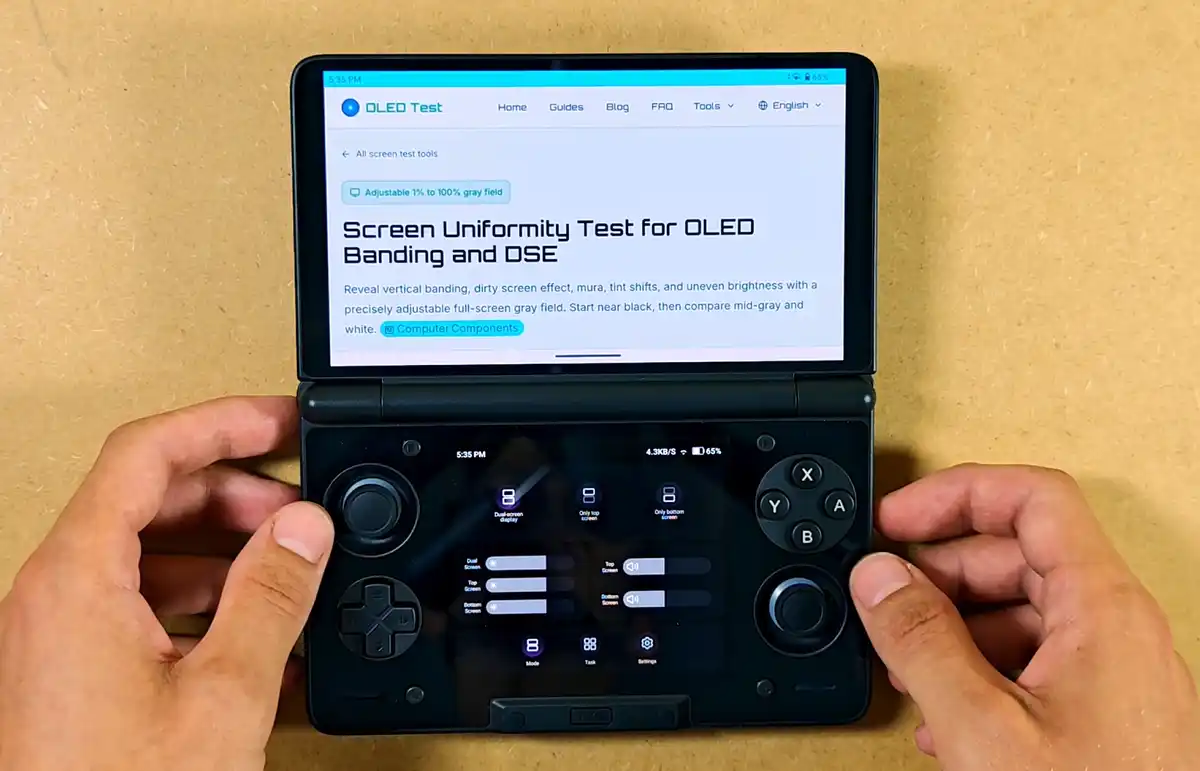
I tested my black AYN Thor Max in a dark room in the late afternoon, with curtains closed. I used this screen uniformity test I found online to display the same five gray levels on each panel, but you can use pretty much any website or tool that lets you display solid colors on your device (and optionally keeps the screen awake during the test).
The exact steps for the test will be the same for nearly every handheld (or a smartphone/tablet) that makes use of an OLED/AMOLED display. The only things you need here are an internet connection, the ability to open a web browser, and access to a dark or a very dimly lit room.
The whole procedure is simple:
- Move into a dark room and lower the display brightness all the way down.
- Go through the 1%, 5%, 10%, 20%, and 50% gray settings in your mura testing tool and look for any kind of grain, spots, discoloration, or other signs of unevenness.
- If a mura compensation mode is present on your device, repeat the test with it applied to take note of the difference.
- Optionally, photograph the results to review and compare them later. To make them show up in the images you have to use high ISO values and slow shutter speed settings, so make sure not to move your camera/phone around a lot when you’re taking the pictures.
As the Thor has two displays and by default one browser app can only be opened on one of the displays at the same time, the test had to be repeated for each of the screens separately.
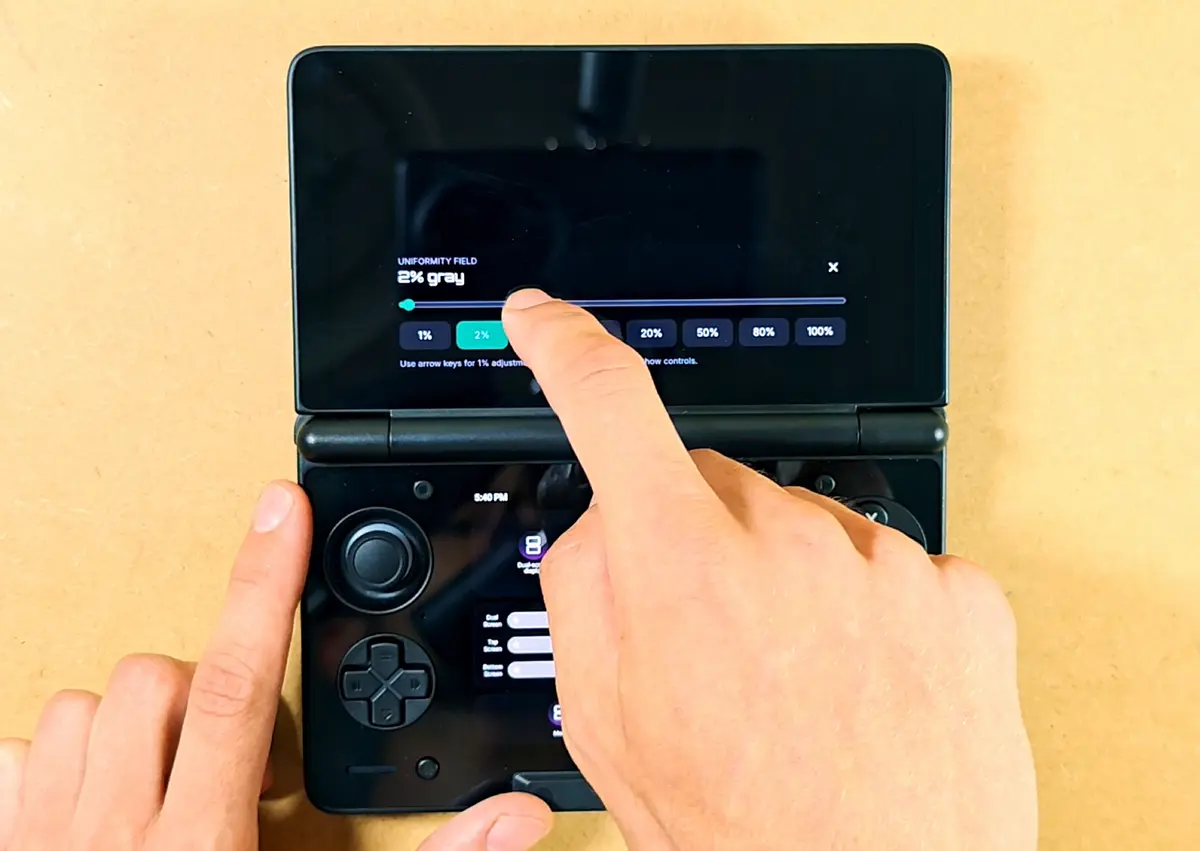
Using high ISO and slow shutter speed settings is necessary to make the mura appear on the images you take, but in most cases it can exaggerate the result quite a bit. In the case of my test photos the mura looked roughly 50% stronger in the photographs than it did when looking at the displays with my own eyes.
Of course, remember that you cannot check for mura on pure black backgrounds. On OLED displays, solid black is simply equal to no light at all, with the pixels fully turned off. Only values above the pure black pixel turn-off threshold can make the mura visible in the right conditions.
True laboratory mura tests that can grant you quantifiable results as well as luminance maps of your displays are not really feasible to do at home. These involve photometers or imaging colorimeters that measure luminance across the panel.
For most intents and purposes, however, and especially for casual retro handheld use, the most important thing for us is what the display looks like in practice (with the best practical test being actually gaming at night, in a dark room). Thus, the test outlined above is all that we really need.
AYN Thor Mura Check – Top & Bottom Panel
Now, let’s get to the results. The 6-inch top display reveals its mura throughout the 1% through 20% gray values. The pattern covers most of the panel, with a cooler blue-gray cast, broad vertical variation, two darker round areas that you can see on the test images towards the bottom of the screen, and visibly stronger discoloration toward the right edge.
At 20% grey the unevenness of the display is much less pronounced, and at 50% it disappears completely, as expected. The effect is most visible at the ~10% mark, which reveals both the vertical banding and grain patterns, as well as the two darker spots on the bottom.
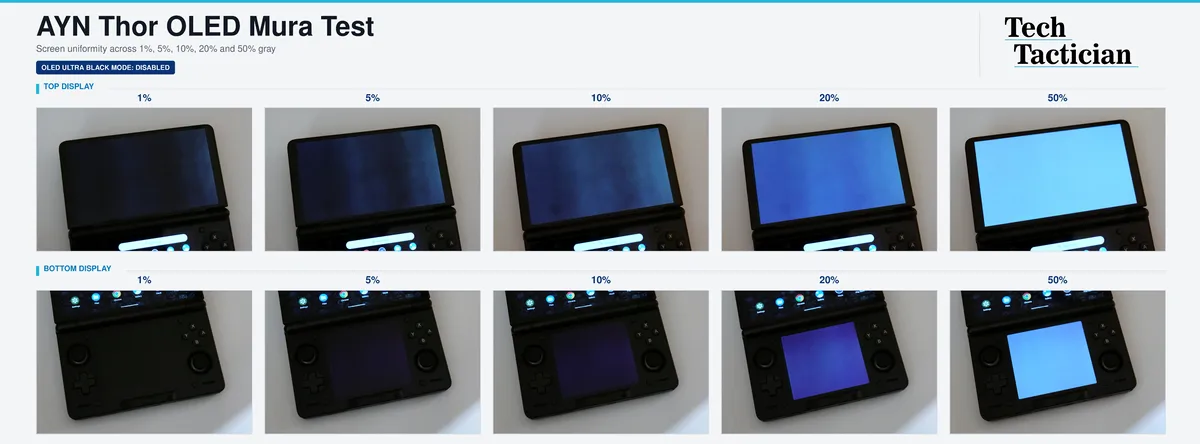
The 3.92-inch bottom display performed much better on my unit. The 1-5% range is mostly clear, while the gentle uneven grain pattern reveals itself mostly at the 10-20% mark. When looking at the screen from up close, the grain is rather clear to the naked eye. No spotting or banding visible here.
The overall display characteristics here also make the mura appear slightly purple. The bottom screen surface is much more consistent compared to the display up top. And that’s pretty much it.
You can inspect every original test photograph in the full-resolution AYN Thor mura test folder I’ve prepared for you.
Below you can find three quick close-up snippets, if you’re in a hurry and want to get the gist of what it looks like from up close on my unit.
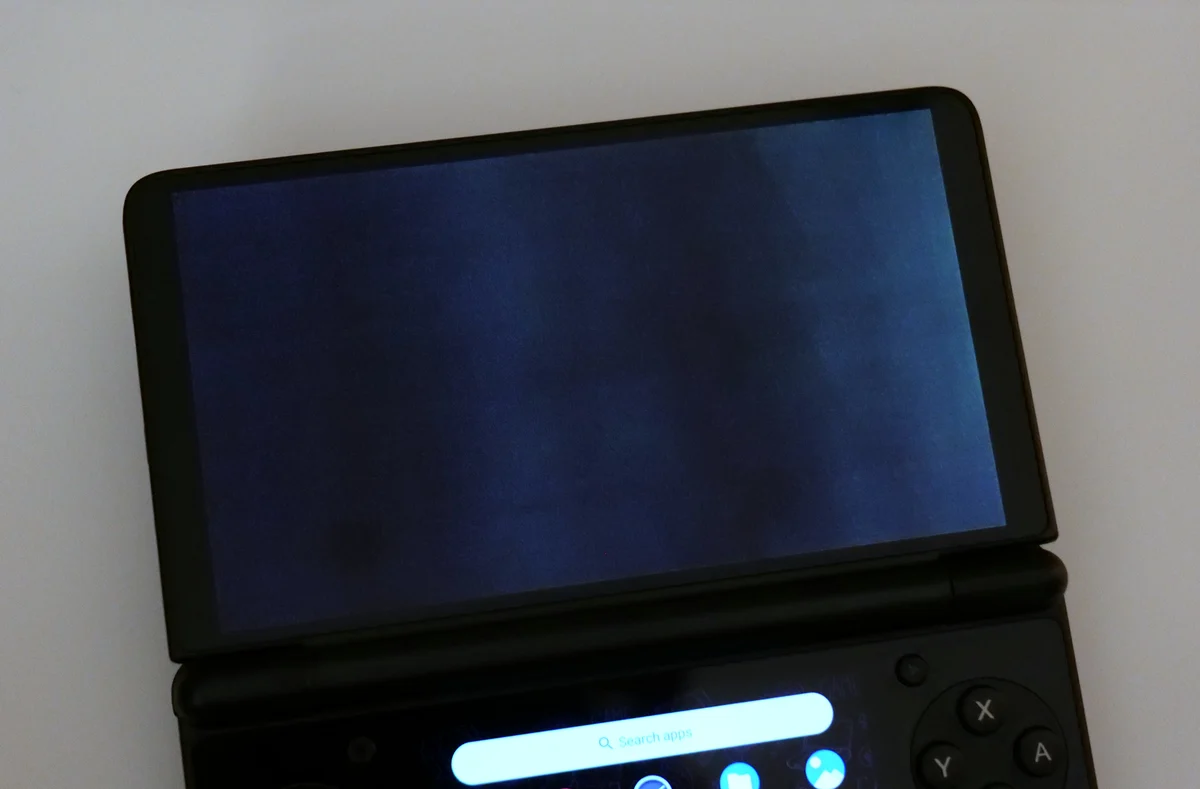
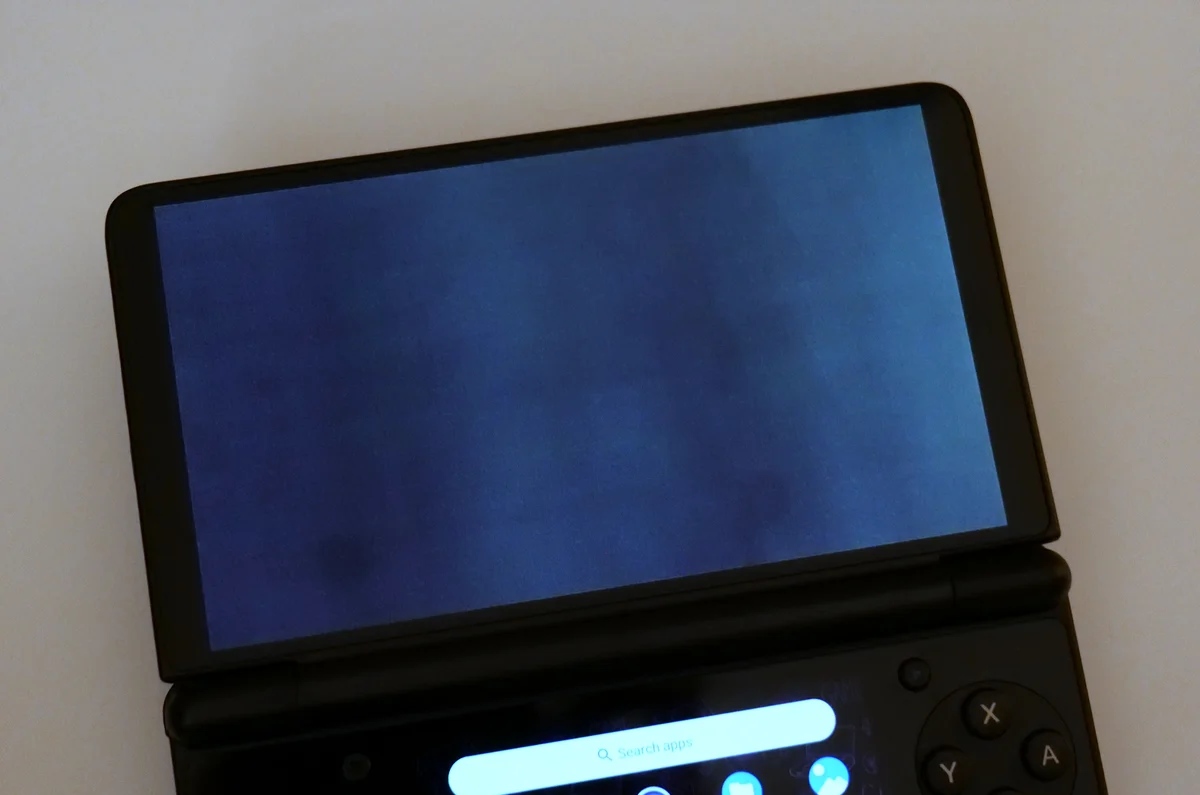
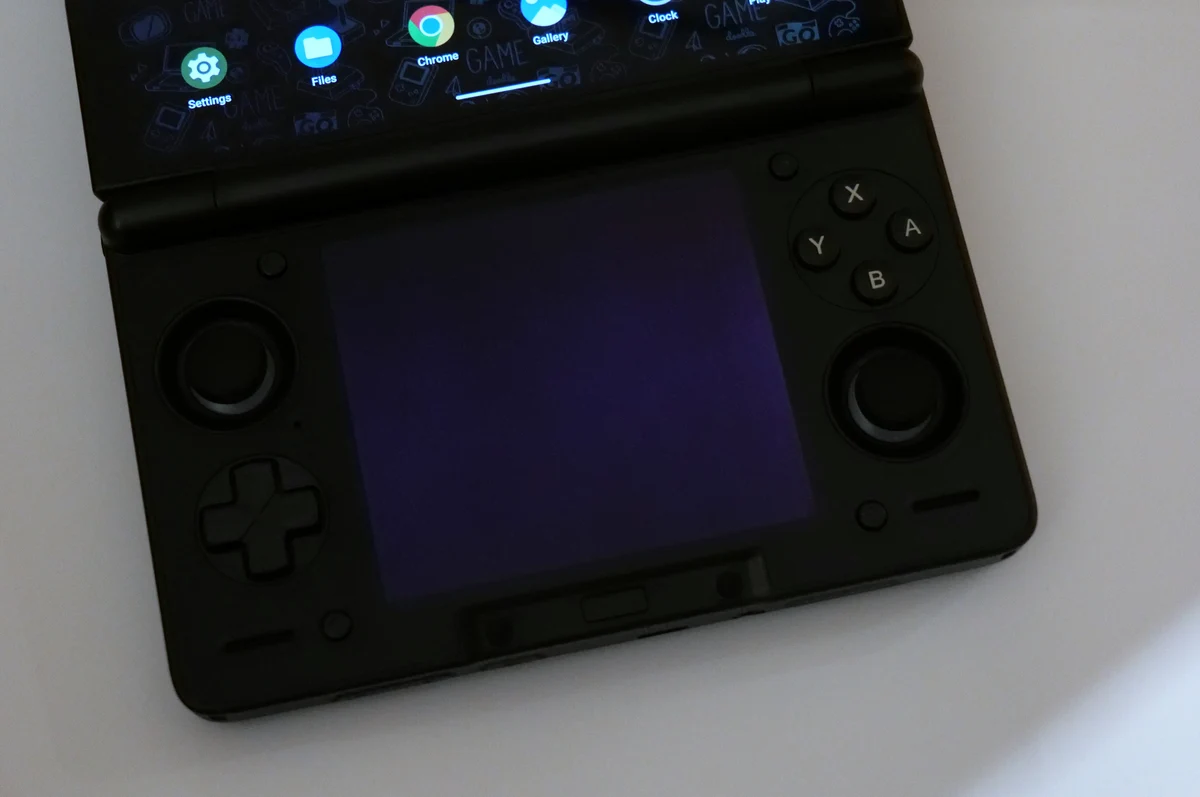
All in all, it’s about what I expected it to be, considering the amount of panel variation reported by other owners. While I cannot vouch for all the Thor units out there, I think it’s reasonable to be prepared for some level of mura on handhelds making use of this kind of OLED display.
For me, this amount of mura is in the “acceptable” range even for late-night gaming sessions, but I do realize that for you it will depend both on your tolerance for this phenomenon and your expectations of a device like this (which is after all, slowly creeping into the premium pricing category).
Also, the AYN Thor makes use of the same top panel that constitutes the main display on the Odin 3, so this test can also give you an idea of what to expect if you’ve chosen the single-screen option with a better SoC instead.
How To Combat Mura on the Thor – The OLED Ultra Black Mode
AYN has added the so-called OLED Ultra Black Mode in firmware version 1.0.0.372. As per the Thor OTA changelog, the setting reduces the top display’s color shift and uneven OLED appearance at very low brightness, and in practice helps you get rid of the mura effect. The exact same mode is also present on the Odin 3. This, however, comes at a cost.
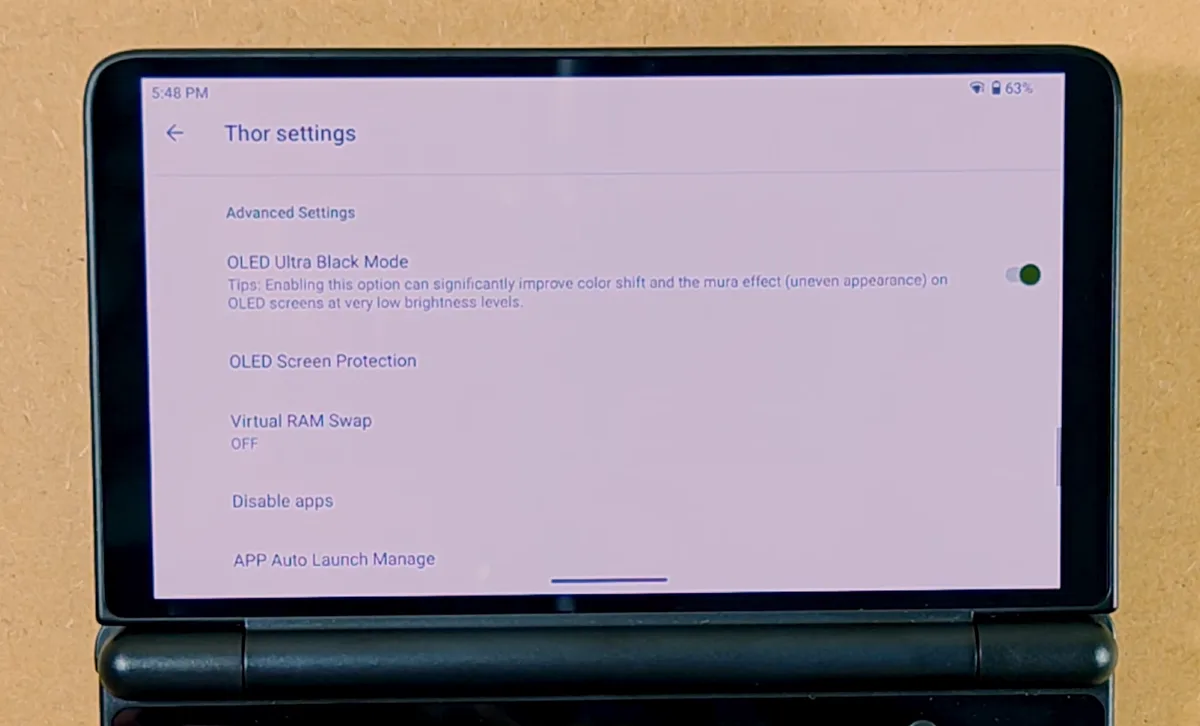
The results of the repeated mura test below show that the OLED Ultra Black Mode gets rid of the visible mura almost completely. At minimum brightness, the 1%, 5%, 10% and 20% tests yield a completely black output. At 50%, the screen takes on a strong blue-purple tone, and this is where we talk about the aforementioned cost.
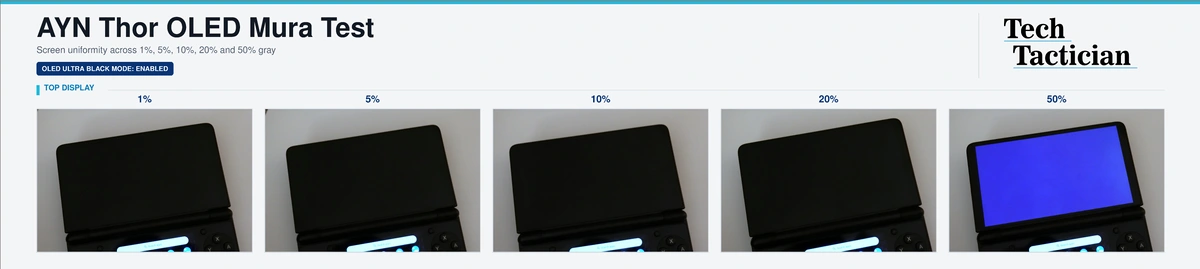
The Ultra Black Mode does not actually make the panel itself more uniform. Instead, it changes the darkest part of the image so all of the pixels in the panel (including the ones that are actually uneven at lower brightness settings) emit much less light. The pattern becomes difficult to see, but some intended shadow detail disappears with it.
So, what the mode effectively does is it “crushes” the darker parts of the displayed image pushing them towards pure black, so they are physically not able to display any kind of unevenness.
As you might infer, this means worse shadow detail and shifted color representation, which becomes apparent both when you flip the switch and see what happens with the white background of the settings menu, and when you compare what your games look like with it enabled and turned off.
Once again, whether or not you’ll want to use this mode depends on your preferences, as I know that many people have different tolerances for mura and/or messed up colors or contrast values in their games. It’s essentially a simple tradeoff. Also, I do think that adding a quick-settings toggle for this setting in one of the future updates would be a good idea.
As already mentioned, the OLED Ultra Black Mode on the Thor only affects the top display, which I’ve confirmed during my tests.
Thor & Odin 3 Panels Do Not All Look the Same – Some More Examples
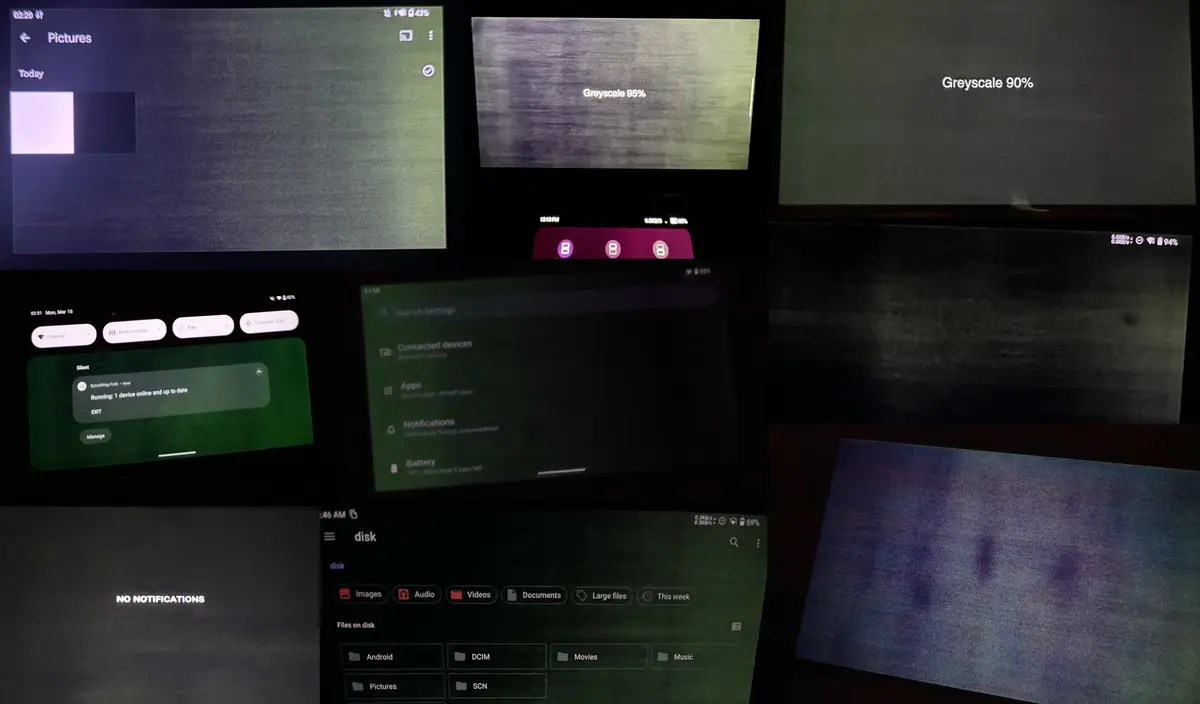
The AYN Discord examples I collected cover both the Thor and Odin 3. They range from fine grain to broad green, purple, or gray bands, but in general share many similar characteristics, one being the greenish hue on the top, and the pinkish hue on the bottom display.
Of course always keep in mind that the amount of mura you get on your device is always akin to a lottery and people do tend to post the most severe cases of mura rather than clean displays that are largely free from the effect. Users with troubling screens are always far more likely to post photographs than owners who never notice anything.
If the collage proves anything at all, it is that the patterns can vary. The examples do not show any clear difference between different batches.
If I were you I would rather use these images as a reference point for the absolute worst-case scenarios, rather than a reference for all of the Thor/Odin 3 displays out there.
The Mura Effect on the PS Vita OLED & the Steam Deck
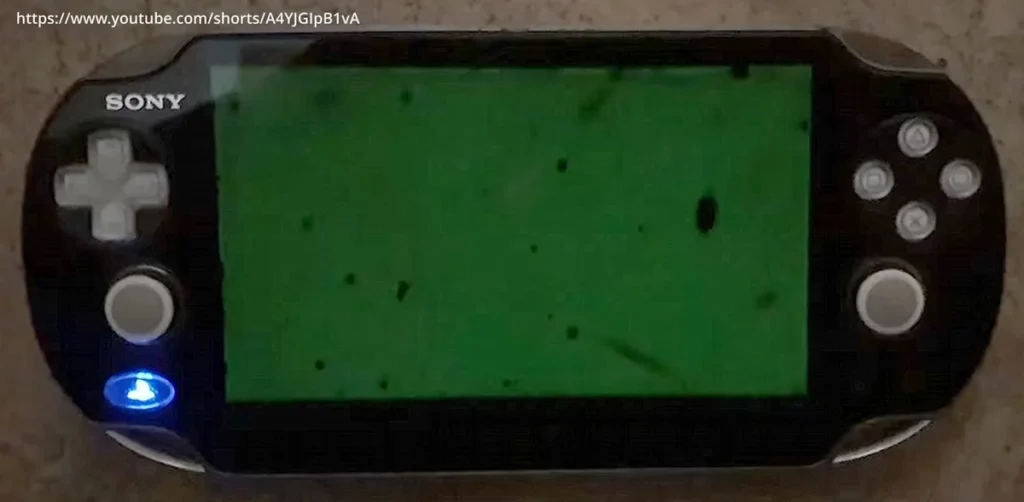
My original PS Vita 1000 has made this kind of unevenness familiar to me for years, so perhaps I’m kind of used to it at this point. Its OLED panel shows cloudy dark blotches on near-black loading screens and dim scenes. This was a pretty widespread issue with these models, so you can find a lot of examples of it online.
They can look severe in a photograph, then disappear from attention across most colorful Vita games and reveal themselves only on darker loading screens at night. After spending my first two evenings with the Thor, I really do think that the less you think about it, the less you notice it regardless of the handheld at hand (pun intended).
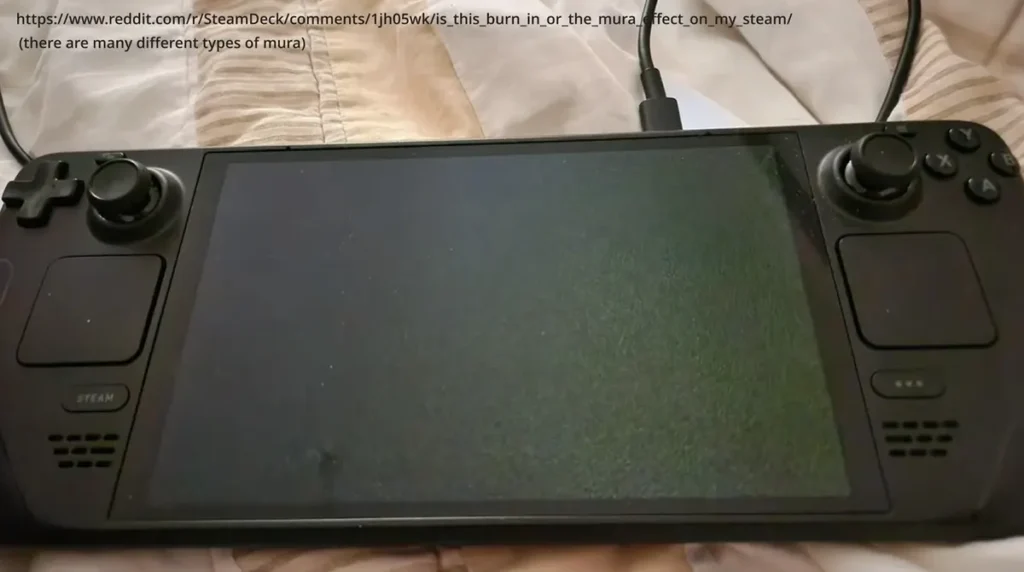
Some Steam Deck OLED units suffer from the mura effect, mostly appearing as a grainy texture on near-black backgrounds, as you can see in the example above.
Valve added the Mura Compensation mode in SteamOS 3.6.19 akin to the AYN Thor’s OLED Ultra Black Mode, described in the official notes as “improved display uniformity under some conditions”.
What does this show us? Well, mostly that low-gray uniformity varies on other OLED handhelds too, regardless of whether we’re talking about much older devices like the Vita, or the newest handheld PCs like the Steam Deck. Just some food for thought.
When Is Mura a Reason For a Screen Replacement?
AYN does not publish a screen-uniformity tolerance for the Thor or for the Odin 3, and this is not really surprising, considering I don’t think that any of the Chinese handheld manufacturers do.
There is no official rule that calls a panel acceptable below one brightness percentage and defective above it, and you cannot assume that the warranty will cover mura on your display automatically.
In the most severe cases, for instance when the mura is especially distracting and at the same time visible at brightness levels closer to ~50%, technically you could argue that the product is defective, but once again it is not a written rule.
The one thing I know for sure is that AYN has sold replacement display modules for the Thor to users who wanted to do the screen transplant by themselves in the past.
Still, remember that the lottery argument does persist. You might go through with the parts order, then through the replacement process, and end up with a worse case of mura than you had before. After all, there is only so much you can do when using the very same panel, even when it’s brand new.
As things are now, mura is not as clear a reason for a product return or a screen replacement as, for instance, dead pixels visible on the panel, or lines visible across the display at all brightness levels, or any other faults that might suggest a failure of the display assembly or its connection to the motherboard.
If you think that your mura is severe enough to prevent you from using the handheld, you might give the support route a shot. If your mura looks anything like mine (or is even less pronounced), I wouldn’t really bother with the replacement.
While the quality-control and component-quality issues can certainly be frustrating, especially when dealing with more expensive handhelds like these, the reality is that mura can affect OLED handhelds of this calibre with varying levels of intensity. Think of it like the silicon lottery when getting your brand new CPU. Or don’t. Regardless, I’m keeping my fingers crossed for your displays to arrive as clear as they can get. With that, I’m out!