

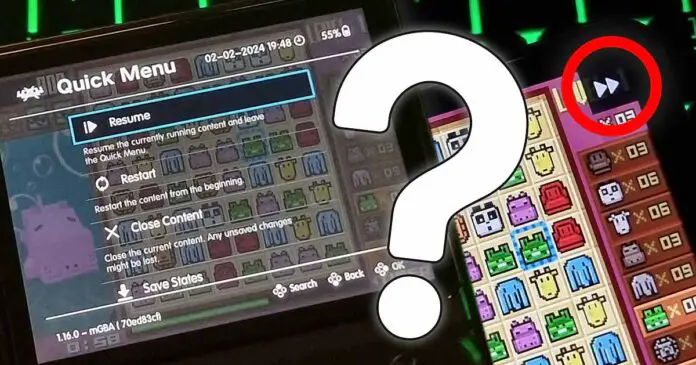
Make the most out of your handheld with this list of 10 things every R35S and R36S user should know how to do! Many of these tricks also work on other retro handhelds that use EmulationStation and RetroArch, and most of them still apply on older ArkOS builds, legacy ArkOS-R3XS installs, and newer community firmware such as dArkOSRE-R36 and ArkOS4Clone. If you’re not sure whether getting yourself a brand new R36S is worth it, you should definitely take a look at this too to see what you can actually do with this tiny handheld.
See my full hands-on review of the R36S here: R36S Handheld Game Console Hands-On Review
Note: Remember that emulators other than RetroArch (like PPSSPP for example) in many cases use different hotkeys for things like quick save/load or fast forward features. If some of the game-related shortcuts don’t work for you, look for their equivalent for the specific emulator you’re using.
Important updates:
– March 25, 2026 – Updated hotkeys and key shortcuts for the dArkOSRE-R36 (03082026), and the now legacy ArkOS-R3XS 2.0 (11072025) (AeUX) build for the R36S.
If you find yourself unable to use some of these hotkeys even though your setup should support them, consider updating or reflashing your firmware. Many older issues and missing shortcuts have been improved in newer community builds – How To Update R36S ArkOS With No WiFI Adapter And No PC
How To Fast Forward On The R35S/R36S
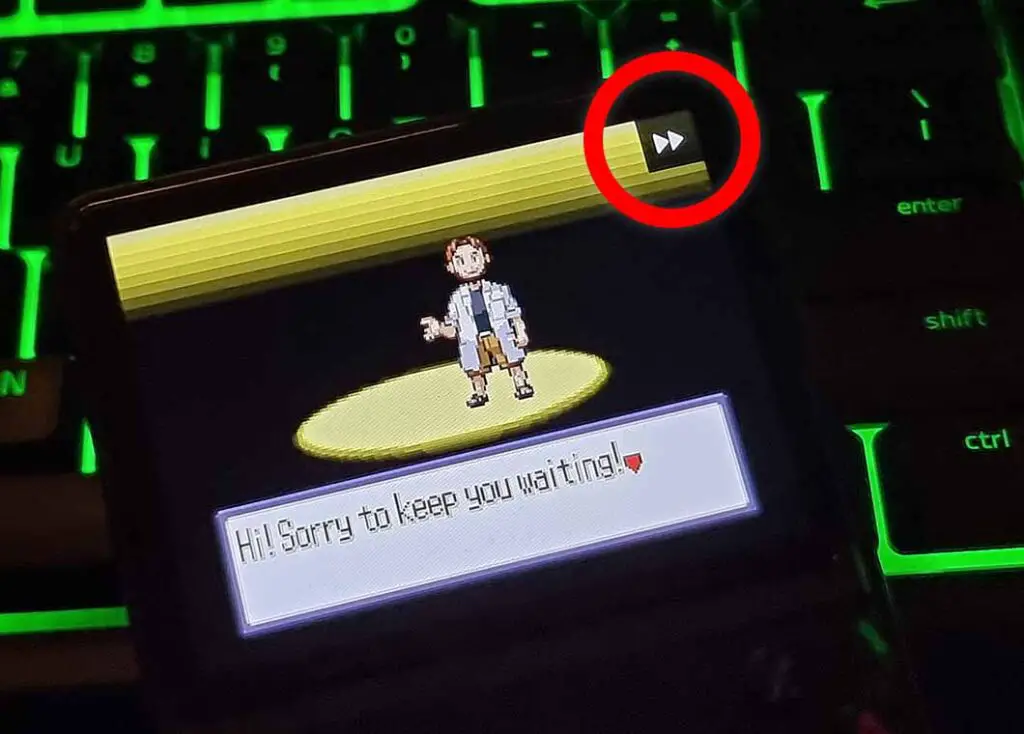
The R35S and the R36S in RetroArch based emulators both have the fast-forward functionality mapped to:
- On dArkOSRE-R36:
SELECT + D-Pad Right - On ArkOS-R3XS (legacy):
SELECT + FN (hold),SELECT + L3 [Left Analog Press] (toggle)
In RetroArch, the fast-forward controls can be also re-mapped to any other button on the handheld. You can do this by pressing the two joysticks together (or using the SELECT + X button combination) when in-game, changing the appropriate input settings in RetroArch and saving your new configuration.
Switching A and B Buttons In The Main Menu & RetroArch Games
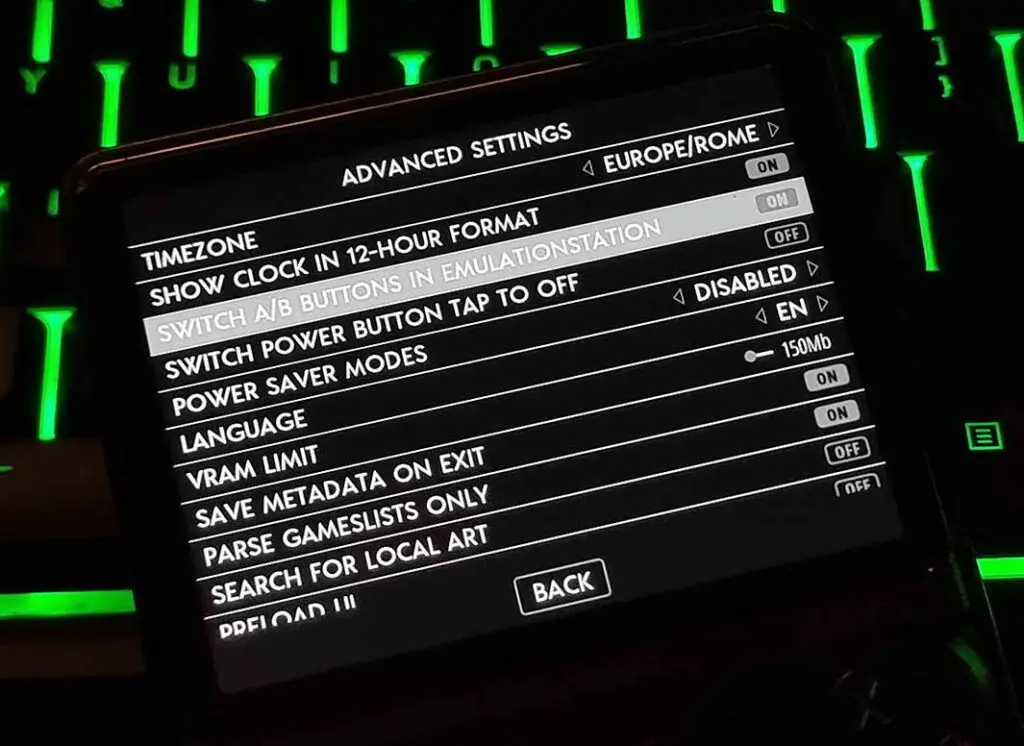
By default, on the R35S and the R36S, in the main system menu, the “A” button is used for confirmation, and the “B” button acts as the back button. This is the classic Nintendo way of doing things. To switch to the Sony/Xbox style with the “A” being the back button and the “B” being the confirm button at least in the main menu, settings menu and the game select screen, follow these steps:
- Go into the main EmulationStation settings menu by pressing the START button on the handheld.
- Change the
Advanced Settings -> Switch A/B Buttons In EmulationStationto “ON”.
Can you also switch these buttons in RetroArch menus and emulated games? Yes, and rather easily. Here is how to do that:
- When in a game emulated using RetroArch, press the middle FN button to bring out the RetroArch settings menu. Then, navigate to the
Settings -> Input -> Menu Controls -> Menu Swap OK and Cancel Buttonsand set it to “ON”. - If you also want to swap buttons in your games, you can remap them in the
Settings -> Input -> RetroPad Binds -> Port 1 Controlsmenu. - Finally, go to the
Configuration -> Save Configuration on Quitsetting, and also set it to “ON”. This way the configuration settings you’ve changed will save after you’ve left the game you’re currently playing!
Quick Brightness Setting Access
If you want to be able to change your screen brightness settings using a key shortcut combo (similarly to how you can do that on the SteamDeck), you’re in luck, because it’s already assigned to a key combination by default on the R36S. The button combinations are:
- On dArkOSRE-R36:
R3 [Right Analog Press] + D-Pad Up/Down - On ArkOS-R3XS (legacy):
FN + Vol. Up/Down
These will work both in the main system menu and in-game. On ArkOS-R3XS in RetroArch the FN button will also open the emulator menu by default, but you can easily close it by pressing the FN key again.
Showing The Battery Percentage
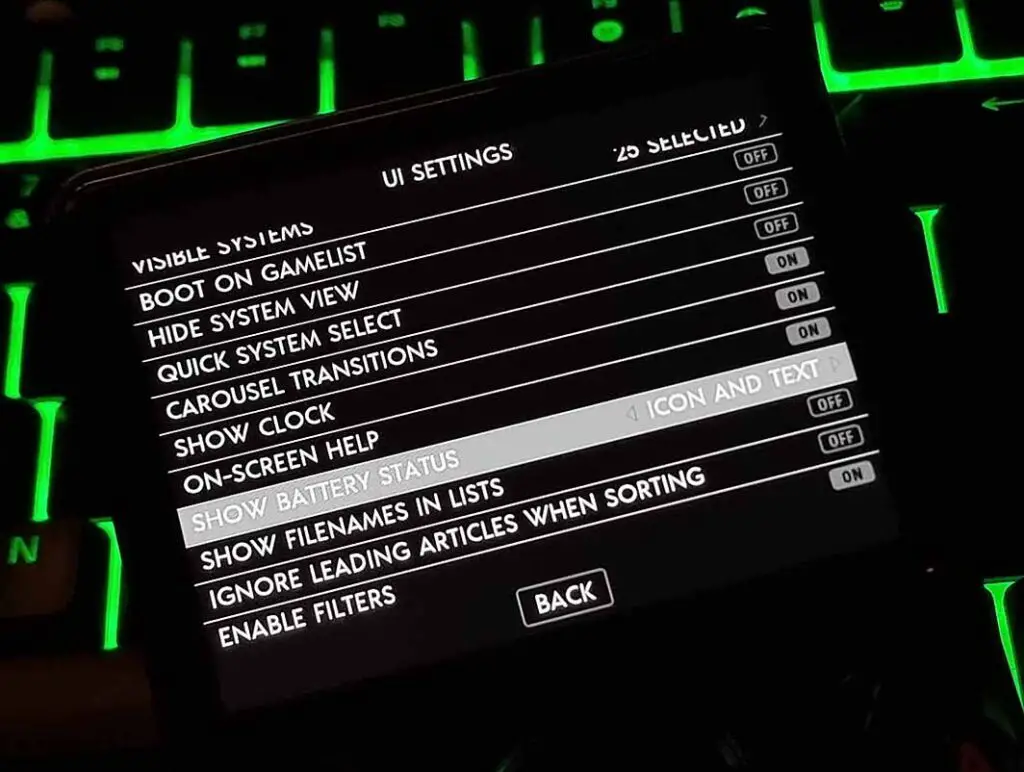
If you’d either like to see the current battery percentage near the visual charge indicator or hide the symbol completely, you need to press the START button, and go to the UI Settings -> Show Battery Status, and modify this setting to your liking.
You’re able to view the battery icon alongside with the current percentage, only the battery symbol, or nothing at all if you choose to do so.
Worried about the battery in your R36S failing on you? You might want to read this: R36S Handheld Battery Replacement & Common Issues
Adding Games To Quickly Accessible Favorites
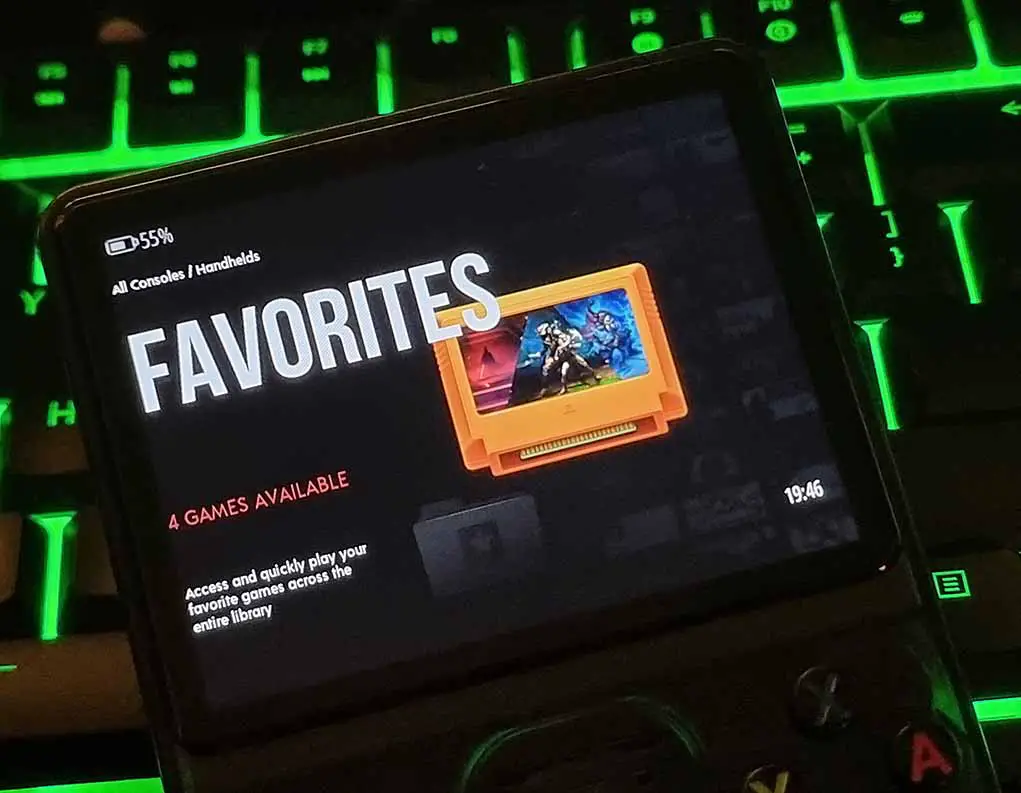
This is another short, yet very useful tip. Whenever you’re on the game select screen in EmulationStation, you can press the “Y” button on a chosen game to add it to your favorites list. All of your favorites from across different consoles will be then available in a separate favorites folder which is displayed alongside other game consoles in the main system menu.
An even cooler thing is that you can make the console boot up directly to your favorites list, by pressing the START button in the main menu, entering the “UI Settings” submenu and then changing the “Start On System” option to “Favorites”. Neat!
Showing Your In-Game FPS On Screen
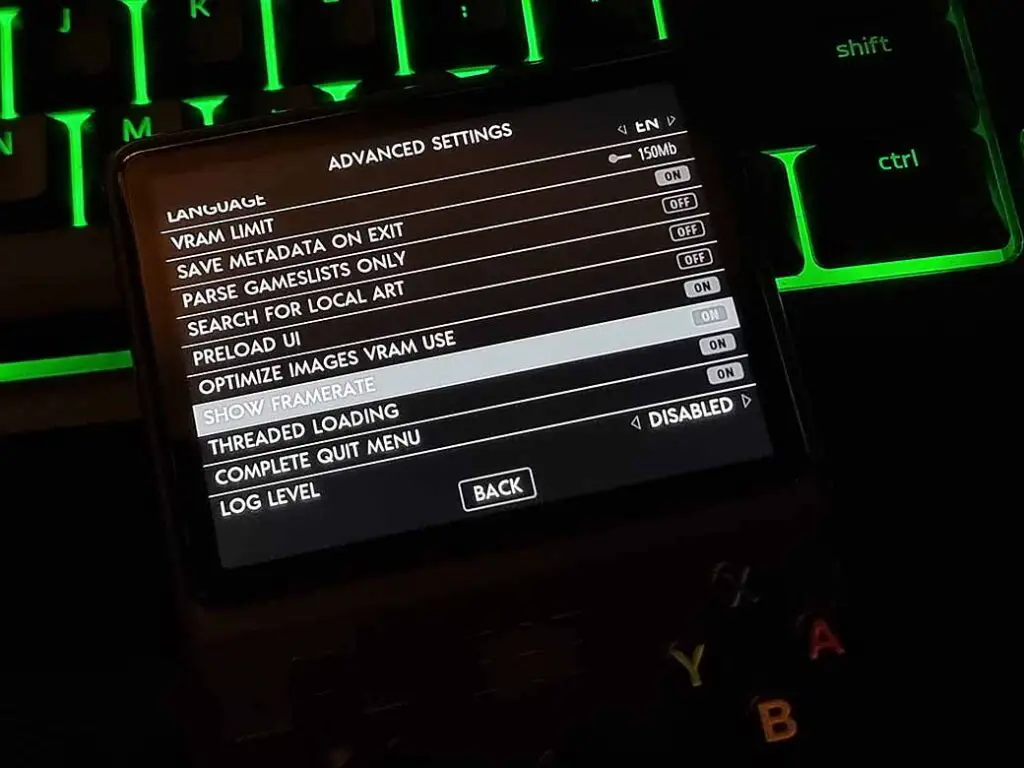
If you’re into benchmarking and performance measurement, you might be interested in a way to display your current in-game FPS directly on your screen while you’re playing your games.
As you can see on the photo above, there is a switch to display FPS on-screen available in the main system menu. This however, will only show the framerate indicator on top of the system overlay, which is not really that helpful, as it will not show in-game.
To see your current FPS when you’re playing a game, you need to set up the framerate display directly in the emulator you’re using. Here, I’ll show you how to do this in RetroArch, which is used to emulate most of the systems available to you when using the R35S or R36S with ArkOS installed.
Enter the main RetroArch settings menu (FN when in-game) and locate the following option: Settings > User Interface > On-Screen Display > On-Screen Notifications > Notification Visibility > Display Framerate – then, simply turn it on and save your current settings configuration. All done!
You can also use the system-wide setting available from the main menu: START -> Advanced Settings -> Show Framerate.
Switching The Main LED Color
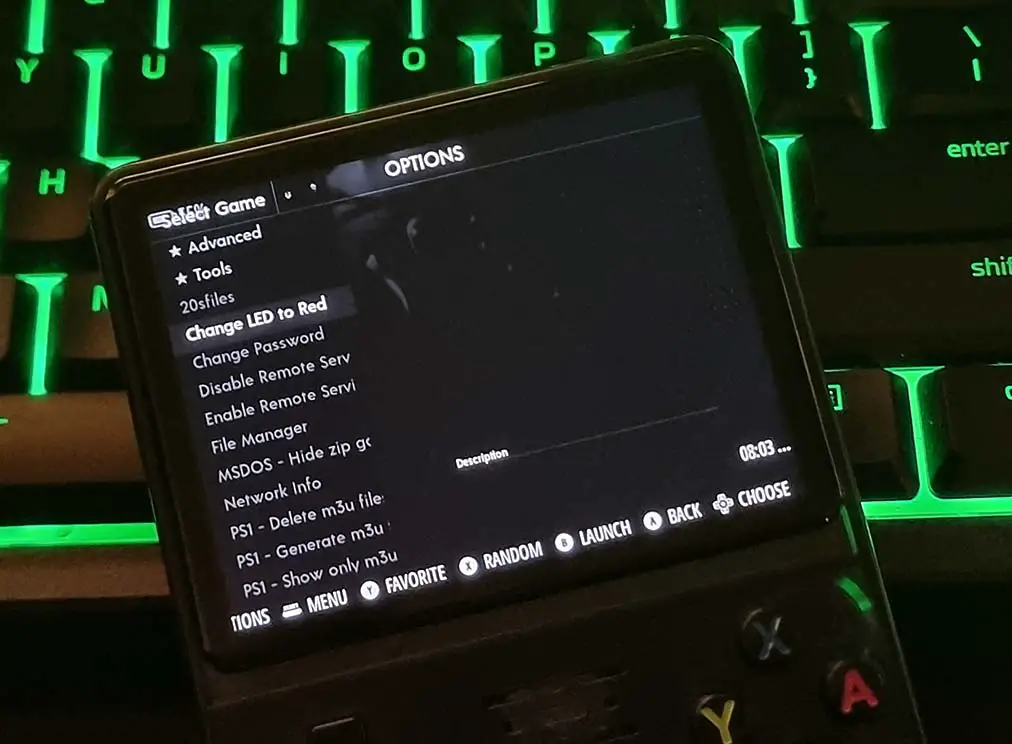
You can change the color of the main system LED light on the front panel of the handheld from the EmulationStation options menu. The available colors are red, green and blue. To do this, simply enter the EmulationStation options menu from the main console carousel view (or from the START menu on newer dArkOSRE builds), and select the “Change LED to [selected color]” option.
Sadly for now there isn’t an option available to turn off the LED completely, but there is a chance it may be coming in a future firmware upgrade!
Quickly Exiting a RetroArch Game On The R36S
By default, in all games emulated using RetroArch on the R36S (and on some of the other emulators), to quit the game that you’re currently playing, you need to press the START and SELECT buttons together.
If you’re using an older ArkOS-R3XS build and want to only press the button combination once omitting the exit confirmation message, press the FN button, or the “SELECT + X” button combo at the same time while you’re in-game to bring out the RetroArch settings menu. Then, navigate to the Settings -> Input -> Confirm Quit option, and set it to off.
Mind that as always you need to change the Configuration -> Save Configuration on Quit to “ON” too, to make RetroArch remember your settings after you quit the current game.
Turning Off The R36S With a Button Shortcut
Now, did you know that you shouldn’t power your handheld off by simply long-pressing the power button? This is an equivalent of turning your PC off by holding the main power button, and can result in unexpected system behavior and in some cases even file corruption.
To safely turn off the R36S or the R35S, you have to either enter the ArkOS menu by pressing the START button and selecting the Quit -> Shutdown option, or change the START -> Advanced Settings -> Switch Power Button Tap to Off to “ON”. This way, you will be able to safely turn off your R36S with a single press of the power button instead of the console going to sleep.
“Quick Mode” On The R35S/R36S
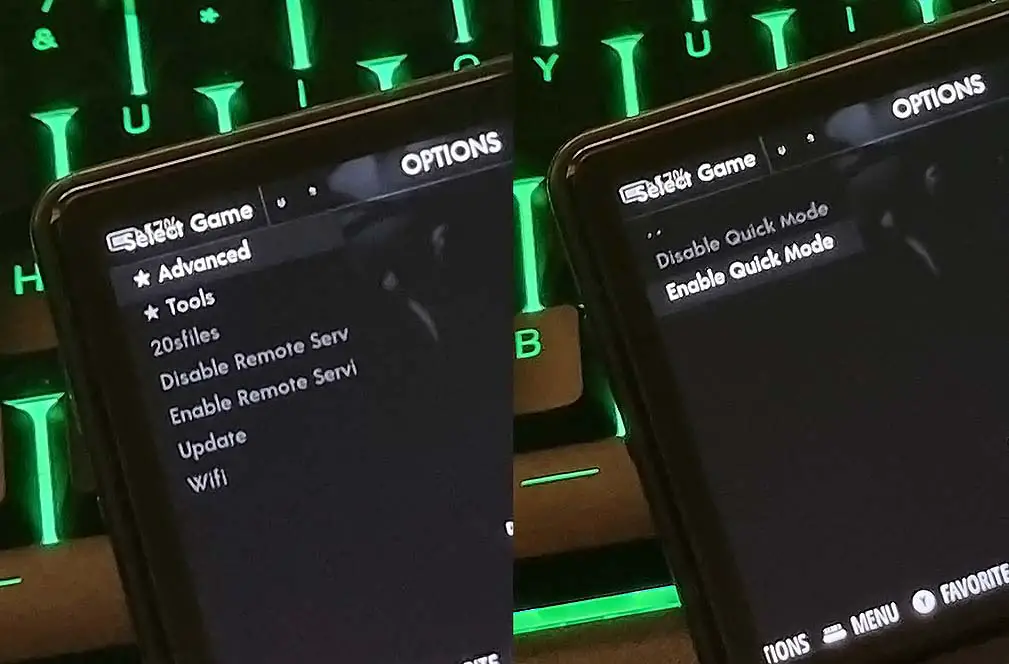
The last thing I’m about to show you is most probably the best one yet. The Quick Mode. How does it work? Well, let me explain.
With the “Quick Mode” enabled, when you’re in-game and you do the safe shutdown I’ve described above, the console will quickly create a save state which will load alongside the game automatically the next time you power on the handheld. This is definitely my favorite options here, as I’m all about these quick gaming sessions in transit!
To enable the Quick Mode, enter the EmulationStation settings by navigating to the “Options” menu which you can find among the different consoles you can choose from in the main menu system list (or in the START menu on dArkOSRE). Then, select “Advanced” and “Enable Quick Mode”. The last thing you’ll have to do is to confirm your choice by pushing one last button. Wait a short while, and the Quick Mode should now be on!
Note: As many of these tweaks, this currently works only for RetroArch emulated games. This means that you won’t be able to use this function with, for instance your PSP games emulated using the PPSSPP emulator.
Bonus: The “FN” Button Fix (For Even Older Builds)
In the older ArkOS releases for the R35S and the R36S, there is a slight problem with the “FN” function button placed in the middle of the device between the start and select buttons. The problem is simply that this button doesn’t work – at all. In fact, it’s not even visible to the operating system by default. There is however, a rather quick method to fix that.
Here is the exact fix you need which consists of replacing a few files on your device’s boot partition. It’s much easier than it sounds! – How To Make The FN Function Key Work On The R35S/R36S (older ArkOS versions)
Check out also: 16 Miyoo Mini Tricks, Features & Button Shortcuts (Onion OS)