

As a huge fan of everything portable, I’ve been searching for a good mechanical keyboard to carry around in my backpack for quite a while now. The Epomaker Carbon60 and the Epomaker TH40 are, as far as I know, the two smallest keyboards in Epomaker’s entire lineup. The Carbon60 is the slimmer 60% model, with a carbon fiber case and low-profile switches, while the TH40 is cheaper, chunkier and goes all the way down to a 40% layout.
Short verdict: if you want a familiar typing experience right away, go for the Carbon60. Its 60% layout keeps the number row on top, and it’s remarkably slim. If you want the smallest footprint possible, the TH40 is the one to go for, as long as you don’t mind learning a few shortcuts for the keys missing from the layout. What’s the catch? The Carbon60 costs more and only takes low-profile switches, while the TH40 has no number row at all and is missing many symbol keys, so expect a few days of practice (and some remapping in VIA). I’ve been using both for about a month, with my PC, a Xiaomi Pad 5 and the AYN Thor, and below you’ll find everything I learned, including a side-by-side typing sound test.
Why you can trust us: We test all of our products according to the techtactician consumer usability benchmark methodology which evaluates all of the product characteristics that matter to the user in day to day use. Enjoy the review!
This web portal is reader-supported, and is a part of the Amazon Services LLC Associates Program and the Epomaker Affiliate Program. When you buy using links on our site, we may earn an affiliate commission! Both keyboards were provided to Tech Tactician free of charge by Epomaker for this review.
You might also like: Epomaker TH108 V2 Pro Hands-On Review
First, The Specs Compared
| Specification |
|---|
Specs from Epomaker’s product pages (TH40, Carbon60). The video above shows my first impressions, with the unboxing, the sound test and both keyboards paired with a tablet and a handheld, while this article is my full review and comparison after about a month spent with both devices.
What’s In The Box?
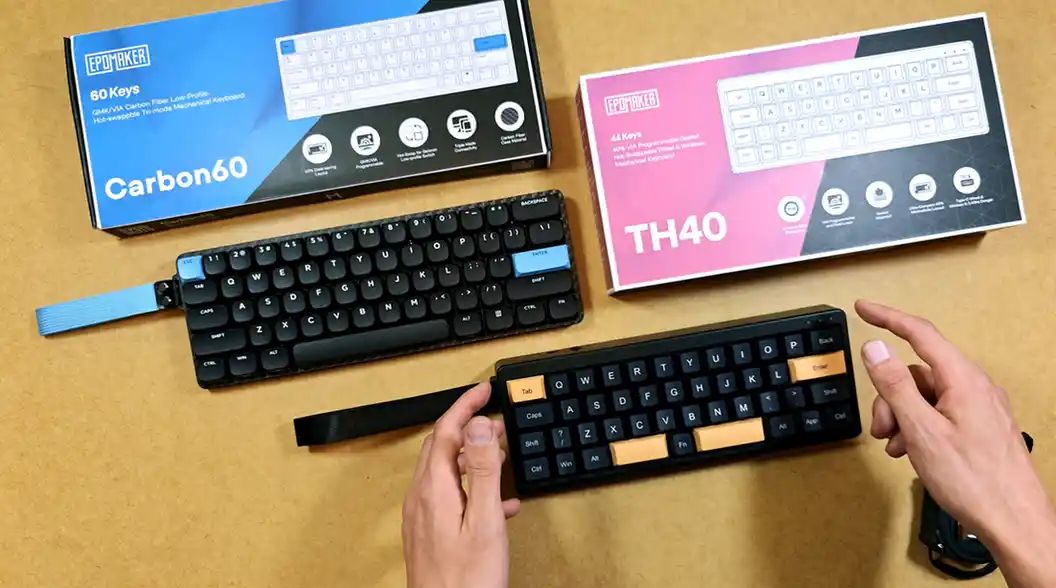
Each of the keyboards comes with a user manual with a shortcut cheat sheet (pretty important on keyboards without function keys), a USB-C cable, a 2.4 GHz wireless dongle, a set of two replacement switches and a keycap and switch puller.
The Carbon60 in addition includes two replacement keycaps, since its accent keys are blue by default, so you can swap them if you want the whole keyboard in one color. And that’s it when it comes to the extras.
Design And Build – Carbon Fiber vs. ABS Plastic
The biggest difference between these two lies in the materials. The Carbon60’s whole frame and casing are made of carbon fiber (and so is the plate), and you can see its texture rather well on the closeup shots. That, at least in theory makes it much more resilient to cracking or breaking. Of course, I still wouldn’t throw it around to put that to the test. The blue accent keys look great on it, and overall it’s a really sleek keyboard especially when you look at it from the side.
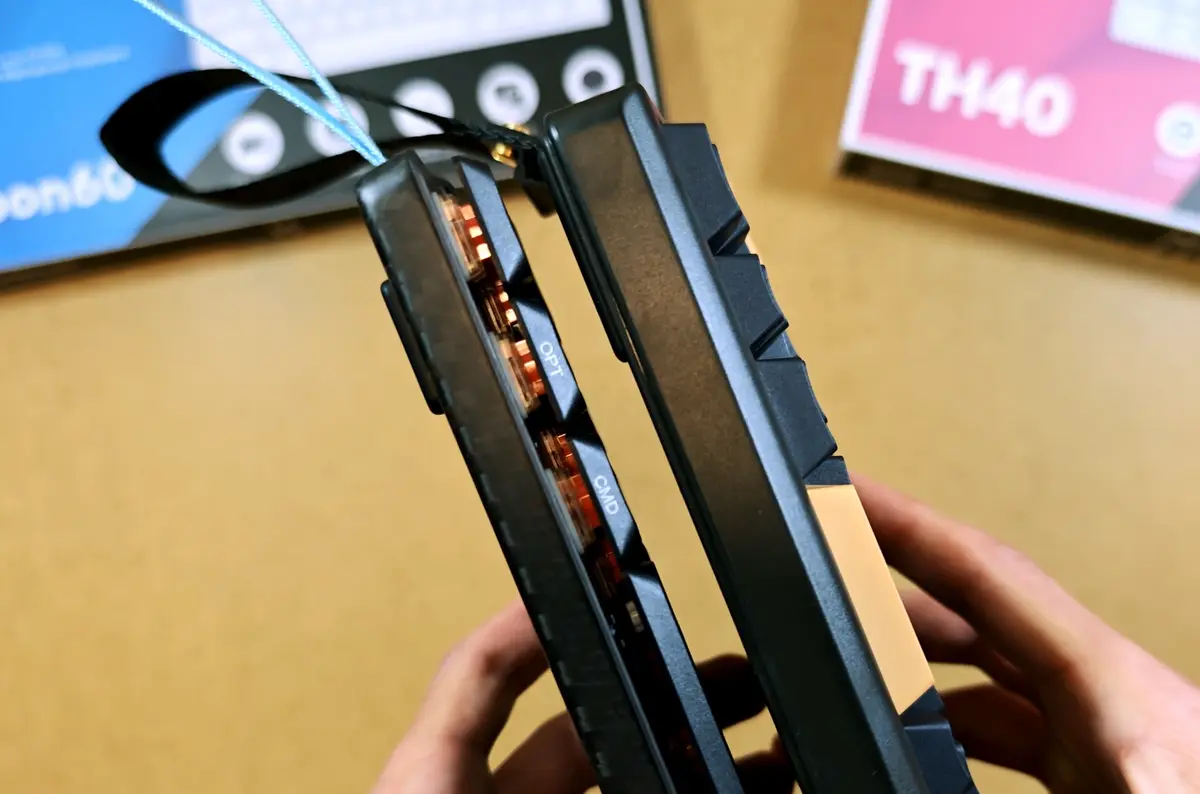
The TH40 is fully plastic (ABS). It doesn’t feel cheap or flimsy, though, and it doesn’t feel like it’s going to break easily. Quite the contrary, after handling it for a while I’m pretty sure that I wouldn’t be afraid to toss it into my bag, ideally, with a key cover on it.
The version I’m testing out here is the Black Gold version, but the TH40 also comes in a White Purple variant. The Carbon60 comes in one Black & Blue color variant, with the aforementioned replacement keycaps included.
Size, Thickness And Weight
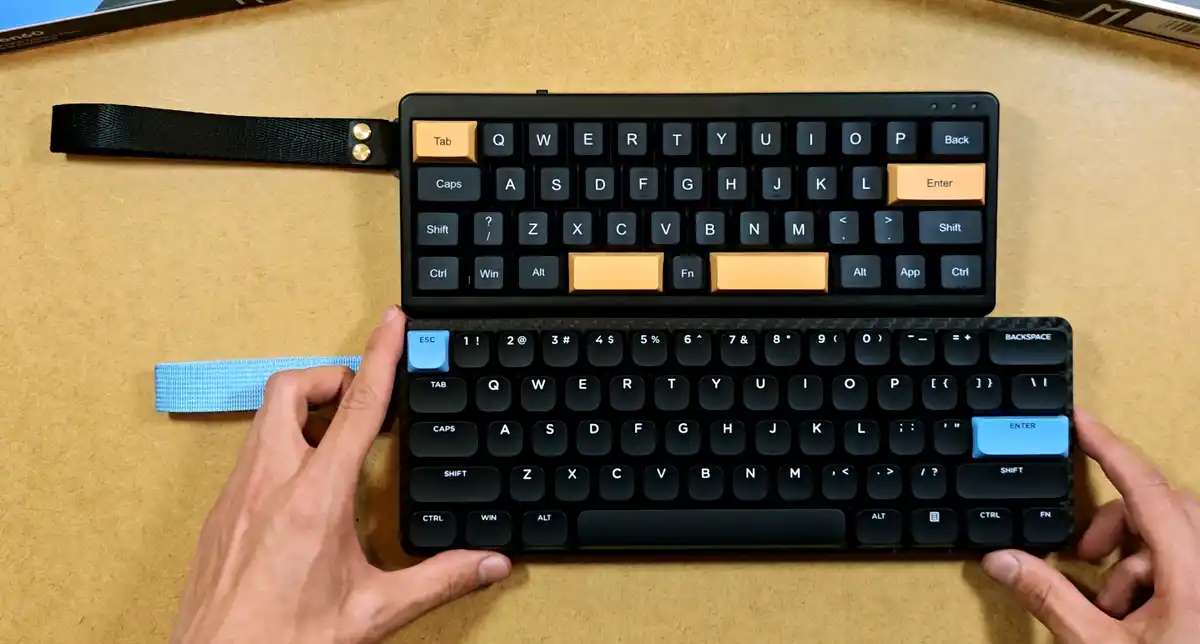
The TH40 has a much smaller footprint, while the Carbon60 is much thinner. The Carbon60 is visibly longer, but in width the two are pretty similar. You can see the actual difference in size in the images better.
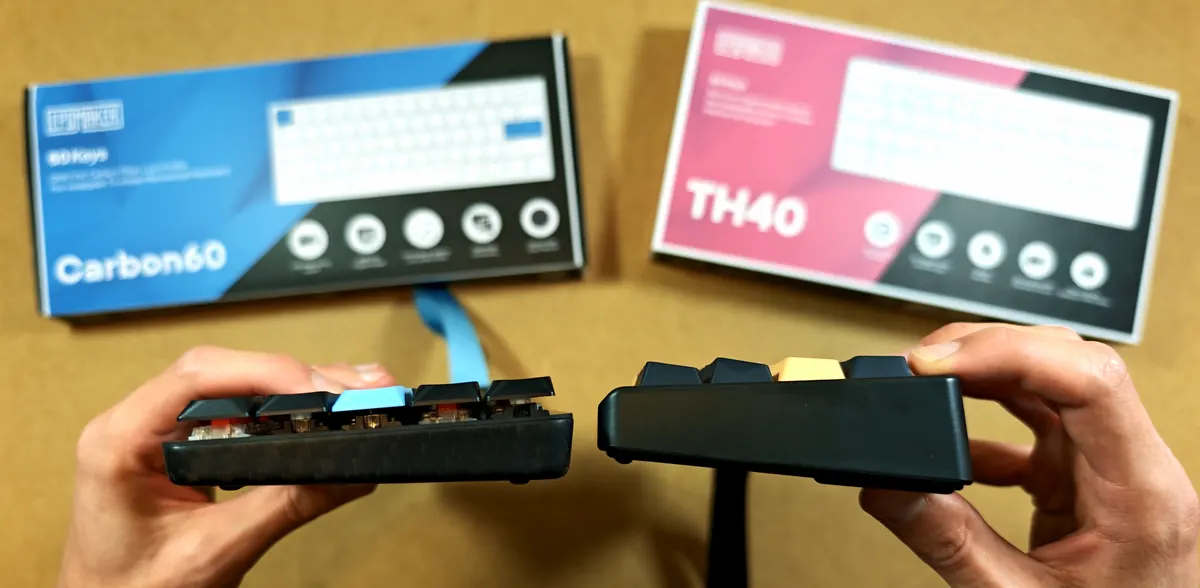
The thickness difference mostly comes down to the switches. The Carbon60 uses low-profile switches and keycaps, while the TH40 uses full-size ones and is angled towards you slightly more.
Which feels better, the angled TH40 or the almost flat Carbon60, is largely a matter of preference. The TH40 also has fold-out feet with rubber pads, and rubber under the feet when they’re closed, so it won’t slide around on the desk. The Carbon60 only has 4 simple thin small rubber feet below that do not extend.
At 457 grams, the Carbon60 really is much lighter than it looks. It feels like something I could easily carry around in my backpack without suffering from the extra weight. The TH40 weighs around 445g, so it’s even lighter than that.
Both keyboards have a small carry hoop attached with two screws. You can remove it, but a small plastic part that the hoop goes through will stay on the case. The Carbon60’s hoop is longer, the TH40’s visibly shorter and also, noticeably tighter.
You might also like: Best AYN Thor Accessories Worth Getting (And What to Skip)
The Layout Choice – 60% vs. 40%
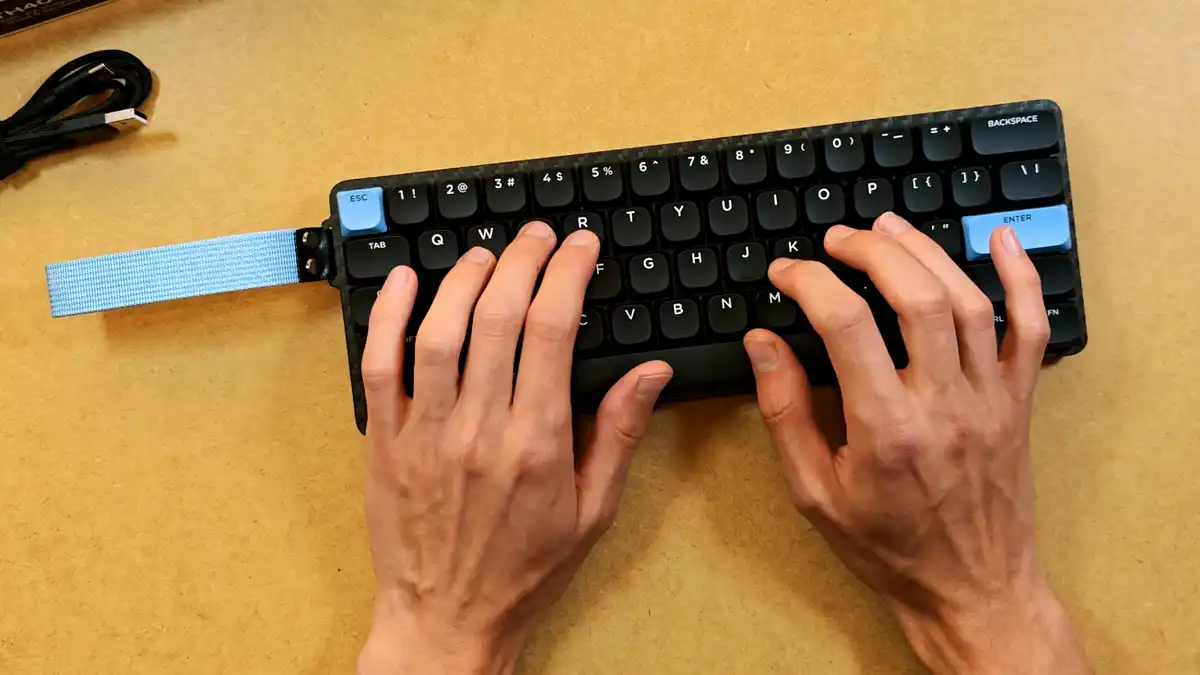
This is the difference that you’ll probably feel the most. The Carbon60 uses the standard 60% layout without function keys row and no arrow keys, but the full number row is present here. If you’ve ever typed on any other 60% board, you’ll feel right at home within mere minutes, and that was exactly the case for me.
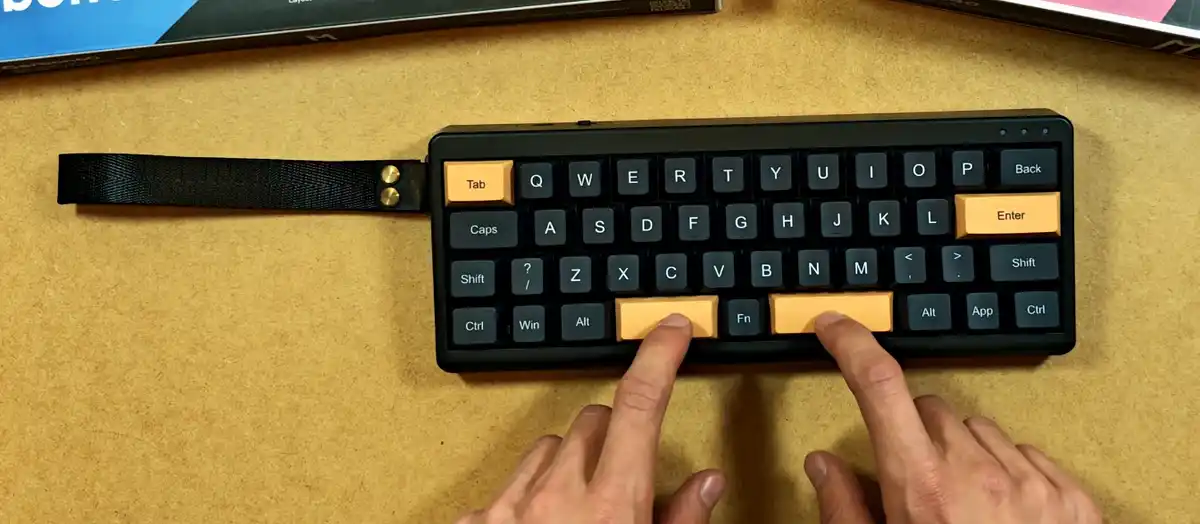
The TH40 goes a big step further when it comes to space-saving measures. With its 40% layout it has no number row at all, so the numbers live on the top letter row under the Fn key combinations (Fn + Q gives you 1, Fn + W gives you 2, and so on). It also has two spacebars with the Fn key placed right between them.
In my first typing test on the TH40 I was honestly a bit anxious not to hit Fn instead of the spacebar(s). It’s not necessarily bad or annoying to type on, but it does need some getting used to. You do need to learn the shortcuts for the special keys to type efficiently on it if you’ve never dealt with a layout like this before, for one, to be able to find all the common symbol macros reasonably fast.
A good example of a key that’s not physically present on the TH40 but is widely used is “-“, which is by default assigned to the Fn + K key combo. There are many such cases here, which you can infer from the TH40 only having two real dedicated symbol keys on it.
A thing that I really like about the TH40 is that it keeps the classic staggered layout instead of the ortholinear grid many keyboards this small use, which makes it much easier to adjust to.
After remapping a few keys and quite a bit of typing, I’m now much faster on the TH40, but there’s still a learning curve that I simply did not have with the Carbon60. Even considering that, after a few days I was able to hit a humble ~80 WPM on both of the keyboards no problem, so in the end it’s all a matter of practice.
Switches, Typing Feel And Sound
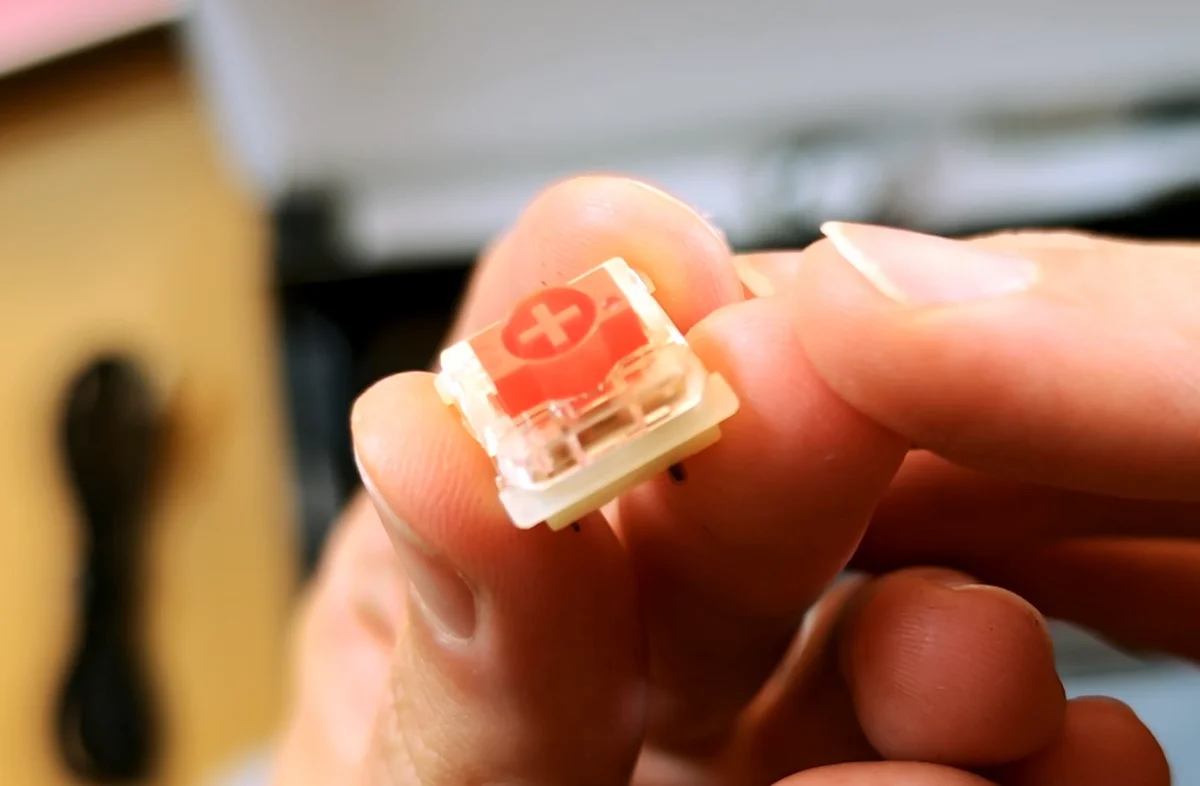
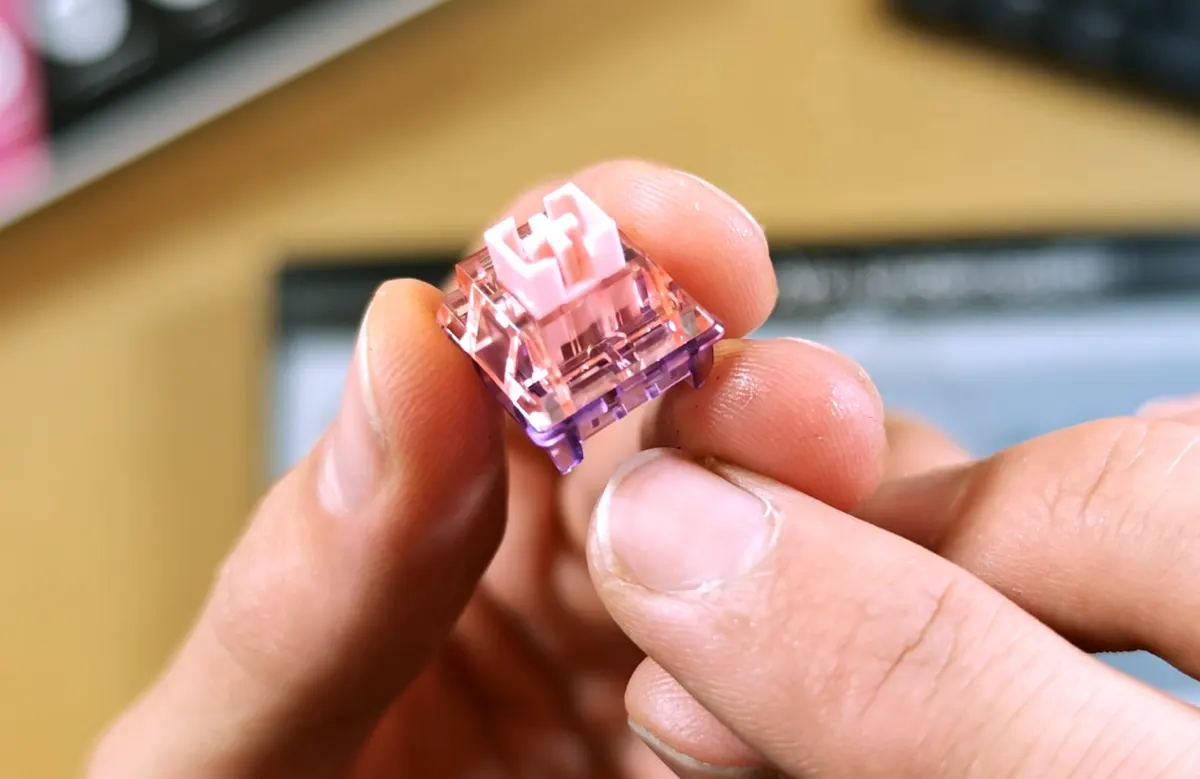
Here the two keyboards take very different routes. The Carbon60 uses low-profile Gateron Red Low linear switches (50 gf, 3.2 mm total travel), which is the main reason it can be this thin, and it’s also sold in a variant with tactile Gateron Brown Low switches on board. The TH40 uses the full-size Epomaker Flamingo linear switches (47 gf, 3.6 mm total travel) in 3/5-pin hot-swap sockets, so standard MX-style switches will also fit here. There’s also a TH40 version with Epomaker Wisteria linear switches, if you prefer that.
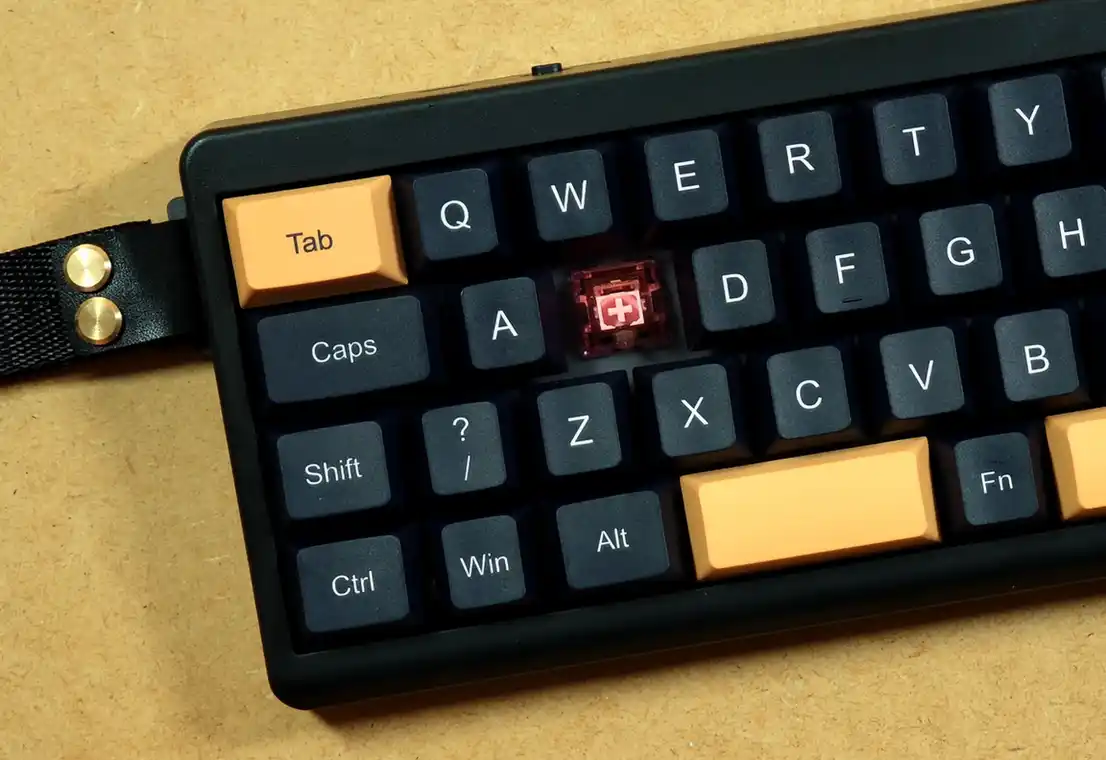
Both boards are hot-swappable, and both come with two spare switches and a keycap/switch puller. Keep in mind that the Carbon60 needs compatible low-profile switches, and that in my experience removing the switches is much easier on the TH40, as the ones on the Carbon sit rather tight and are pretty difficult to move at first.
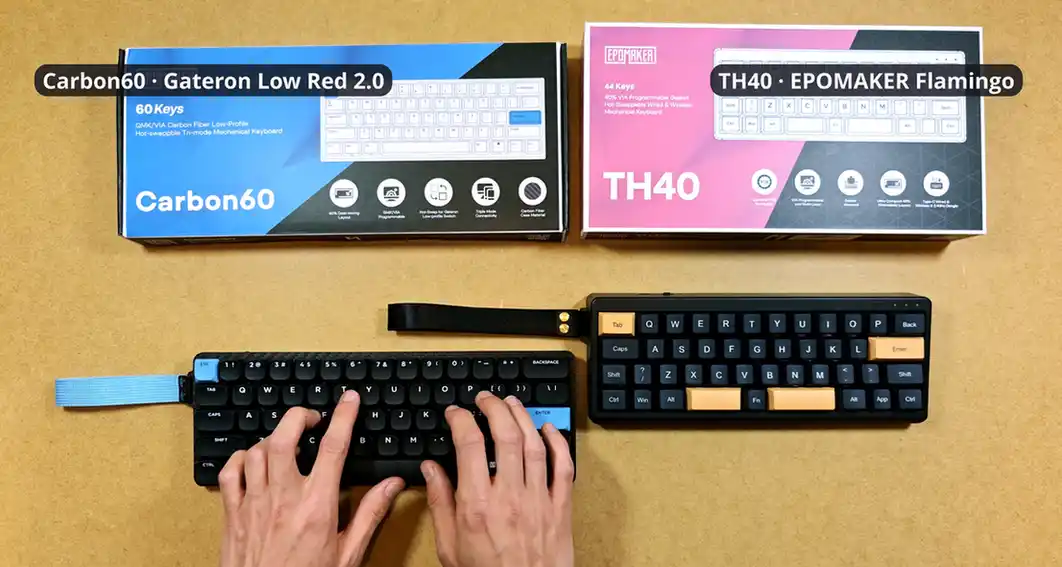
In the snippets below as well as in the full video you can hear what both these keyboards sound like by default, with their stock switches.
To my untrained ears, the Flamingo switches on the TH40 sound much more thocky and have a deeper sound to them overall, while the Gateron Red Low switches on the Carbon60 are lighter, and a tiny bit more “clicky”. Both sound satisfying and pleasant, and the recordings here really don’t do these devices enough justice.
Connectivity – Bluetooth, 2.4 GHz And Wired
Both keyboards work over Bluetooth, the included 2.4 GHz dongle and a USB-C cable. Both also support 1000 Hz polling over the dongle and wired, and 125 Hz over Bluetooth. Each can remember up to three Bluetooth devices and jump between them almost instantly, which was one of the first things that I’ve tested.
The TH40 has a physical switch on the back to pick between 2.4 GHz, Bluetooth and wired, which is very convenient, as you can always see which mode you’re currently in. The Carbon60 only has an on/off switch, so you change modes using key combinations instead. During my tests I paired both keyboards with my AYN Thor and my Xiaomi Pad 5.
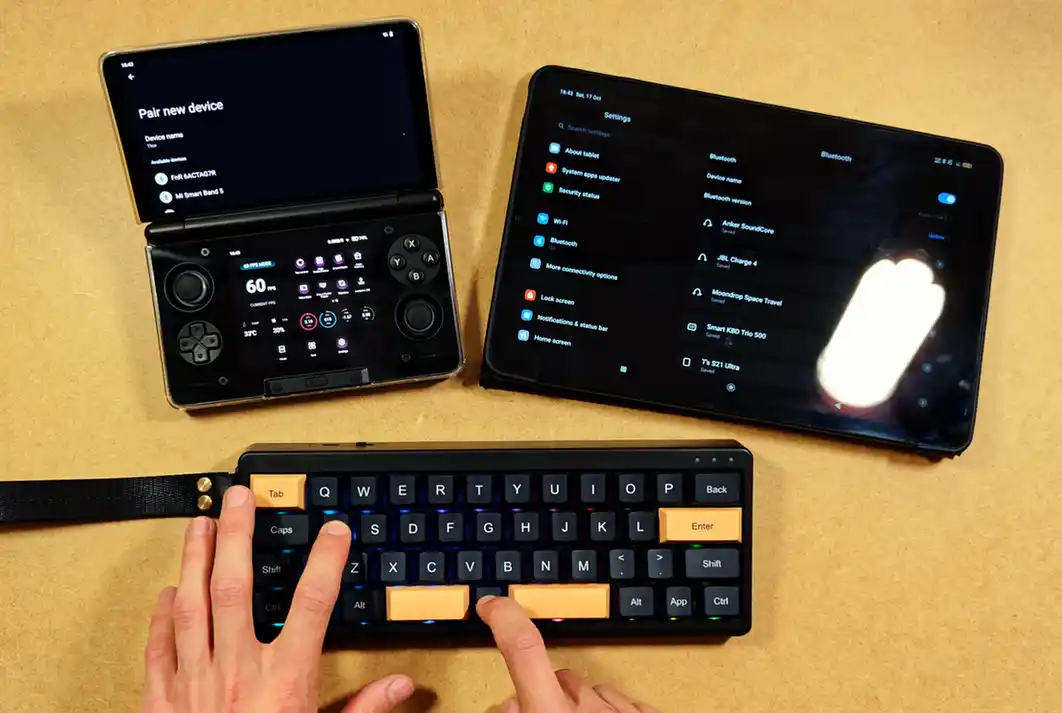
To pair the TH40, set the back switch to Bluetooth, then hold Fn + A, S or D for a few seconds to pair device 1, 2 or 3. A short press of the same combination switches between them. On the Carbon60, turn it on, then hold Fn + Q, W or E for a few seconds, and again, a short press switches devices.
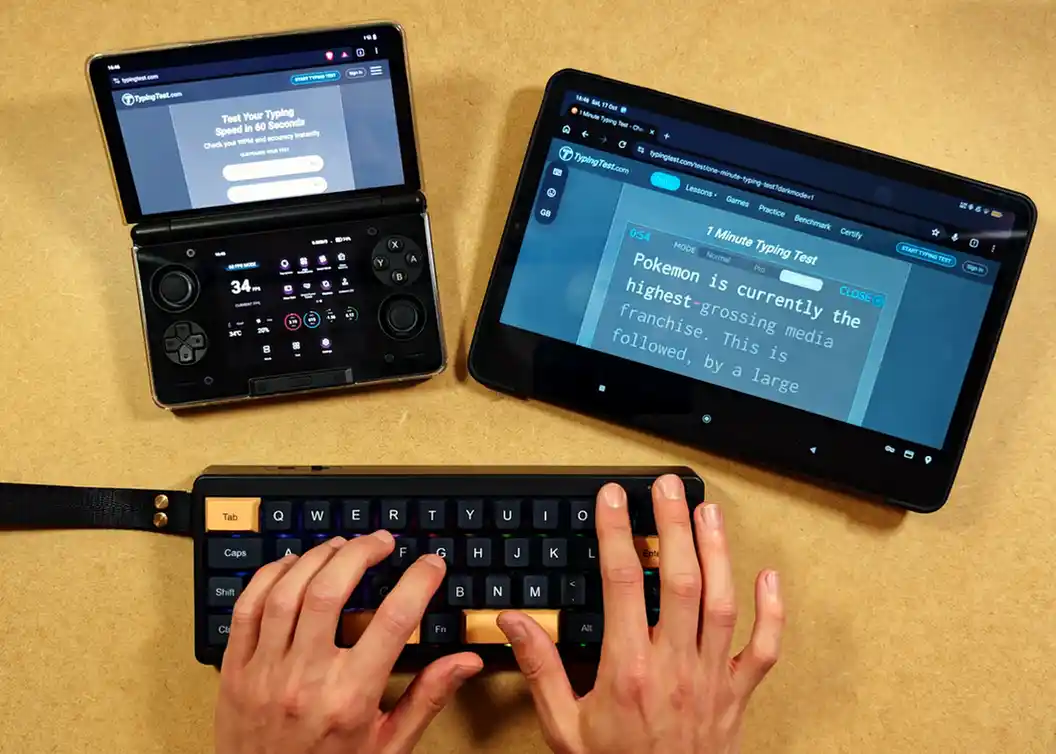
The TH40 paired noticeably faster with both devices, but the difference was reasonably small, and switching between the tablet and the Thor worked well on both.
Note: If you mostly use one device, the 2.4 GHz dongle will give you the same 1000 Hz polling as the wired connection, while Bluetooth will be the better pick for switching between a tablet and a phone or handheld.
You might also like: Samsung Smart Keyboard Trio 500 Hands-On Review
Arrow Keys & Game Controls – A Quick Retro Gaming Test
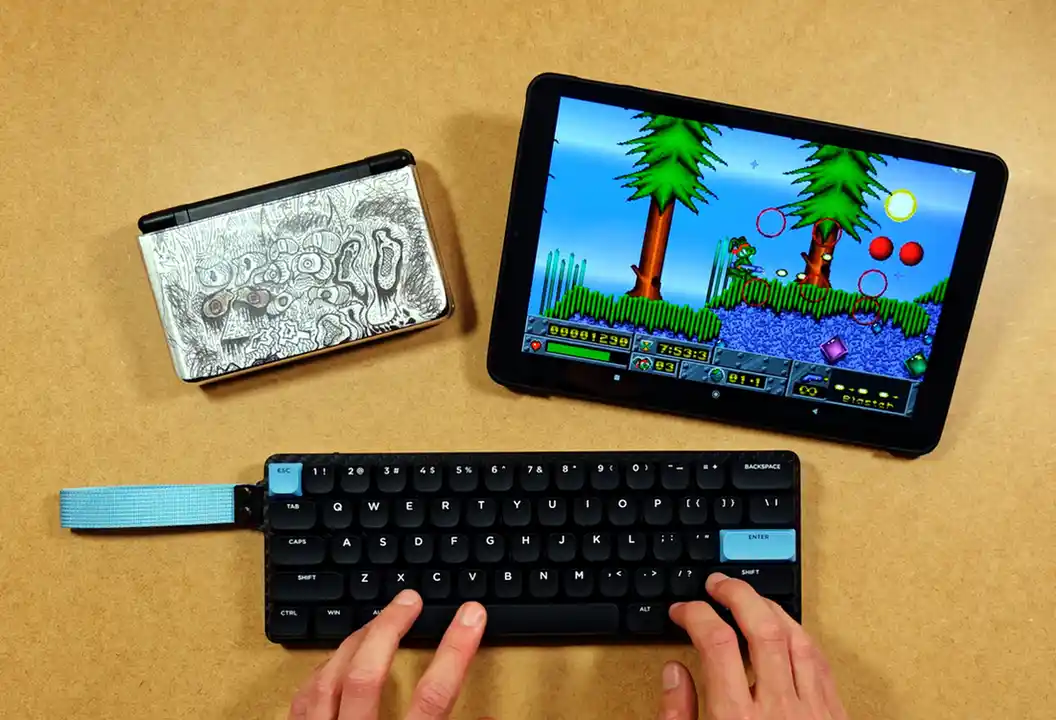
Neither keyboard has dedicated arrow keys, so naturally I had to try some Jazz Jackrabbit on them. On the Carbon60, the default shortcut for the up arrow is Fn + the slash key, with left, down and right arrows on the bottom-row keys below it (right Alt, Menu and Ctrl). On the TH40, up is Fn + the period key.
In the DOSBox command line that works just fine. In a game it can get a little bit awkward. With Fn held down you’re effectively temporarily on another control layer, so Enter and the spacebar don’t do their usual jobs. This means that unless you remap the controls beforehand, you might have some trouble with just quickly jumping into an average gaming experience here. The TH40 behaves almost exactly the same way. Of course, all this is to be expected on portable hardware like this.
So yes, you can play games on both at least in theory, and you can adjust to it, but it’s not ideal out of the box. If you plan to game on either one, remapping the keys is the way to go, which brings us to the software side of things.
VIA And Software
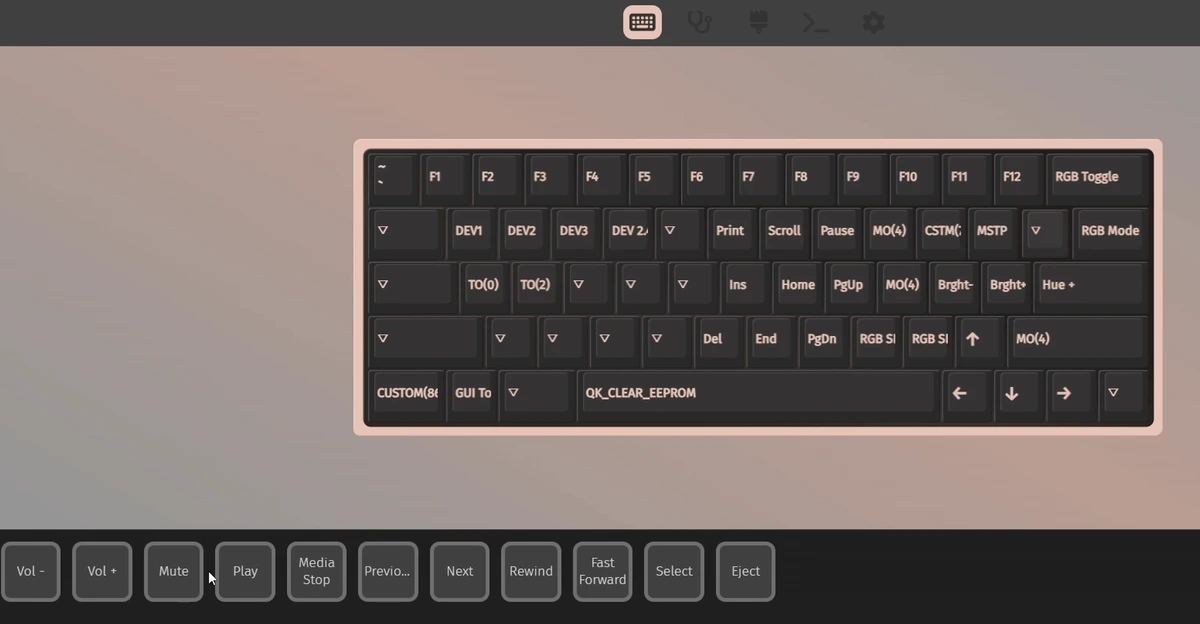
The Carbon60 worked with VIA right away for me after importing a .json file shared on the Epomaker website. From there you can remap every key and set up your own, customized control layers.
The TH40 needed one extra step here. What can be confusing at first is that it actually comes in two versions, one with QMK support and one that supports VIA only, and their VIA files aren’t interchangeable. The files I found on the product page didn’t work with my unit, which turned out to be the QMK version. After I used the correct QMK file I was able to connect my keyboard with VIA right away and modify the existing keymap.
For those of you who have found this review and have the QMK version as well, you can download the .json file for the QMK version of the TH40 (VID 0x36B0 / PID 0x304E) here: Epomaker TH40 QMK VIA file (JSON, Google Drive).
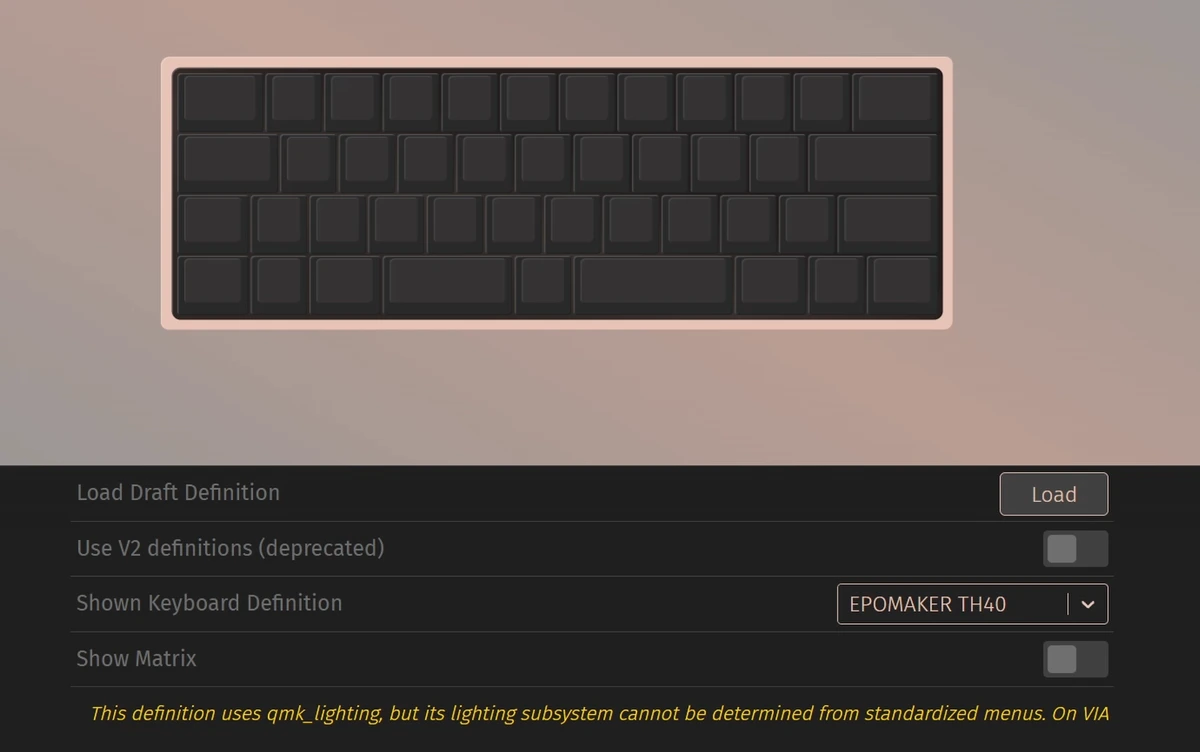
Note: If VIA says it “could not find a V3 definition” for your TH40, you most likely have the other version. You can check yours by looking for the “QMK” string in the serial number on the sticker underneath the keyboard. To load the file, open usevia.app in Chrome or Edge, turn on “Show Design tab” in the settings, then go to “Design -> Load Draft Definition”. VIA saves your changes straight to the keyboard, so your layout will stay the same on every device.
RGB Backlight And Battery Life
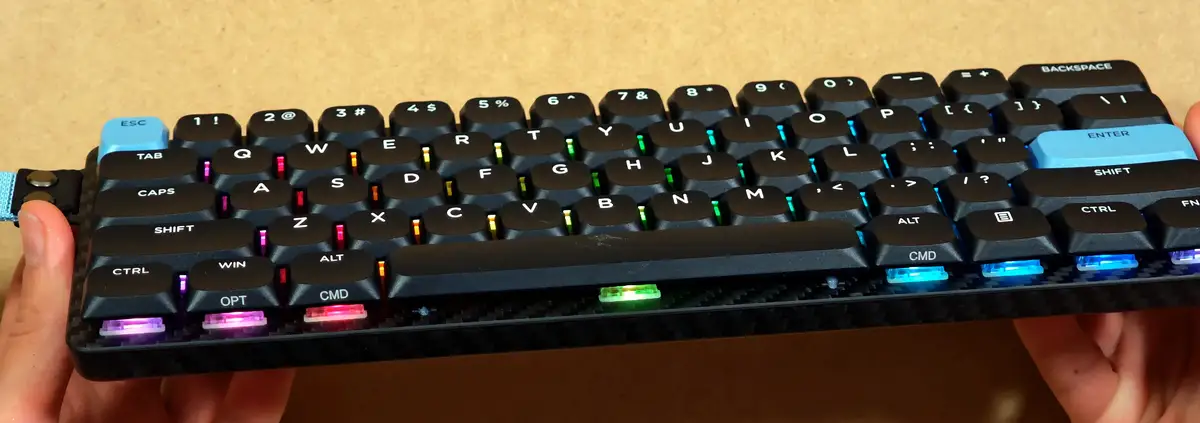
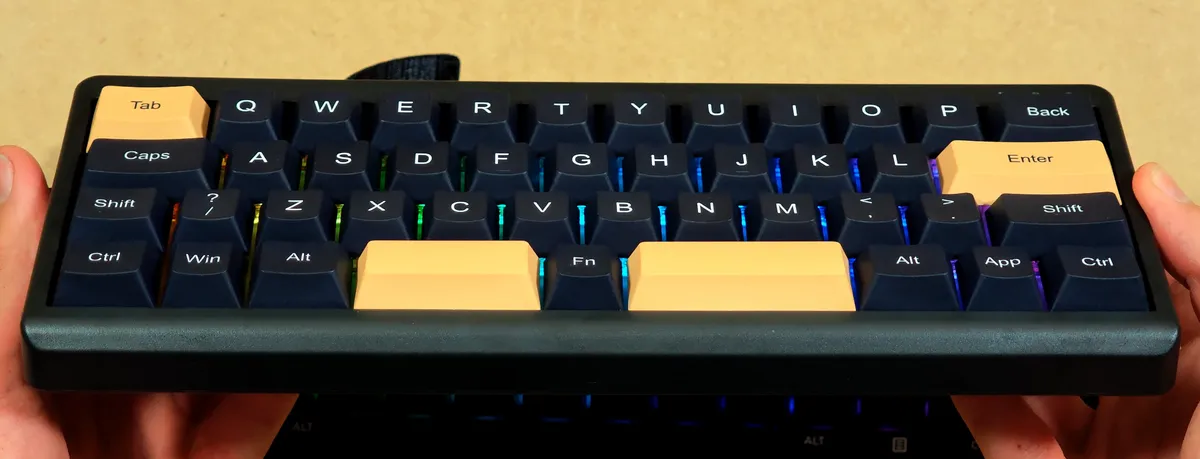
Both keyboards have per-key RGB with south-facing LEDs, so the backlight looks best when you look at the keyboard from the front. There are plenty of effects to choose from on both keyboards. Rainbow waves, static colors, pulse effects and a few reactive modes that light up as you type. On both you can also change the effect speed for many of the presets.
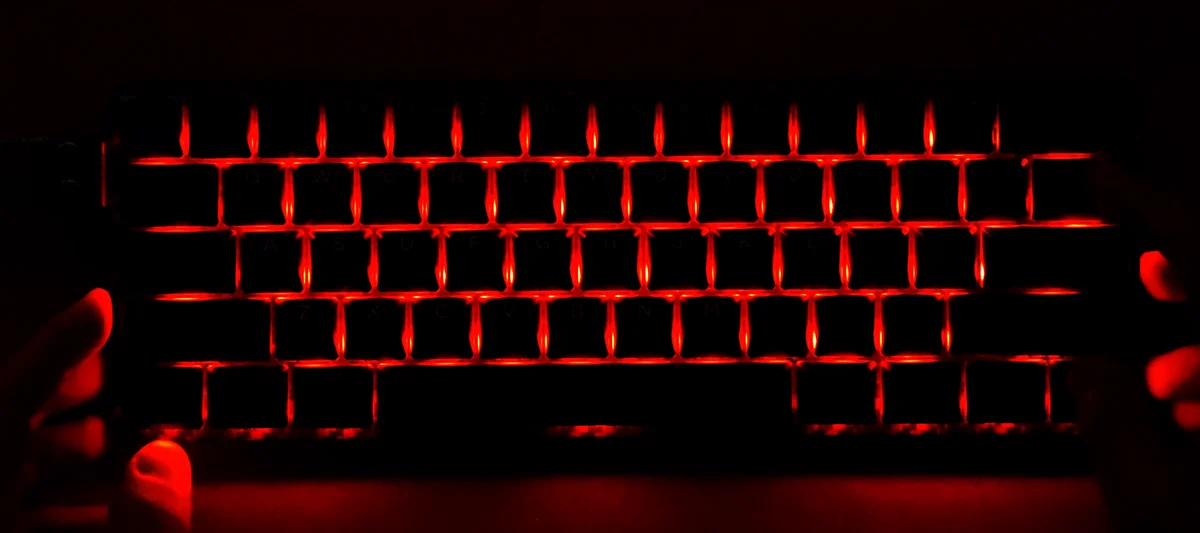
On the TH40, Fn + Enter turns the backlight on and off. On the Carbon60, you cycle the effects with Fn + the backslash key, and in the solid color mode Fn + Enter changes the color, while Fn + Backspace turns the backlight on and off.
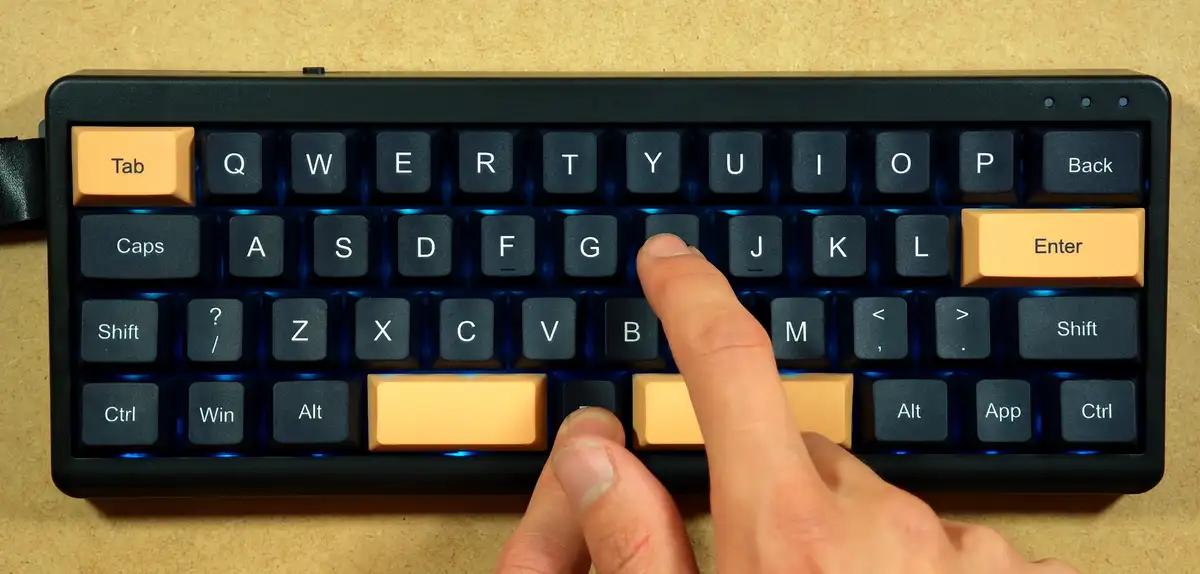
The TH40 also has three small status LEDs. The left one is Caps Lock, the middle one the Win lock and the right one indicates the state of the wireless connection. The Carbon60 on the other hand has no extra indicator lights at all.
Both keyboards have a 3000 mAh battery, and after a week of use neither needed much attention from me with both of them arriving roughly at 80% charge, and finishing the month of sporadic work at about 60% battery (without much backlight usage involved).
Battery life of course will depend heavily on the backlight. Epomaker rates the Carbon60 at about 24 hours with the backlight on and about 176 hours with it off (!). So if you use them wirelessly, turning the lights off or down is the easiest way to make a charge last a lot longer. This is the case with most wireless keyboards with RGB backlight out there.
Epomaker Black Friday Deals
Epomaker’s Black Friday sale runs until December 3, 2026, and both keyboards are discounted at the time of writing. During the event, most Epomaker products are automatically discounted by at least 15%. The Carbon60 is down to $71.49 from $129.99, and the TH40 to $55.99 from $79.99. On top of that, Epomaker’s Spend & Save promotion (until November 29) takes $10 off orders of $80 or more, $20 off at $120 and $40 off at $240, with one tier per order. You’ll find all the deals on Epomaker’s Black Friday deals page.
Which One Should You Get?
During the sale, the price gap between the two shrinks to about $15, so this time it comes down to the layout preferences.
Get the Carbon60 if you want a layout you can use without any practice. The 60% layout with a number row is much easier to get used to, and it’s the thinner of the two to slip into a backpack.
Get the TH40 if you want the most compact board you can get without going ortholinear, and you don’t mind learning a few layers and shortcuts. At $79.99 list ($55.99 on Epomaker’s store at the time of writing) you get a lot for the money.
My Verdict After A Month With Both
I’ll be completely honest, both of these are very comfortable to type on and use. If I had to choose just one based on the typing experience alone, I would probably go with the Carbon60. It feels great, the layout is familiar and it’s impressively thin, so for longer writing sessions it’s the more comfortable of the two, at least for me.
With that said, after some practice and a bit of key remapping, I’ve come to really like the TH40 as well, especially as a mechanical keyboard I can just throw into my backpack. It turned out to be much more practical than I thought, and it got quite a few compliments from people who saw it. If you’re a tinkerer at heart like me and want the smallest mechanical keyboard you can carry around, for a very good price, it’s an excellent choice. If you’re after a full-size Epomaker board for your desk instead, take a look at my EPOMAKER TH108 V2 Pro review.
Thanks for reading, and see you next time!