

I wanted to get the GameSir Pocket Taco for quite some time, and now it’s finally here! It’s a small Bluetooth controller that clamps onto the bottom of your phone in portrait mode, turning it into something that looks and feels a lot like an original Game Boy. I’ve spent a good while with it on my Xiaomi 14 and Xiaomi 15 Ultra, set it up in the GameSir app, the GameSir Boy app and RetroArch, and played quite a few retro games on it. Here is everything you need to know before buying one.
Short answer: Yes, in my experience the Pocket Taco is a really good deal at around $35. It’s light, it has its own battery so it never drains your phone, the buttons feel better than on many more expensive clip-on controllers, and it fits even big phones in thick cases. Just keep in mind that it has no analog sticks, the d-pad can register an accidental diagonal now and then (there is a diagonal lock for that), and you will want to spend a few minutes in your emulator’s settings to hide the on-screen overlay and move the game right above the controller.
Why you can trust us: We test all of our products according to the techtactician consumer usability benchmark methodology which evaluates all of the product characteristics that matter to the user in day to day use. Enjoy the review!
This web portal is reader-supported, and is a part of the Amazon Services LLC Associates Program, AliExpress Partner Program, and the eBay Partner Network. When you buy using links on our site, we may earn an affiliate commission!
You might also like: Best Clip-On Controllers for Retro Mobile Gaming (Android/iPhone)
First, The Specs
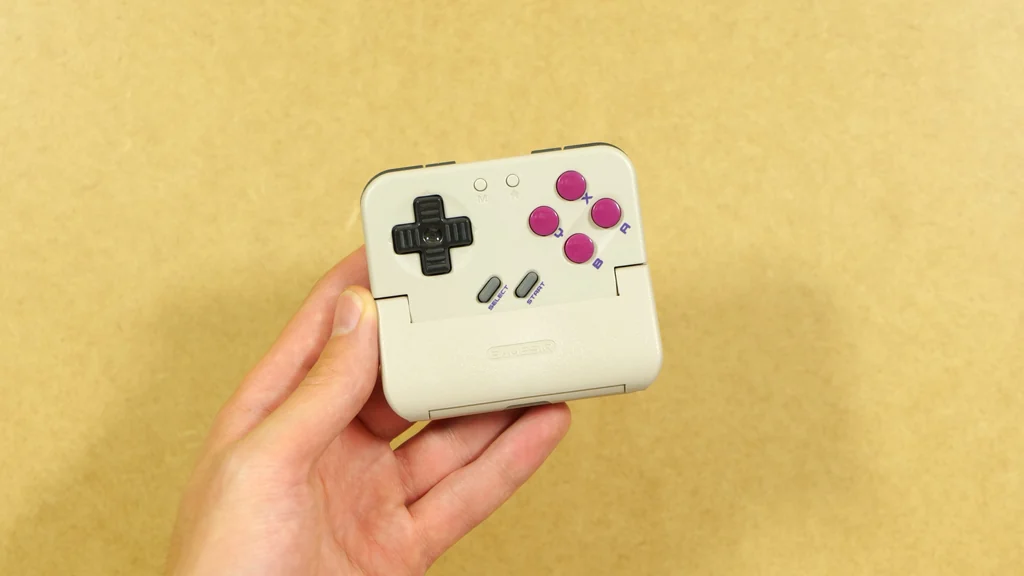
A vertical Bluetooth clip-on controller with its own 600 mAh battery, a Game Boy style d-pad and buttons, four rear triggers and a spring clamp mechanism.
| Device Type | Vertical (portrait) clip-on game controller |
| Connection | Bluetooth; no wired connection to the phone |
| Platforms | Android 8.0+, iOS, Switch, PC |
| Modes | Android, Switch / other devices, G-Touch (Android touch mapping) |
| Phone Length | Up to 215 mm (official) |
| Phone Thickness | 5.6 to 11 mm officially; the clamp opens to about 14 mm |
| Controls | D-pad, ABXY, Start, Select, M and Home buttons, flat L1/L2/R1/R2 triggers on the back; no analog sticks |
| Extra Functions | Turbo, d-pad diagonal lock, d-pad as left or right stick, button swaps, keyboard mode, remapping |
| Battery | 600 mAh, 3.7 V (2.22 Wh) Li-ion; up to 30 hours claimed |
| Charging | USB-C on the top edge; 1 to 5 W charger recommended |
| Phone Charging | Opening at the bottom for your phone’s own cable |
| Auto Sleep | 10 minutes by default; adjustable in the app |
| Size / Weight | About 78 x 70.9 x 20.7 mm; 62.2 g |
| Software | GameSir app (settings, remapping, firmware), GameSir Boy (games and emulation, Android), works great with RetroArch |
| In The Box | Controller, carrying case, USB-A to USB-C cable, lanyard, manual, sticker |
Unboxing – What’s Inside The Box
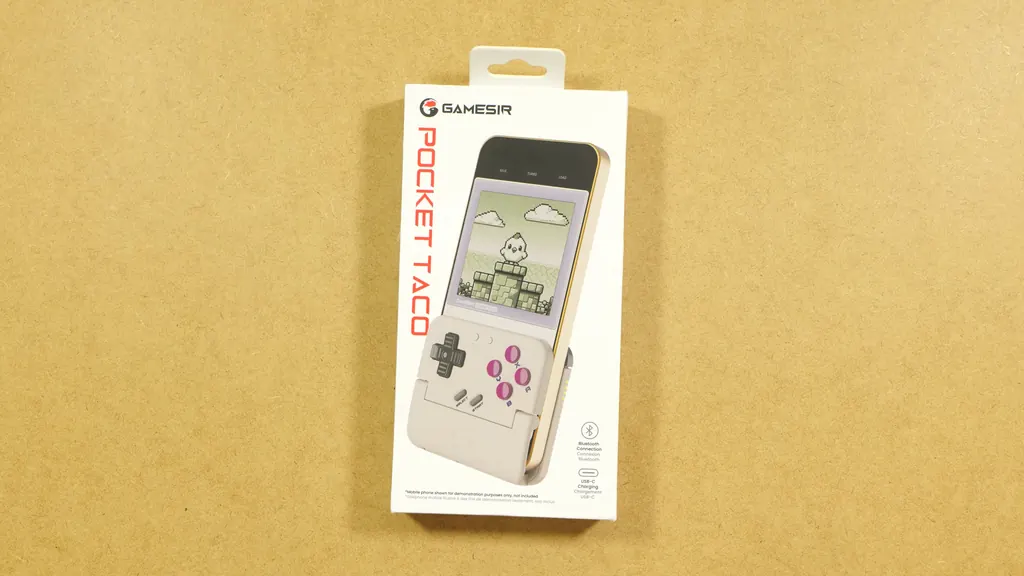
The Pocket Taco comes in a small, nicely designed box with a Game Boy style pixel art scene on the front, which is curiously also included inside the box, printed on a small piece of paper. The back of the box lists the 600 mAh battery and the claimed 30 hours of battery life, together with the usual certification and safety info.
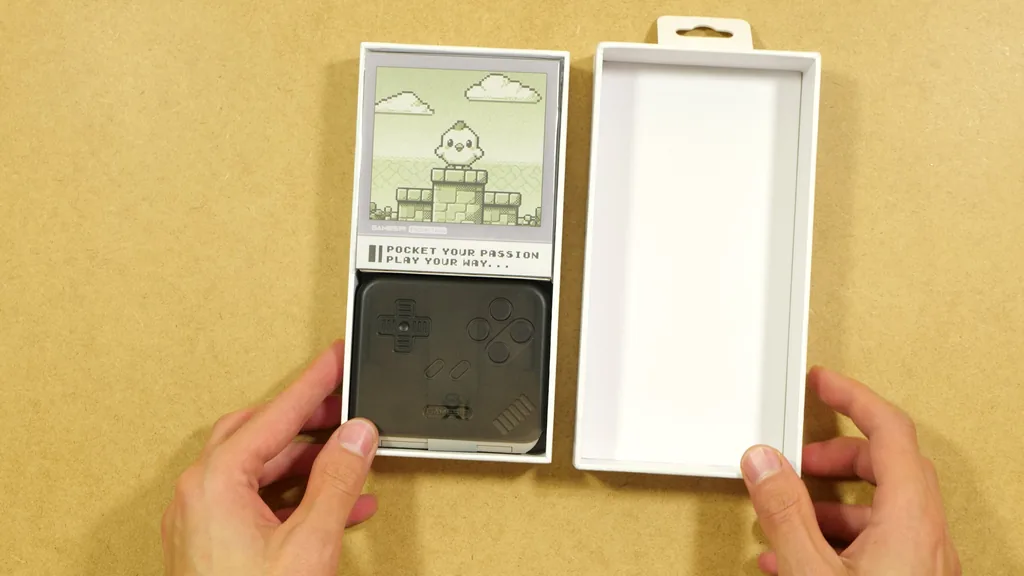
Inside, you’ll find a small booklet with the instruction manual, a complimentary GameSir sticker, a USB cable with the GameSir logo for charging the controller, an optional lanyard, and the Pocket Taco itself, already sitting in a small portable case. I’m really glad the case is included in the set, as it’s exactly what you need if you want to carry the Taco around in your pocket.
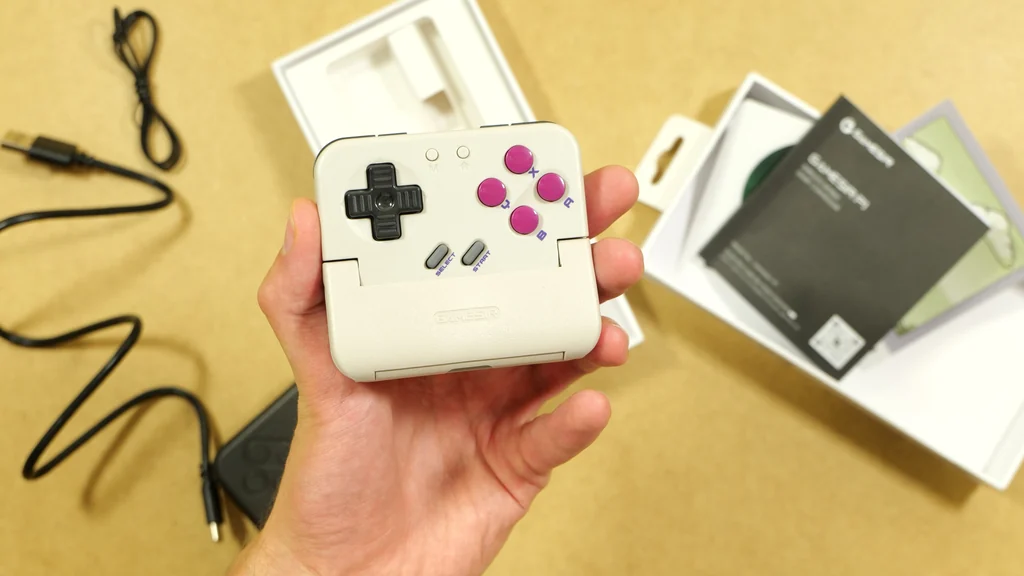
The case protects the controller from unwanted pressure and pocket debris, and you can even charge the Pocket Taco while it’s inside it. The included cable is a USB-A to USB-C one, so you’ll need a regular USB charger or a computer port to top it up.
First Impressions and Build Quality
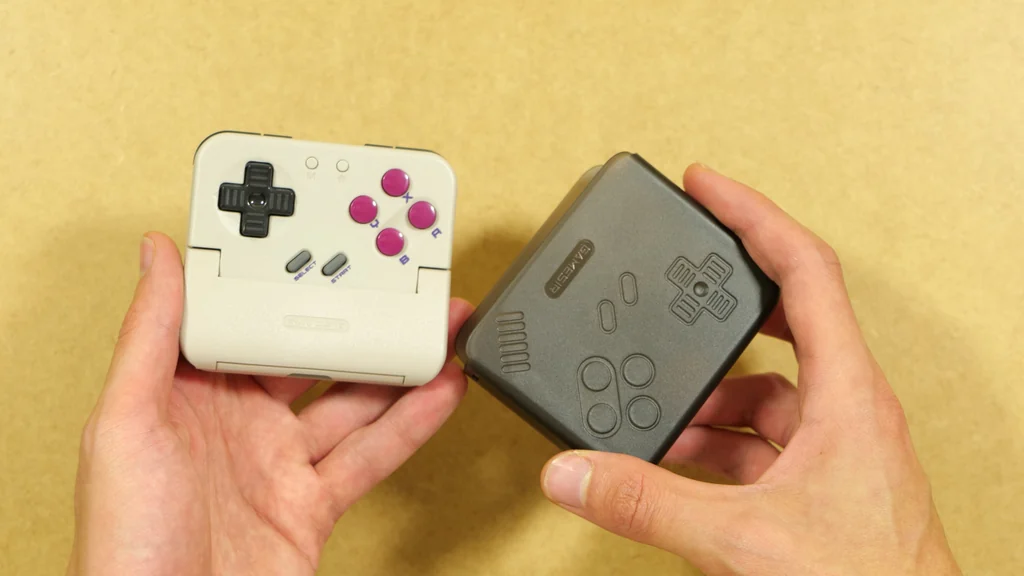
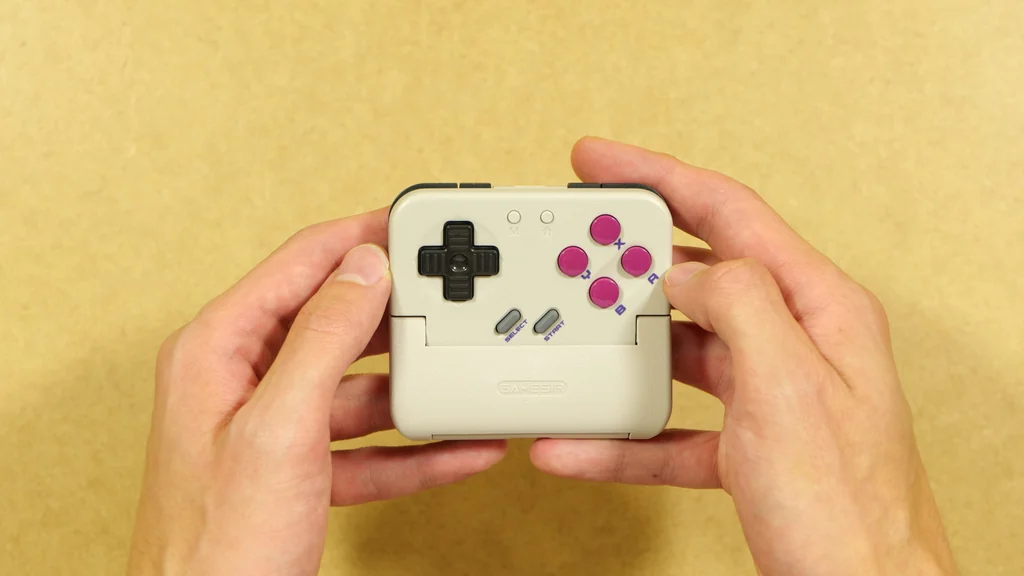
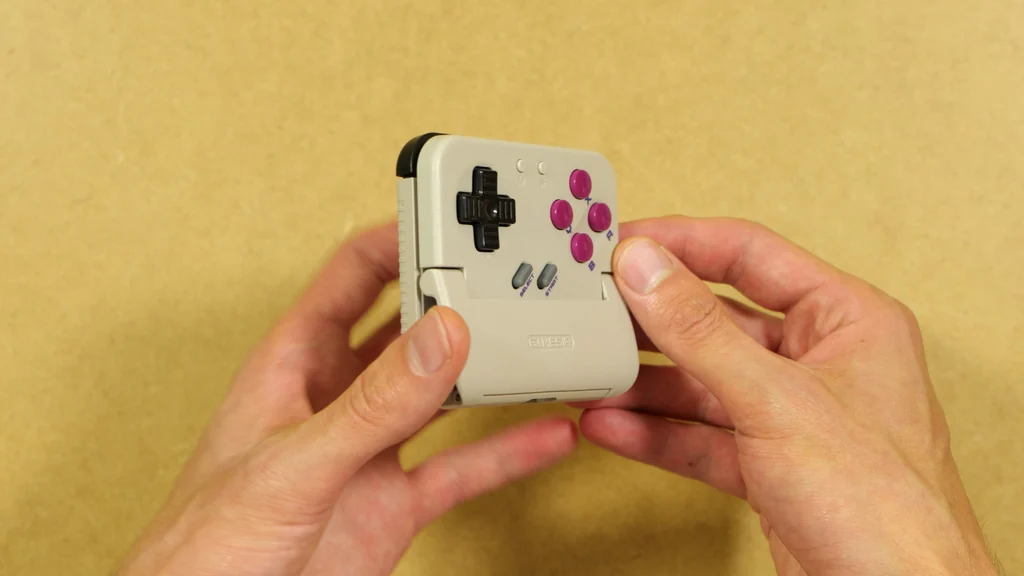
My very first impression was that the Pocket Taco is really light, much lighter than I expected it to be (it weighs about 62 g). The design is a clear nod to the original Game Boy, with the grey shell, the purple face buttons and the slanted, rubberized Start and Select buttons. In my eyes it looks great both on and off the phone.
The buttons feel really good too. Compared to my GameSir X5 Lite, which is another, more traditional type of clip-on controller that I have reviewed, the Pocket Taco’s buttons feel noticeably higher quality to me. Each arm of the d-pad is ribbed, which gives your thumb a bit of extra grip.
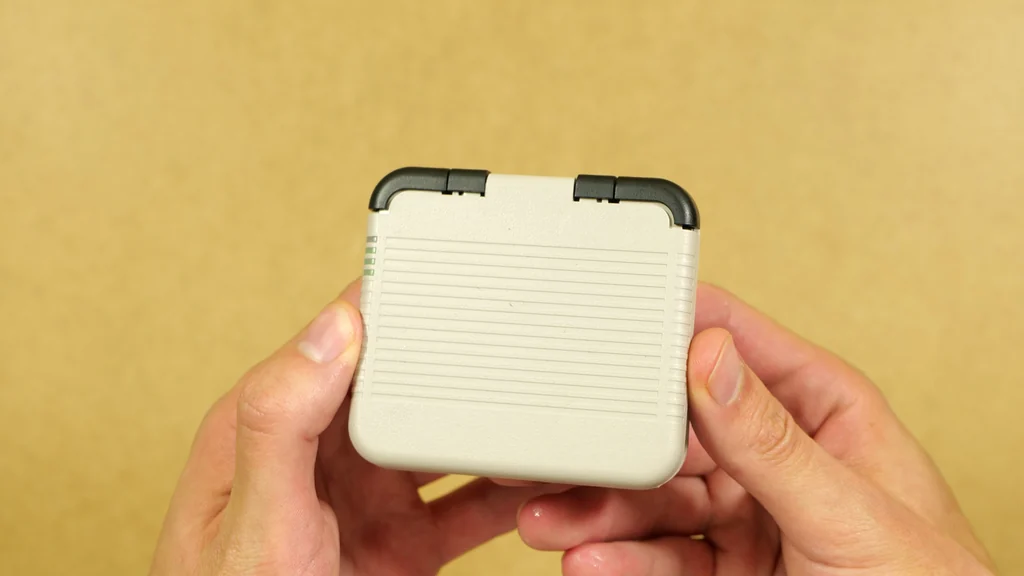
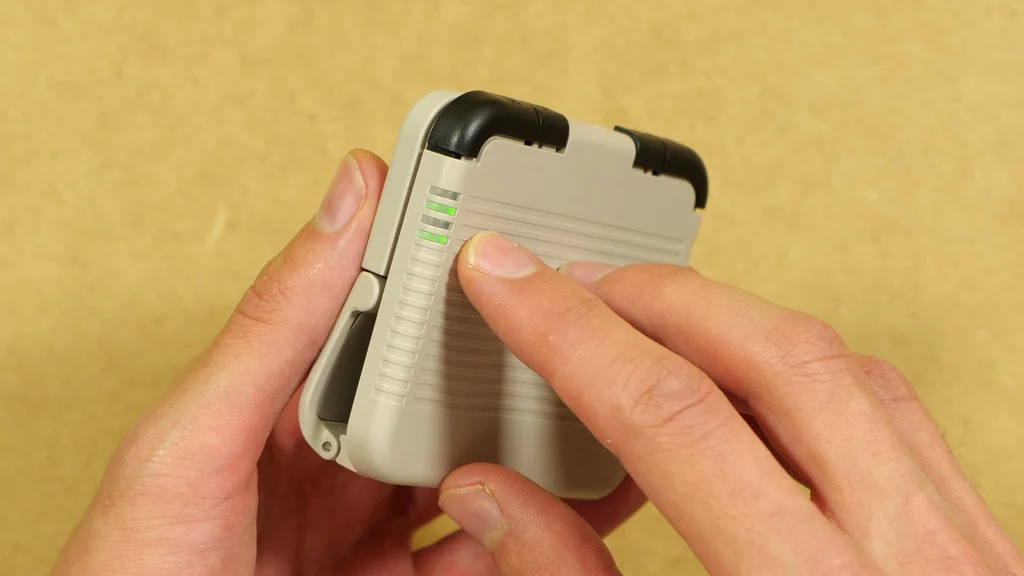
The back of the controller has a ribbed texture, again very much in the spirit of the old Nintendo handhelds, and it’s where you’ll find the flat triggers and the status LEDs. The whole shell is plastic, which is expected at this price, and the light weight is exactly what makes it so easy to carry around.
The Buttons, Triggers and Spring Mechanism
On the front you get the d-pad, the four ABXY buttons, Start and Select, and two small buttons at the top: M (mode) and Home. Most of the controller’s hidden functions, like the turbo, the diagonal lock or the d-pad to analog stick mode, are activated by holding M together with another button, which I’ll list in the shortcuts section below.
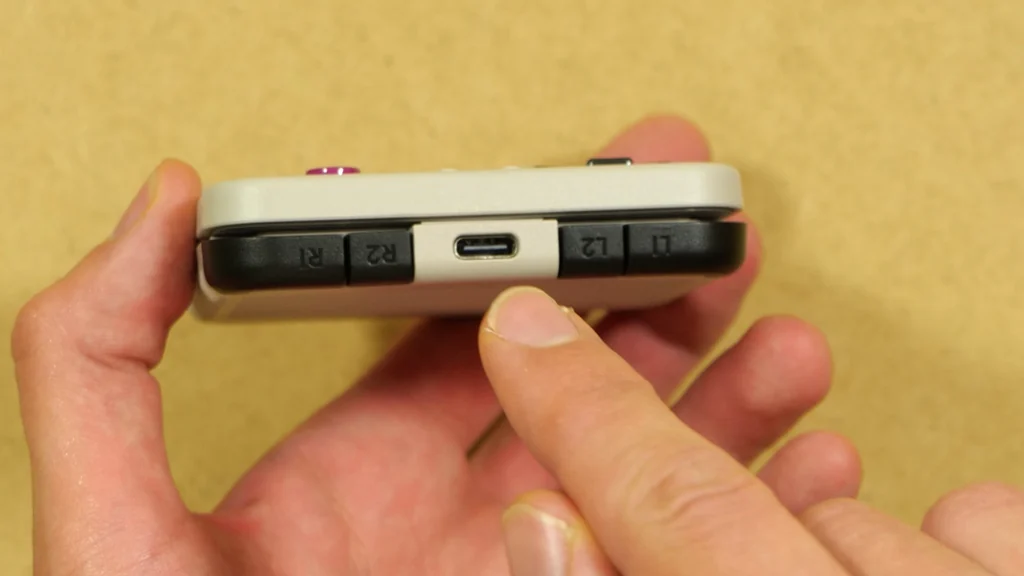
The triggers are completely flat and stacked on the top edge, with L1 and L2 on one side and R1 and R2 on the other, and the USB-C charging port in the middle. They are not of the clicky kind. In fact, they are very silent. The face buttons make a bit more noise, a soft sort of clack rather than a loud one, so playing in a quiet room shouldn’t bother anyone around you.
The spring mechanism is also very silent and works smoothly. You simply pull the controller open, place it on the bottom of your phone and let it close around it. The one part I’d be careful with is the central hinge itself, as it could probably snap rather easily if you bent it the wrong way too hard.
Finally, there are the status LEDs on the side. They show the battery level and the charging state, and they blink when the controller is pairing. A neat detail is that pulling the Taco open switches it on, and closing it for a few seconds switches it off again, so in practice you never have to look for a power button. Holding Home does the same if you’d prefer to turn it on without engaging with the spring mechanism at all.
Will It Fit Your Phone? – Xiaomi 14, 15 Ultra and Thick Cases
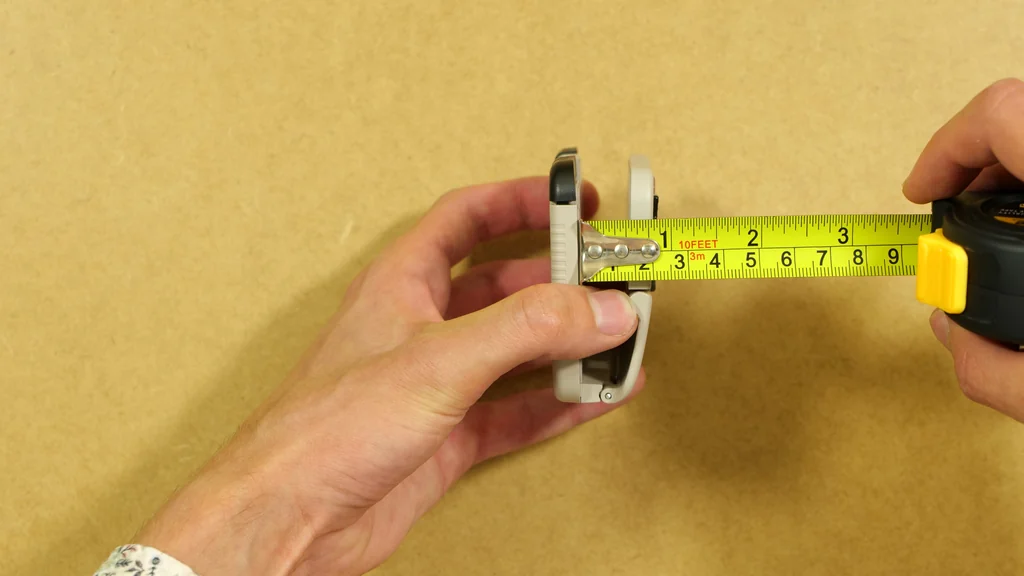
One of the main concerns with a clamp like this is whether it fits larger phones with thicker cases. GameSir says the Pocket Taco works with phones up to 215 mm long and that it’s optimized for phones 5.6 to 11 mm thick (thicker ones fit, but the grip may be less stable). With a tape measure, I was able to confirm that my unit opens to roughly 14 mm, so it should fit most phones you throw at it, even with a case on.
I tried it on two smartphones: the Xiaomi 14 with its default case that came with the phone, and the Xiaomi 15 Ultra with a thicker case that I got from AliExpress a while back. The fit on the Xiaomi 14 is perfect, and the 15 Ultra with the thicker case also fits very well, so that’s definitely a good sign for any of you with larger phones.
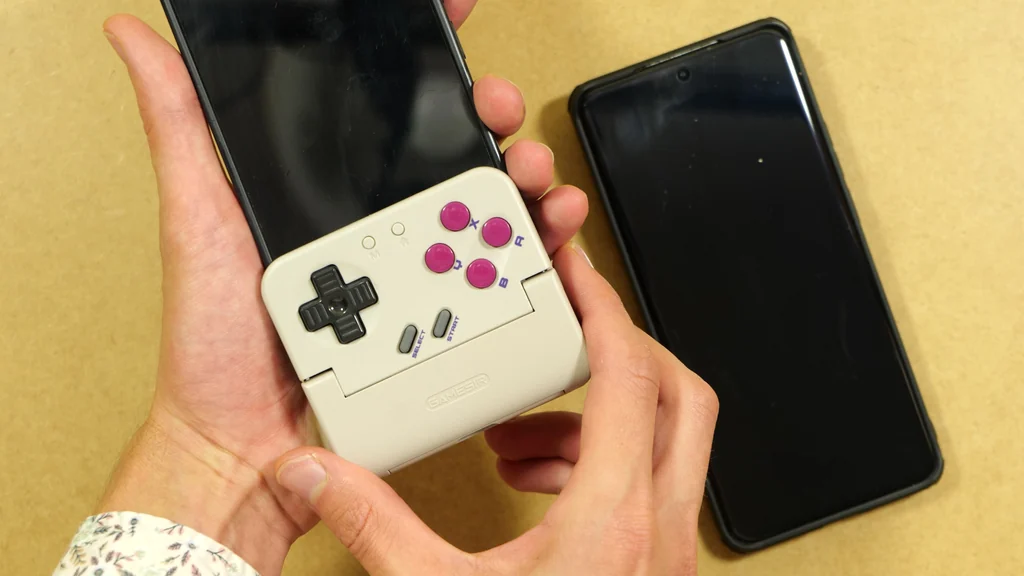
The inside of the clamp has a rubber layer on both sides. It’s there so that your phone doesn’t easily slip out of the Pocket Taco, and so the Taco doesn’t scratch your screen or the glass back of your phone if you’re not using a case. It attaches rather easily, and even when I’m not gripping it hard, it sits reasonably snug. Also, with a natural grip you put pressure on both the front and the back of the controller, so the fit gets even better while you’re actually playing.
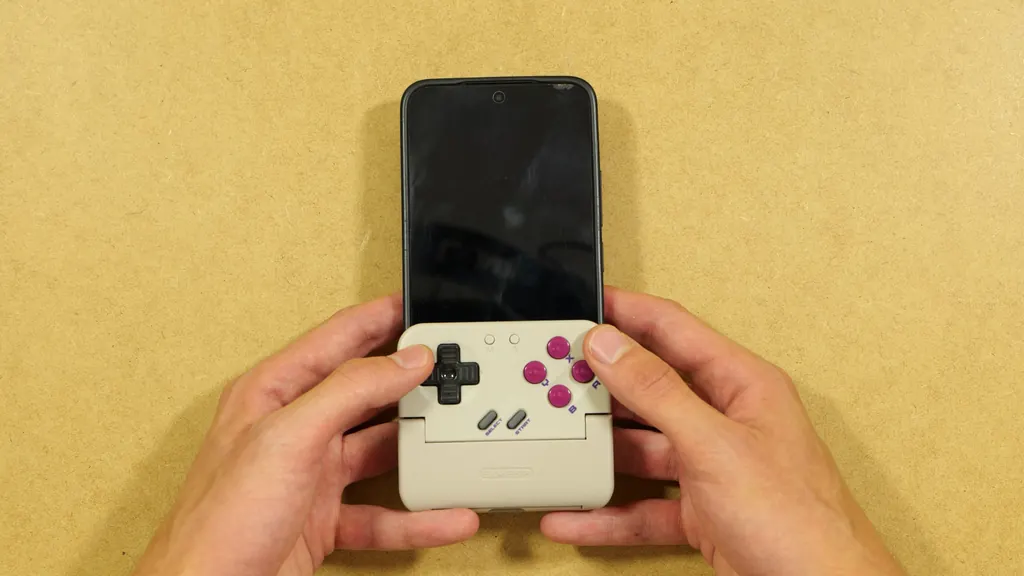
Of course, remember to always make sure that no kind of debris gets between the Pocket Taco and your device’s screen. Things like larger dust particles can still potentially scratch the surface of your phone if you clamp down on it and move the device around.
Battery, Charging and The Pass-Through Hole
The Pocket Taco runs on its own internal battery, not on your phone’s. This is a Bluetooth controller with a 600 mAh cell inside, charged separately through the USB-C port on the top edge. GameSir claims up to 30 hours of play on a charge. That does indeed sound realistic for a 600 mAh controller with no rumble and no lights apart from the small LEDs. The box recommends a charger delivering between 1 and 5 W, so any small phone charger or a computer USB port will do.
This is an important difference compared to many other clip-on controllers, like the X5 Lite, which plug into your phone’s USB-C port and have no battery at all. The Pocket Taco doesn’t connect to your phone with a cable in any way, and your phone’s port stays free.
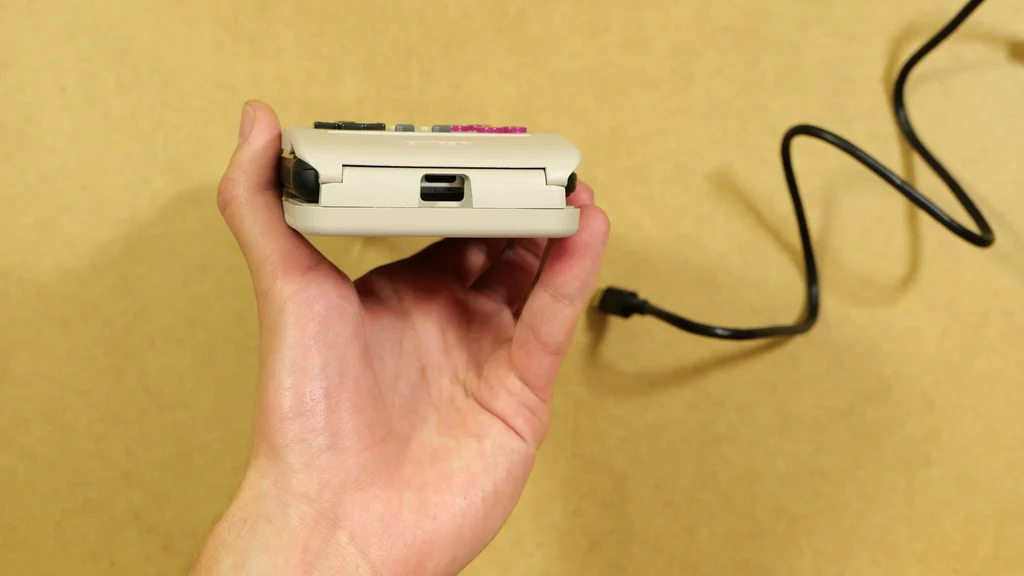
There is a small opening on the bottom of the controller that lines up with your phone’s charging port, so you can charge your phone while you play. Your phone is charged separately here, as the cable goes straight into the phone, not into the Taco. This also means that you will be able to connect USB-C wired headphones to your phone while you’re gaming.
A thing that’s important to mention here is that with a thick case, a bulkier cable plug might not fit through the opening. On my Xiaomi 15 Ultra with the thick AliExpress case, I would have to take the case off to be able to charge my phone using the cable supplied in the set. With the Xiaomi 14 in its stock case, the cable went through the pass-through hole without any trouble. If you plan to play while charging a lot, a cable with a slim USB-C plug would be something to consider.
You might also like: DAC vs. DAC-less USB-C Adapters – Which One Do You Actually Need?
How To Pair The Pocket Taco With Android
Pairing is very quick. Here is how to do it on an Android phone:
- Open the Pocket Taco to turn it on.
- Press and hold Home + A until the LEDs start blinking rapidly. This means the controller is in pairing mode.
- Open the Bluetooth settings on your phone, select the controller from the list of available devices and tap pair.
- Once the LEDs stop blinking and stay lit, the controller is connected.
Hint: According to GameSir’s manual, Home + Y pairs the Taco in the “Switch / other devices” mode instead (it shows up as a Pro Controller), and Home + X enters the G-Touch mode, which maps the buttons to on-screen touch controls on Android. If pairing ever fails, holding M + Home for 2 seconds forces the pairing mode again.
The GameSir App
The first thing I tested was the official GameSir app, which works with all GameSir products. It’s a little bit rough around the edges, but it works. You select the Pocket Taco, allow the necessary permissions, and the app finds the controller automatically.
Right after the controller connects, you can set the display scaling, which tells the app how much of the screen is going to be covered by the controller. My tip is to put the Pocket Taco on the phone first and adjust the setting while it’s attached; for my Xiaomi 14, around 58% was just right. While this is all nice, this setting will only affect the GameSir app itself.
On the main screen you can see the battery level, and further in you’ll find the aspect ratio settings, the gamepad test, the button settings, the sleep timer and the firmware update.
The D-Pad Diagonals and How To Lock Them
Accidental diagonals are what I’ve seen many people worry about with this controller, so this was the first thing I checked in the gamepad test. When I tried to press only the cardinal directions fast, I did get an accidental misinput or two. If you care about perfect isolation, for example in Tetris or in a fighting game, that’s something to think about.
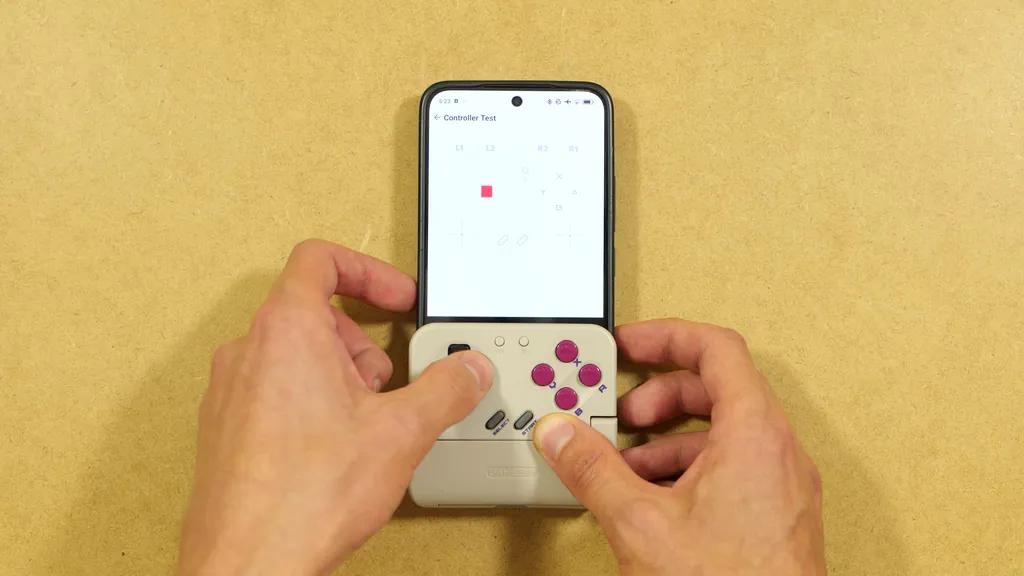
Fortunately, there is a built-in remedy available here. Hold M + d-pad Down for about five seconds, and the diagonal inputs are turned off completely, so you can’t press a diagonal at all. Some games need diagonals, so this isn’t something to keep on all the time, but I think it’s great that the option is there, and even better that it’s available as a shortcut. Hold the same combination again, and the diagonals are back on. You’ll also find the same “cross key diagonal lock” in the app’s d-pad settings.
In the d-pad settings you can also swap the d-pad with the left or the right analog stick (M + d-pad Left or Right for five seconds does the same, and M + d-pad Up brings the regular d-pad back). In theory, this lets you play games that require an analog stick, although on a device like this, it’s of course not the most optimal way to play them.
Layouts, Keyboard Mode and Remapping
You can switch between the Xbox and the Switch button layouts, and there is also a keyboard mode that essentially turns the Pocket Taco into a set of keyboard keys. Once you enable it, you can assign quite a few different keyboard keys to the buttons. You can see the whole list of available keys in my full Pocket Taco review & setup guide video here. I can see this being pretty useful for DOS games, or really for any app that can only take in basic keyboard inputs.
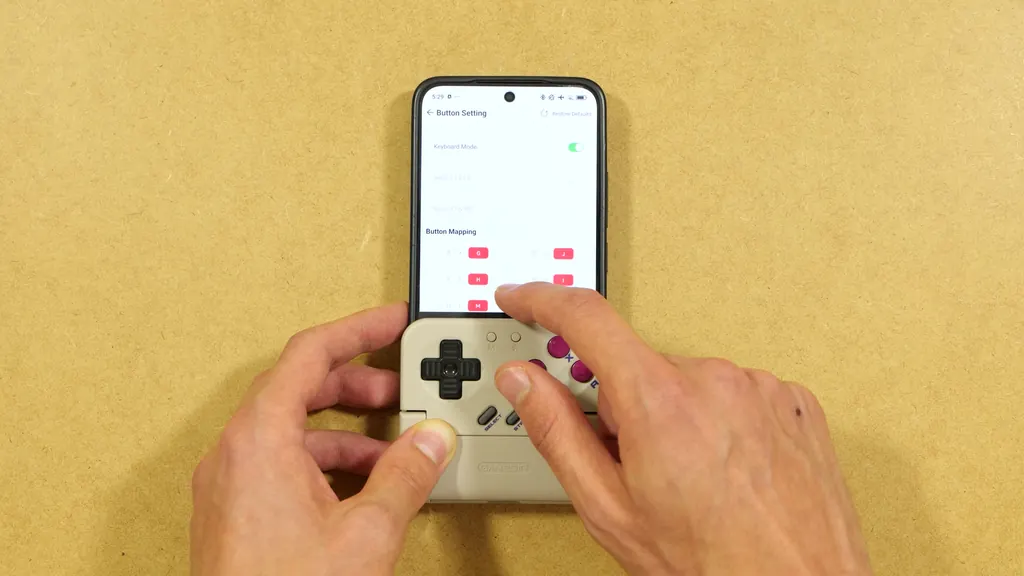
You can also swap the shoulder button functions and change the button mapping yourself to a certain degree. If you want the X button to do something else, you just pick another function from the list, and there is even a “null” option that disables a button completely. Below that, there’s the sleep mode timer, which sets after how many minutes of inactivity the Taco turns itself off (it’s set to 10 minutes by default).
Finally, you can update the firmware right from the app with a simple OTA update. There isn’t much info there apart from the version number, and my controller was already up to date when it arrived.
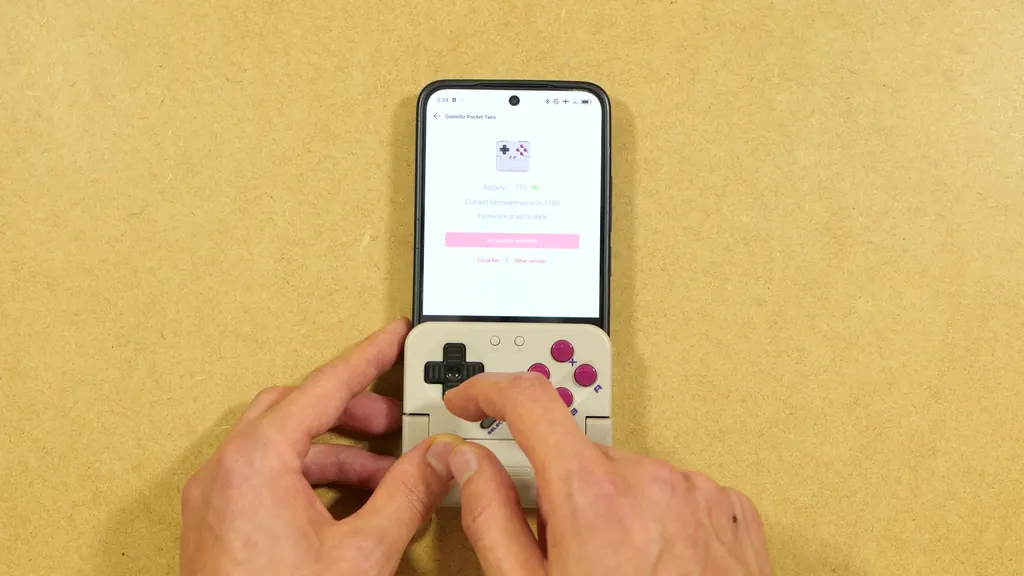
Note for iPhone users: GameSir’s manual says that on iOS, the app is only used for firmware updates and settings, as button mapping isn’t supported there. The controller itself still works with iOS games and emulators that support Bluetooth controllers.
All Pocket Taco Shortcuts
Here are all of the button combinations from my testing and from GameSir’s manual, so you don’t have to dig through the booklet to find them:
| Shortcut | What it does |
|---|---|
| Open the clamp | Turns the controller on (or hold Home for 3 s) |
| Close for 5 s | Turns the controller off (or hold Home for 5 s) |
| Home + A | Pairing in Android mode |
| Home + Y | Pairing in Switch / other devices mode |
| Home + X | Pairing in G-Touch mode (Android touch mapping) |
| M + Home (2 s) | Forces the pairing mode again |
| M + d-pad Down (5 s) | Diagonal lock on / off |
| M + d-pad Left / Right (5 s) | D-pad works as the left / right analog stick |
| M + d-pad Up (5 s) | Back to the regular d-pad |
| Hold M + a button | Turbo on / off for that button (A, B, X, Y and the triggers) |
| Double-click M | Clears turbo from all buttons |
| M + B (2 s) | Swaps A with B and X with Y |
| M + L2 / M + R2 (5 s) | Swaps L1 with L2 / R1 with R2 |
| Home + Start (3 s) | Resets the controller’s functions to default |
The GameSir Boy App
GameSir Boy is the second free app that GameSir offers, and it lets you do two things. First, you can browse a collection of games proposed by GameSir. There are a few titles there, none of which I really recognized, as they seem to be mostly indie and homebrew games.
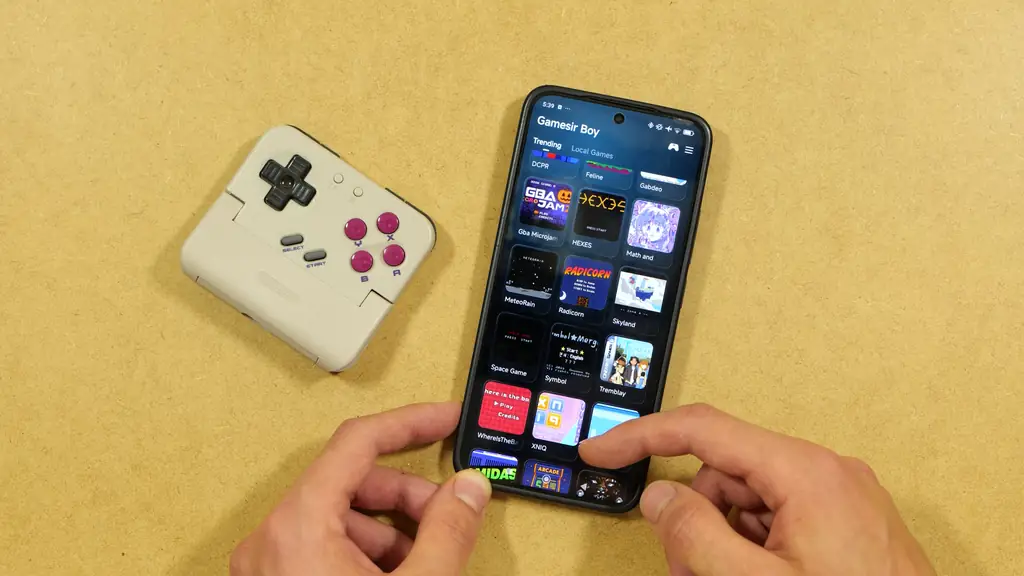
The second and more interesting thing is emulating your own games. As far as I know, GameSir Boy uses libretro emulator cores underneath, just like RetroArch, so you can import your own ROMs and game backups. I selected my backup of Mario Kart: Super Circuit for the GBA, hit launch, and after it downloaded the right core, the game started right away and ran just as it would in RetroArch. By default, it shows a small on-screen controller overlay, but you can of course attach the Pocket Taco and play using it instead.
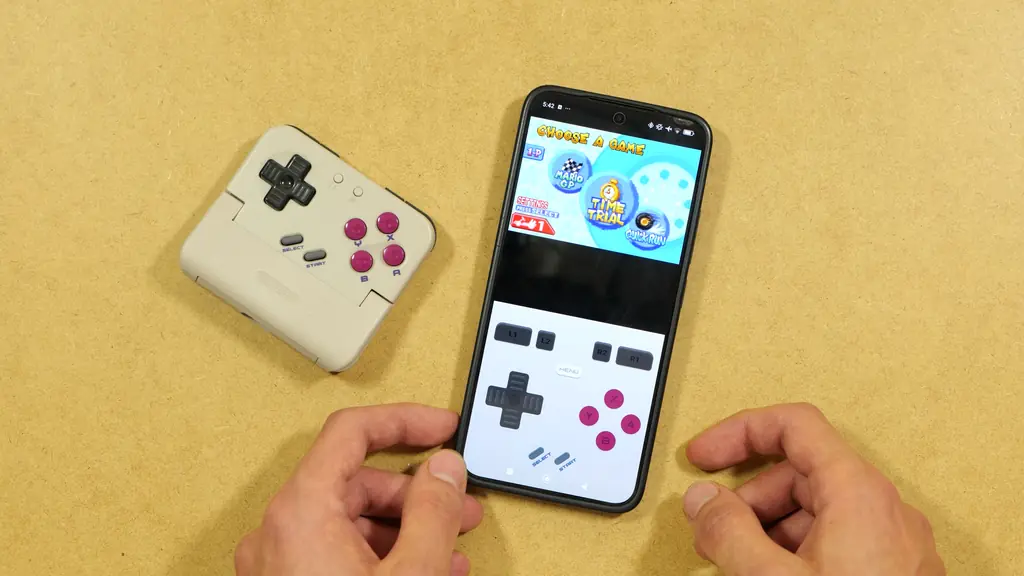
It wasn’t all smooth, though. After a few tries, I wasn’t able to connect the Pocket Taco inside the GameSir Boy app, even though the controller was on the latest firmware and I tried both the manual and the automatic connection. The Taco still works as a regular controller there, but I wasn’t able to get any of the app’s additional features with it. Also, while Mario Kart worked right away, EarthBound for the SNES and Pokemon Red for the Game Boy didn’t start for me at all, even though both worked right away in RetroArch.
So, is there a reason to use GameSir Boy instead of RetroArch? Personally, I don’t see any advantage over RetroArch, or a dedicated emulator app of your choice. The official option is there, and you can use it if you want, but if you already have RetroArch installed and you’re happy with it, I think that’s quite enough.
How To Set Up RetroArch For The Pocket Taco
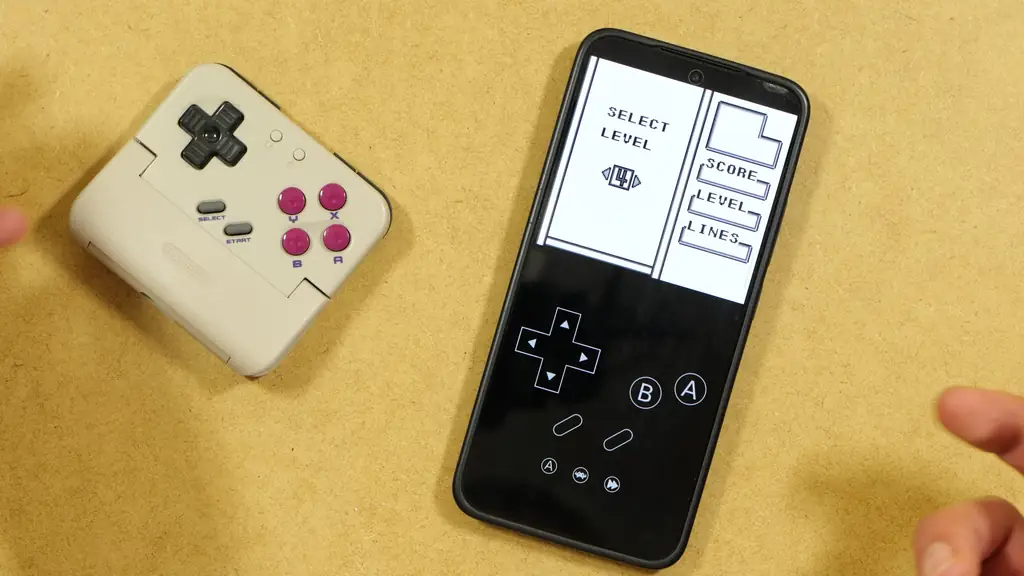
In RetroArch, the Pocket Taco works right away. With the controller connected, you can just launch a game, like Tetris Plus for the Game Boy in my case, and play without touching any additional settings. Out of the box, though, you’ll still see RetroArch’s on-screen overlay at the bottom, and the game picture is, by default, pinned to the top edge of the display. Both of these are easy to fix.
1. Turn Off The On-Screen Overlay and Set a Menu Hotkey
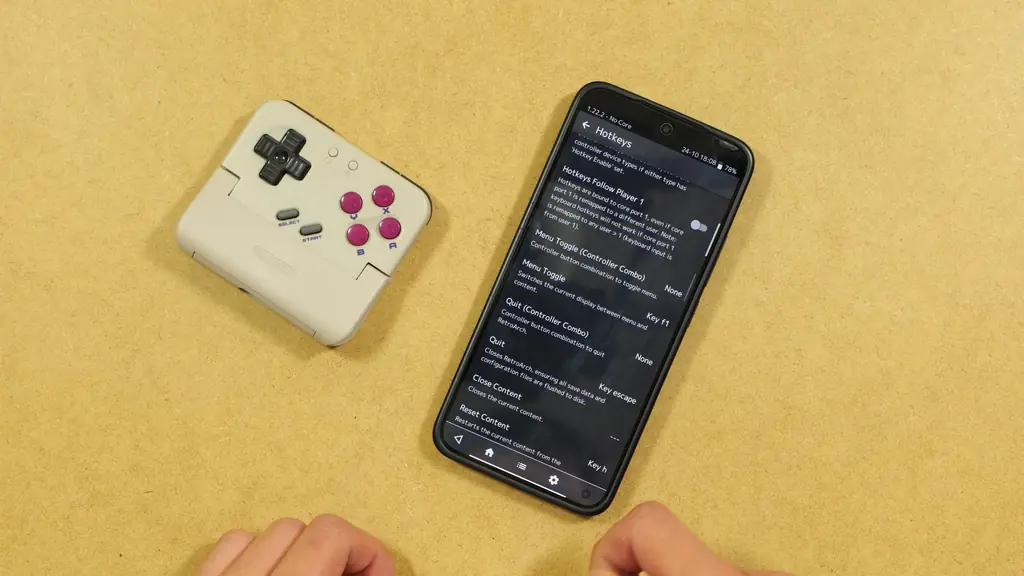
Once you hide the overlay, you won’t have an on-screen button to bring back the RetroArch menu anymore, so it’s best to set up a controller hotkey first:
- From RetroArch’s main screen, go to Settings -> Input -> Hotkeys.
- Select Menu Toggle (Controller Combo) and pick a button combination from the presets. I picked Start + Select, but you can pick any other combination you like.
- Go back to the main menu and select Configuration File -> Save Current Configuration, so that RetroArch remembers your hotkeys after a restart.
- Launch your game, open the quick menu, and go to On-Screen Overlay. Turn Display Overlay off, and the bottom overlay disappears.
- Now press Start + Select together any time you want to come back to the RetroArch menu, and press it again to return to the game.
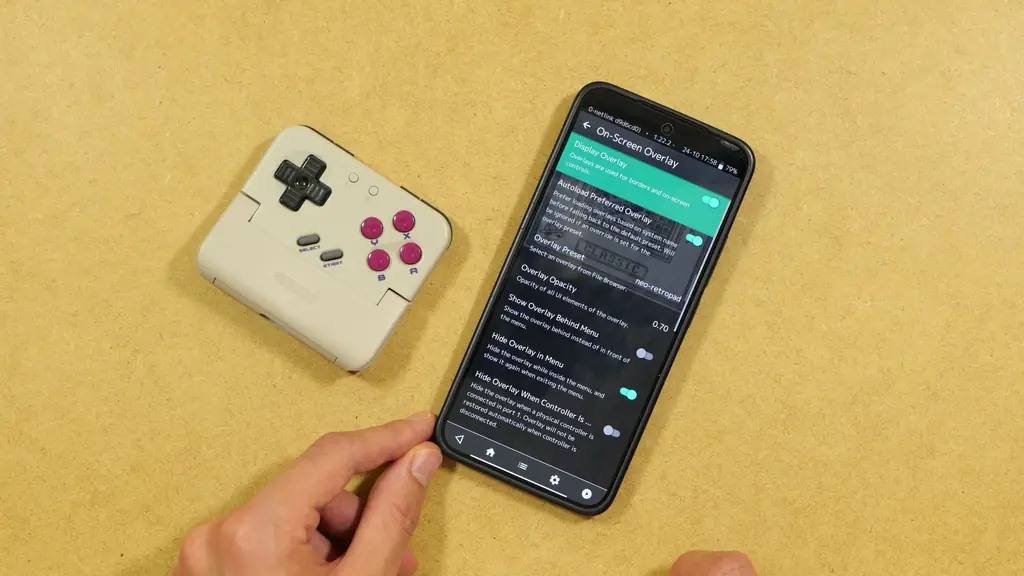
Extra Hint: RetroArch also has a “Hide Overlay When Controller Is Connected” option in the same On-Screen Overlay menu, which hides the overlay automatically whenever the Taco is paired.
2. Move The Game Picture Down
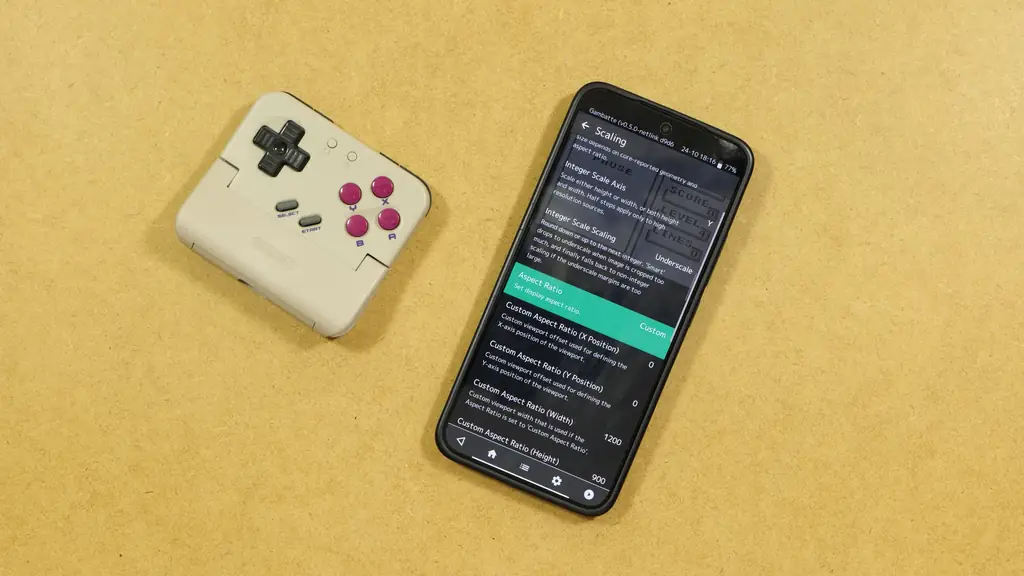
By default, the game sits at the very top of the screen. If you’d like it a bit lower, closer to the controller, there’s a simple trick for that:
- Go to Settings -> Video -> Scaling.
- Make sure Integer Scale is turned off.
- Change Aspect Ratio from Core Provided to Custom.
- Adjust Custom Aspect Ratio (Y Position). A higher value moves the picture down, a lower value moves it up. Keep adjusting it until it looks right with the Pocket Taco attached.
- Then go to Quick Menu -> Overrides -> Save Core Overrides, so that the system you’re currently on displays in exactly the spot you want it to.
Keep in mind that all of this is emulator specific, so you will have to repeat it for each core or emulator you use.
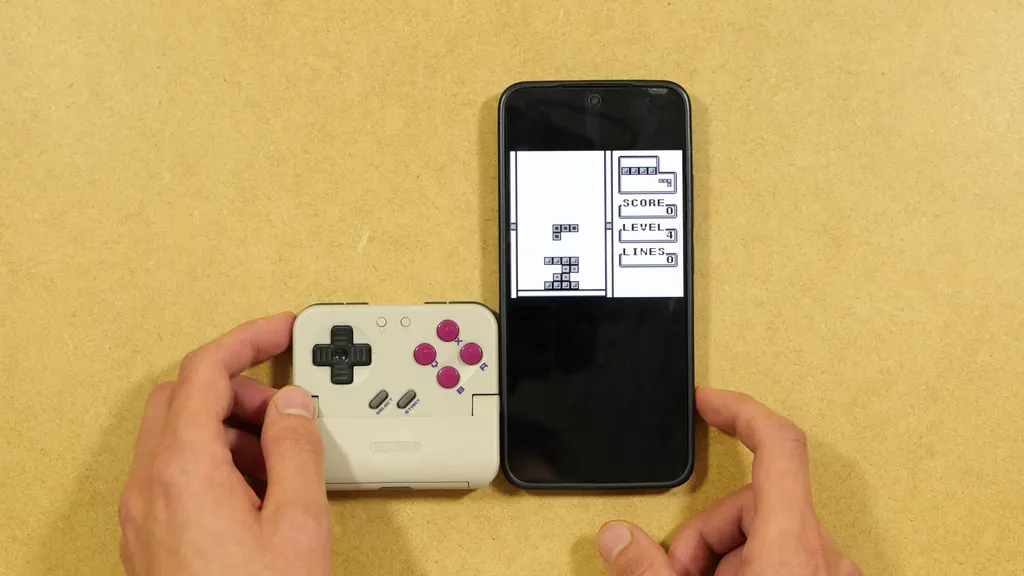
Gameplay – Game Boy, GBA and Nintendo DS
As for the gameplay itself, I enjoyed it a lot. Taking the Taco out of my pocket, clipping it on and jumping into a game takes a few seconds, and once your emulator is set up, there’s nothing else to fiddle with. The controls cover everything most 8-bit and 16-bit games need, which is precisely what this device was made for.
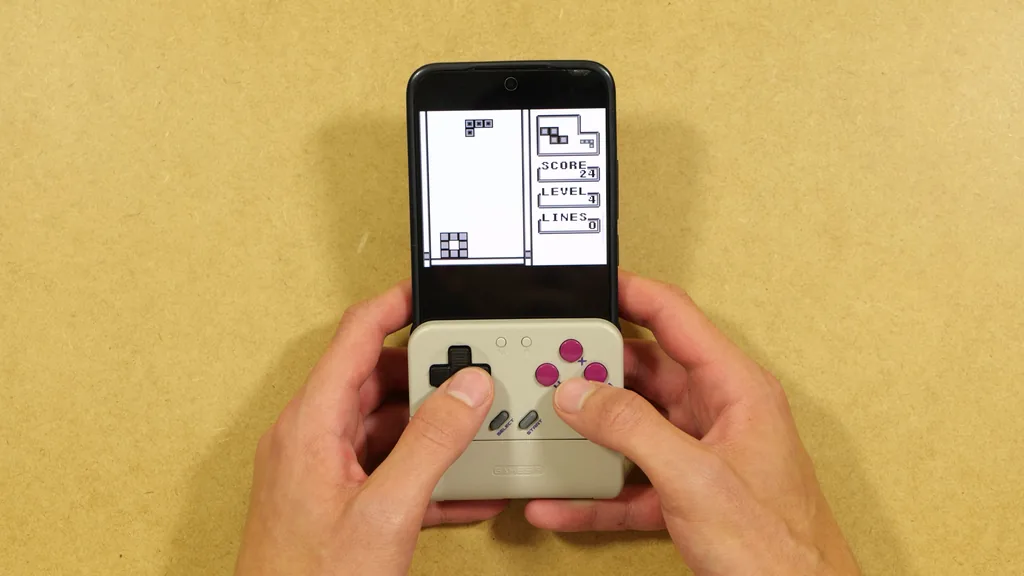
I was also quite surprised how comfortable it is to hold. Your hands grab it naturally, and your index fingers rest on the triggers without you having to get into any weird position. For longer sessions, for instance in transit, it’s a genuinely great way to play.
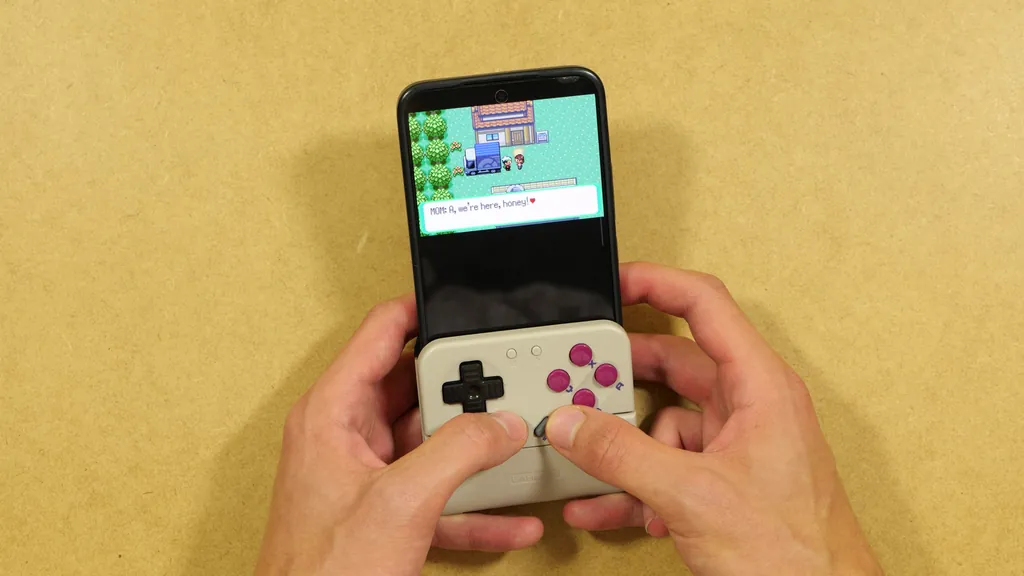
Games closer to a square aspect ratio are much more enjoyable here. The Game Boy and Game Boy Color have a 10:9 screen, so they fill the width of a phone in portrait mode really nicely. The Game Boy Advance is 3:2, so it also looks reasonably good, but it leaves more empty black space on the screen. Comparing Pokemon Emerald on the GBA with Pokemon Crystal on the Game Boy Color, the GBC game understandably uses the available screen space much better.
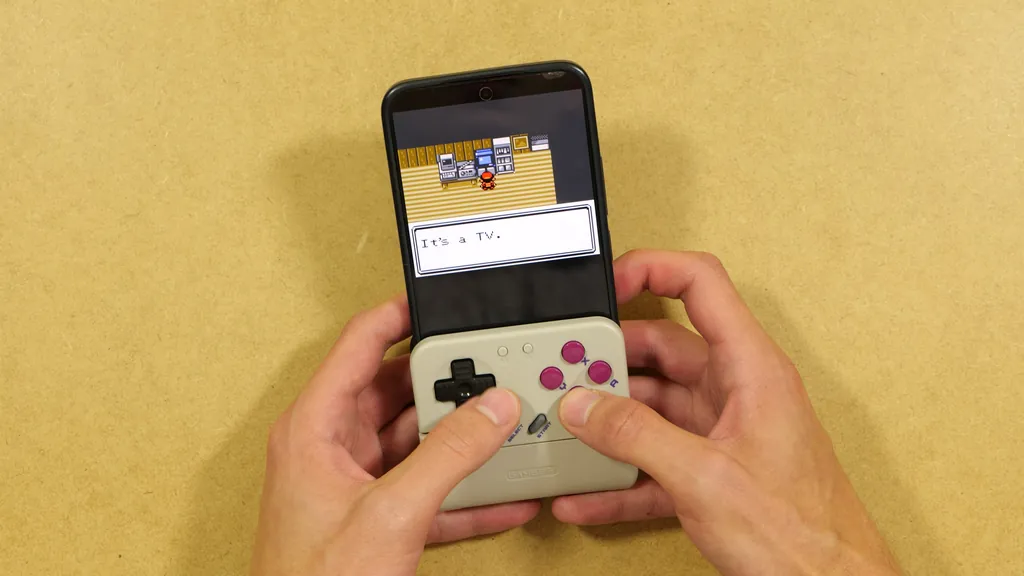
On top of that, the RetroArch app interface itself isn’t made with the Pocket Taco in mind. Some important options in the settings menus end up hidden behind the Taco, so you’ll have to take it off for most of the more in-depth tweaks. At the time of writing, there doesn’t seem to be an easy workaround for this.
Can You Play Nintendo DS Games on The Pocket Taco?
Yes, you can, with some compromises. The two DS screens stacked on top of each other need more vertical space, so you have to lower the Pocket Taco a little bit on the phone. Once you do that, the balance will be a bit off. A large part of the phone won’t be really sitting snugly in the clamp anymore, and if you tilt it too far, it will start to slip.
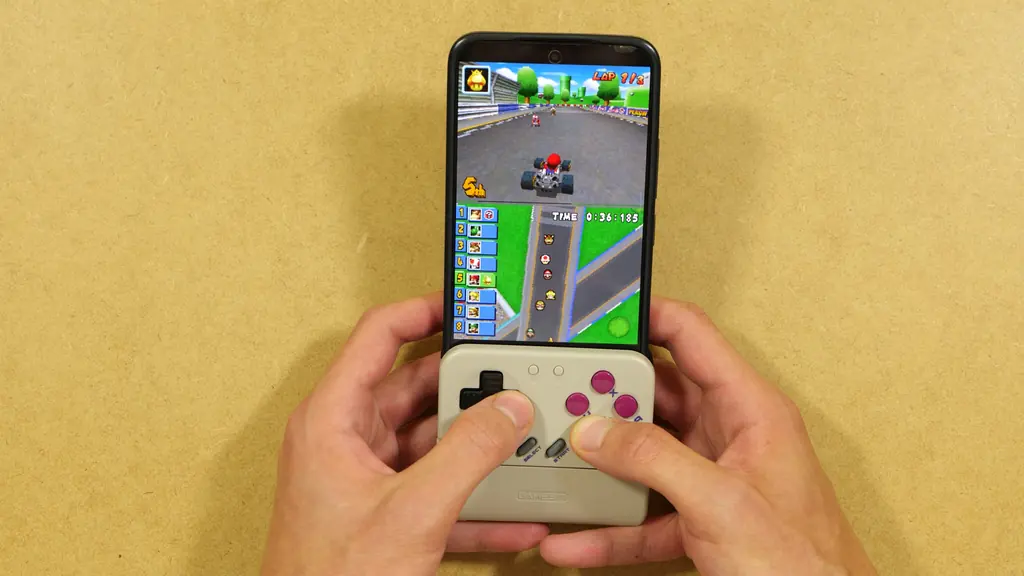
If you just want to quickly play some DS games on the go, I think it’s serviceable, and overall I found it very pleasant to use this way, but the limitations are there. Since the Taco sits below the bottom screen, you can still tap it with your finger in games that make use of the touch screen.
With a Bigger Phone – The Xiaomi 15 Ultra
On a larger phone, the Pocket Taco does the job too. It clamps on rather tightly, and when I gave it a little shake without holding it firmly, it didn’t skew or fall out. With that said, the whole setup of course does get noticeably heavier with a larger phone like this.
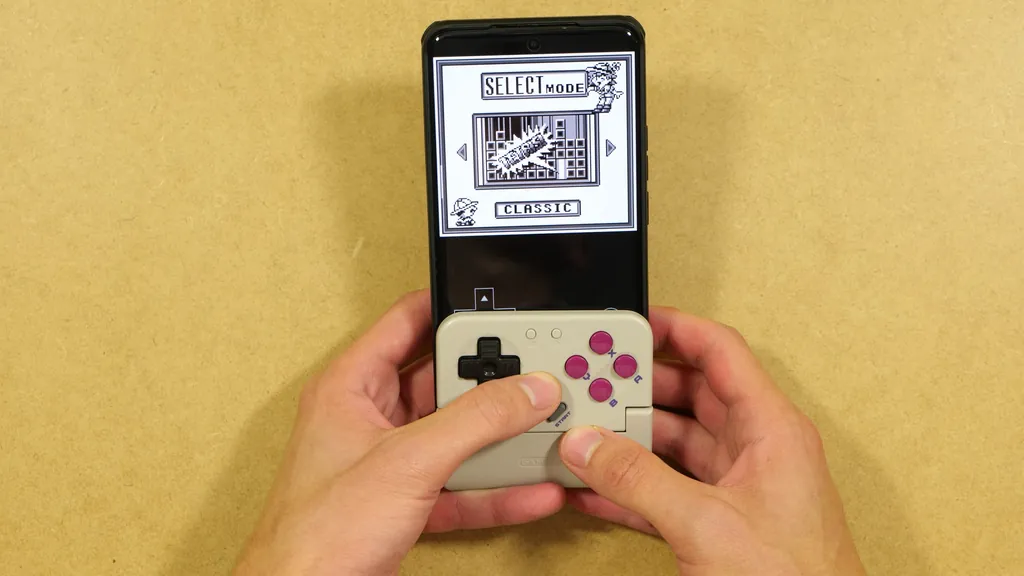
The Pocket Taco isn’t really at fault here, as the Xiaomi 15 Ultra is a hefty phone on its own. But it shows that the overall comfort of using the Pocket Taco depends almost entirely on the phone you’re using it with. For me it’s still fine for longer sessions, but if your phone is large and heavy, just keep that extra weight in mind.
It Can Also Be a “Regular” Bluetooth Controller
Another great thing about the Pocket Taco is that you can use it as a small external controller, without clipping it onto anything. As it’s a Bluetooth controller, you can put your phone down in landscape mode and play with the Taco in your hands, both for emulation and for some more demanding Android games. The main limitation is, of course, the lack of analog sticks, so only some modern games will be comfortable to play this way.
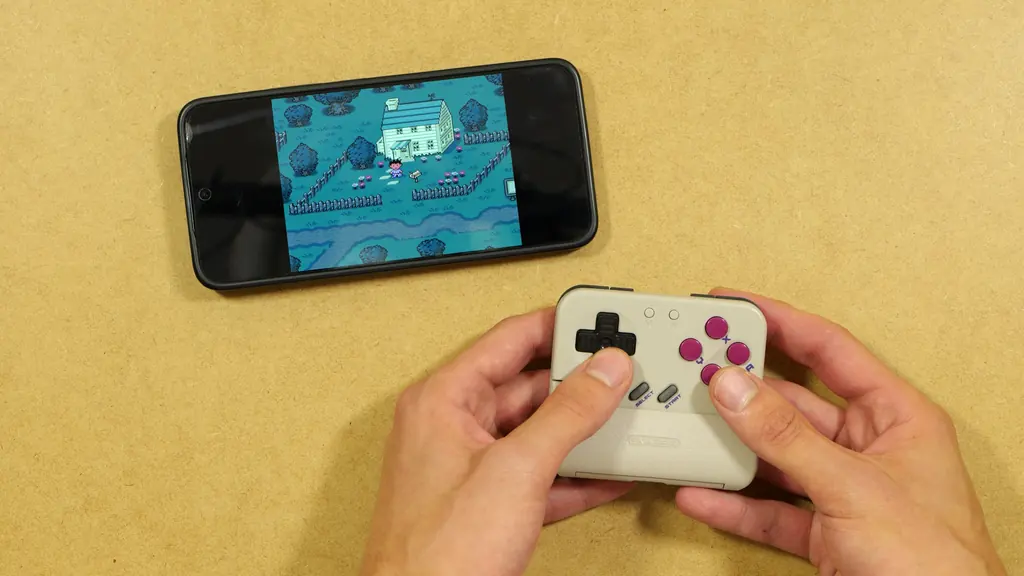
It’s a handy bonus, for example with your phone propped up on a table. Switch and PC are also supported, so it should work with other devices that accept Bluetooth controllers too.
So, Is The GameSir Pocket Taco Worth It?
All in all, the Pocket Taco does its job really well. For around $35, you get a light, well-made, nicely designed controller with its own battery, a carrying case, good buttons, a working diagonal lock and a pretty flexible app. It fits big phones with thick cases, and it doubles as a tiny Bluetooth gamepad when you don’t want to clip it on.
It’s not for everyone, though. If you mostly play modern games that need analog sticks, a regular clip-on controller like the GameSir X5 Lite will serve you better. You can find it, together with many other options, in my list of the best clip-on controllers for Android and iPhone. Expect to spend a few minutes in RetroArch to get the picture where you want it, and if you’re sensitive to accidental diagonals, keep the diagonal lock shortcut in mind. The GameSir Boy app is also more of a bonus than a reason to buy it.
But if you want a Game Boy-like experience using the phone you already carry, the Pocket Taco is money well spent. What can I say? I really like it.
Thanks for reading, and see you next time!
Check out also: ShanWan Q36 Hands-On Review – Gaming, Flashcards & More