

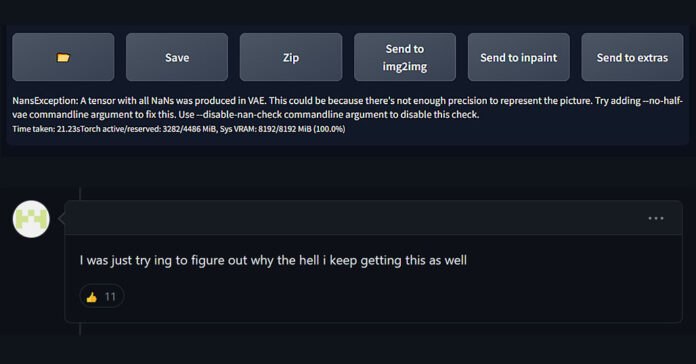
“A tensor with all NaNs was produced in VAE”. Stable Diffusion WebUI generating solid black or green images, or not generating images at all is actually one of the most common problems with SD out there. This error can be caused by at least 3 seemingly different factors, but fear not, as there are already quick fix solutions for each one of these. Let’s get straight to our short guide on how to fix NansException errors in Stable Diffusion WebUI by Automatic1111.
The short answer: add --no-half-vae to the COMMANDLINE_ARGS line in your webui-user.bat file. If you’re using an SDXL model, switch to the fp16-fix SDXL VAE instead. If the error mentions Unet rather than VAE, enable “Upcast cross attention layer to float32” or add --no-half. All of these are explained step by step below.
NansException Error in Stable Diffusion Fix
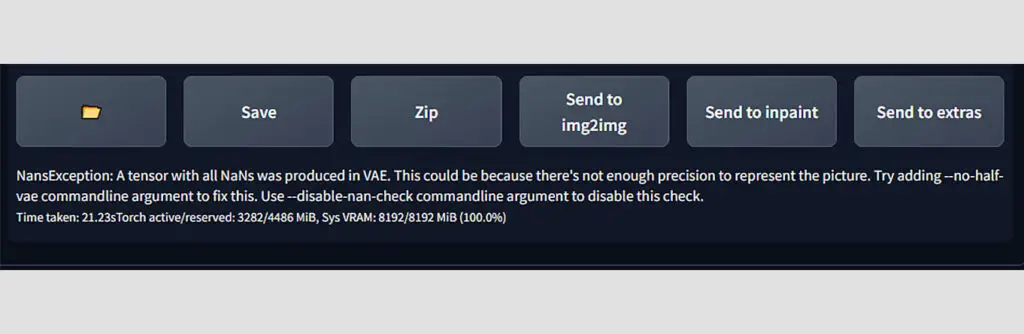
When attempting to generate an image using the Stable Diffusion Automatic1111 WebUI, you might come across quite a common error which looks like this:
NansException: A tensor with all NaNs was produced in VAE.When you get this error, you’ll most likely notice that your generated images are solid black, or that they don’t show up at all.
Many people are faced with either this error, or the “A tensor with all NaNs was produced in Unet” error when generating their images, but luckily there are a few quick fixes you can try to mitigate this issue.
There are quite a few things that can cause this error, including:
- The lack of the ability of your GPU to support proper half precision floating point number representation format (FP16).
- Zeroes finding their way to the computation matrices during the image generation process due to floating point number rounding issues.
- A corrupted model/checkpoint file, or VAE file.
- A bug in older versions of the xformers package (provided you use xformers).
FP16 (also called “half precision”) is a binary floating-point number format that takes up 16 bits in-memory (2 bytes on most systems). It can only hold numbers up to about 65,000, so when some values grow larger than that during image generation, they overflow and turn into infinity.
Any further math on these infinite values, like subtracting one from another, gives an undefined result labeled NaN (“not a number”). Once NaNs spread through the whole tensor, the WebUI throws the NansException error, or the decoded image comes out solid black.
On the other hand, if your hardware is old enough, chances are it doesn’t support half precision at all, and the software won’t be able to make use of it too. In that case, you will also encounter these errors.
If you’re using a custom imported model/checkpoint, the NaNs exception in VAE could potentially be “fixed” by removing the .vae file of your chosen custom model altogether and making the WebUI fall back to the base Stable Diffusion variational autoencoder. This isn’t really a viable solution to the problem though. Moreover, many recent models/checkpoints actually have their variational autoencoders “baked-in”, so removing them isn’t really possible by standard means.
Now, let’s quickly move on to the 2 most popular quick fixes for the “~tensor with all NaNs” error.
How To Fix the VAE NansException Error – Add –no-half-vae
Here is the first quick fix for the “A tensor with all NaNs was produced in VAE” error. It is actually hinted at by the actual error message in the Stable Diffusion WebUI terminal like so:
"~Try adding --no-half-vae commandline argument to fix this."This flag added to the startup file will effectively stop the Stable Diffusion WebUI from converting the loaded VAE to fp16 upon loading, reducing the chance of generating all-NaN tensors in the VAE at the cost of longer image generation times.
Here is how to add the –no-half-vae commandline argument to the starting command arguments of the Stable Diffusion WebUI webui-user.bat file on Windows.
The steps will be very similar for other operating systems.
- Go into the directory you’ve got your Automatic1111 WebUI installed in.
- Locate the webui-user.bat file which you use to start up the WebUI.
- Right click the webui-user.bat file and click “Edit” (or edit the file using a text/code editor of your choice).
- Edit the webui-user.bat file so that the commandline_args line looks like this: “set COMMANDLINE_ARGS= –no-half-vae” (without the double quotes).
- Save and exit the file.
Once you’ve added this as an argument and have restarted the WebUI, you should be able to generate your images without further VAE NansException errors.
Recent versions of Automatic1111 can also handle this on their own. In Settings > VAE, the “Automatically revert VAE to 32-bit floats” option makes the WebUI redo the decoding in full precision when NaNs show up, and you’ll see a short note about it in the terminal. If you still get black images, check that this option is turned on.
Remember that if your GPU doesn’t support half precision at all, you need to use both the “–no-half” and the “–no-half-vae” arguments to mitigate NansExceptions and further fp16 related errors.
Keep in mind that while adding the –no-half-vae argument won’t really affect the output image quality, it will increase your generation runtime VRAM (graphics memory / video memory) use by quite a bit, and it will make the image generation process longer.
Note: The –no-half-vae argument stops the conversion of the variational autoencoder to fp16 upon loading. The similar –no-half argument, does the exact same, but for loaded models/checkpoints.
Second Note: If you already have some command line arguments added in this line, you can safely add other arguments separated by whitespace. The commandline_args line with multiple arguments can look like this: “set COMMANDLINE_ARGS= –xformers –no-half-vae”. You can add as many commandline arguments as you want, as long as they don’t conflict with each other.
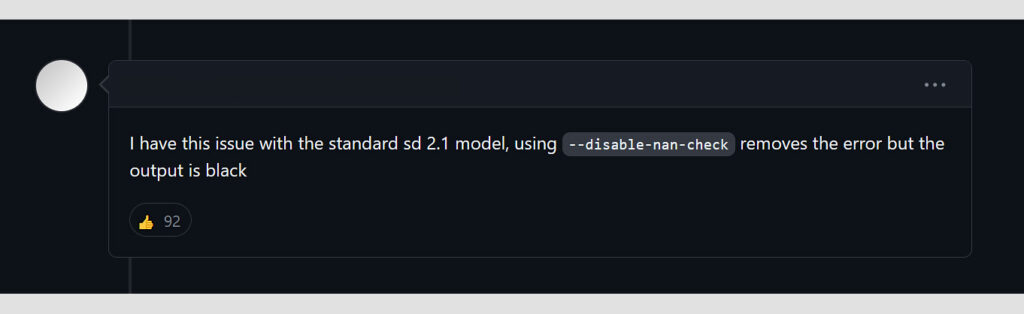
Third Note: You can also add the “–disable-nan-check” argument to the file as some people online will tell you to, however this will simply disable the nan value check, and not fix the underlying issue. If you do this, the program will simply ignore the nan errors and produce empty black images instead of meaningful content driven by your prompts. Remember that if you disable the nan check, the nan errors can still happen, however now they will occur by making you wait throughout the whole image generation process and then throwing an error message alongside a solid black/green generated image. It’s highly inadvisable to disable the nan check if you don’t need to do that for other reasons.
If you’re using SDXL models, read the next section first. Otherwise, if this fix hasn’t worked for you, let’s move on to the xformers one.
Black Images With SDXL Models – The fp16 VAE Fix
With SDXL, the most common cause of black images is the original SDXL VAE itself. It was trained in a way that makes its values overflow in fp16, so it produces NaNs on most GPUs unless it runs in full precision.
You can fix that in two ways. The first is the same –no-half-vae argument described above, which works but uses more VRAM. The better option is the SDXL-VAE-FP16-Fix made by the community. It’s a version of the SDXL VAE tweaked to stay within fp16 limits, so it gives practically the same images without the black outputs and without the extra memory use.
To use it, download the .safetensors file from that page, put it in the models\VAE folder of your WebUI, and select it in the “SD VAE” setting (in Settings > VAE, or in the quick settings bar at the top if you’ve added it there). Many recent SDXL checkpoints already have this fixed VAE baked in.
In ComfyUI, you can load the same fixed VAE with a “Load VAE” node, or start ComfyUI with the --fp32-vae argument. And if your SDXL images don’t turn black, but the generation stops at around 80%, that’s a different issue, covered in my SDXL generation stopping at 80% fix.
NansException Error – If You’re Using Xformers
If you’re positive that you own a GPU that’s well capable of doing half-precision math (you can check that online rather quickly), and you’re positive that adding the –no-half-vae commandline argument to the startup file didn’t work out for you, the NansException error might be caused by the bug in your currently installed version of the xformers package.
This bug was present in xformers versions older than 0.0.19, so it mostly affects WebUI installs that haven’t been updated in a long time. Current versions of the WebUI come with a much newer xformers package. Here is how to update it in your local Stable Diffusion WebUI install.
To reinstall and upgrade the xformers package automatically upon starting the WebUI, add these arguments to the COMMANDLINE_ARGS line of the webui-user.bat file: “–reinstall-xformers –xformers”
The line should now look like this: “set COMMANDLINE_ARGS= –reinstall-xformers –xformers”, without the double quotes.
Now, restart the WebUI, and you’ll see in the terminal, that the newer version of xformers is being downloaded, and the xformers package is being reinstalled.
After the process is done, you can simply remove the “–reinstall-xformers” argument from the startup file. Be sure to leave the “–xformers” one though – without it, the xformers package won’t initialize.
Once your xformers package is upgraded, the NansException error should no longer occur, provided that no other reasons are causing the error at the given moment.
You might also like: Using Hypernetworks Tutorial Stable Diffusion WebUI – How To
What To Do If You’re Still Facing An NansException Error?
Don’t panic, as there are a few more things you can attempt to do here. Here are some further solutions if the main solution proved itself insufficient for one reason or the other.
- Make sure that the “–no-half-vae” argument has been added to the webui-user.bat file.
- Try adding the “–no-half” argument alongside the “–no-half-vae” argument if you’re dealing with nans in Unet. If your GPU can’t handle half precision properly, which is common with GTX 16xx series cards and gives you black or green images, try
--upcast-samplingfirst. It’s meant for cards that would otherwise need –no-half, and it’s faster and lighter on VRAM. - Ensure that your xformers package is up to date, if you’re using xformers (if you have the –xformers flag present in the webui-user.bat file).
- Use a different .vae file. Using a different variational autoencoder for image generation can mitigate this error temporarily (although keep in mind that you most likely want to be using a VAE that is compatible with your chosen model styling).
- If everything else fails, your custom loaded model/checkpoint file may simply be broken/corrupt – try to use the basic Stable Diffusion 1.5 model relying on the basic Stable Diffusion .vae file to generate the image, and see if the error persists.
- If nothing else can be done, you can attempt to fully uninstall and update the whole Automatic1111 Stable Diffusion WebUI by deleting all its files, then downloading/git cloning them again from the source and running the webui-user.bat file to install it again.
Tensor With All NaNs In Unet – Error Fix
Another variation on the NansException error is the issue with undefined values not in the variational autoencoder, but in Unet. Here is what it looks like.
NansException: A tensor with all NaNs was produced in Unet.This error happens for similar reasons as the previous one, and the fix is similar too.
How To Fix the Unet NansException Error – Upcast & –no-half
The fix for the Unet version of the error is also hinted at in the WebUI terminal:
"(...) Try setting the "Upcast cross attention layer to float32" option in Settings > Stable Diffusion or using the --no-half commandline argument to fix this."The first thing you should do, is get to the “Settings > Stable Diffusion” menu within the WebUI, and ensure that the “Upcast cross attention layer to float32” box is checked. Apply the settings and try generating again. This alone is often enough, and it costs less VRAM than the second part of the fix.
If the error persists, the second part of the fix involves adding the –no-half argument to the webui-user.bat file which is responsible for initializing the WebUI.
Edit the commandline_args line in the webui-user.bat file in your Stable Diffusion WebUI directory, adding the “–no-half” argument.
Here is what the line should look like after the edit: “set COMMANDLINE_ARGS= –no-half” without the double quotes. When you’re done, save and exit the file.
This argument will, in the very similar way that the –no-half-vae argument did for the VAE, prevent the conversion of the loaded model/checkpoint files from being converted to fp16.
In turn, this should fix the NaN exception errors in the Unet, at the cost of runtime generation video memory use and image generation speed.
Running out of VRAM after adding these arguments? See my Stable Diffusion low VRAM fix guide.
Did you know? – Why Do Watermarks Appear In Stable Diffusion Generated Images? (Explained!)