


The new Powkiddy V90S is finally here, and I’ve tested it quite thoroughly over the last few days. Here is everything that I found, including fixes to the most common problems with this pocket clamshell handheld, and a quick battery replacement guide.
Are you looking for a perfect handheld for your budget? You really should take a look at this: 10 Best Retro Handheld Emulator Consoles This Year – My Personal Picks
Why you can trust us: We test all of our products according to the TechTactician consumer usability benchmark methodology which evaluates all of the product characteristics that matter to the user in day to day use. Enjoy the review!
This web portal is reader-supported and is part of the AliExpress Partner Program, Amazon Services LLC Associates Program, and the eBay Partner Network. When you buy through links on our site, we may earn an affiliate commission.
First, the Specs Table
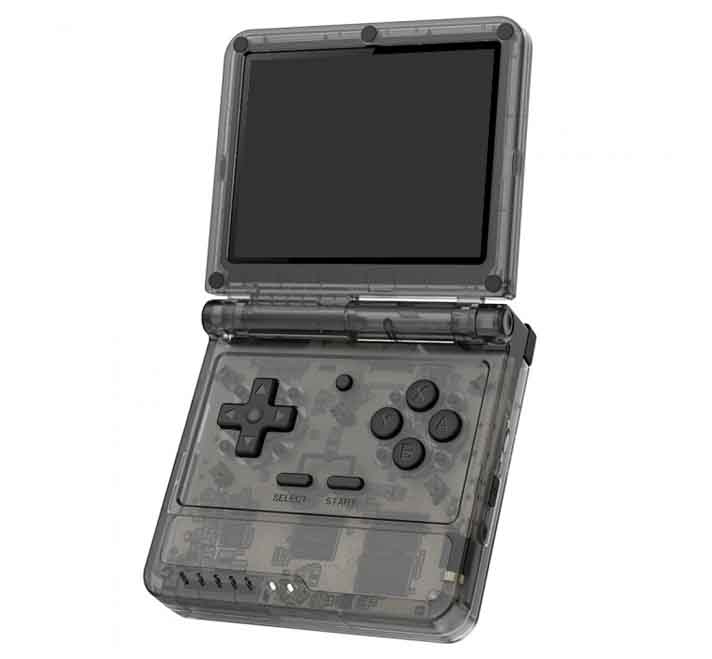
Powkiddy V90S
A clamshell retro gaming handheld with a nostalgic design, perfect for playing classic games on the go.
| CPU: | Allwinner A133 Plus Quad-Core |
| GPU: | PowerVR GE8300 |
| RAM: | 1GB DDR3 |
| Display: | 3.5″ 640×480 4:3 IPS Screen |
| Size (LxHxW): | 89 x 85 x 26.5 mm |
| Weight: | ~186g |
| Storage options: | Dual MicroSD card slots |
| Battery: | 3000mAh |
| Power adapter input: | 5V/2A |
| Wi-Fi: | No (External dongle support) |
| Audio: | Mono speaker, no 3.5mm jack |
| Accessories: | USB-C charging cable |
Unboxing and First Impressions

Right off the bat, let’s set one thing straight. Inside the box you’ll find only the Powkiddy V90S itself and a USB-C charging cable, alongside the little instruction manual written in English and Chinese.
The box is well made with the Powkiddy branding present on top of it, and the handheld is neatly secured inside a plastic cutout piece and inside a little protective bag. The USB cable is hidden underneath the piece that holds the console in place.

There is also a temporary screen protector applied out of the box, which you are supposed to remove before you start using your V90S. It requires a bit of force to start peeling it off, but it’s a welcome damage prevention strategy when shipping plastic chassis clamshell devices.
The Build Quality & The Buttons

My first impression of the overall control quality has been quite positive, with the V90S falling somewhere between the very tight R36S controls and the incredibly enjoyable buttons on the Miyoo Mini Plus.

Both the D-pad and the YXAB buttons are solid, and are very similar to the ones used in the base Powkiddy V90. While they are probably nowhere near a “fighting game geek” standard, they are pretty good for what they are (and for the price).

While the shoulder buttons do have some rattle to them when you move the console around, it’s not a real issue if the sound doesn’t bother you a lot.
On the back of the device, you can see two USB-C ports. Like on other devices making use of this layout like the R36S, one port is used for charging (labeled “DC”), and the other, for data transfer (with an “OTG” label). Port labels are positioned on the bottom of the handheld.
The OTG USB-C port will work with most USB-C to 3.5mm audio jack adapters, however, it has no video output capabilities.
When it comes to the sounds the buttons make, almost all of the front buttons are completely silent, except for the Start and Select buttons, which have a very loud click to them. The L2 and R2 buttons are also clicky, while the L1 and R1 buttons are mostly silent when pressed.

On the right side of the V90S, you can find a power button used for turning the device on and off, as well as suspending your gameplay, and a reset button used to quickly restart the console.
To the right of these buttons, you can also see a OS microSD port with a card containing the Batocera operating system, which should be present in the device out of the box.

On the left side, we can find the volume rocker, as well as the second, empty microSD card slot. This is where you will put in a card containing all your game ROM files if you have purchased the device without a set of preloaded titles.
If you want to, you can go for either a single, or double microSD card setup. Batocera OS supports both of these configurations, one with all of your game ROMs stored on a single microSD which also contains your OS, and the other, with all of your games residing on a separate card. In the case of the V90S though, a double microSD setup is the easier way to go.
Still, like in the case of most cheaper retro gaming handhelds, it’s highly advised to replace the stock microSD card as fast as you can, as the quality of the cheap cards is often very low, which can make their longevity and data transfer speed real issues down the road.
The Display

While the display of the V90S isn’t as vibrant as the screen on the R36S which is still one of the best budget retro handheld displays that I’ve used, it’s still sharp, crystal clear, and I didn’t notice any screen tearing during my tests.

The colors are represented without oversaturation, and in general this small panel is really impressive for a device in this price range. It can also get really bright on the highest brightness setting, which is yet another neat bonus here.
The Hinge

Arguably the most important part of any clamshell handheld is the hinge. The Powkiddy V90S doesn’t disappoint when it comes to build quality, but if I had to nitpick, I’d say it lacks a 3-way lock system, which, if present, would additionally allow the display to be set at 180 and 90-degree angles while you play.
Yes, the screen is always fixed at the 135-degree angle when the handheld is open, and if you try and extend it further to 180 degrees it will simply bounce back.
While you could technically play with the display at the 90-degree angle if you wanted to without the screen moving, there is no mechanism that will lock it in place in that position.
The hinge itself however, is of really good quality. It doesn’t creak, bend in any unpredictable way, or feel flimsy or cheap. It’s reasonably tight, closes with a satisfying snap, but you’re still able to close or open the console using one hand after practicing for a short while. It’s nowhere near as satisfying as doing it with an older flip phone though.
All in all, it doesn’t seem that it will break anytime soon, and it feels good to use. That’s all I could ask for from a device that costs about $50 at the time of writing this review, and can be found over on AliExpress for even cheaper.
Check out also: 12 More Budget Pocket Handheld Emulators – New Selection
Battery Life & Cell Type

Upon opening up the battery compartment, we can confirm that the battery the Powkiddy V90S uses is a 755060 3.7V 3000mAh model, as you can see on the image above. It’s connected to the mainboard using a simple 2-pin JST connector, just like on many other handhelds like this.
You can get a compatible battery like this either here on Amazon, or here on AliExpress, and the battery replacement process consists of 5 simple steps, being very similar to the one on the Miyoo Mini Plus. Here is how to do it:
- First, unscrew the little screw on the back of the handheld, holding the battery cover in place, and remove the cover.
- Then, carefully wiggle the small JST connector out of its socket, to unplug the battery.
- After that, you will have to use a flat tool to pry the battery off the battery compartment, as it’s held down by a small piece of adhesive (a cheap mobile repair toolkit like this can be very helpful here).
- Once you’ve done that, remove the old battery, and replace it with a new one, plugging the JST connector into the socket and placing the new battery into the compartment. You can, but don’t have to reuse the old adhesive to keep the battery from moving around. Make sure that you’re not connecting the JST plug the other way around. In theory the connector itself should not let you do that, but if you somehow manage to do that, you can risk damaging your device.
And just like that, you’ve replaced the battery in your V90S. If you want more detailed instructions alongside some more photos of the whole process, check out my full quick battery replacement guide for the V90S here.

Tested with a simple USB-C power meter and a generic 18W smartphone charger, the device drew approximately 4.7V, 1.7A, and 8.3W of power. You can get a dongle like this here, on Amazon. It’s a great tool to have on hand!
Real-World Emulation Performance
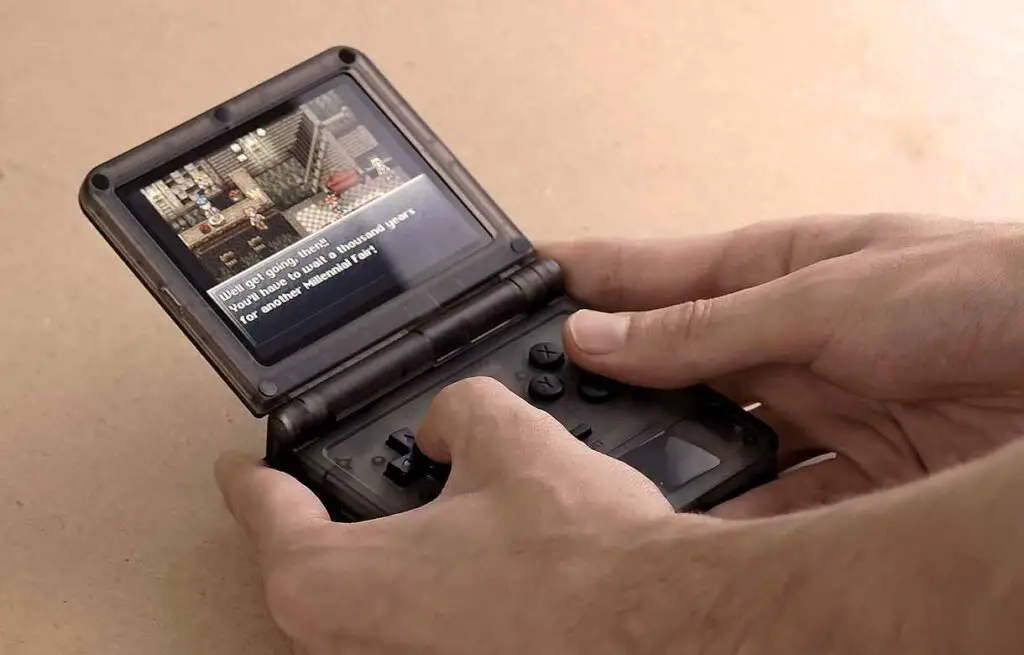
The Powkiddy V90S is a substantial upgrade over the base V90. While the V90 was only capable of emulating systems up to the SNES era with some exceptions, the V90S can easily tackle PS1, PSP, N64 and Dreamcast with great emulation performance.
The Allwinner A133 Plus with the PowerVR GE8300 graphics, which is visible through the handheld’s chassis on the models with a transparent case, makes it ace most of the games you throw at it at nearly full speed.
You might also like: 7 Best Handheld Emulators to Play PSP Games

Having tested a few titles including Metal Gear Solid (PS1), Chrono Trigger (SNES), and Need for Speed: Most Wanted (PSP), I was really impressed with how smooth the gameplay was with the default emulation settings.
The only issue I have is that playing 16:9 systems on a 4:3 screen of this size isn’t exactly the most pleasant experience, especially if you have better alternatives. Having the ability to do so however, is a great plus.
Interested in horizontal retro handhelds with both 4:3, 16:9 and even 1:1 display formats? Check this out: 9 Best Horizontal Retro Handhelds This Year (16:9 & 4:3)
The Stock OS & Third Party Options

The Powkiddy V90S runs Batocera as its main OS, and at the time of writing this article only supports two main alternatives which are the Plum OS, and an alpha build of Knulli (which is an upgraded fork of Batocera).
While in my own experience, Batocera on the V90S was perfectly serviceable for the regular use of the handheld, both Plum OS and Knulli offer quite a lot of quality-of-life features and fixes that are not present in the mainline release of the stock OS.

My one major disappointment with the OS on the V90S was that out of the box, closing the lid during gameplay did not suspend the console. In fact, it has no effect at all. If you decide to close the lid when you’re playing, the game will simply continue in the background with the console not turning off the screen, and leaving the speaker on.

The only way to suspend your game is to press the power button once. Once you do this, the screen will go blank, and the handheld will use a minimal amount of power to keep your progress in memory for a quick resume by pressing the power button again.
Honestly it’s quite disappointing that one of the most basic features that are associated with clamshell handheld designs, hasn’t made it onto the early stock OS builds for the V90S. But it is what it is, and the 3rd party OS options I’ve mentioned have already implemented fixes for that.
Fixing The “We Can’t Find Any Systems” Error on the V90S

One of the most common problems new users of the V90S face is the “We can’t find any systems” error, which is actually pretty commonly found on new Batocera/EmulationStation-based handhelds. It’s caused by the system UI attempting to initialize without at least one game ROM present in a correctly pathed game folder.
Fixing this error involves recreating the correct Batocera/EmulationStation ROM folder file structure, and inserting at least one correct format ROM file into one of the console folders. You can learn how to do that in just about a few minutes right here.
When purchased from some online stores, your V90S might come without the game card including premade game ROM packs – most likely because of legal reasons.
In my case, the V90S, which is a dual microSD handheld, when purchased from the official Powkiddy store, shipped with just one card inserted – one containing only the Batocera system files, and no games.
If that’s the case for you, you might see this error when you attempt to first turn on the console which doesn’t have any game files on it.
Enabling The D-Pad Analog Emulation Feature

One of my minor frustrations with the V90S was that the analog stick d-pad emulation feature wasn’t enabled in the system by default. This meant that out of the box I was unable to play any N64 or Dreamcast games, as this handheld doesn’t feature analog sticks, and the d-pad simply does nothing when pressed in-game. Luckily, fixing this issue was really straightforward.
To enable the d-pad analog stick emulation on the V90S, you have to go to the “START button -> Controller & Bluetooth Settings -> Controller Mapping -> OK” menu, and go through the controls remapping process after long pressing any button on the console.
Simply press all the buttons you are asked to press, and when it comes to mapping the analog stick controls simply long press any of the buttons to skip them entirely. For some reason, this fixes the issue for many people out there, and has also fixed it for me.
Once you do that, you should now be able to control your in-game character using your d-pad in all of the emulators that normally would make use of an analog stick which is not present on the V90S.
As an additional bonus at the very end of the controls remapping process you will be able to remap the system button which by default is mapped to the “Select” button. If you prefer to use the small button in the middle of the console for all of the system and emulator shortcuts, you can change it in this menu.
Powkiddy V90S vs. V90 – Worth an Upgrade?

First things first, the V90S is a much more powerful device when it comes to its emulation capabilities. Second, it is much larger. Third, it is missing quite a few features that its competitors have, and that were originally present on the V90.
There is no 3.5mm audio jack, no Wi-Fi or Bluetooth module, and no HDMI over USB-C on the V90S. In addition, in comparison to the stereo speakers on the V90, the V90S only has one mono speaker to offer.
While the absence of many of these features can be addressed by simple means (USB-C headphones adapter, a small Wi-Fi dongle), it’s not surprising that many users do wonder why Powkiddy decided to omit them on the console in the first place.
The Powkiddy V90S however does feature double the screen resolution of the V90, a much more capable chipset, a lot more dedicated RAM (32MB vs. 1GB), and triple the battery size.
Overall, if you want a small and cheap device you’re not afraid to damage or lose, that can play games only roughly up to the SNES era, go for the Powkiddy V90.
If you’d like a substantial upgrade when it comes to the display and performance, opening the doors to smooth PS1, N64, PSP and Dreamcast gameplay, the Powkiddy V90S would be a better choice.
Check out also: 10 Best Retro Handheld Emulator Consoles This Year – My Personal Picks
The Verdict – Should You Get It?

My honest opinion on this is as follows: if you want a clamshell retro handheld emulator and you’re considering getting the Powkiddy V90S, it’s a pretty valid pick.
Make sure that you also take a look at the alternatives in the clamshell form, namely the:
- The original Powkiddy V90 – if you don’t need that much horsepower and rarely play anything more demanding than SNES.
- Anbernic RG35XXSP – a few more features, including some missing from the V90S, at a slightly higher price.
- Miyoo Mini Flip – if you want analog sticks on board.
All of these choices are very much valid, with the V90S being a great choice if you want to keep the budget down to around $40.
If you liked this review, make sure to also check out the R36S, which is very similar to the V90S despite not featuring a clamshell design. And it features two analog sticks too.
Check out also: Are Handheld Retro Emulators Really Worth It? – Here Is My Take