

After using the PocketBook Verse Pro with KOReader for a bit over 4 months, I now have even more practical information about it than I did in my initial hands-on review. The short version is simple: I still really like it, I still use it regularly, and for my first proper e-reader, it turned out to be a very good pick.
If you want the first-impressions version of this review, you can also read my original PocketBook Verse Pro hands-on review here. This follow-up is more about real use over time: commuting with it, prolonged reading sessions, using KOReader, and noticing the small things that in practice only really show up after a few months.
Why you can trust us: We test all of our products according to the Tech Tactician consumer usability benchmark methodology which evaluates all of the product characteristics that matter to the user in day-to-day use. Enjoy the review!
This website is reader-supported and is a part of the AliExpress Partner Program, Amazon Services LLC Associates Program and the eBay Partner Network. When you buy using links on our site, we may earn an affiliate commission.
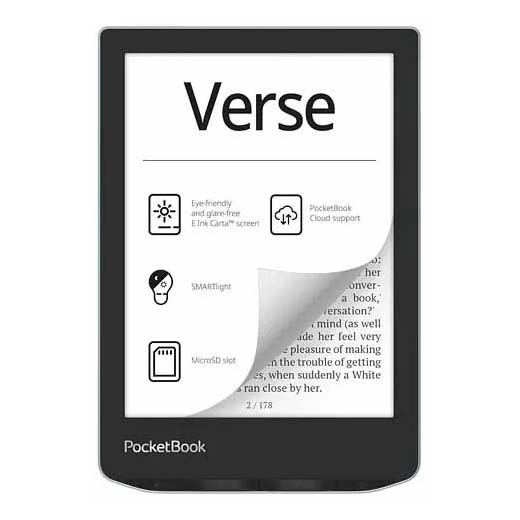
A compact 6-inch e-reader with a sharp 300 PPI E-Ink Carta screen, SMARTlight, physical page buttons, Bluetooth audio support, and KOReader support.
| Display | 6" E-Ink Carta touchscreen |
| Resolution | 1072 × 1448, 300 PPI |
| Frontlight | SMARTlight with brightness and color temperature adjustment |
| Processor | Dual Core (2 × 1 GHz) |
| RAM | 512 MB |
| Storage | 16 GB internal |
| Connectivity | USB-C, Wi-Fi, Bluetooth |
| Audio | Bluetooth audio and Text-to-Speech support |
| Water Protection | IPX8 |
| Dimensions | 108 × 156 × 7.6 mm |
| Weight | ~186 g |
Note: Specs above cross-check the official PocketBook product page and the Verse Pro user manual. PocketBook’s own sources are slightly inconsistent on the exact depth behind the IPX8 claim, so I would personally treat the waterproofing as useful insurance rather than something to test on purpose.
My Experience Over the Last Few Months
The biggest thing I can say after 4 months is that the PocketBook Verse Pro has actually made it into my routine, which is, at least for me, the most important test for a device like this. I read on it in bed, on the tram on the way to the university, and during small breaks where I would normally just look at my phone. Quite honestly that matters much more to me than any benchmark-style number ever could.
From the moment I take it out of my backpack to the moment I am back in a book, the whole pipeline is quick enough that I never feel discouraged from using it. From the sleep state, it is basically just about one to two seconds until you can resume your reading. From a full shutdown, it takes a little longer (around 5 seconds), but for me it’s still not long enough to be annoying. That may sound like a small thing, but on a compact reader that often gets used outside the house, it really matters.
I also ended up appreciating the physical buttons more over time. I still use the touchscreen sometimes, but page turns via the hardware buttons are what I default to most often. They are quiet, consistent, and just feel good to use.
As for durability, I used it carefully without a case in my backpack, usually in a dedicated inner pocket with a cut piece of foam against the screen, and somehow I still have no scratches on it. That said, I still would not recommend copying that. E-ink displays are not regular phone displays, and pressure damage is a bigger concern than surface scuffs, so I still think even a basic case like this one that I’ve recently ordered from AliExpress is worth it for peace of mind.
One thing I noticed is that, as the display is slightly recessed below the device’s front surface, the inner bezel around the screen does collect some debris over time, although it is easy enough to clean. The device itself is not especially fingerprint-prone, which I appreciate. And the frontlight color temperature adjustment is one of the features that I also really like having on here.
While I haven’t used the audio features of the Verse Pro a lot, it’s able to output audio both to your Bluetooth headphones, and via the USB-C port if you’re using a compatible USB-C audio adapter. Both the stock Text-to-Speech feature and the music player work reasonably well here.
You might also like: DAC vs. DAC-less USB-C Adapters – Which One Do You Actually Need?
The Battery Life in Practice
Battery life is where my opinion is positive, but not what I would call impressive. It is definitely reasonable, and when I read sporadically it lasts for many days without being a problem.
Still, I also have to be honest here: standby drain is noticeable, even with Wi-Fi and Bluetooth disabled, and I have twice found it dead in my backpack when I did not expect it. This might have been because the device somehow woke up from sleep in my bag (it was packed pretty tightly so the buttons might have been pressed without me knowing), but I still haven’t figured that out. So while I would not call the battery bad, I can’t help but notice that even with the KOReader auto-standby feature enabled, the standby drain is pretty noticeable (although nowhere near tragic).
For me, the best way to use it is to take advantage of the power-saving settings and not leave it sleeping forever out of habit. Once I started treating sleep mode as a short break state rather than an indefinite storage state to leave the device in overnight, the battery experience felt much more predictable.
KOReader on the PocketBook Verse Pro
I installed KOReader mainly because I wanted better PDF handling, faster-feeling navigation in dense files, and more control over typography. After a few months, I can say it was well worth it for me, but I also do not think it is mandatory. That is important. The stock PocketBook software in my eyes is actually good enough that if you never install KOReader, you are not left with some broken half-device with missing core features.
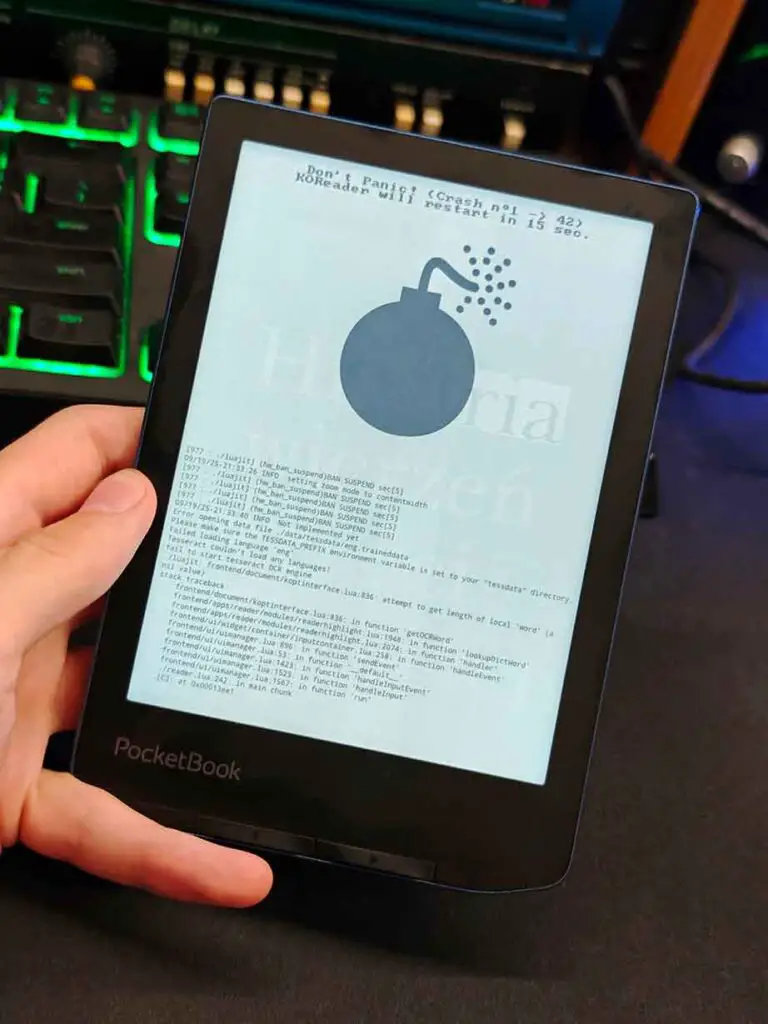
both times while loading larger PDFs for the first time.
Where KOReader helps me the most is with PDFs, highlights, and text customization. The font “thickening” and contrast controls are genuinely useful here. I also really like using KOReader for marking passages and saving and tracking quotes. On a responsive display like this one, it feels way less clumsy than I expected before I bought the reader.
The integration of KOReader with the PocketBook main recents/bookshelf view is genuinely seamless apart from the short book loading screens, and using it feels like the device was supposed to run it from the very beginning. All in all, if you’re somewhat stressed about trying it out, I’d really say that it’s well worth it.
Setting up KOReader on the Verse Pro – As Quickly as Possible
If you just want the short version: download the PocketBook build from the official KOReader PocketBook installation guide, copy the provided applications and system folders to the root of the reader, then launch it from the PocketBook apps section. On newer PocketBook firmware, it may show up under the user apps area as @koreader. That’s it.
I should also mention stability. In over 4 months, I only had KOReader crash on me two times, both on larger PDF files (a few hundred pages of high-resolution book scans) while loading them for the first time. Outside of that, it has been very solid for me. Since it also handled other large files without trouble, I suspect those two specific files may have had something odd going on, but I cannot prove that for sure.
One more KOReader-specific thing I want to mention is manga and other image-heavy content (the Verse Pro also comes in the Color version). I still need to spend more time with manga on this device overall, but the early impression is very positive. KOReader’s panel zoom tools and document controls help here, although of course the physical limit is still the 6-inch screen itself.
You might also like: Wolfbox MF50 Electric Air Blower Hands-On Review
Speed Differences – KOReader vs. Stock Reader
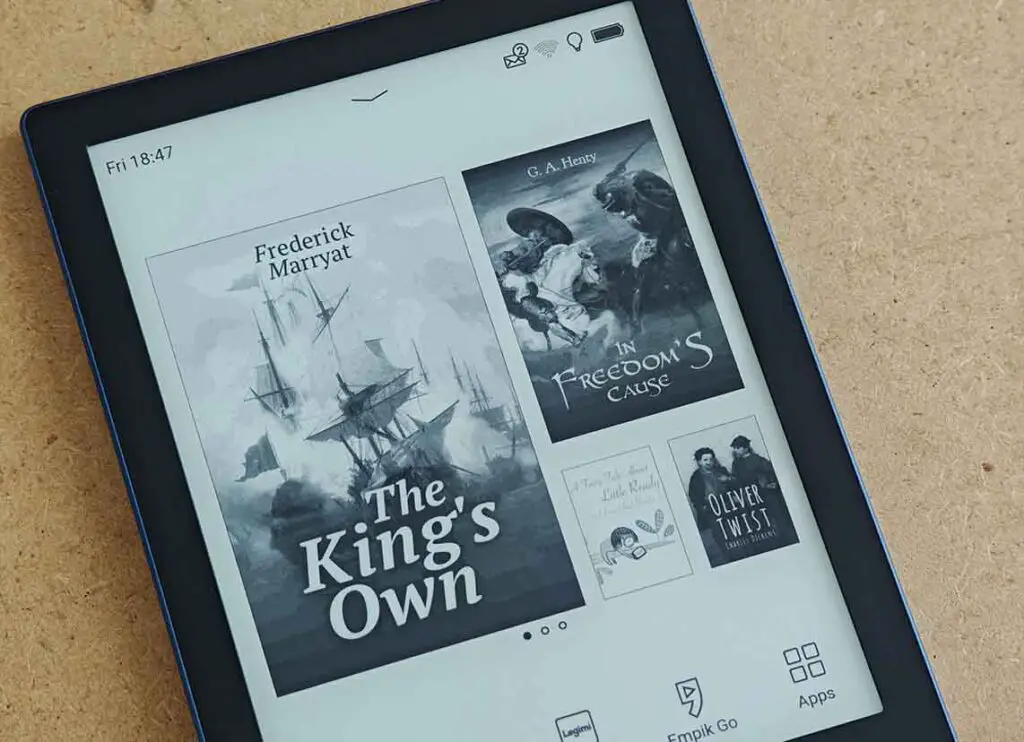
This is where I think the answer depends heavily on what you read. For standard EPUB reading, I do not think the stock PocketBook reader is lacking in any major way. It is well integrated with the system, it has plenty of options, and it is more polished than I expected before I bought the device. If someone reads mostly regular e-books, I would not pressure them to rush into KOReader immediately.
For PDFs though, KOReader feels faster to me in real use. Not night-and-day faster, but meaningfully faster. File handling feels a bit smoother, the on-screen touch shortcuts for the display frontlight color and brightness are just amazing, the screen orientation changes work great, both via the built-in orientation sensor and manually, and once you add the extra viewing controls and the large amount of extra features, I find it to be a great upgrade well worth it for power users.
That said, I do not want to oversell this. The Verse Pro is still a compact e-reader with modest hardware. A badly scanned or very large PDF is still going to remind you that this is not a tablet. The same goes for books or scans that require you to zoom in and out a lot to get through them, which in my opinion is not really a viable thing to do on a device like this. KOReader improves the experience, but it does not repeal the laws of screen size.
This is also why I think the stock software deserves more credit than it usually gets. Even without KOReader, I did not really feel that anything essential was missing. KOReader is the better fit for my use, especially for PDFs and quote-marking, and the default reader still has a lot to offer, including official Text-to-Speech support.
The Display and Frontlight Quality
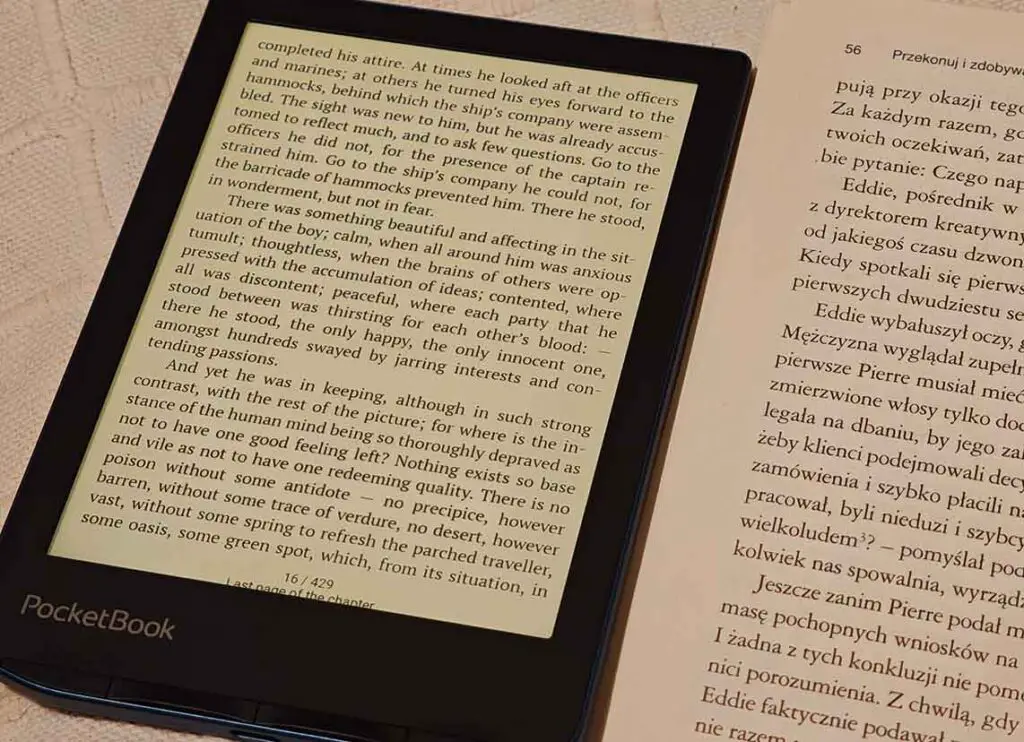
The 6-inch display size turned out to be a very good fit for me. It is small enough to carry around easily, quick to pull out on a tram, and comfortable to hold in one hand in bed. The ability to read books in landscape mode paired with a built-in G-sensor for auto-rotation is great too. At the same time, the 300 PPI resolution is high enough that I never feel like I am compromising on sharpness when displaying larger images or charts (I go through a lot of technical literature).
In the image above you can see the best representation I managed to capture of the real-life difference between an actual paper book and the PocketBook Verse Pro with the warm frontlight set to roughly match it. In real life, and even in the photo, it was honestly impressive to see how close the overall look can get.
Of course it’s not literally the same as paper. Real paper still has a more natural reflective quality, and at night you are still dealing with a frontlit screen rather than a printed page. But this is the first portable screen-based reading experience I have had where I understood why so many people stay with e-readers for years once they get used to them.
I also enjoy the SMARTlight temperature control option quite a lot. I use it often, the backlight is even and the color and brightness adjustment range is pretty satisfactory. For night reading or darker environments, it’s one of the most important features on the whole device.
Customizing Your Verse Pro – Startup, Shutdown & Sleep Images
One of the coolest little PocketBook-specific things is that there are actually a few different customization paths here, and they are easy to mix up.
So first, there is the normal official method for changing the shutdown screen image, that is the image that will cover the whole screen when the Verse Pro is turned off. That one is easy. You can set it through the PocketBook settings, or from the Gallery app by opening an image and assigning it as the shutdown logo. That part is supported by the stock firmware.
You can also set the startup image that will appear for a brief time when the device is being powered on, in that exact same way. There is also another option to randomize these images each time the device goes through an on/off cycle.
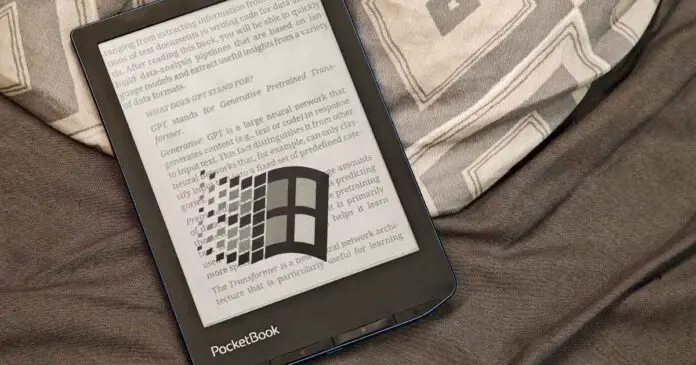
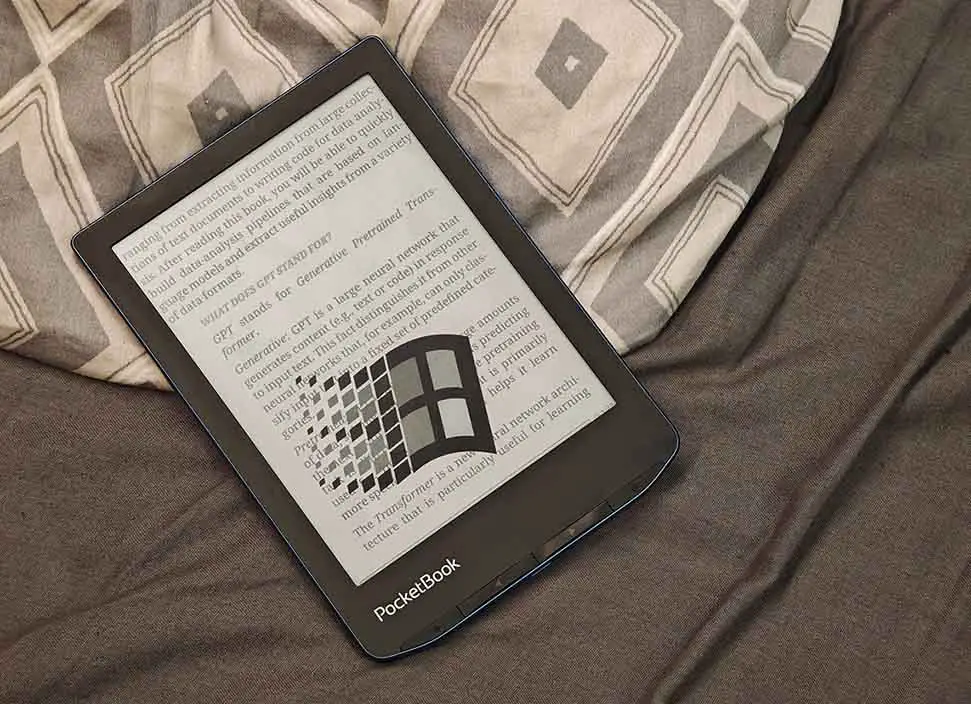
The second, and much more exciting thing is the custom sleep overlay, which is the one shown in the photo at the top of this article. It’s a transparent overlay shown on top of the sleep screen, and setting it up takes just a little bit more work. Here is how to do it.
Custom Transparent Sleep Logo on the Verse Pro – Quick Setup
To create a custom sleep overlay, first prepare an uncompressed BMP file sized to the screen resolution of the Verse Pro, and use the transparency color #808040 for the parts that should remain invisible.
Then, save and name the file taskmgr_lock_background.bmp. If you also want landscape support, create a rotated version named taskmgr_lock_background_landscape.bmp.
Then connect the reader to your computer, make sure system folders are visible, and place the file/files in:
system/resources/Line/Safely eject the reader, disconnect it, and then put it to sleep. If everything was prepared correctly, your custom transparent sleep graphic should show up.
A few warnings are worth adding. First, this is more of a tweak than a normal user setting, so do it carefully. Second, firmware updates may wipe it, meaning you might need to repeat the process later. That’s pretty much it!
My Final Verdict After 4 Months
After living with the PocketBook Verse Pro for a few months, I can say that I am still very happy with it. More importantly, I actually use it regularly, which as you know is the real test for me.
It is not perfect. Battery life could be better in standby, and a 6-inch screen remains a 6-inch screen, which means very large PDFs and some manga pages will always involve trade-offs. I feel like the lack of a microSD card slot can also be a dealbreaker for some of you, although 16GB really feels like a lot if we’re talking about storing mostly smaller epub file sizes.
The overall balance here is really strong. The screen is sharp, the adjustable frontlight temperature is genuinely useful, the page buttons are great, the stock software is better than many people give it credit for, and KOReader adds real value instead of just being a gimmick install.
If you are considering the Verse Pro as a first e-reader, I still think it is an easy one to recommend even with strong competitors like the Kobo and Kindle devices. And if you already own one and are wondering whether KOReader is worth the trouble, my answer after a few months is yes, as long as you actually want the extra control it gives you. If not, the stock experience is already solid.
Some Alternatives, if You’re Still not Convinced
If you’re still looking for the best reader for you, here are three other devices I’ve considered getting before finally going with the Verse Pro. These are all very similar in terms of size and form factor, however they do differ significantly in terms of features and the operating systems they use.
- Kobo Clara BW – the closest like-for-like rival, 6-inch screen, 16 GB, Bluetooth, USB-C, and ComfortLight PRO in a similarly compact format.
- Kindle Paperwhite – the strongest mainstream alternative, a larger 7-inch display, adjustable warm light.
- BOOX Go 6 – 6-inch display, Android 11, Google Play support, 32 GB of memory, microSD card slot, and front light with warm/cool adjustment.
That’s pretty much it! If you want to read even more about this device, you can find my full review of it here: PocketBook Verse Pro – Hands-On Review