

I wanted to write about this for quite a while now. Intel Arc A770 and B580 are currently among the most popular budget GPUs rivaling some of the top graphics cards from the AMD lineup. Let’s see how well these perform with local LLM software, AI image generation using Stable Diffusion, SDXL, and FLUX, AI voice generation, and more. Let’s begin!
Updated: June 2026 – Revised the local LLM section after Intel archived IPEX-LLM, replacing outdated advice with current options including llama.cpp, Ollama Vulkan, PyTorch XPU, and OpenVINO-based workflows.
This web portal is reader-supported, and is a part of the Aliexpress Partner Program, Amazon Services LLC Associates Program and the eBay Partner Network. When you buy using links on our site, we may earn an affiliate commission!
TL;DR for the impatient: The latest Intel Arc GPUs work pretty well with certain AI workflows and with select software which supports local AI image generation and LLM inference. Still, in many cases these cards, much like the ones from AMD may require more tinkering to get working, and are in most cases not plug-and-play solutions like the GPUs from NVIDIA with their native CUDA support
Long story short, whether buying these is the right choice for you largely depends on two things—your specific use cases and preferred software, and, in some contexts, your patience with troubleshooting
Editor’s note: All information sources are linked directly within the article. Feel free to use them to explore the topic further!
Interested in more budget GPUs for local AI software applications? – Check out this article here, which goes a little bit more in-depth on that: Top 7 Best Budget GPUs for AI & LLM Workflows This Year
The Main Differences Between The Two (And The VRAM)
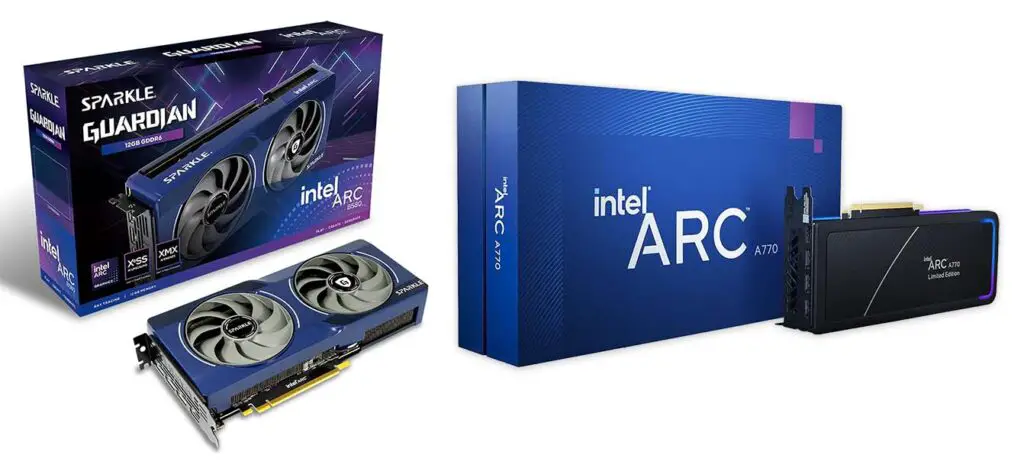
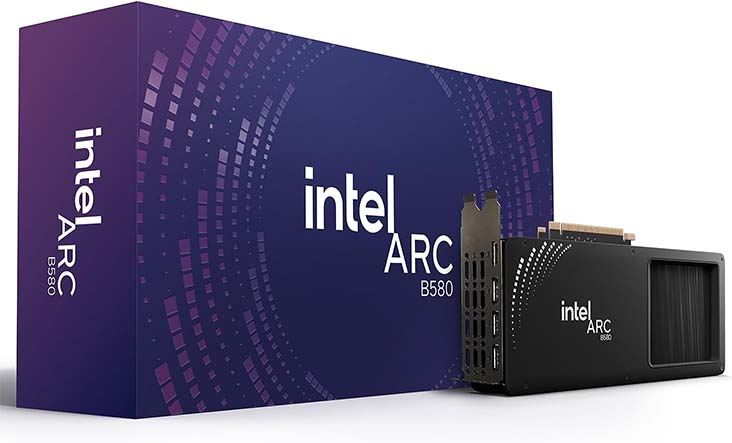
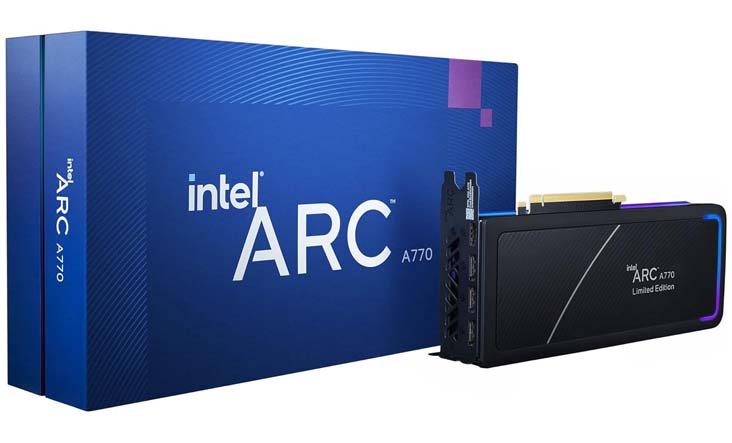
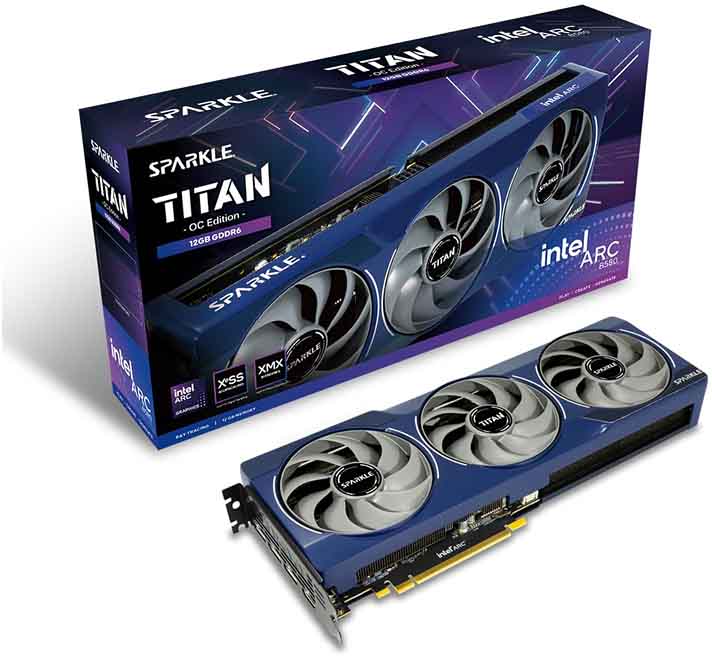
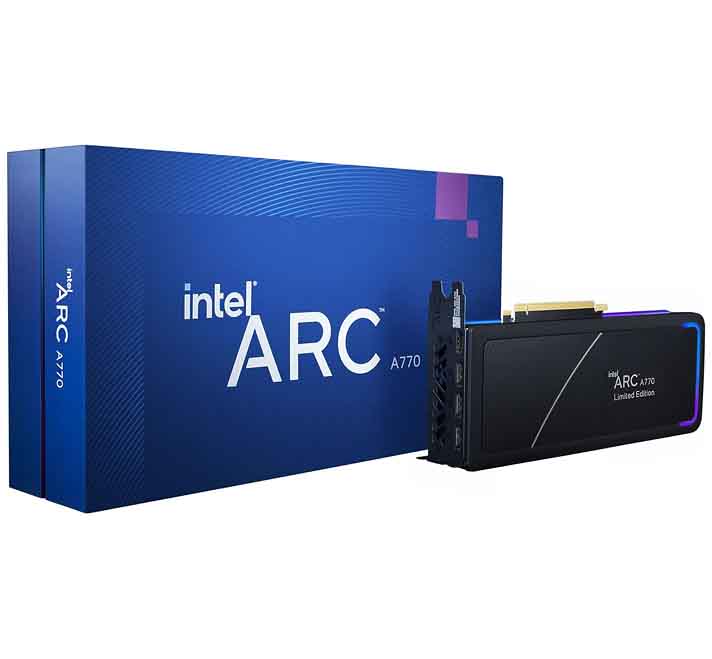
The Intel Arc A770 16GB is the older Alchemist-era card, while the Intel Arc B580 12GB is the newer Battlemage / Xe2 card released in late 2024. Intel lists the A770 as Q3 2022 and the B580 as Q4 2024.
While the A770 is a tad bit slower than the B580 (2100 MHz vs. 2670 MHz max clock speed), it features more VRAM on board, which can be useful if you want to use it for local LLM hosting and smaller model training or fine-tuning. For mainstream consumer Arc cards, the B580 remains the newer Battlemage option.
In case of both of these cards, to fully utilize their potential you will need to install the newest GPU drivers from the Intel website, as well as enable the “Resizable BAR” setting within your system BIOS for the best performance. Make sure you do that before benchmarking or testing your newly bought Intel Arc GPU.
The gaming performance of these cards is pretty solid, especially for the newer B580; however, we’re more interested in other use cases here—specifically, local AI software.
The VRAM difference isn’t much, but the 4 extra GB of video memory can be beneficial if you’re trying to fit some larger LLMs into the GPU memory, or if you’re planning to run some more complex and memory-intensive model training jobs.
With that said, in many cases for these kinds of applications you might need a card with 24GB of video memory on board, like some of the ones on our curated top-list here. It always depends on which tasks you want to accomplish using your GPU in the end.
Speaking of AI-related tasks and workflows, Intel does let you quickly dive into the world of local AI right after setting up your Intel Arc GPU by using their free Intel AI Playground software. Here is how it works.
The Intel AI Playground App – The Easiest Beginner Route
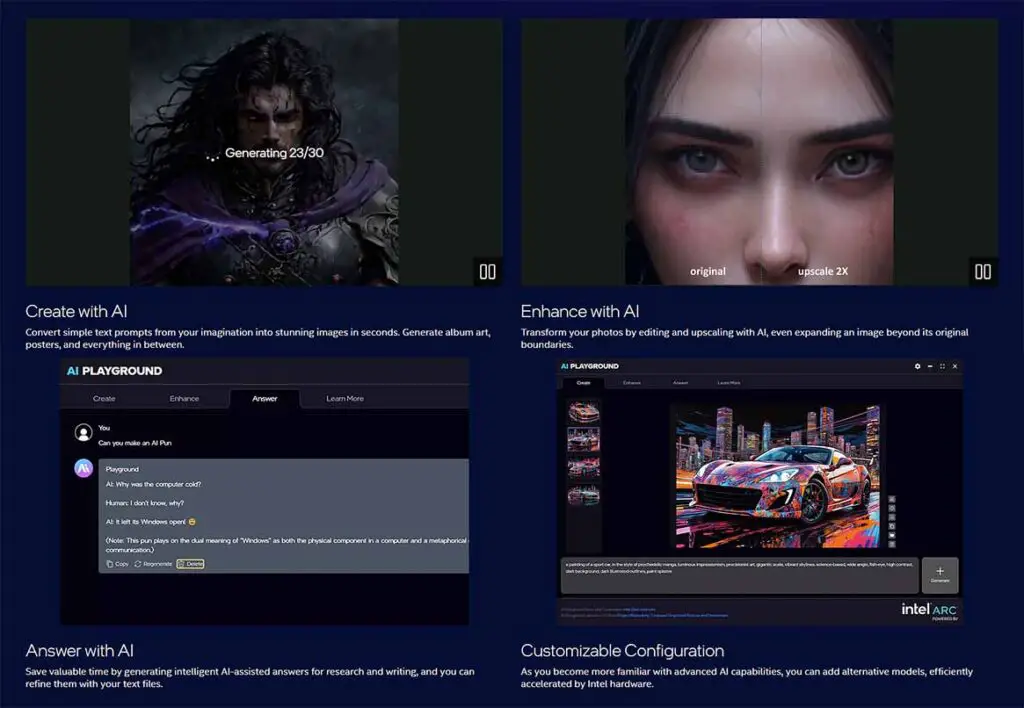
While the Intel AI Playground software is one of the easiest and fastest ways to try AI-related workflows on a new system with an Intel Arc GPU, it is still more of a beginner-friendly all-in-one app than a full replacement for more advanced tools like ComfyUI, llama.cpp, Ollama, or OpenVINO-based setups.
Recent AI Playground releases have introduced chat, code assistance, document search, image analysis, image/video generation, voice/vision features, Arc A/B support, and even experimental NVIDIA CUDA support.
What’s quite interesting is that the Intel AI Playground actually utilizes ComfyUI as its backend. You can see how this works at the very end of this Intel demonstration video.
Here we are going to focus on the other popular local AI uses (largely the ones covered in various local AI tutorials you can find here on TechTactician), so that you can see how well these cards can do with the most popular AI workflows utilized by most of the hobbyists and power-users alike.
Compatibility with Major AI Frameworks (TensorFlow, PyTorch & More)
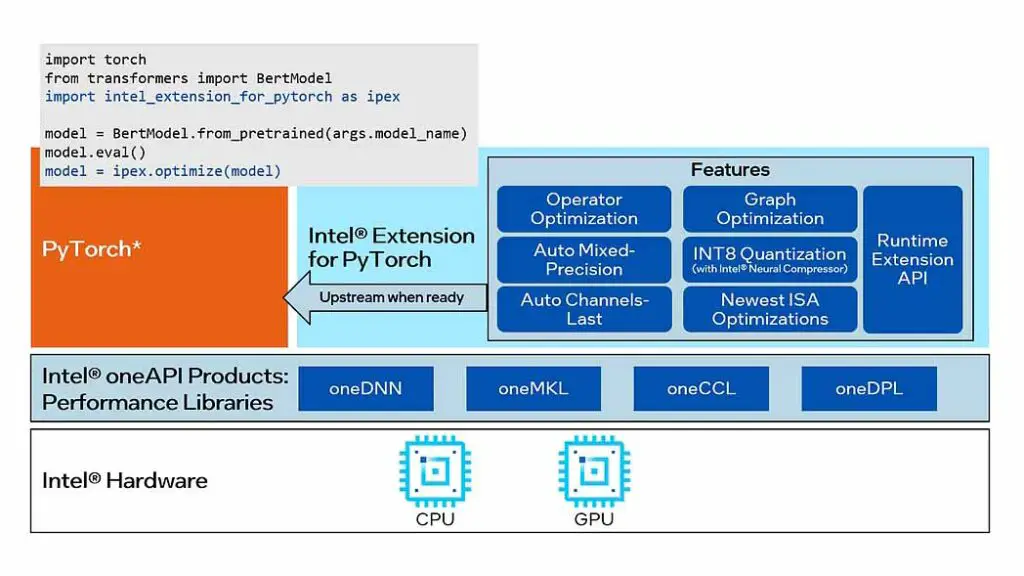
PyTorch now has upstream Intel GPU/XPU support, while the old Intel Extension for PyTorch is no longer the default software path for the Intel cards, and has been marked for retirement.
Intel’s IPEX-LLM project, which used to be one of the early standard routes for local LLM optimizations on Arc GPUs, was archived on January 28, 2026, and has been superseded by newer Intel software paths.
TensorFlow support exists through Intel Extension for TensorFlow, but it is more conditional and version-sensitive than PyTorch/OpenVINO on consumer Arc GPUs. It should be treated as an advanced route rather than a plug-and-play recommendation.
Software that relies on different kinds of software interfaces can make use of backends such as oneAPI (a standard adopted by Intel), OpenVINO (Intel’s official open-source toolkit), Vulkan, or DirectML, depending on the particular application. All of these can be utilized by Intel Arc GPUs, with varying levels of achievable computation speed.
The performance of these will very much vary depending on the task at hand, but in general, when it comes to most of the currently available newest Intel graphics cards such as the A770 and the B580, it’s often compared to the RTX 4060 from the 4th gen NVIDIA lineup.
Now let’s get to the local LLM software and see how well can the Intel Arc GPUs really perform here.
Local LLM Inference on Intel Arc GPUs After IPEX-LLM
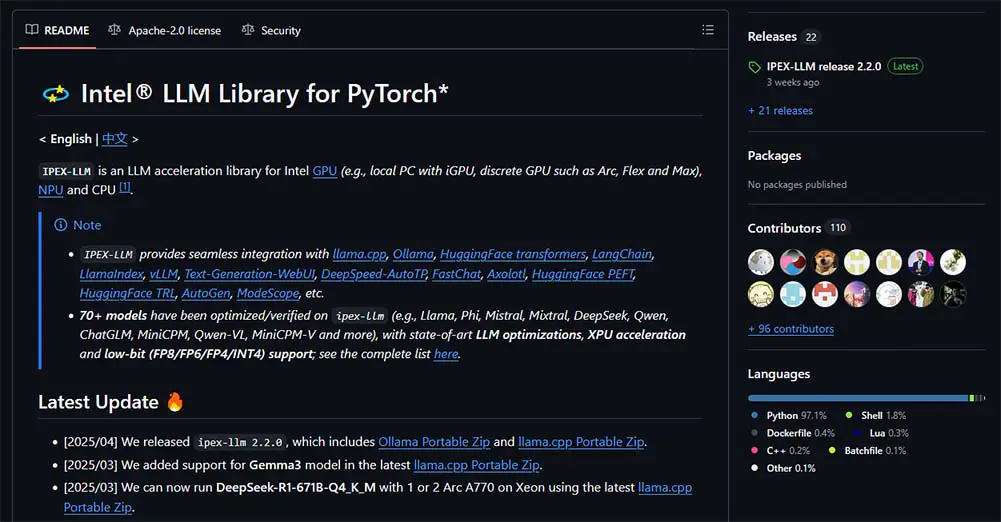
Older Intel Arc LLM guides most commonly revolved around IPEX-LLM. That route should now be treated as historical rather than the recommended starting point, as Intel archived the IPEX-LLM repository back in January 2026. Some older tutorials and binaries may still work, but they are no longer the best foundation for a new Intel Arc local LLM inference software setup.
For new setups, the more current options are llama.cpp with the SYCL backend, llama.cpp with the OpenVINO backend, Vulkan-based workflows, and OpenVINO / OpenVINO GenAI based inference.
These routes are newer and much better aligned with where Intel GPU support is heading now, that is, upstream PyTorch XPU support, OpenVINO tooling, and maintained backends inside widely used projects.
For PyTorch-based workflows, it is also worth checking the official PyTorch Intel GPU / XPU setup guide. This is the more future-facing route than relying on older Intel Extension for PyTorch or IPEX-LLM-specific instructions. It will still require the right Intel GPU drivers and compatible package versions, but it is the direction most users should check first for native PyTorch workloads on Intel GPUs.
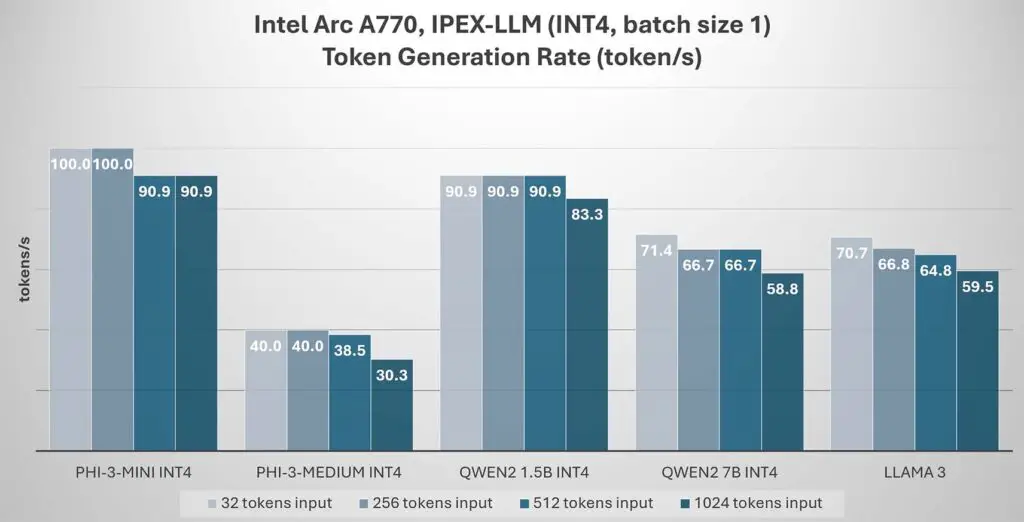
Historical IPEX-LLM benchmark data on a few select 4-bit quantized large language models with varying tokens input sizes. | Source: https://llm-assets.readthedocs.io/en/latest/_images/Arc_perf.jpg
For GGUF models, llama.cpp is one of the most important projects to watch. Intel Arc GPUs can be used through the SYCL backend, through Vulkan, and through the OpenVINO backend. In practice, the best choice may vary by operating system, driver version, model, quantization type, and whether you care more about easy setup or maximum performance.
For users who prefer a simpler local-chat workflow, Ollama can also be used with non-NVIDIA GPUs through Vulkan support. This is not the same kind of CUDA-first experience NVIDIA users get, and performance can still vary on Intel Arc, but it is now a much more relevant starting point than old IPEX-LLM-specific Ollama builds.
Another route worth mentioning is OpenVINO. OpenVINO and Optimum Intel can be used for optimized inference on Intel CPUs, GPUs, and NPUs. Projects such as OpenArc build on top of that stack to expose local OpenAI-compatible endpoints. This can be pretty useful if you want an Intel-focused inference stack with better attainable performance than a generic Vulkan-based setup.
The practical takeaway is simple: Intel Arc can run local LLMs, but the software path is more fragmented than on NVIDIA CUDA. For a current setup, start with maintained upstream options such as llama.cpp, Ollama Vulkan, PyTorch XPU where relevant, and OpenVINO-based tools.
Local AI Image Generation Software
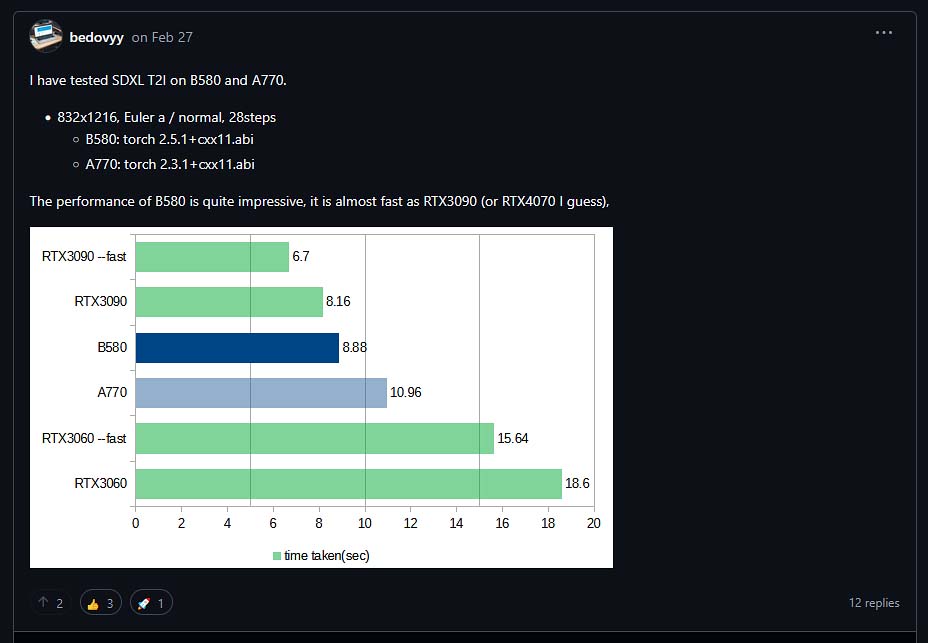
Leaving the Intel AI Playground aside, we’re going to focus on 3rd party image generation software you can use with your Intel Arc GPU. As of now, there already exists a fairly large group of people using the Intel Arc graphics cards for locally generating images using various different types of WebUI software for hosting and running Stable Diffusion, SDXL and FLUX models.
WebUIs such as Automatic1111 and ComfyUI have supported Intel Arc GPUs for quite some time now, and Intel themselves have made a few videos on image generation with third party software on their YouTube channel.
The first thing that’s important to mention is the native Intel Arc support for the Automatic1111 WebUI with OpenVINO acceleration, showcased here, in the official video tutorial from Intel themselves. After a rather quick setup you can use the software just as you would with an NVIDIA GPU, and it seems to work rather well.
In another video by Intel showcasing SDXL image generation, using A1111, a 1080x1080px image was created in about 14 seconds total on the Intel Arc A770 GPU, and using the SD.Next WebUI with Intel Python Extensions (IPEX), the same image was generated in about 15 seconds. Using the LCM (Latent Consistency Models) available in SD.Next yielded even better results.
According to some user benchmarks, such as the one shown on the image above, the image generation speeds in ComfyUI on the dedicated Intel GPUs are comparable to the RTX 3090 and the RTX 4070. These are pretty nice scores considering the price of a brand new Intel Arc B580 which is even more powerful, and so can make the process even faster.
According to the TomsHardware benchmark tests regarding the base Stable Diffusion 1.5 models, the Intel Arc A770 16GB can generate ~15.4 images per minute at 512×512 resolution, placing it around the NVIDIA RTX 2060/2070 level of performance. These tests however were conducted much earlier, in the late 2023.
The Fooocus WebUI also is said to work with Intel Arc GPUs, and this Reddit post goes into the setup process from start to finish in great detail if you want to try it yourself.
For a quick all-in-one solution that should work out of the box for most users, I’ve also found this repository maintained by eleiton, which offers a neat dockerized package of Open WebUI, with additional packages for ComfyUI and SD.Next, preconfigured for Linux systems making use of Intel Arc graphics cards. Use it to your advantage!
More Image Generation Tests & LLM Benchmarks
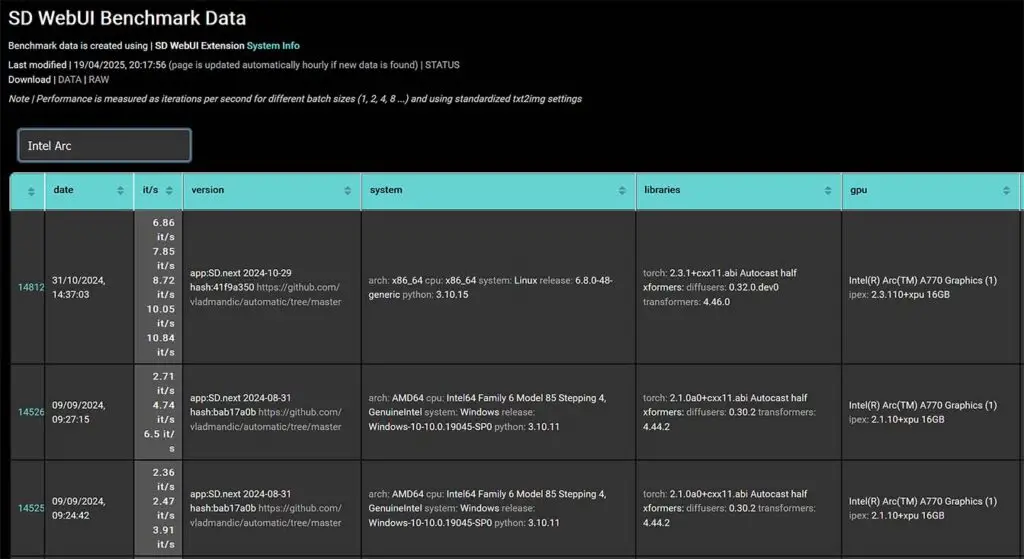
Starting with the image generation benchmarks, on the Vladmandic “SD WebUI Benchmark Data” website, we can find a few examples of real-life performance of the Intel Arc A770 GPU. This however, isn’t quite enough data to satisfy us.
A useful late-2024 benchmark snapshot is Tom’s Hardware’s Arc B580 review comparing the Intel Arc B580 with a few other GPUs with similar performance. This can show us a few things.
First, when it comes to performance with SDXL and base SD image generation, on average the Intel Arc B580 turns out to be approximately 45% faster than the A770. In Procyon AI Vision tests, the difference in benchmark scores is almost 70%!
This shows us significant rise in performance in the newer Intel Arc B580 model, despite it having 4GB of VRAM less than its predecessor. In these tests, the NVIDIA GPU closest to the scores of both of these cards was, as expected, the RTX 4060.
Both cards have also performed well in the MLPerf test suite, with the B580 yielding the score of around 80 t/s (tokens per second), and the A770 – around 54 t/s. In comparison, the base RTX 4060 finished with 54 t/s, while the AMD RX 7600 XT, with around 58 t/s.
Still mind that, citing the source: “How applicable these results are in the real world remains debatable, as software and driver optimizations can yield massive performance improvements in many AI workloads. YMMV, in other words.” And this is very much true.
Practical LLM Speed Tests – Real-World Values
Shifting our focus back to LLM inference with the dedicated Intel Arc GPUs, underneath this Reddit post, a few more insights on both the A770 and the B580 performance with local LLM inference have been shared online.
According to the user benchmarks sourced from the thread, the B580 running a Qwen2.5-7B-Instruct GGUF model in llama.cpp ran via the Vulkan backend granted one user an average speed of around 62 t/s with the Q4_K versions of the model, Q6_K at around 43 t/s, and Q8_0 at around 35 t/s. This is a pretty good score. The same user in the same configuration but with the use of the SYCL backend got only about half the recorded speed.
On the A770 on the other hand, with the Qwen2 7B Q8_0 GGUF model running under Vulkan, the average speeds were about 11 t/s before driver update (below average), and around 30 t/s after.
Another great resource showcasing real-world LLM inference speed values is this benchmark done by a Reddit user danishkirel, using 2x A770 and 1x B580 Intel Arc GPUs with Qwen3-8B-GGUF-UD-Q4_K_XL model hosted via Ollama with IPEX-LLM and 16k context length before the stack was archived.
In these tests with 13.948 user tokens in the prompt, the B580 reached an evaluation rate of about 33 t/s, and both the single A770 and the double A770 combo about 19 t/s. These are really good values considering the current prices of these cards.
Overall, Arc A770’s AI performance is comparable to mid-range NVIDIA GPUs (like RTX 3060/3060 Ti), and in certain contexts, specifically with SDXL image generation workflows, can be compared to the NVIDIA RTX 4060, as you have seen with the latest ComfyUI examples. The B580 improves on that with a performance upgrade letting you reach even higher speeds.
Other Workloads, Including Local Voice Generation
Generally speaking, in most cases the support for Intel Arc GPUs for certain software (or lack thereof) depends entirely the developers’ willingness and available development time, and of course on the context of the particular app. As graphics cards made by Intel still aren’t among the most popular commercial choices, many pieces of software will not work well with them, might be harder to set up, or refuse to work at all.
To name a few examples, software such as UVR (The Ultimate Vocal Remover) does support Intel Arc GPUs, while programs such as the Okada Live Voice Changer and AllTalkTTS at the time of writing this article seem to have no official support for Intel graphics cards.
It all boils down to what kind of software you plan to be using exactly, and on its state when it comes to Intel GPU support. That’s just how it is.
Intel Arc A770 vs. B580 For Local AI Tasks & Workflows
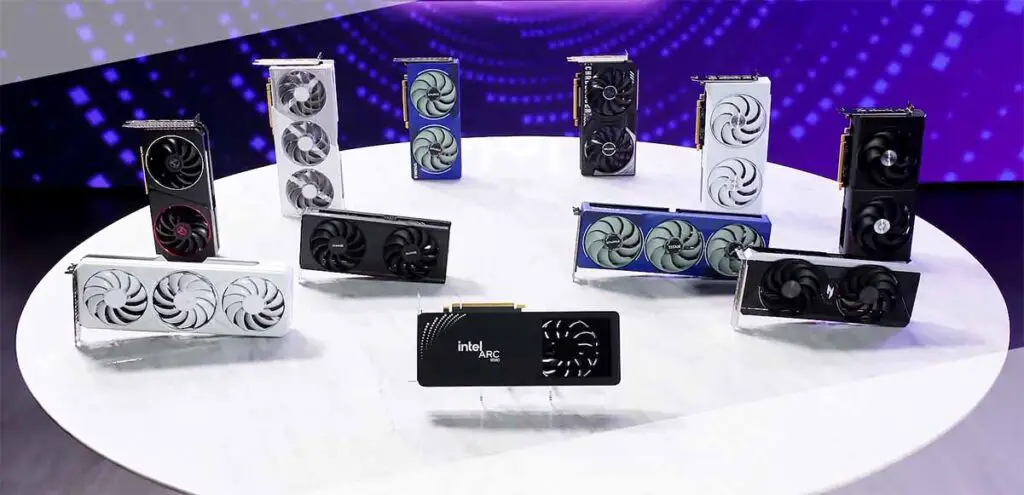
Now you should have a pretty good idea of how well dedicated Intel graphics cards can perform in local AI software contexts.
This is how things are right now, but bear in mind that as more time passes, new driver updates get pushed through, and as new driver updates and future Intel GPU generations arrive, improvements to the Arc ecosystem may continue to come quickly. These developments can be further accelerated as the market demand for the Intel GPUs keeps on rising in the upcoming months.
Intel Arc GPUs have one significant advantage over the NVIDIA graphics cards, similar to the cards from the AMD lineup – they are far cheaper and therefore more easily accessible to a user with an average budget. That’s why for me, both the Intel Arc A770 and the Intel Arc B580 are very interesting choices for a budget setup with basic local AI workflows in mind.
Keeping all this in mind, you can now more easily decide whether or not a brand-new Intel Arc GPU is right for your rig. It really comes down to your specific use cases and how much time you’re willing to spend troubleshooting if things go south. That’s pretty much it, at least for now!
If you want to know more about the absolute best graphics cards you can get for local AI, feel free to check out my whole list for the current year here: Best GPUs For Local LLMs (My Top Picks)