

The Xteink X4 is a tiny 4.3-inch magnetic E-Ink reader that looks like one of those devices that can either turn out to be a very clever pocket reading tool, or a simple curiosity that you forget about after two days or less. After unboxing it, testing the stock firmware, loading a few books, comparing it with my PocketBook Verse Pro, and flashing CrossPoint to it, I can already say that it sits much closer to the first category.
This is still a first-impressions article, not a long-term review. I will need more time with the X4 before being able to say more about battery life and durability. What I can do now is show you what comes in the box, how the device feels in hand, what the stock firmware is like, what the screen looks like up close (some neat images included below), and why the custom firmware scene is one of the most interesting things about this little reader.
You might also like: PocketBook Verse Pro – Hands-On Review
Why you can trust us: We test all of our products according to the Tech Tactician consumer usability benchmark methodology which evaluates the product characteristics that matter to the user in day-to-day use.
This web portal is reader-supported, and is a part of the AliExpress Partner Program, Amazon Services LLC Associates Program and the eBay Partner Network. When you buy using links on our site, we may earn an affiliate commission
First, The Specs
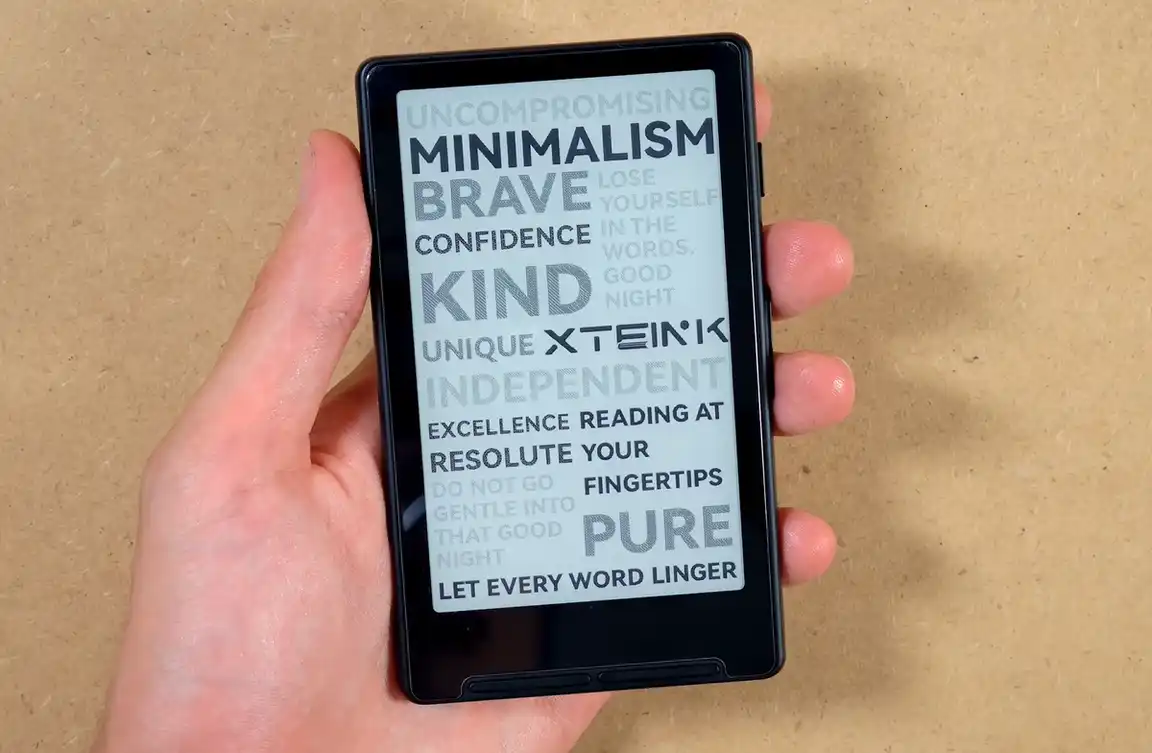
Ultra-thin 4.3-inch magnetic E-Ink reader with physical page buttons, microSD storage, Wi-Fi book transfer features, no touchscreen, no built-in frontlight, and optional CrossPoint custom firmware support.
| Display | 4.3-inch 480 x 800 220 PPI E-Ink display |
| Touchscreen | No |
| Frontlight | No built-in frontlight |
| Controls | Physical page/navigation buttons, front buttons act as Back, Select, Left, and Right, plus additional side buttons |
| Processor | ESP32-C3-class microcontroller |
| Storage | microSD-based storage, microSD card included |
| Connectivity | USB-C, Wi-Fi features, Bluetooth |
| Book Transfer | microSD, network upload options, XT Cloud / app options on stock firmware; CrossPoint adds its own transfer tools |
| Supported Reading Formats | .epub, .txt, plus proprietary Xteink .xtc, .xtch, and .xtcz formats, no PDF support |
| Firmware | Stock Xteink firmware, community-developed options available (see: CrossPoint) |
| Battery | 650 mAh |
| Dimensions | ~114 x 69 x 5.9 mm |
| Weight | ~77 g |
| Ports / Slots | USB-C port, microSD slot, reset pinhole, lanyard slot |
| Magnetic Back | Yes; MagSafe-style magnetic attachment with included stick-on rings |
| Default Accessories | Plastic screen protector, application wipes, USB microSD card reader, quick start guide, two MagSafe-style ring stickers (black and white), 32 GB microSD card |
What You Get Inside The Box
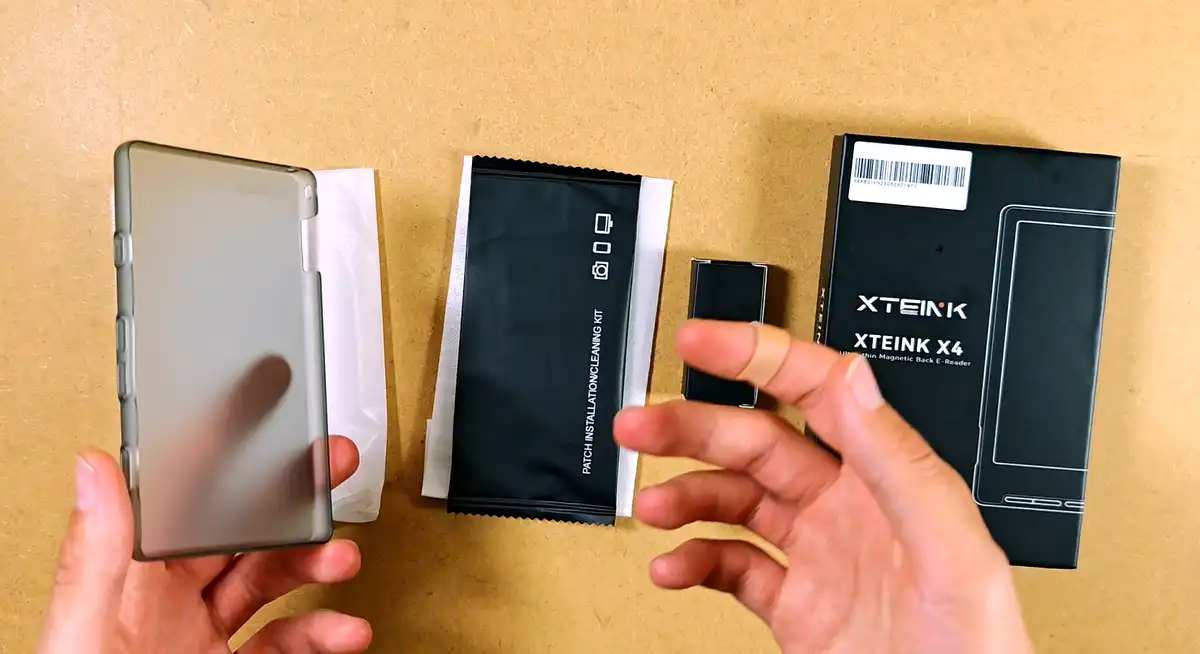
First things first, I decided to unbox the additional accessories I got, as these do not come with the reader by default, and are instead available as separate purchases. The two accessories I got were the additional tempered glass screen protector, and a plastic case.
The protective case is pretty rigid, does not bend easily, and makes the X4 feel like something you might actually throw into a bag without babying it too much. It does, however, make it feel a little bit more chunky. Of course, I still wouldn’t treat any E-Ink device as indestructible, because these displays are not exactly famous for surviving backpack acupressure treatment on their screens.
My package included, aside from the extras I purchased, the basic plastic screen protector, wet/dry wipes for applying it, a tiny USB microSD card reader, the quick start guide, and the magnetic stick-on elements. My unit also came with a 32GB microSD card already inserted.
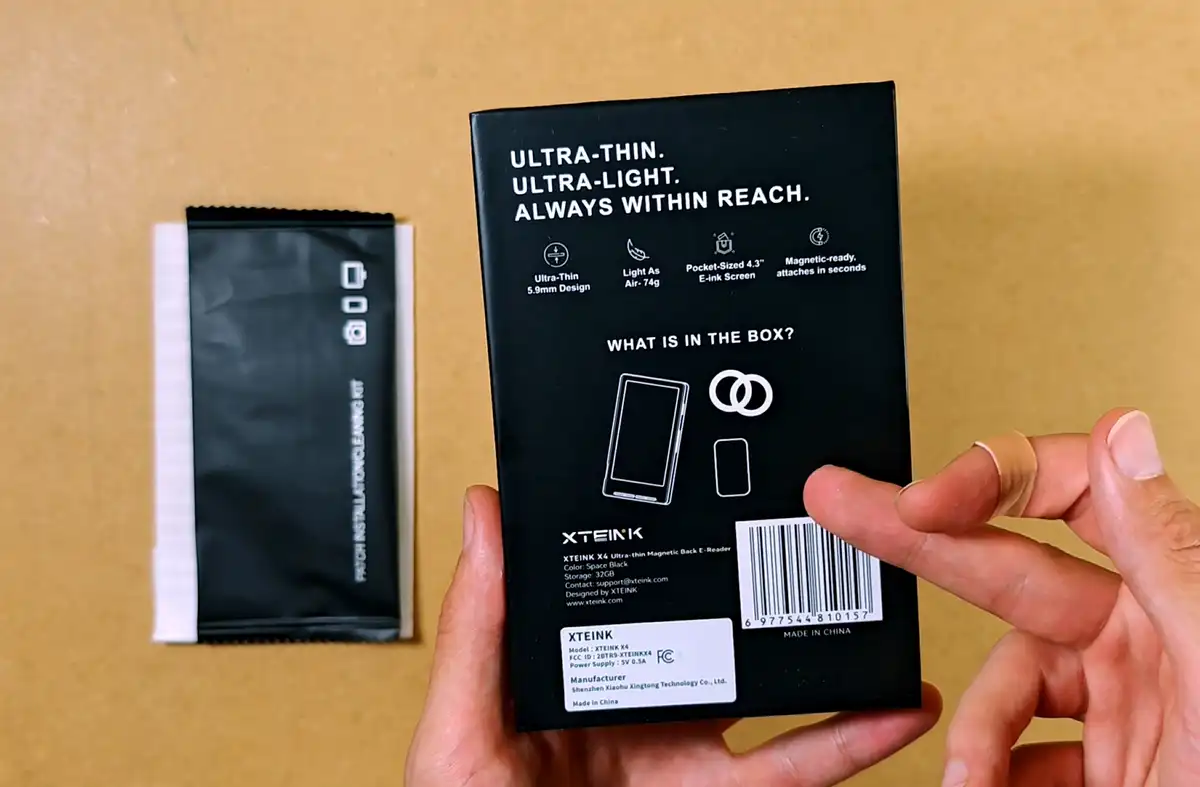
A basic plastic screen protector comes included in the set. The tempered glass protector is the optional extra that you have to order separately. In my eyes, it’s well worth it.
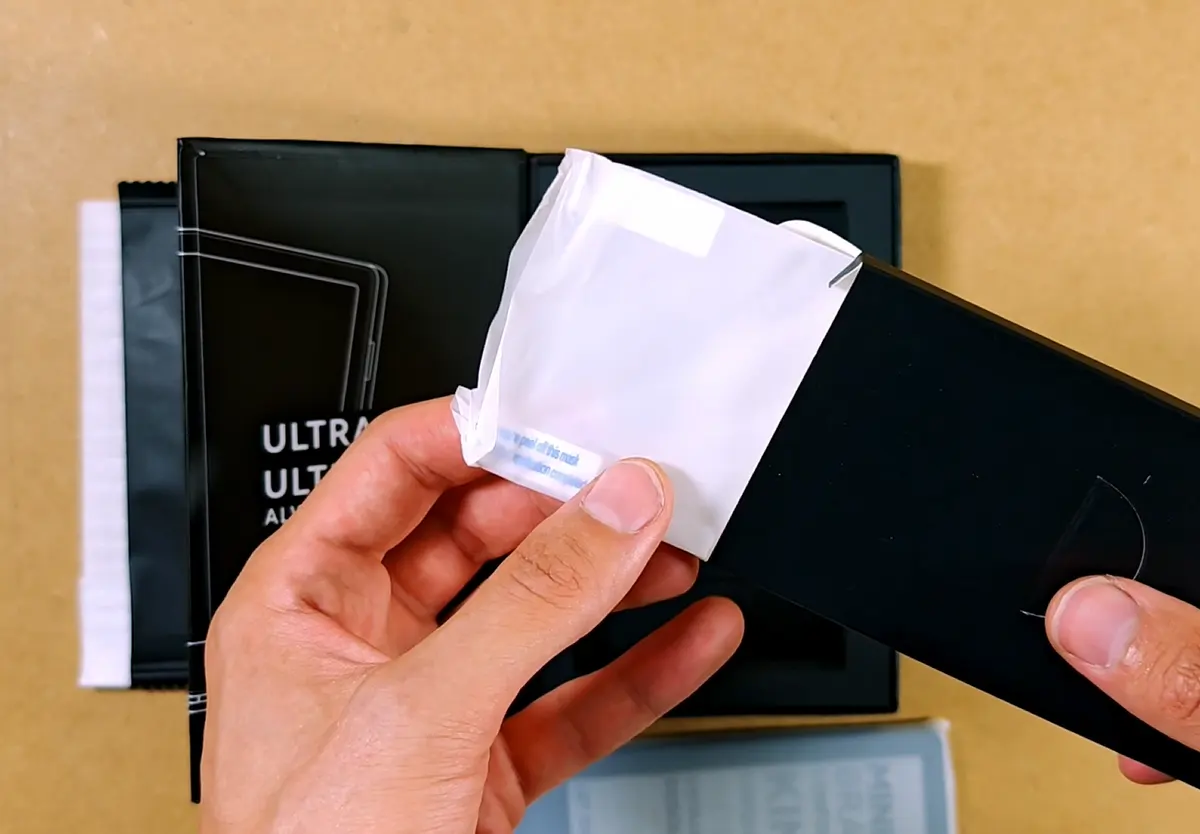
The other nice surprise was the MagSafe-style attachment kit. You get two adhesive rings, one white and one black, which can be stuck onto a phone, case, wall, stand, or any other flat surface you trust. If your phone already has MagSafe or Qi2-style magnets, the X4 should be able to attach to it. If it does not, this is what the rings are for.
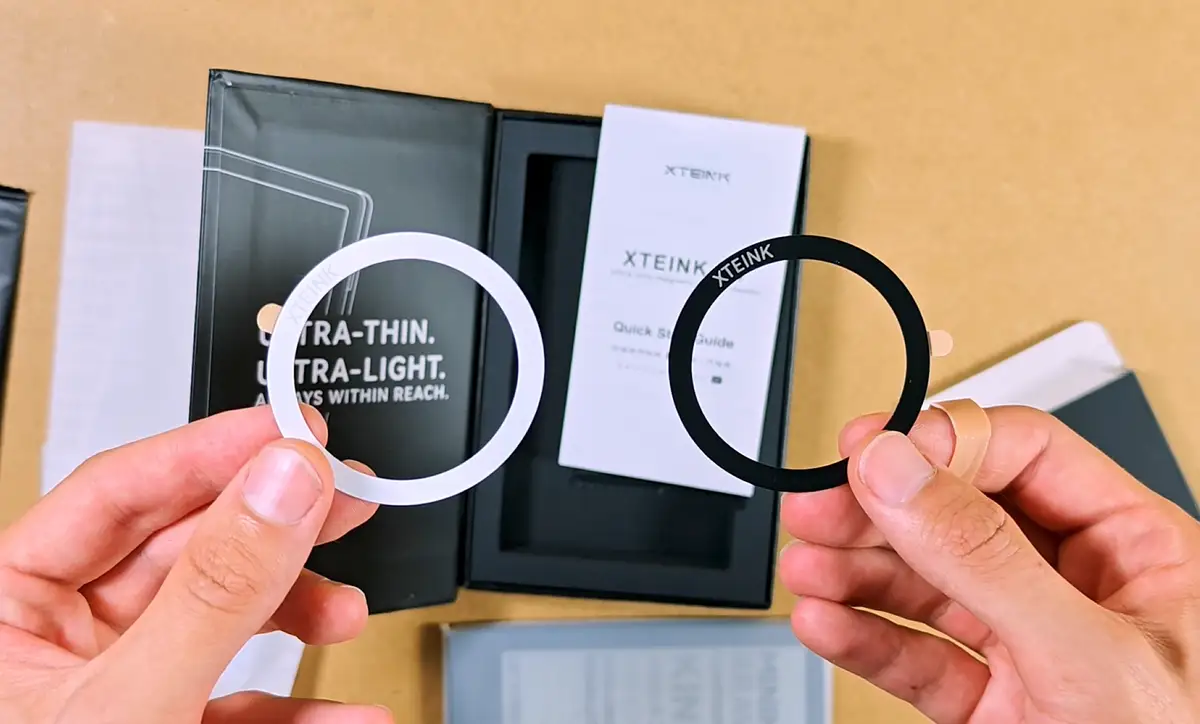
This is everything you get inside the box, and in my eyes it’s a very satisfying set of starter accessories, even without the extra goodies.
The Tempered Glass Protector Is Reflective
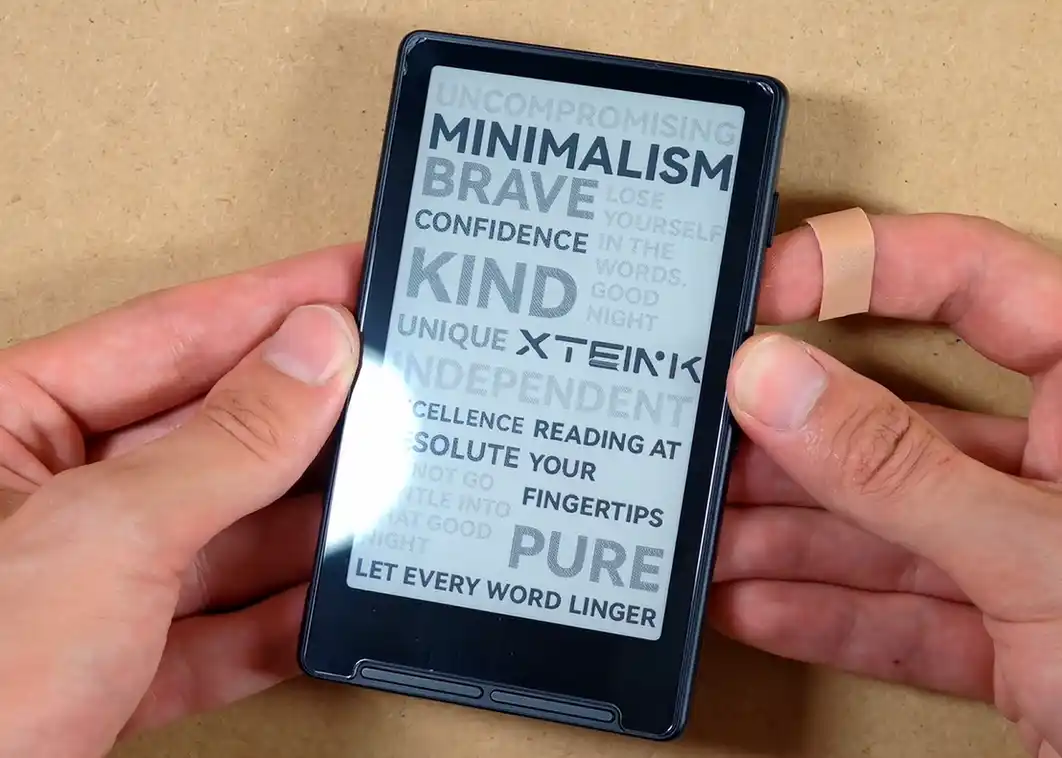
As per usual, I decided to apply the screen protector before getting fingerprints all over the display. Due to some completely mysterious and definitely not user-caused circumstances, I had to reapply it twice, so there is a little bit of evidence in the corners. We can all politely pretend not to see that (please).
The important practical note is that the tempered glass protector is reflective. This is a common problem on glass-fronted devices such as the AYN Thor handheld.
If you mostly read in bright indoor lighting, or under a lamp placed at a bad angle, this can get annoying, although I personally never found it to be a deal-breaking tradeoff. The naked E-Ink screen would probably be more pleasant in that regard, but I do prefer having the extra protection on something this pocketable.
Build Quality & Physical Controls
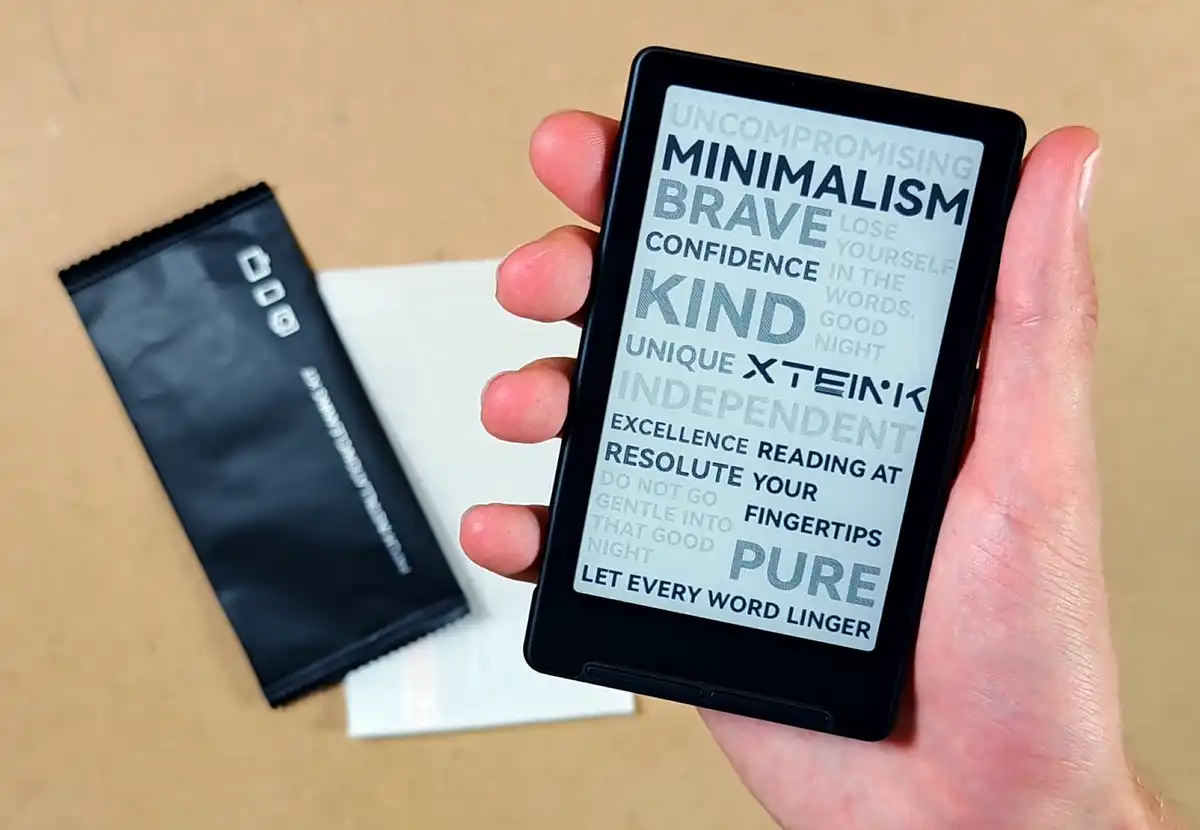
The build of the X4 is rather simple. On the front, you get two long control areas at the bottom, which in practice act as four separate buttons. These work as back, select, left, and right controls which you will be using to navigate through the system menus and your books. The right side of the device has two more buttons which have the same left/right functionality as the ones below, and the smaller main power button is placed near the upper edge.
The whole thing is extremely thin and very light. It is one of those devices that feel almost strange at first, as your hands do expect something with a little more mass. After a few minutes, however, that becomes one of its main advantages. It’s light enough for you to be able to forget you have it in your pocket.
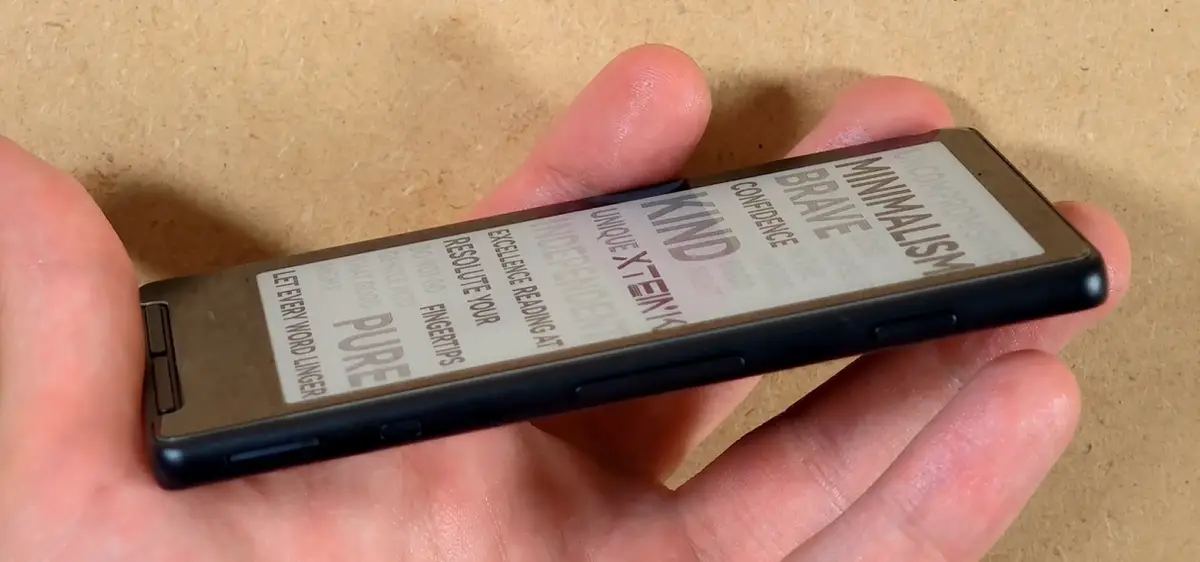
The right-side buttons are useful, although the front buttons remain the most obvious controls when you are navigating the system menus. One thing I really appreciate is the complete lack of a touchscreen. This may sound a little bit weird, until you think about how this device is meant to be used.
Having no touch- sensitive surface on the front is great at preventing accidental taps, edge touches and screen smudges, which complements the main use case of the X4, that is, being taken in and out of your pocket at least a few times a day.
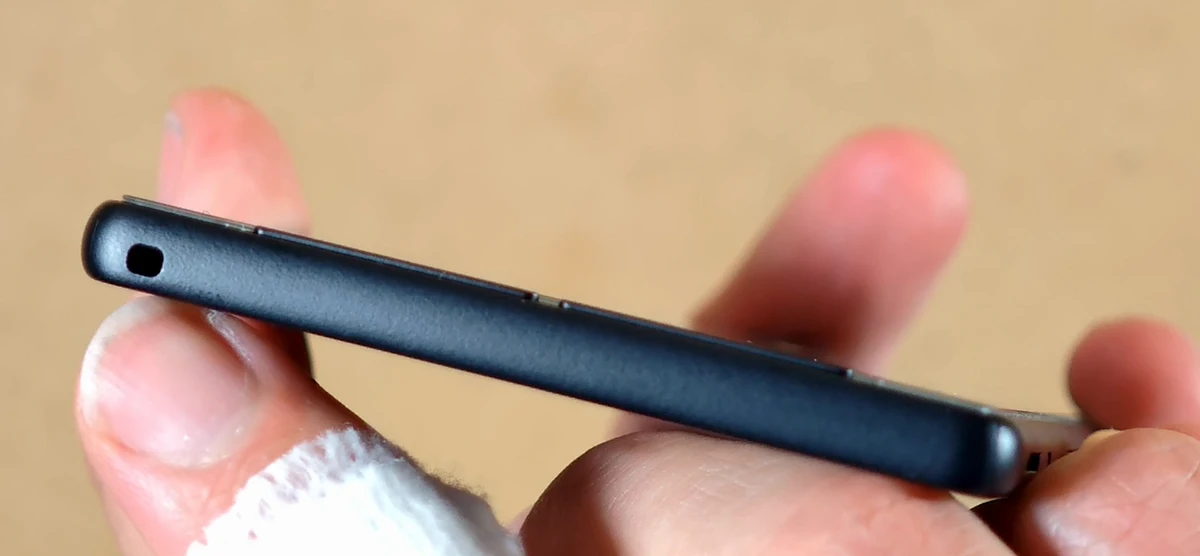
Fully disabling touch controls on e-readers that do feature them is in most cases not possible. Even if it were possible, most owners of a touchscreen device would probably be better served by using the touchscreen rather than disabling it completely. On the X4, however, you don’t have to choose, and this kind of limitation is in my eyes rather convenient.
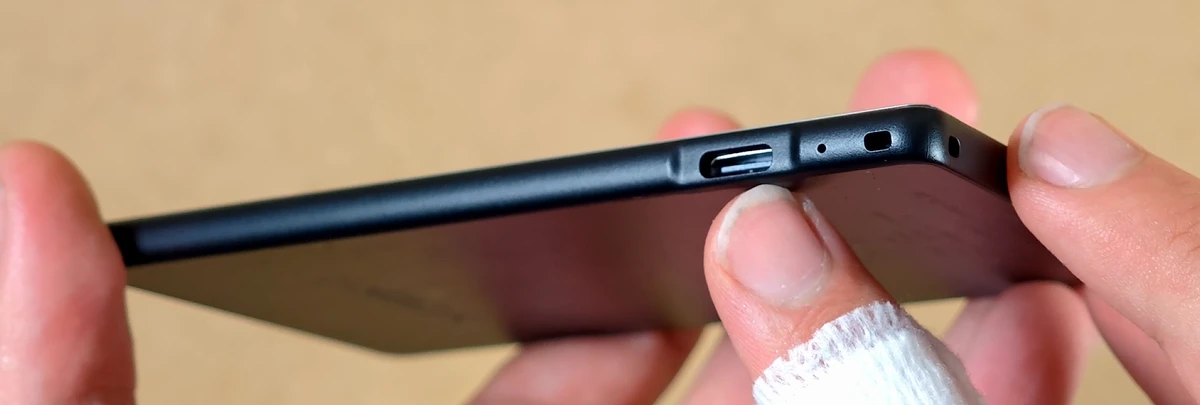
The USB-C port is used for charging. The stock firmware does not expose the microSD card as USB mass storage, so you can not transfer the books onto your device using it. On units with USB flashing enabled, the port can also carry serial data for firmware installation (more on that later). Next to it, there is a small hole that houses a little charging status LED.
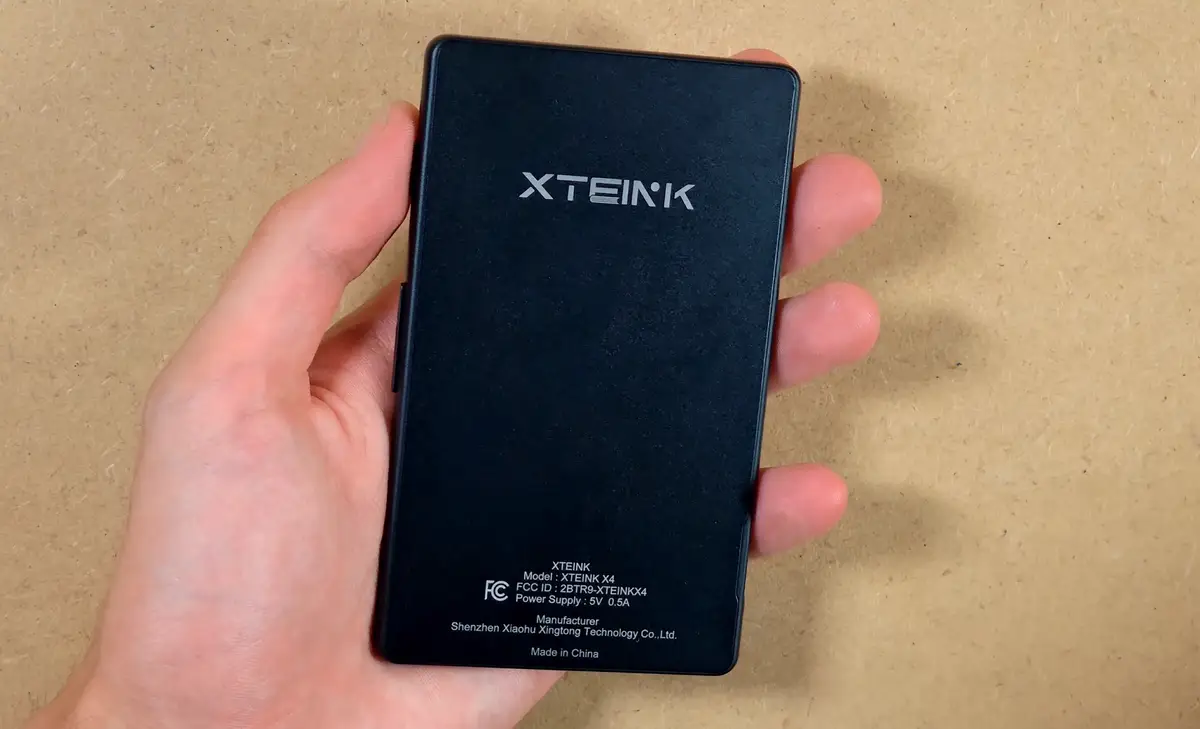
The top is empty, and the bottom has the lanyard slot. The back of the device is perfectly flat, which is important because of the magnetic mounting idea. If you want to attach it to a phone, case, or some other flat surface, there is nothing protruding from the back to get in the way.
The Included microSD Card
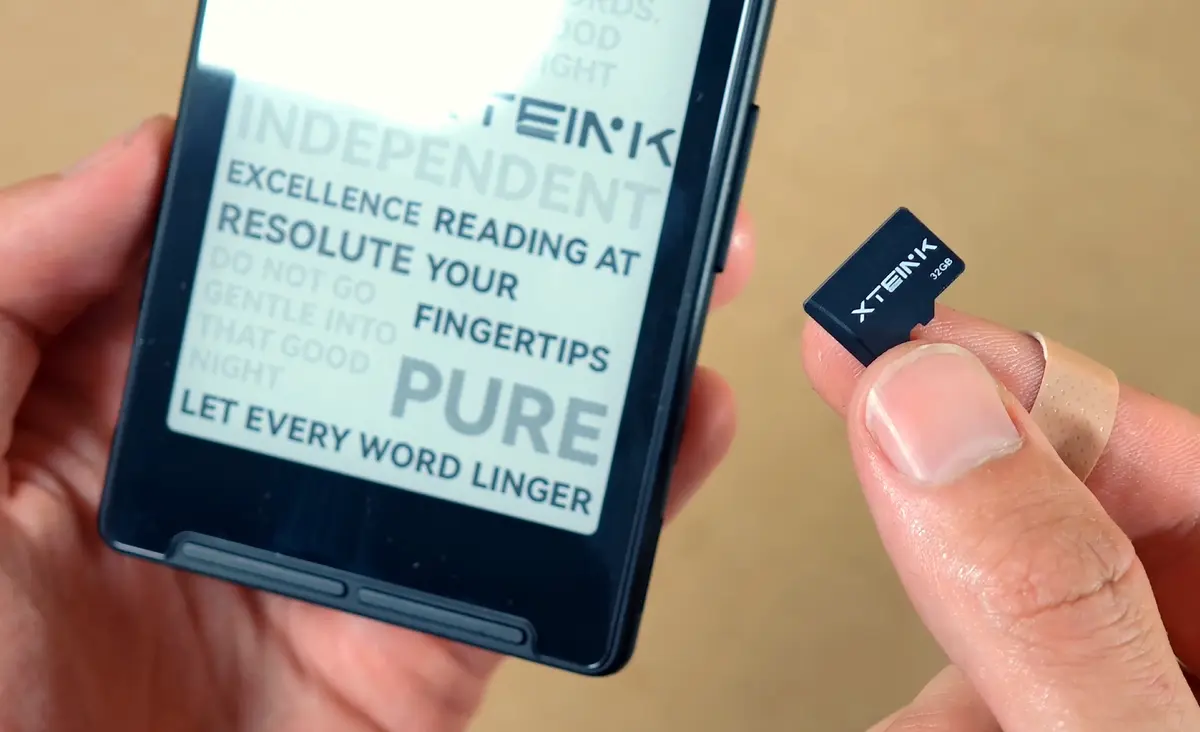
My X4 came with a 32 GB Xteink-branded microSD card already installed. Xteink’s current official listing specifies a 16 GB included card, so the supplied capacity may vary between production batches. For an EPUB-focused reader, that is a very comfortable amount of space. Even if you keep a ridiculous number of books on it, you are very unlikely to run out of storage any time soon.
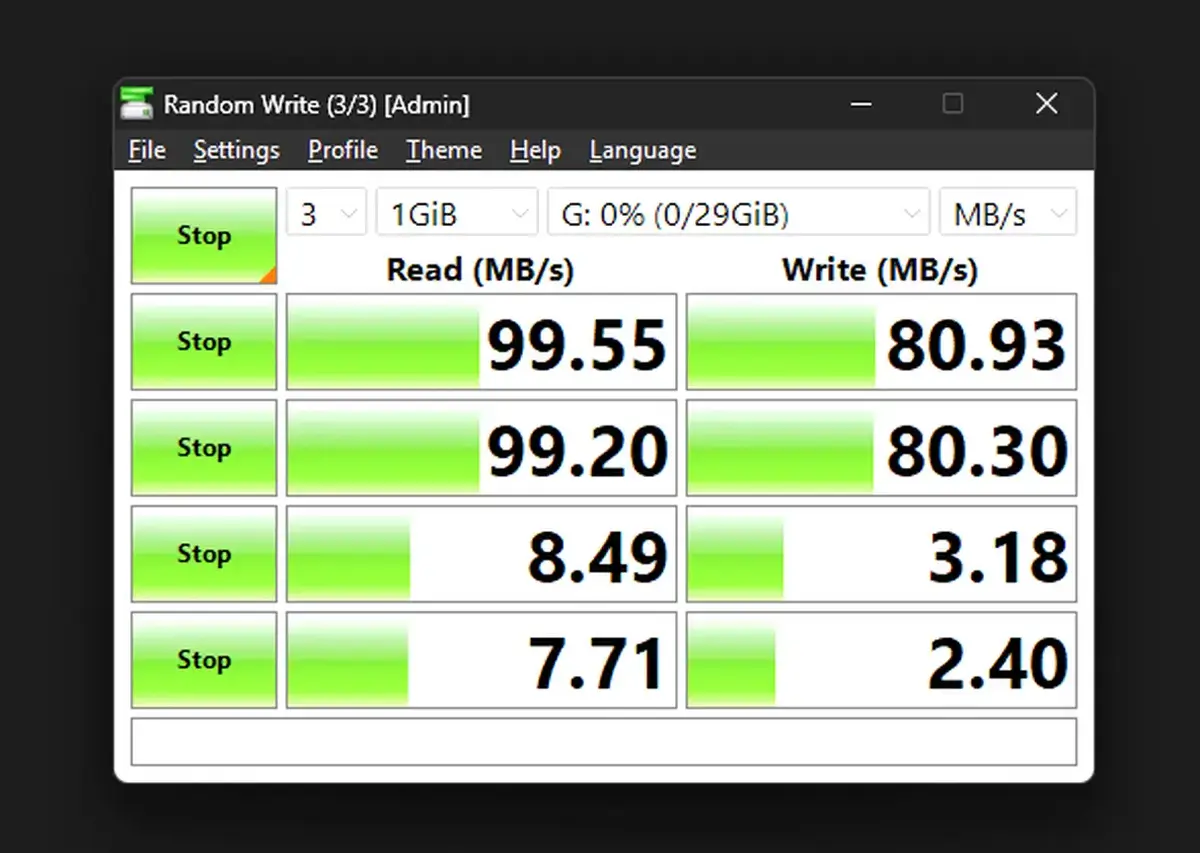
I also ran an obligatory speed test on the supplied card. Sequential reads and writes were completely fine for this kind of use, and even though the random-access results are obviously nothing exciting, this is an e-reader card, not a gaming handheld system card. For books, it is perfectly adequate.
The bundled USB card reader is only USB 2.0, but again, for EPUB files this hardly matters. If you plan to move a larger library at once, you can always use your own, faster reader. Regardless of that, it’s a nice little extra to have.
The Stock Firmware Experience
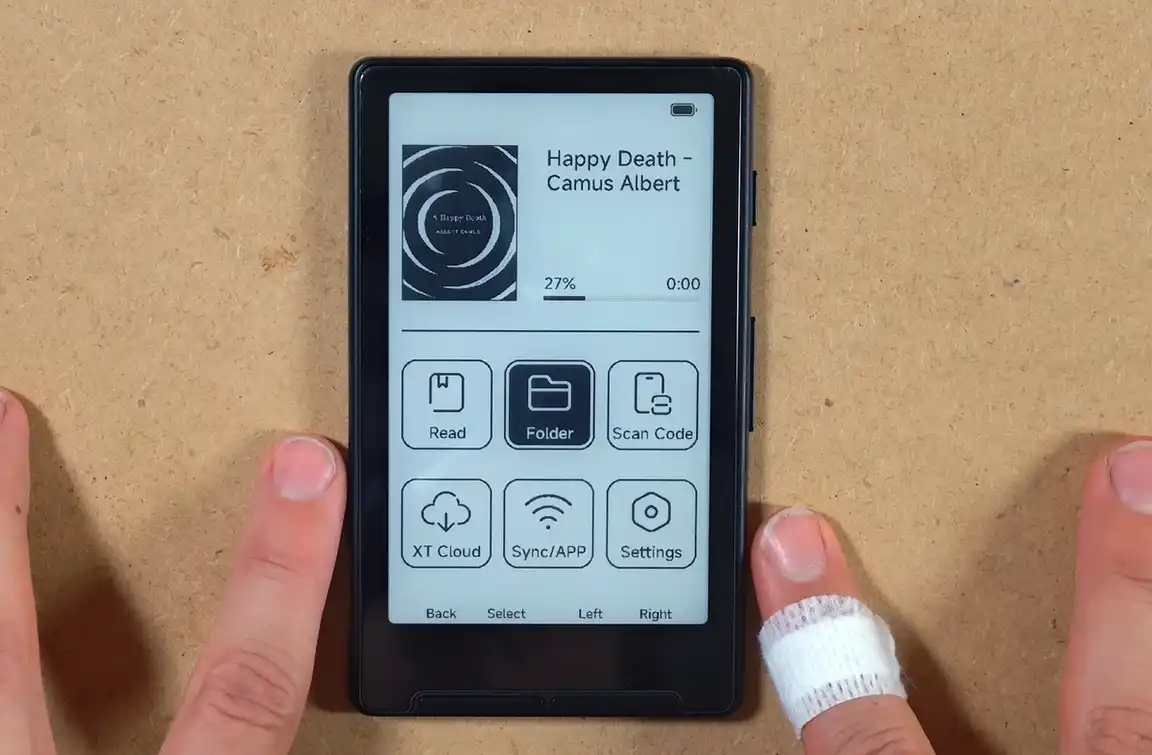
The first boot was much faster than I expected. This is a very simple device built around a low-power ESP32-C3 microcontroller, so I was ready for a bit of waiting around. Instead, the X4 turned on very quickly and was ready to use almost immediately after roughly 3 seconds.
The stock interface is basic, but functional. The main menu gives you Read, Folder, Scan Code, XT Cloud, Sync/APP, and Settings buttons. The last opened book is shown at the top, and you can get back to reading without digging through menus.
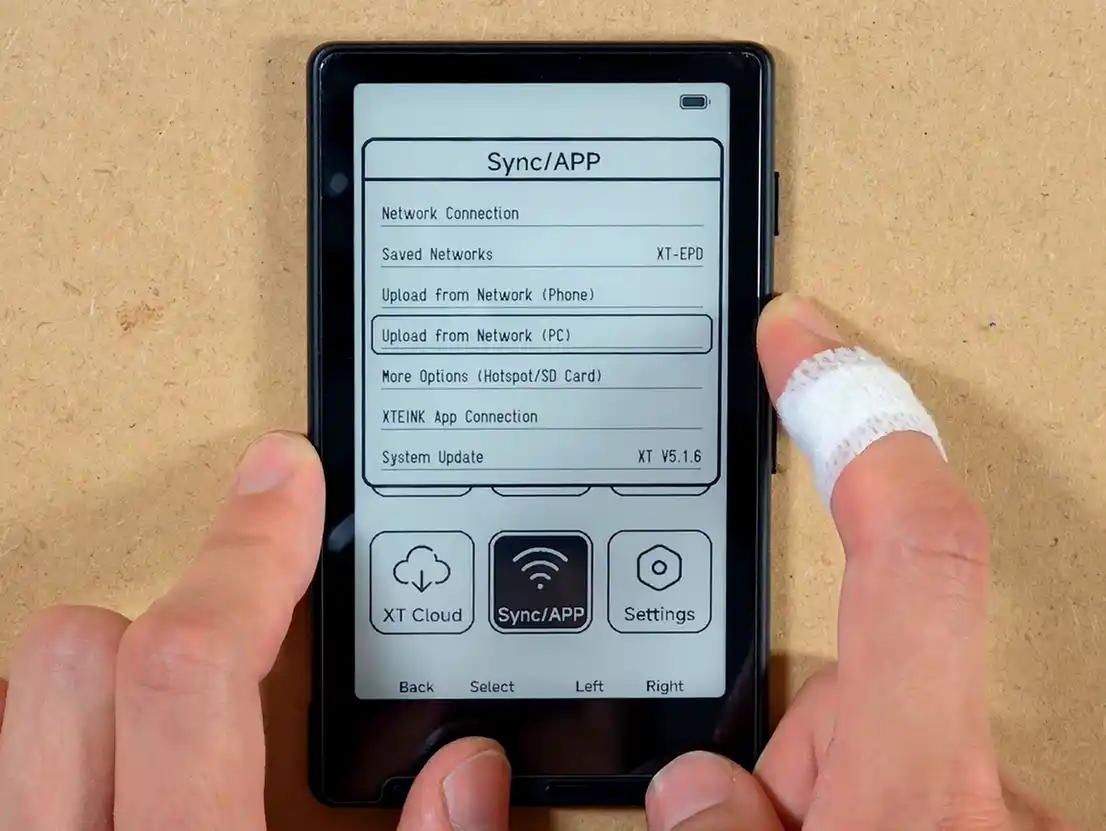
The button layout also starts making sense very quickly. The left-side buttons handle the Back and Select functions, and the right-side ones let you navigate the menu elements left and right or up and down. The buttons on the right edge of the X4 duplicate the navigation/page-turning behavior depending on where you are in the system.
The Sync/APP section provides network uploads from a phone or computer, hotspot-related options, SD-card transfer tools, and integration with the Xteink app.
Stock Firmware Settings Tour
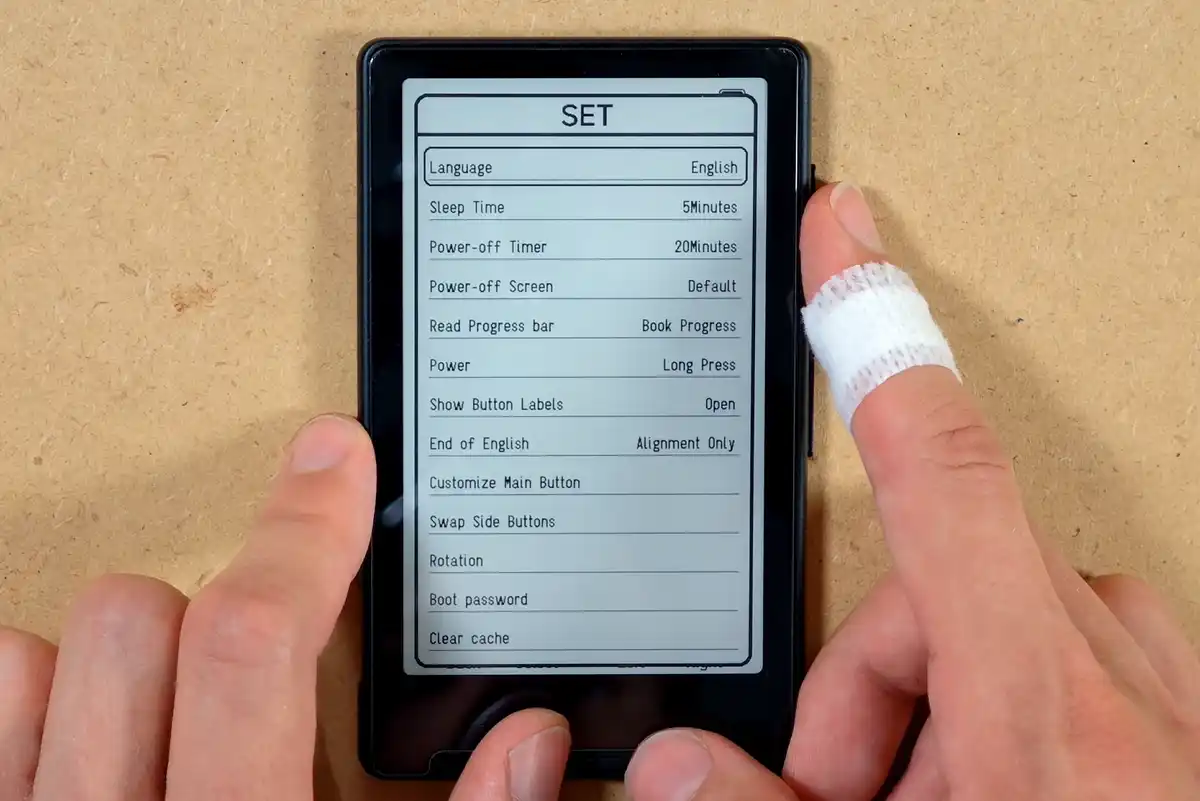
All of the available stock firmware settings that you can tweak are listed below. You can find some more info about these in my full hands-on video here.
- Language – clicking the Select button cycles between available languages which are English, Japanese and Chinese.
- Sleep Time – 5 minutes / 15 minutes / never.
- Power-off Timer – 20 minutes / 60 minutes / never.
- Power-off Screen – default image / the currently read book cover.
- Read Progress Bar – can show book progress, chapter progress, or be disabled completely.
- Power – long press or short press behavior for the power button.
- Show Button Labels – lets you hide or show the on-screen button hints.
- “End of English” – a poorly translated stock-firmware label referring to text truncation/alignment behavior settings.
- Customize Main Button – remapping options for the front button functions (no additional functions, just order swapping).
- Swap Side Buttons – reversing the side button behavior.
- Rotation – the ability to use the device turned 180 degrees with all the button functions mirrored accordingly.
- Boot password – lets you protect the reader during startup, with the password being entered using the buttons on the bottom.
- Clear cache – useful if the device gets stuck after indexing or parsing books.
The stock firmware is responsive and reasonably easy to understand and use. On a device like this, I would rather have a slightly plain interface that reacts reliably than something prettier and slower.
You might also like: ShanWan Q36 Hands-On Review – Gaming, Flashcards & More
Loading Books Onto The Reader
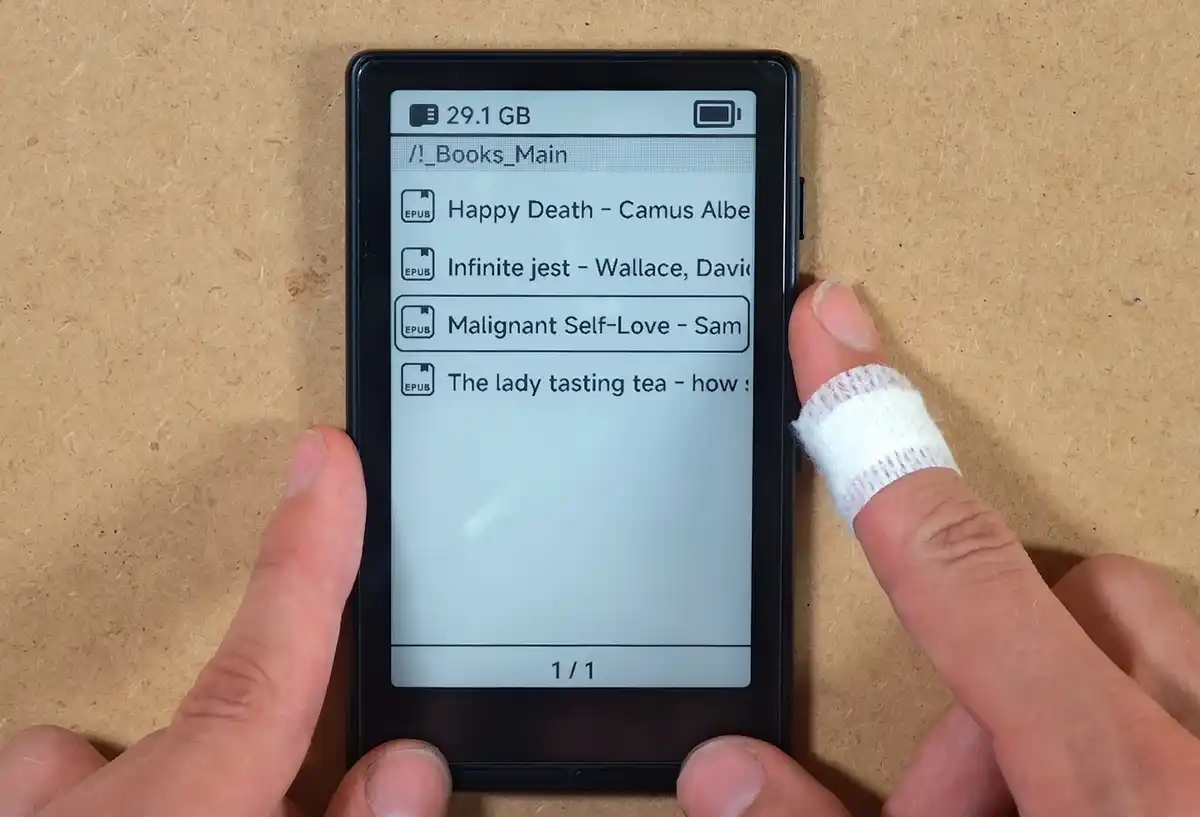
The easiest way to get books on the X4 is to put them directly onto the microSD card. I copied a few EPUB files onto it, and the reader had no problem seeing them in folders. Opening the books was fast, including books that had not been opened before.
Naturally, as an experiment, I put a large PDF file, roughly 200 MB on the card, just to see what would happen and how the device would handle it. Well, the device started parsing it alongside the other books on the card despite the fact that PDF files are not even visible from within the books menu and the fact that I selected another book from the list.
Unsurprisingly, this process caused the device to try its best to parse the file it cannot even read/display, and the process proved to be way too much for the device. In the end, I had to reset it and remove the file from the card. Lesson learned, although I do wish the reader would not attempt to parse files with extensions that are not supported by it in the first place.
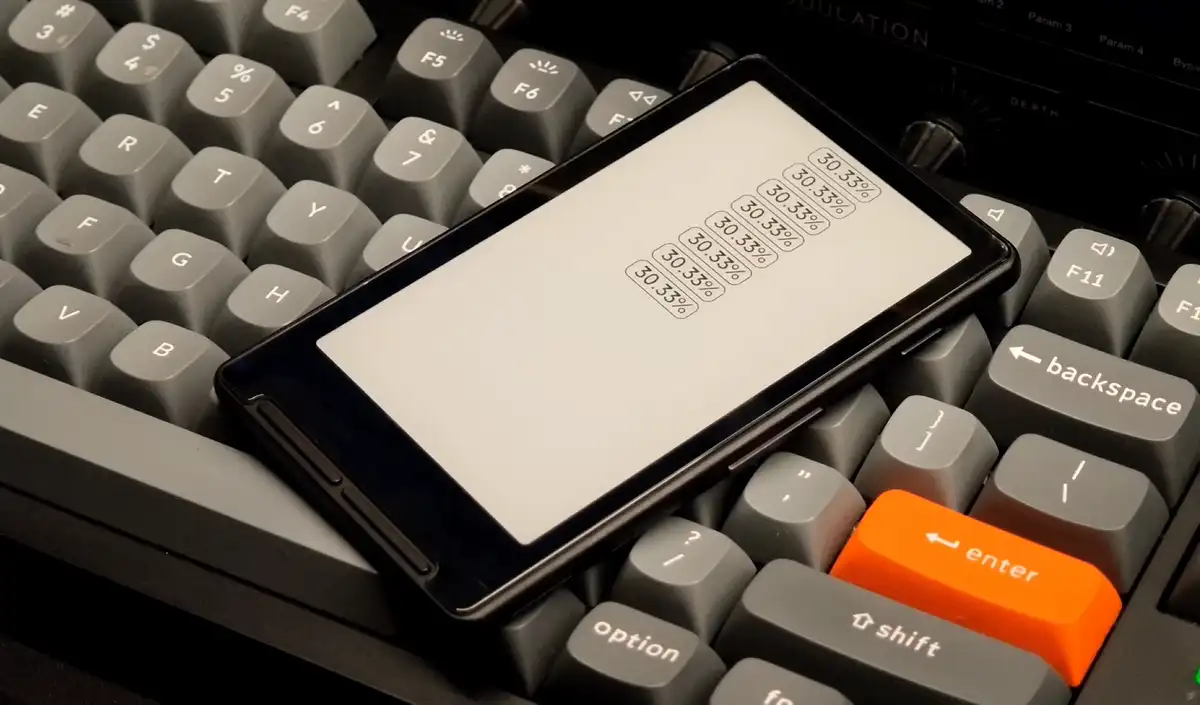
In practice, I would treat the X4 as an EPUB reader first. If you have PDFs you want to read on it, convert them to EPUB where possible, or use a larger reader made for document viewing. This is especially true for scanned PDFs, textbooks, manuals, manga, or anything with fixed layouts or otherwise large file sizes.
Reading On The Stock Firmware
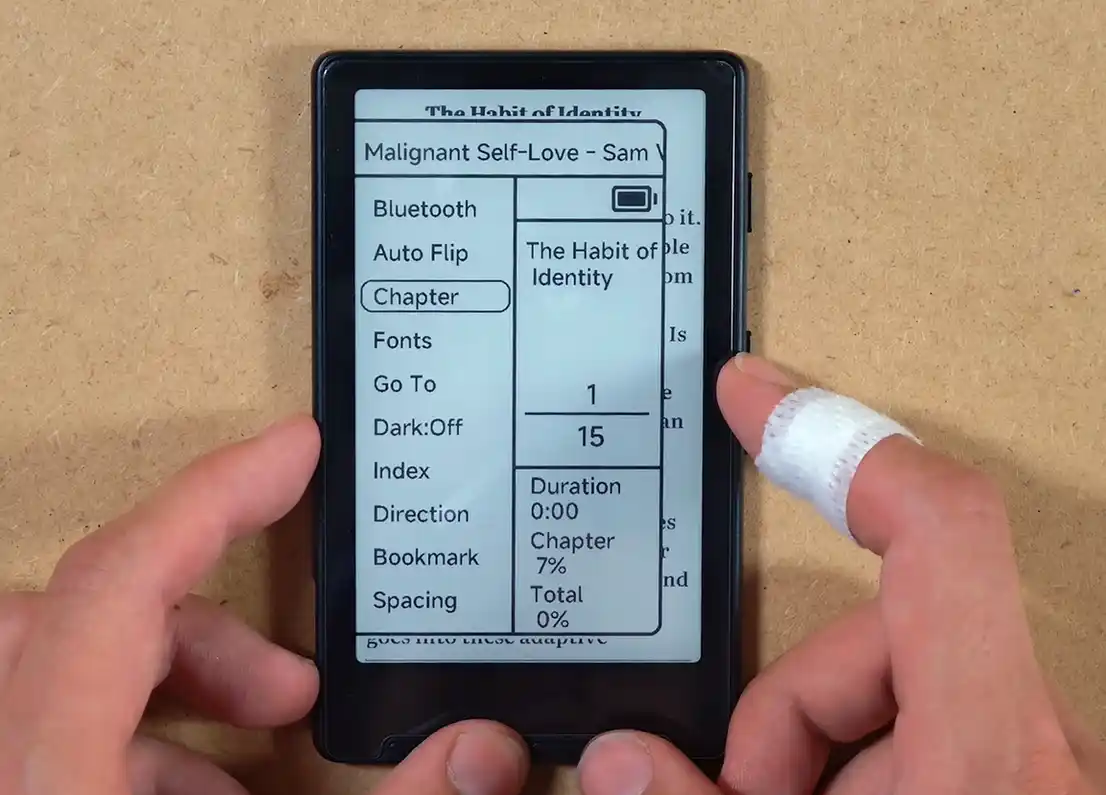
Once you are inside a book, the stock reading experience is pretty good. Page turns essentially feel nearly immediate, as is browsing through the reading mode settings. The interface will not keep up if you start hammering the buttons as fast as possible, but in practice, for actual reading, it feels very responsive.
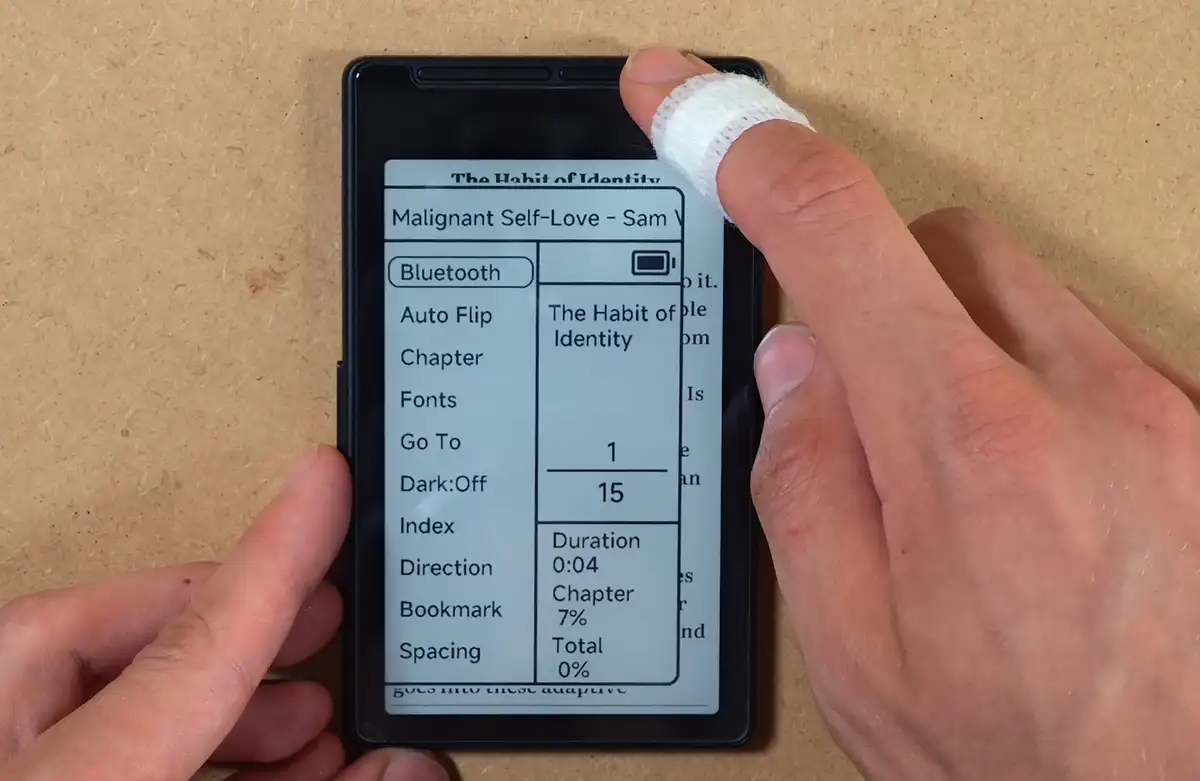
The reading settings menu on the stock firmware includes the following options:
- Bluetooth – for external page-turning devices or related accessories.
- Auto Flip – automatic page turning with a few different timer settings available.
- Chapter – chapter list / chapter navigation menu.
- Fonts – a few basic font options are available, with the option to upload your own.
- Go To – lets you jump to a selected page in your book.
- Dark – dark mode for the reader interface and text display.
- Index – book indexing options.
- Direction – reading display orientation, includes horizontal mode.
- Bookmark – bookmark list and additional bookmark controls.
- Spacing – line and paragraph spacing settings.
The bookmark system is also straightforward. Hold Select to add a bookmark, go into the bookmark menu, and then either return to it or delete it.
Unfortunately, the stock firmware does not provide text highlighting or annotation. Although such a feature could theoretically be controlled with buttons, selecting text would be less convenient without a touchscreen.
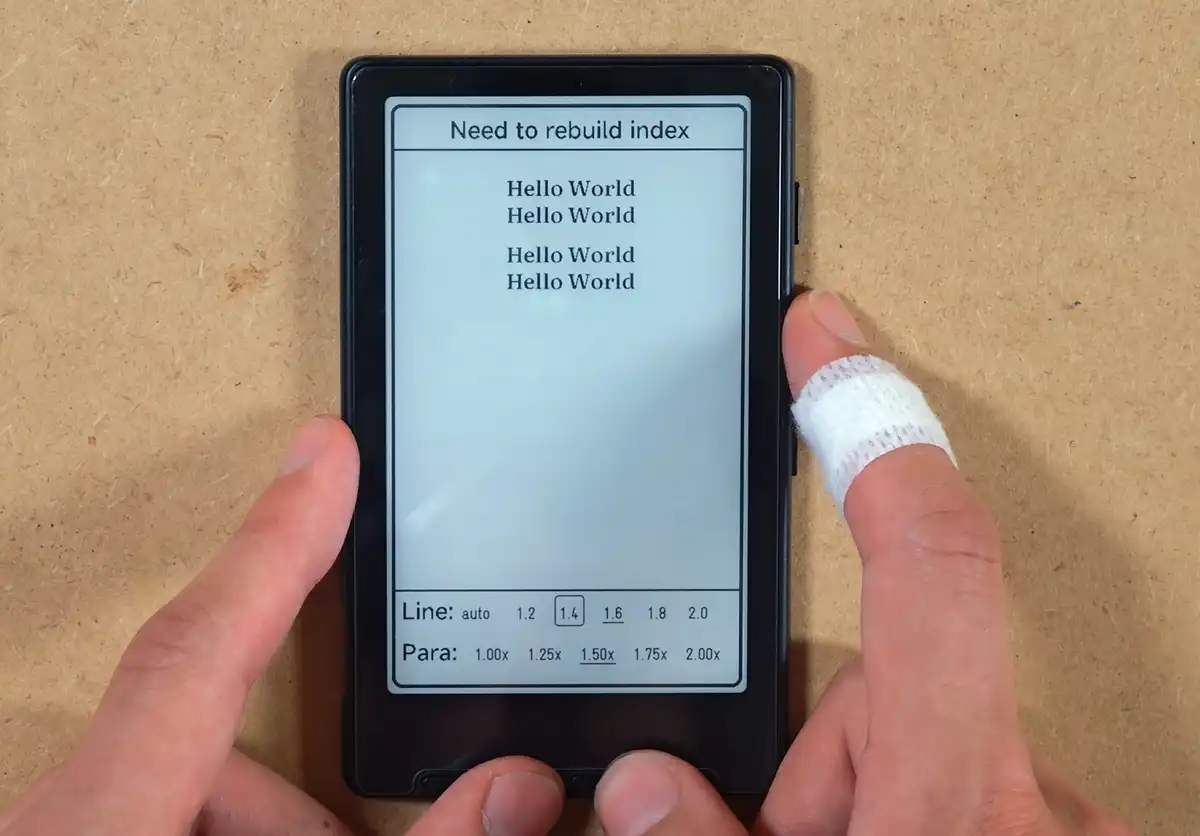
Rotating the reading view is possible here, and these settings are entirely separate from the main device orientation option in the main settings menu. Landscape mode works, and honestly, I can see myself using it that way quite often.
The screen is tiny, so landscape reading makes the line length feel much more natural. Combined with the fact that you can easily grip the device with one hand and use the right-side buttons to turn pages, it’s a very nice option to have.
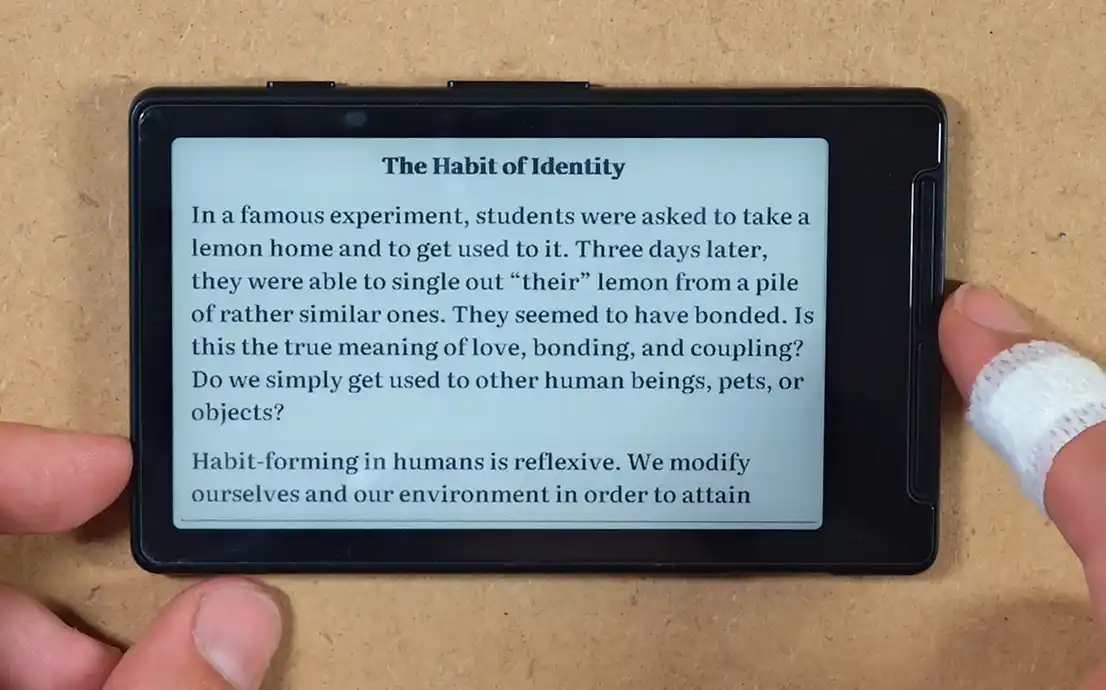
The device, once again, can also be flipped upside down in the vertical orientation, which reverses the button roles and lets you hold it from the other side. This is another reader-related option you have here that operates separately from the main system-orientation setting.
One of the strongest parts of the stock experience is how quickly you can get back to a book. Power the X4 off while reading, turn it back on, and it can take you straight back to the last book almost instantly. Once again, in my full impressions video you can see how fast it really is. If you turn it off while you are not inside the reading view, it returns to the main menu instead.
The Display – Low Resolution, Very Nice Contrast

The Xteink X4 does not have a front light. All the light you see in these photos comes from my studio lights. This is important, because if you plan to read in bed at night, you will need a lamp, or another light source. There is no way around that with this model, except for the official magnetic light attachment, which can be attached to the back of the reader.
The display resolution is clearly lower than that of some higher-end 300 PPI e-readers like the PocketBook Verse Pro. If you look closely, the difference is obvious. Still, the text is readable, and the contrast is very good.

To have some kind of reference point, I placed the X4 next to my PocketBook Verse Pro. This is absolutely not a fair comparison. The Verse Pro is a much more expensive 6-inch reader with a 300 PPI display, touchscreen, frontlight with temperature adjustment, and a much more complete software ecosystem.
With the PocketBook frontlight turned off, the X4 surprised me. The Verse Pro is much sharper and pixel-dense, especially up close, but the X4 seems to clearly take the lead in terms of raw contrast in my quick side-by-side test. That alone makes it easier to forgive the lower resolution.
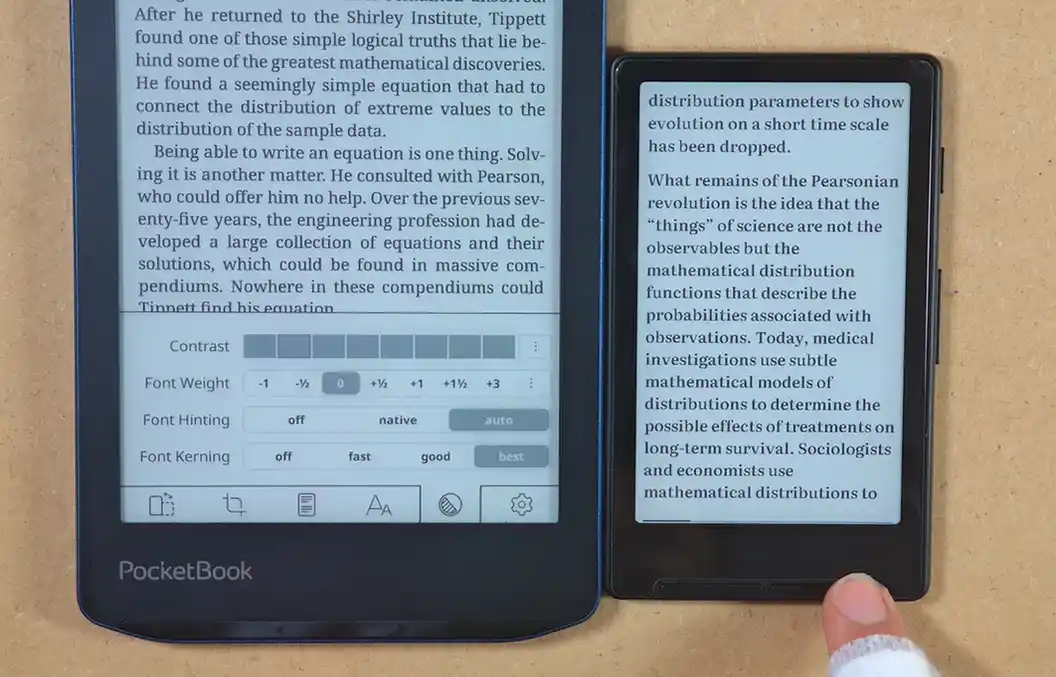
All in all, I like the X4’s display more than I expected to.. The lack of frontlight is the biggest real limitation here. If you read mostly during the day, on public transport, in a cafe, or under normal room lighting, it works well. If you read in complete darkness, this model is simply not made for that.
CrossPoint – The Main Custom Firmware Option
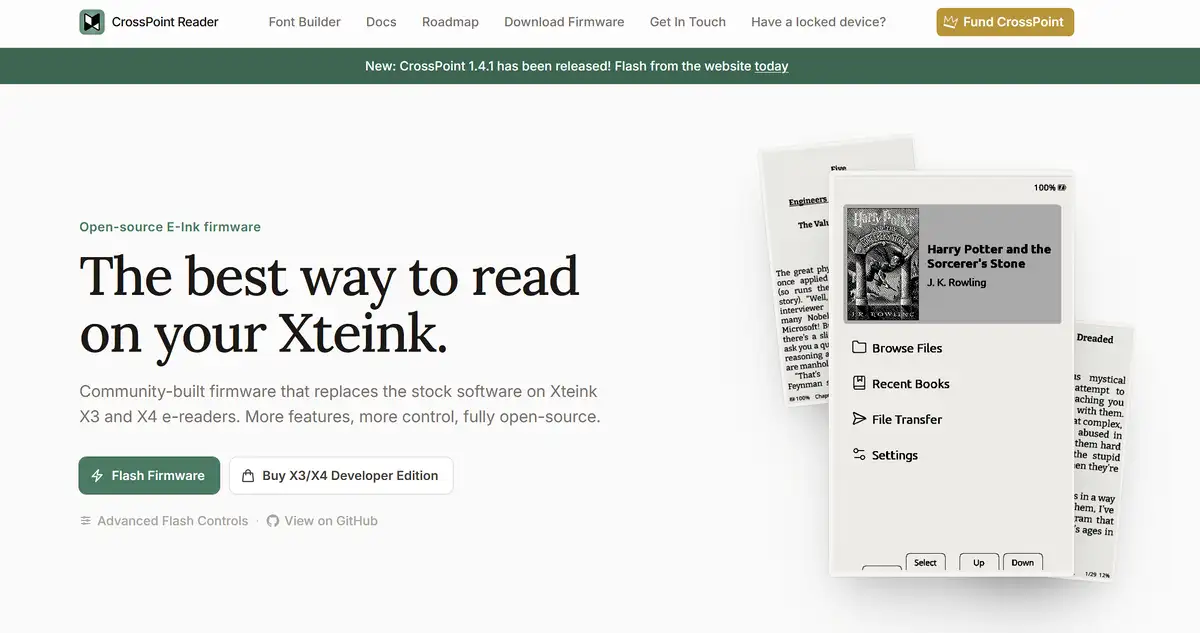
The stock firmware is usable, but the X4 gets much more interesting once you look at the CrossPoint Reader. CrossPoint is a free community-built open-source firmware for Xteink X3 and X4 devices, and it is probably the main reason why many people are even paying attention to this reader.
There is one important buying note here. Some Xteink devices may have restricted USB flashing depending on where they came from. If your unit is locked, the CrossPoint unlock / SD flashing instructions are the place to check before doing anything. Do not flash random files from random places. Follow the instructions listed there, and you’ll have your device ready for custom firmware in no time.
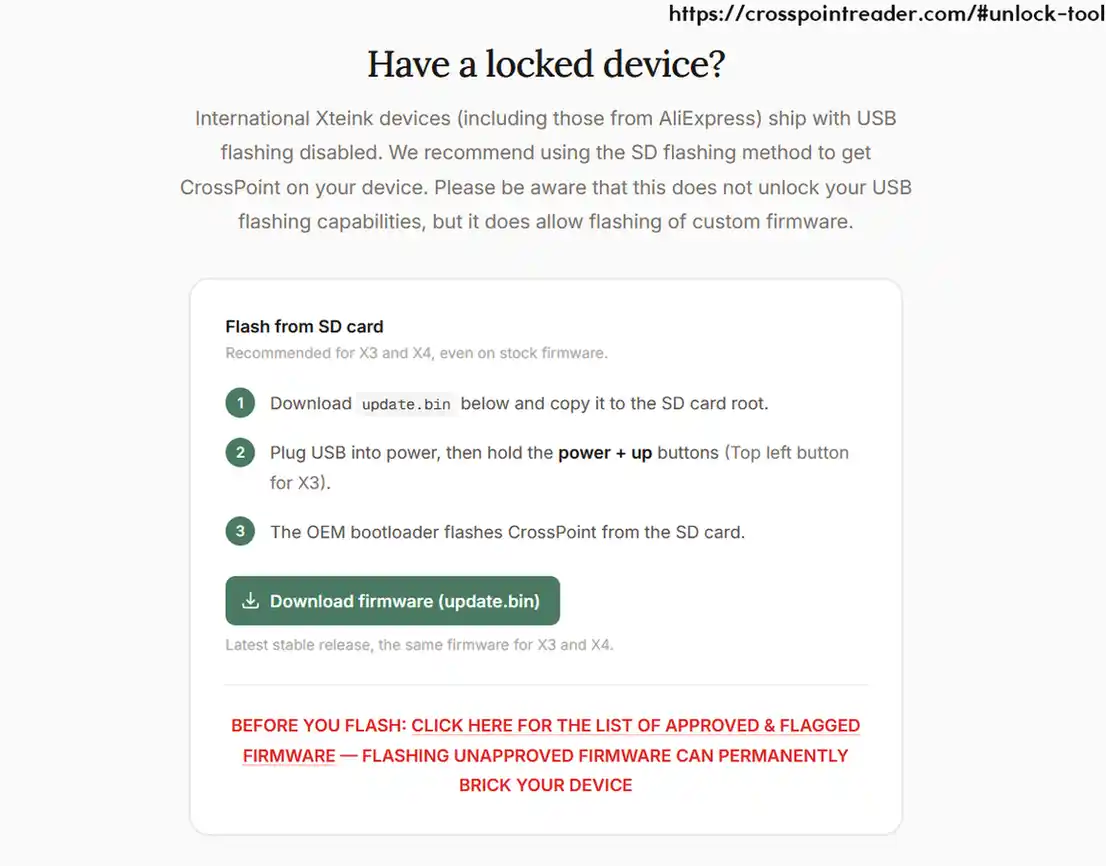
In my quick test, the CrossPoint install process was very simple and took only a few minutes. The only things you need for the process are an unlocked device and a data transfer capable USB cable.
If you decide to try out CrossPoint on your device, you don’t have to worry about losing your book files. These are stored on the microSD card, and will not be affected by the USB flashing process. The only things you can lose here are your reading progress data, bookmarks and the reading mode settings.
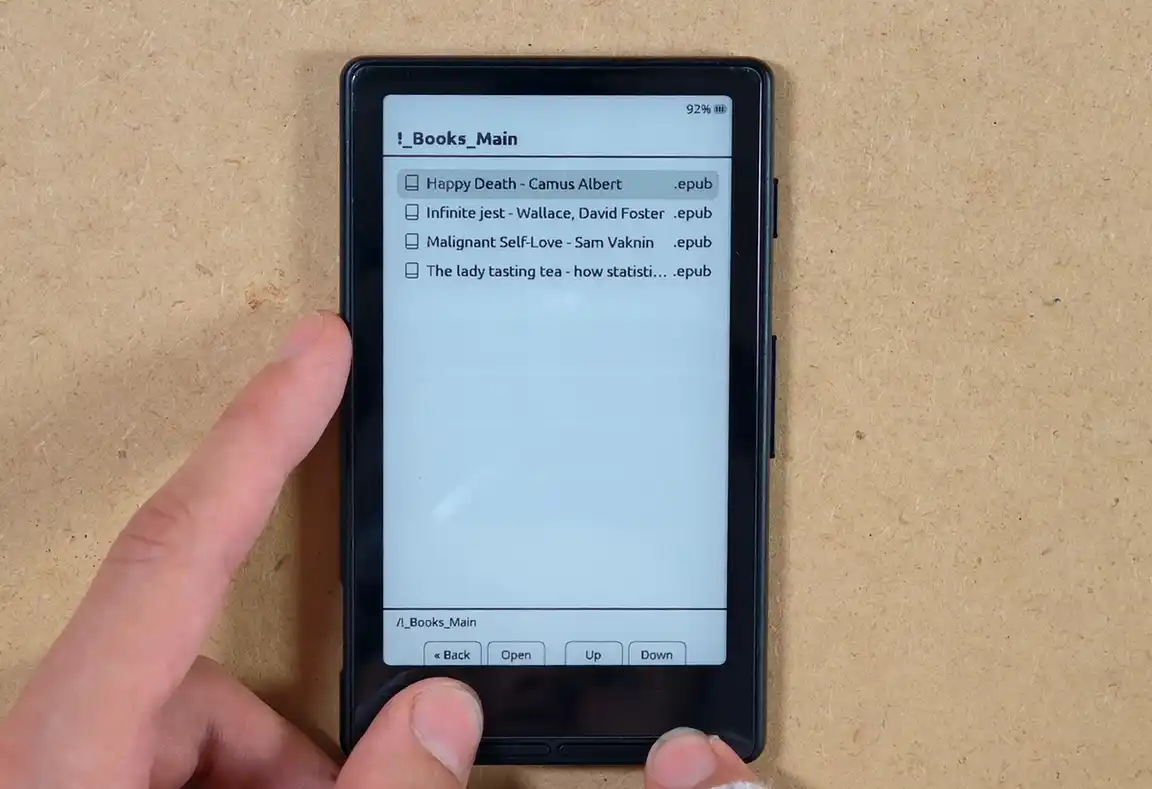
The CrossPoint interface uses the same physical controls, but it looks cleaner and feels more focused. It also offers many more features than the stock firmware. The speed seemed roughly similar to the stock firmware in my quick test, but the menus here are, in my experience, much more pleasant to use.
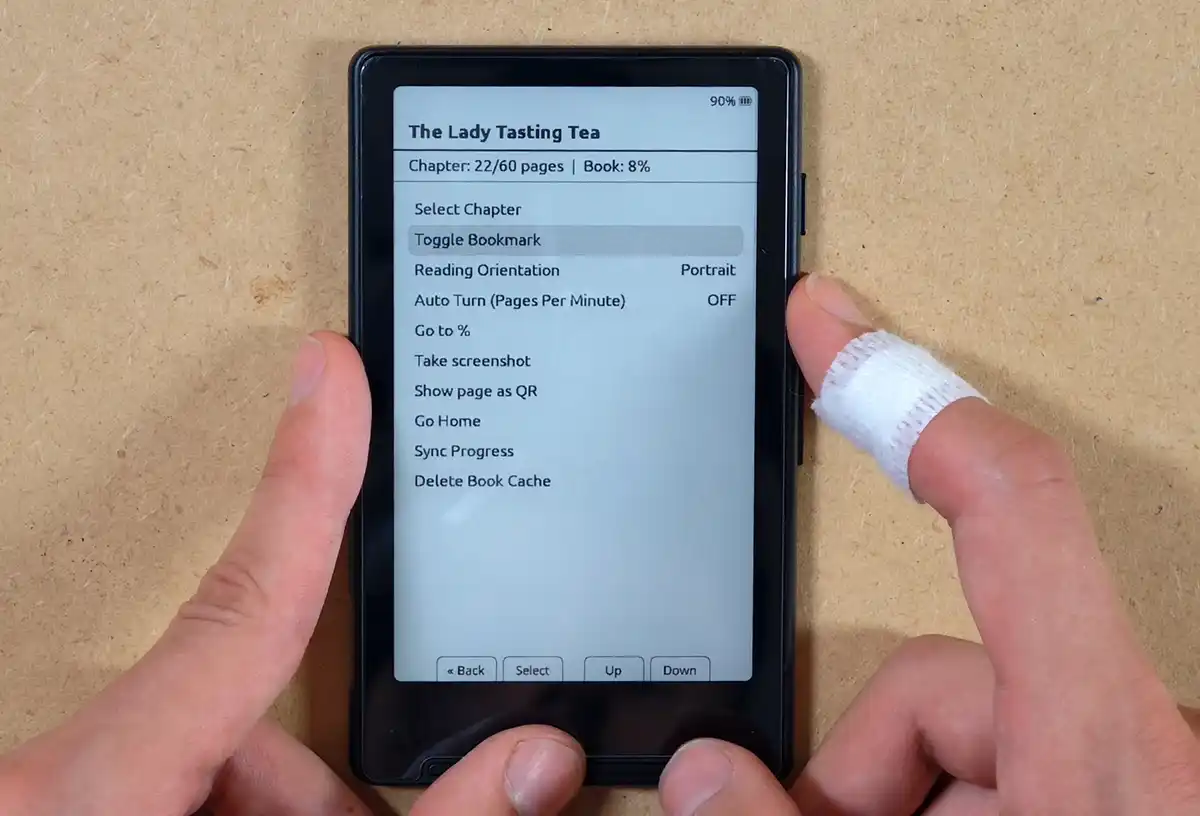
The reading menu in CrossPoint includes the expected orientation, bookmarking, automatic page-turning, and chapter-selection options, but then also some extras that I really like:
- Select Chapter – the chapter select menu is much more compact and thus more convenient to use than the one on the stock OS.
- Toggle Bookmark – you can create bookmarks by simply pressing and holding the select button while reading.
- Reading Orientation – same as on the stock firmware.
- Auto Turn – same as above.
- Go to % – gives you the ability to jump to the selected part of the book by using a visual percentage bar, which is a much better solution than navigating the book by inputting the exact page numbers on the stock OS.
- Take Screenshot – an option exclusive to CrossPoint that saves a screen capture of the current page.
- Show Page as QR – displays the current reading position as a QR code so that it can be transferred or referenced on another device.
- Go Home – lets you bypass the folder view when exiting a book and return directly to the home screen.
- Sync Progress – CrossPoint does support KOReader sync, so you can synchronize your reading progress on different devices that make use of the KOReader app.
- Delete Book Cache – deletes the cached layout data for the current book and forces CrossPoint to process and index it again.
The “Go to %” option is especially nice on such a small device, because entering a page number or moving through a long book with buttons can get annoying quickly. Jumping to a rough percentage is much more convenient.
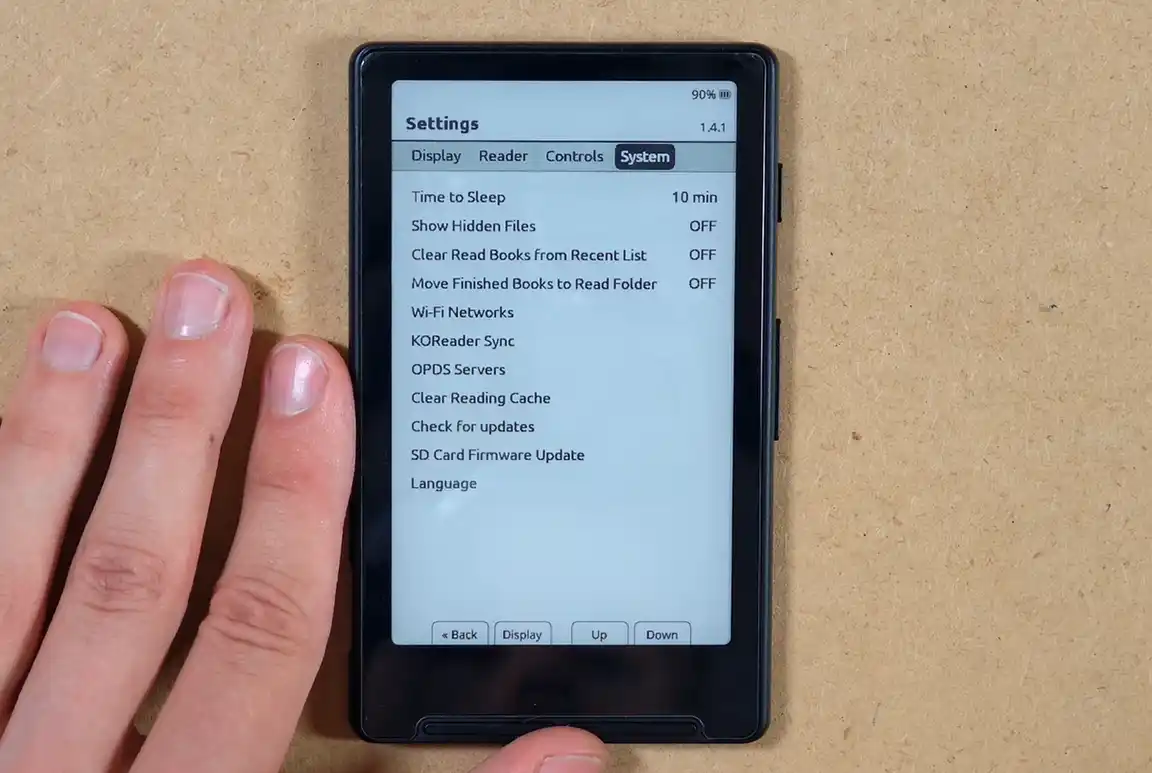
The main CrossPoint system settings include Display, Reader, Controls, and System sections. In the System tab you can find options for sleep time, hidden files, clearing recent/read book lists, moving finished books, Wi-Fi networks, KOReader Sync, OPDS servers, clearing the reading cache, checking for updates, SD card firmware update, and language. There are of course even more small things you can tweak here.
Going through all of the CrossPoint features properly would require a separate article. For now, the important thing is that the firmware already makes the X4 feel more like a community-supported reading gadget rather than a locked-down novelty device. And this is something that I really like.
Who Is The Xteink X4 Actually For?
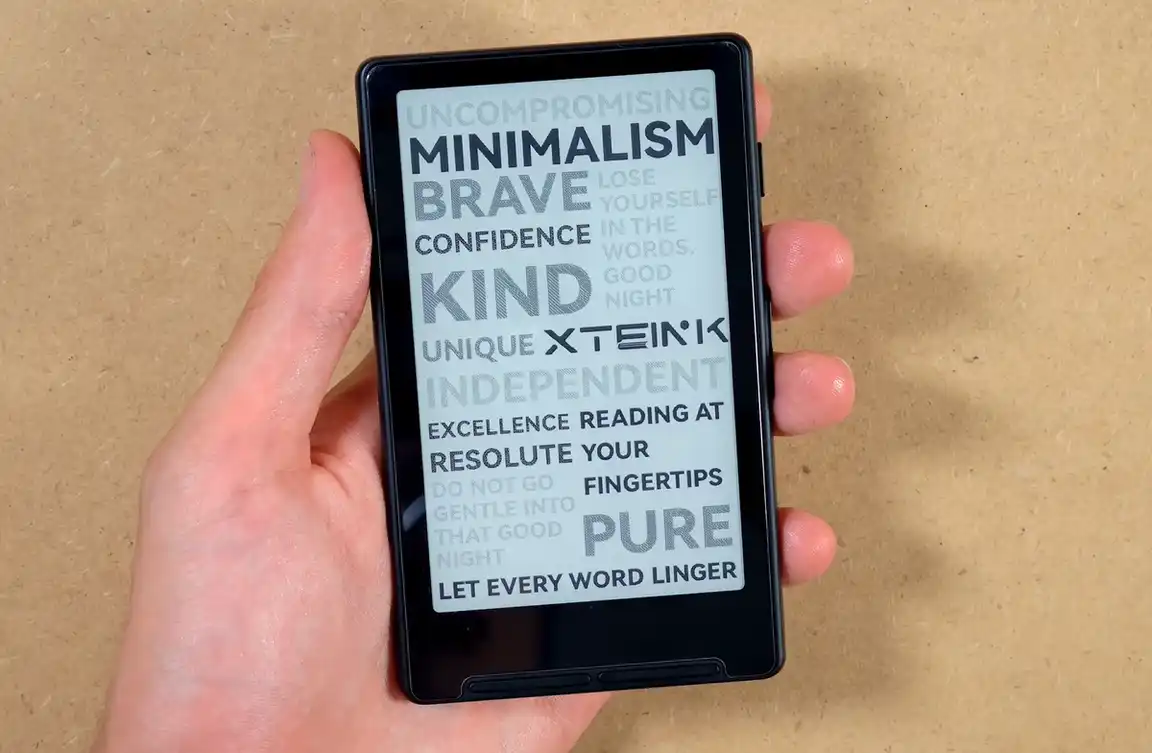
The Xteink X4 makes sense if you want a small pocketable e-ink device for short reading sessions on the go. Something for the tram, for a queue, for a few pages between tasks, or for carrying around when a full-size e-reader feels like too much. I would not get it as my only reader if I planned to read long books in bed every night, especially because as already mentioned, it doesn’t feature a built-in frontlight.
I also would not get it for PDFs, comics, manga, textbooks, note-taking, heavy annotation, Kindle books, Kobo books, or anything DRM-heavy. This is a small EPUB-first reader, and in my honest opinion it is best to judge it as exactly that.
Its strengths are pocketability, physical controls, nearly immediate access to books, and the simplicity of a dedicated reading device that is less distracting than a phone. I can see the appeal very clearly now. I did not expect that to be the case before actually using it.
My First Impressions Verdict
The Xteink X4 has honestly surprised me. The stock firmware is simple, but fast enough and easy to understand. The display resolution is modest, but the contrast is good. The buttons work well, the boot time is excellent, and CrossPoint also gives the device a more promising future. The project remains under active development and continues to receive new features.
The weaknesses are also very clear. There is no touchscreen, no frontlight, no comfortable PDF experience, and the tempered glass protector can be reflective. For me, this will not replace my PocketBook Verse Pro. The Verse is still the better main e-reader, especially with KOReader installed. The X4, however, is the device I will definitely keep in my pocket for quick reading sessions when using a larger reader feels like too much.
After I spend more time with it, I will be able to say more about the battery life, long-term comfort, and whether CrossPoint turns it into something I would recommend more broadly. For now, I am pleasantly surprised. That’s pretty much it!
You might also like: Anbernic RG Rotate – Unboxing & First Impressions